The URScript Callback integration lets you write custom URScript routines to control any power source that SmoothTool X does not have a built-in protocol plugin for. It is suited for advanced setups using protocols such as PROFINET, DeviceNet, or custom Modbus configurations.
Add the URScript Callback in SmoothTool X
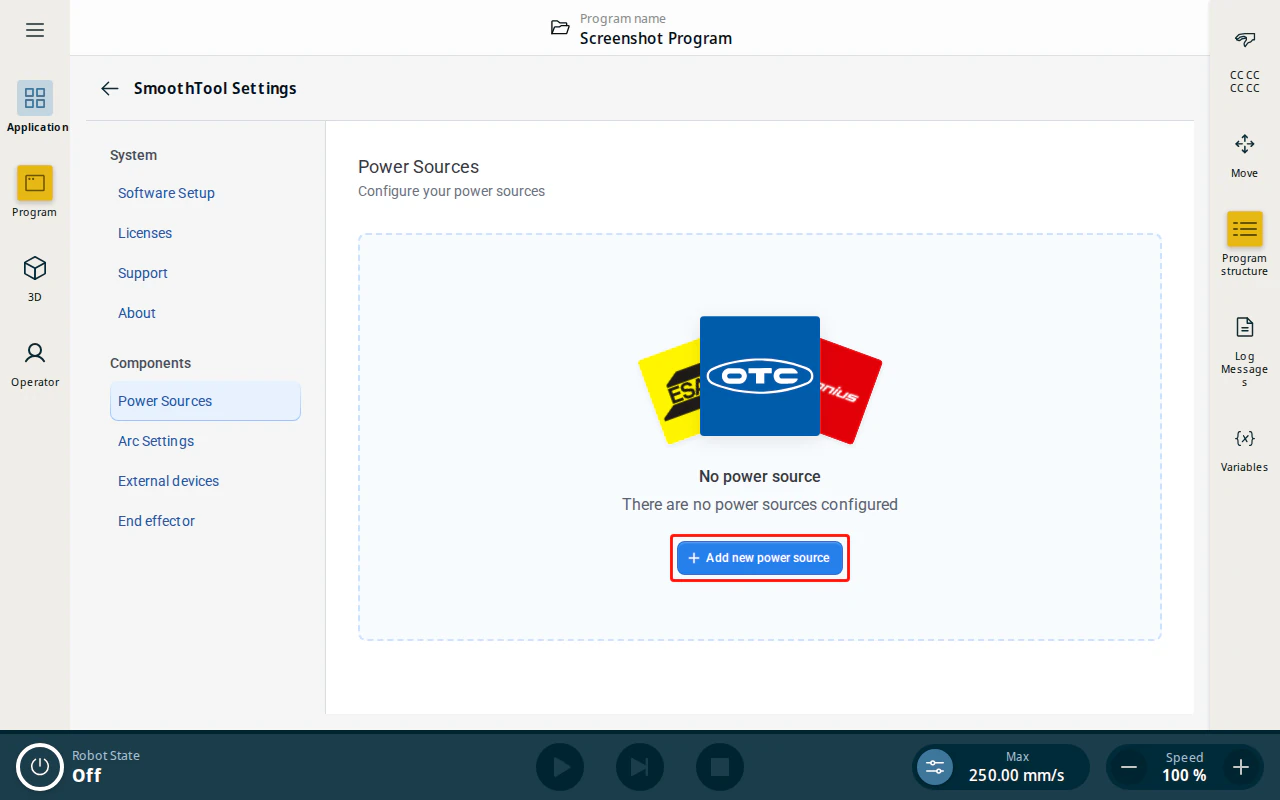
Tap SmoothTool X Settings from the Application view. In the sidebar, under Components, tap Power Sources, then tap Add new power source.
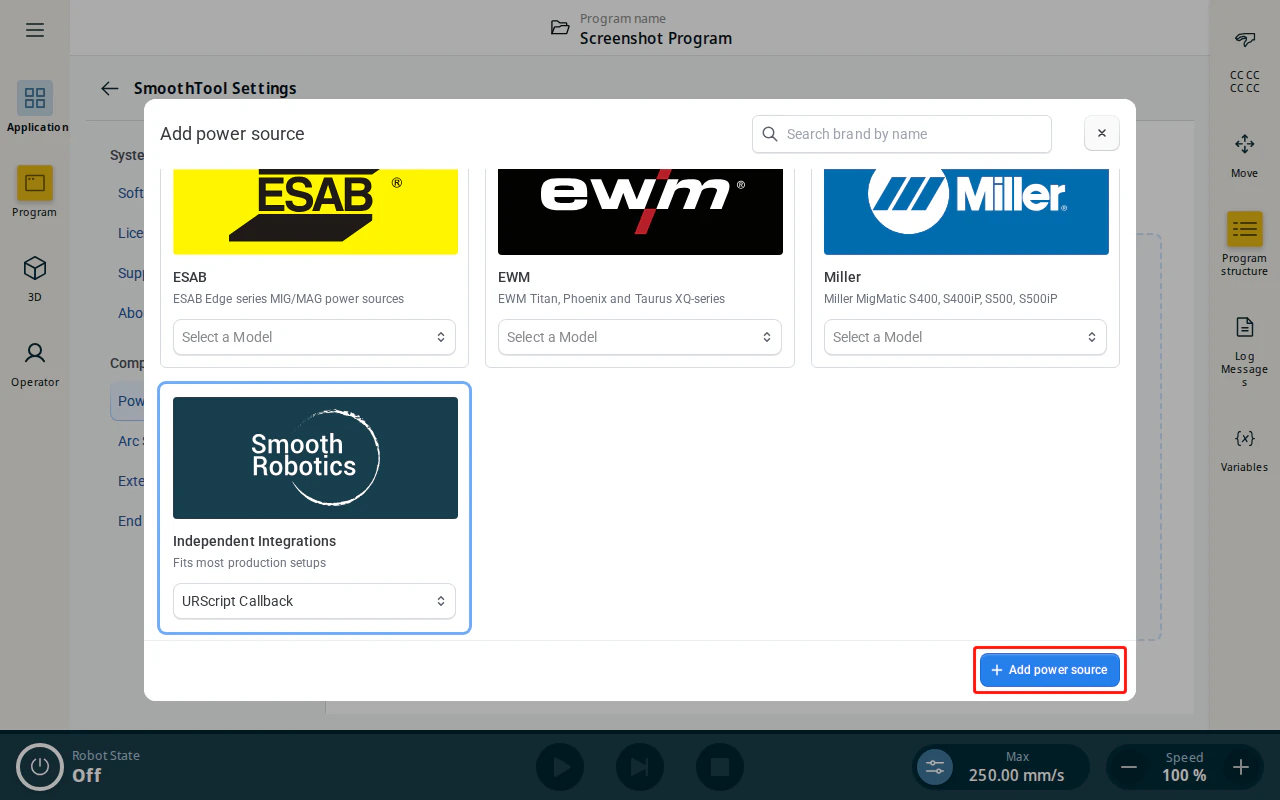
In the Add power source dialog, select the Independent Integrations tile and choose the URScript Callback model, then tap Add power source.
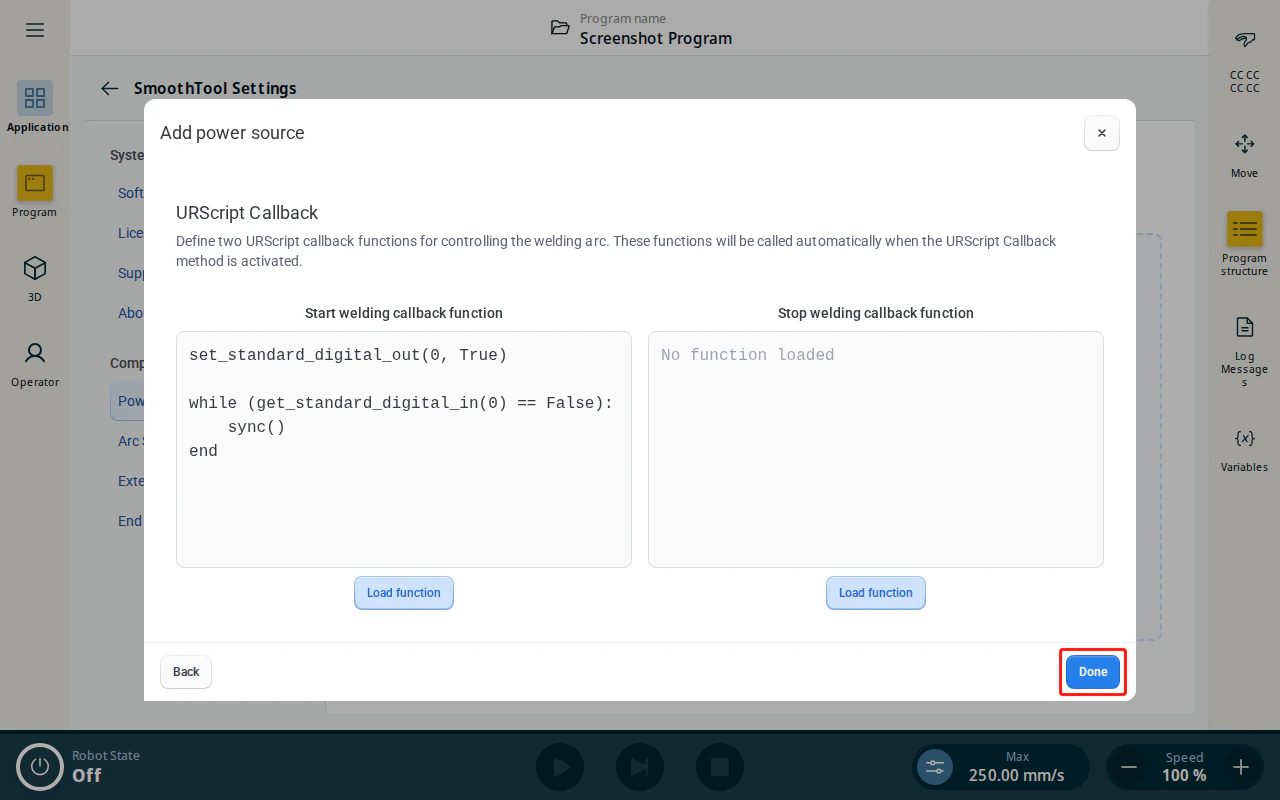
Load the welding scripts
The configuration page has two script editors — Start welding function and Stop welding function. You can type directly into either editor, or prepare the routine as a URScript file (.script, .urscript, or .txt) and tap Load function in the editor’s header to load it. A syntax error is reported under the editor with the offending line highlighted. The trash icon clears an editor, after a confirmation.
Each editor also has a Test run button.
Warning
Test run executes that callback on the robot immediately — it is not a simulation. If a power source is connected, running the start welding callback strikes the arc, and it keeps welding until you stop it. SmoothTool X shows a Welding may be active banner with a Run stop callback action while the start callback has been run. Test the stop welding callback first, make sure you have another way to stop the arc (the emergency stop, or the power source’s own switch), and make sure the area around the torch is clear.
| Field | Description |
|---|---|
| Start welding function | URScript routine executed when SmoothTool X triggers the arc start. |
| Stop welding function | URScript routine executed when SmoothTool X triggers the arc stop. |
When done, tap Done to save the power source.
Safety relay configuration
If the robot program stops unexpectedly, the Stop welding function will not run, meaning the welding arc may remain active.
To prevent this hazard, take the digital output that gates the arc — the output your callback scripts drive and that is wired to the power source’s hardware enable or safety circuit — and give it an action preset that reflects the program running state, so the arc is cut immediately if program execution stops.
This is not a fixed output such as DO0: use whichever output you actually wired to the power source’s enable/safety input.
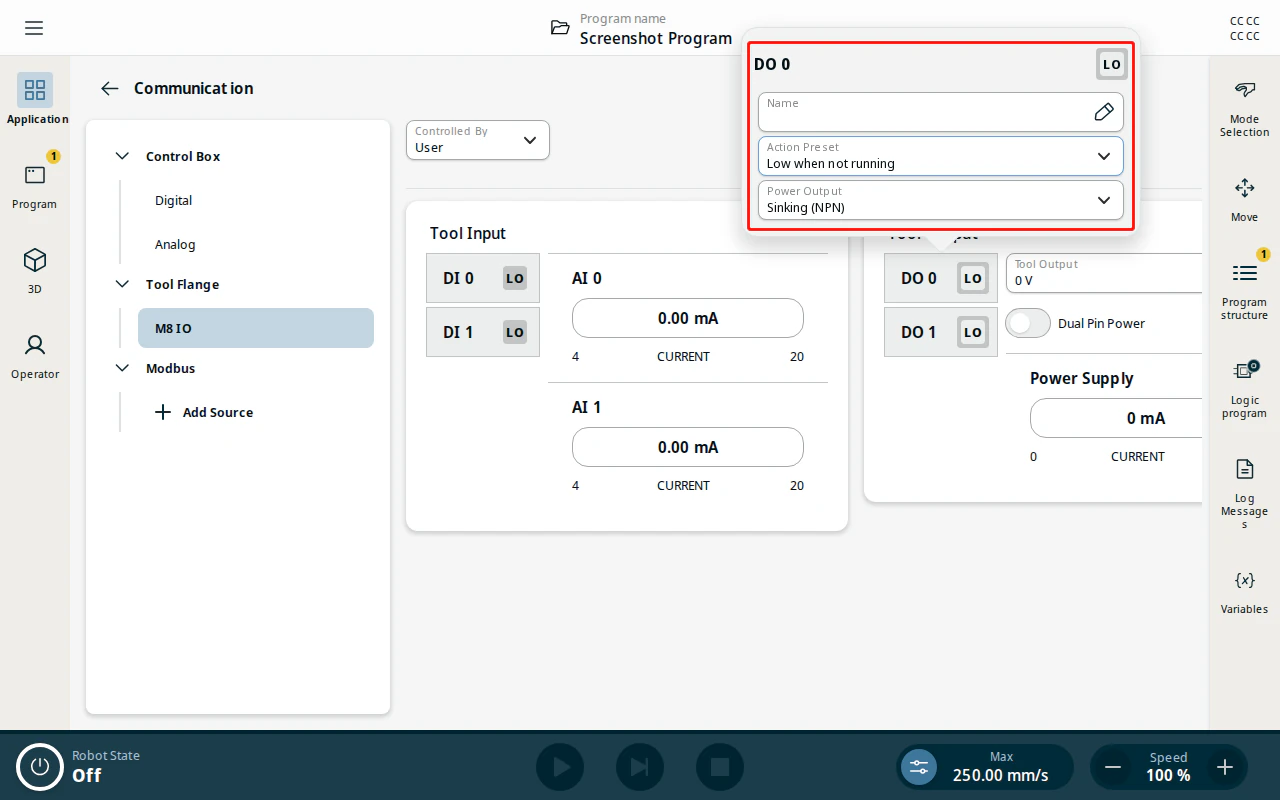
On the PolyScope X I/O screen, open that output and set its Action Preset so the signal moves to the state that disables welding whenever the program is not running:
- If the enable is active-high (signal HIGH allows welding — the recommended fail-safe wiring), choose Low when not running so the output drops to the disabled state on any stop.
- If the enable is active-low (signal LOW allows welding), choose High when not running instead.
The screenshot below uses DO0 as an example, set to Low when not running.
Select the URScript Callback
Back on the Power Sources page, expand the new entry and tap Selected to make it the active power source. The URScript Callback runs your scripts directly rather than over a network connection, so there is no separate connect step.
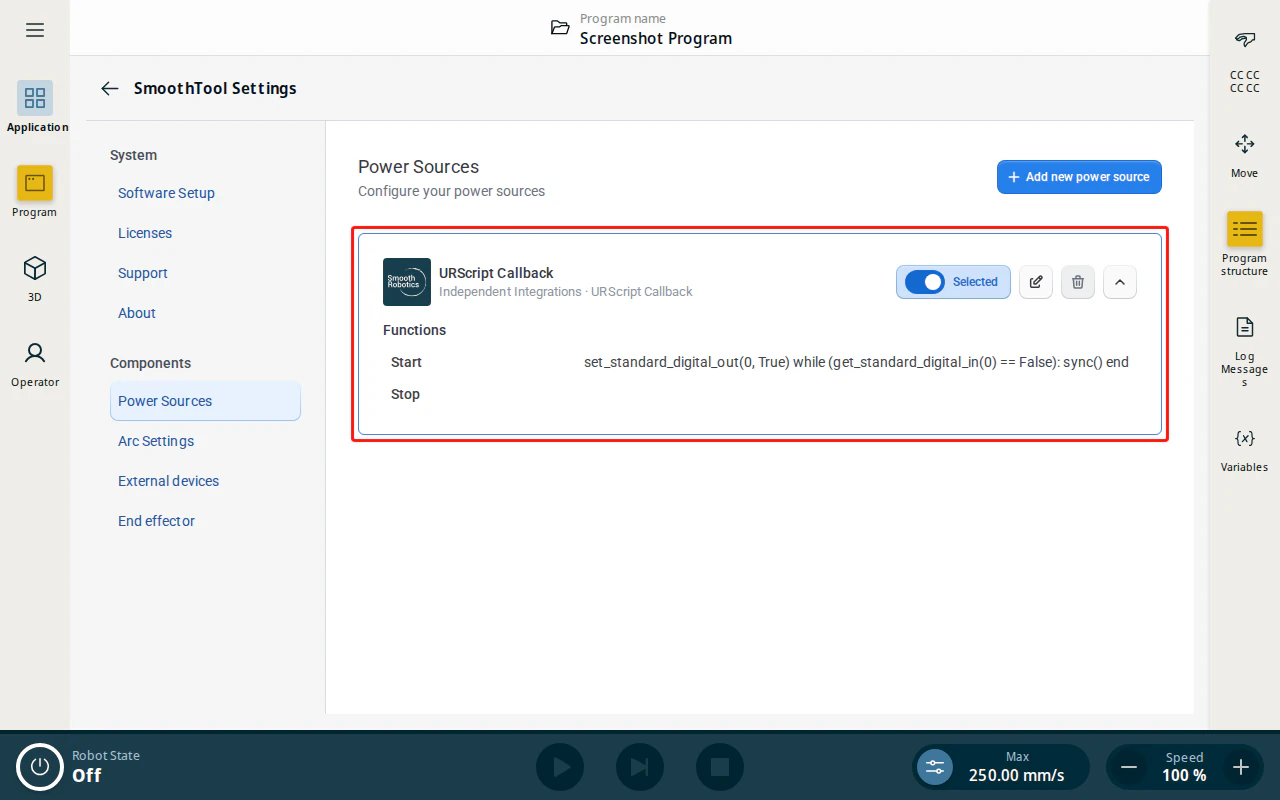
The URScript Callback is now active and SmoothTool X is ready for welding.
Callback examples
Save each routine as a script file, then load it with the Load function button under the matching editor.
Example 1: Standard digital I/O handshake
Use this pattern when the power source is controlled via a digital output trigger and reports arc status via a digital input.
Start welding function
set_standard_digital_out(0, True)

while (get_standard_digital_in(0) == False):
    sync()
end
Stop welding function
set_standard_digital_out(0, False)

while (get_standard_digital_in(0) == True):
    sync()
end
Example 2: PROFINET register communication
Use this pattern when the power source communicates over PROFINET using boolean and integer registers.
Start welding function
# Wait until power source status register 0 reports ready (equals 0)
while (read_input_integer_register(0) != 0):
    sync()
end

write_output_boolean_register(0, True)

while (read_input_boolean_register(0) == False):
    sync()
end
Stop welding function
# Wait until power source status register 0 reports ready (equals 0)
while (read_input_integer_register(0) != 0):
    sync()
end

write_output_boolean_register(0, False)

while (read_input_boolean_register(0) == True):
    sync()
end
Programming with SmoothTool X and the URScript Callback
The URScript Callback has no welding parameters of its own — SmoothTool X only runs your Start welding and Stop welding functions — so a weld node shows no Power source tab for it.
Arc timing is still yours to set, as an arc setting: device-wide on the Arc Settings page under Components in the SmoothTool X Settings sidebar, or per weld node on the node’s Arc settings tab. See Arc Settings.
Only the four wait times apply here. This integration reports no arc feedback — the weld-busy and current-flow signals echo the weld command SmoothTool X sent rather than the state of a real arc — so the arc timeouts and the arc-restart settings are hidden, and the tab says so.
| Identifier | Description |
|---|---|
| Wait before arc on | Waits before your Start welding function runs. |
| Wait after arc on | Waits after your Start welding function runs, before the robot starts moving. |
| Wait before arc off | Waits at the end of the path before your Stop welding function runs. |
| Wait after arc off | Waits after your Stop welding function runs, before the robot continues. |
Simulation
The Simulation toggle in the Power source popover (opened from the button in the operator screen toolbar) runs the program as a dry run: the robot executes the full program and motion path, but the arc is never started — your Start welding and Stop welding functions are not executed. Use it to test a program safely, then turn it off to weld for real.