This page describes how to integrate and set up communication between the ESAB Edge R power source and SmoothTool X.
Hardware Configuration
SmoothTool X supports ESAB Edge R power sources via the EtherNet/IP protocol.
Requirements before starting:
- ESAB Edge R power source equipped with an EtherNet/IP module
- Ethernet cable
- PC for configuration and job creation
Connecting to the Web Interface
Connect an Ethernet cable between your computer and the Ethernet (cloud) port (port 1).
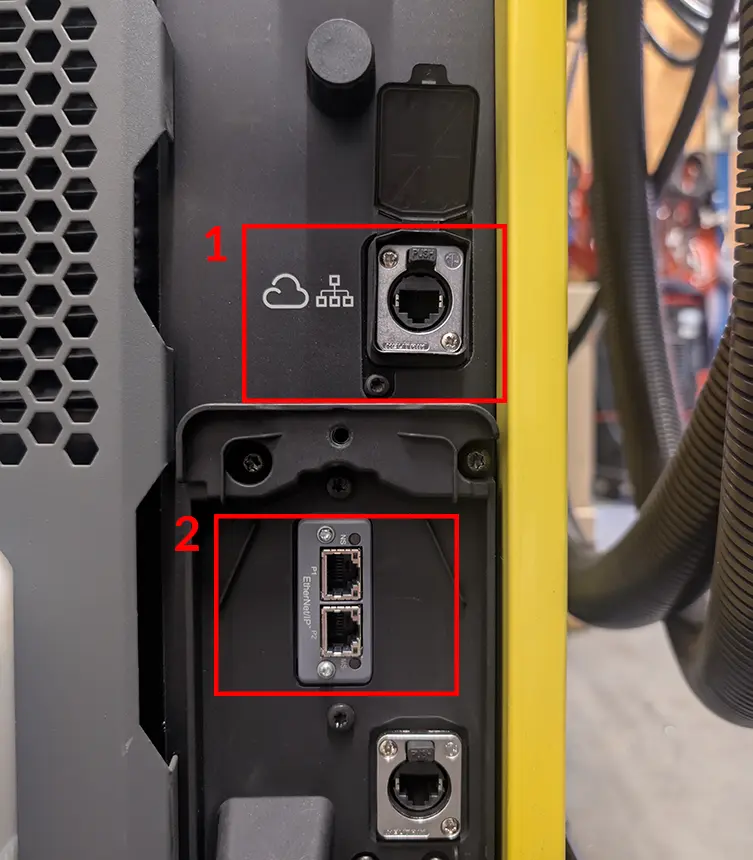
Open a web browser and navigate to: edge.local
Log in using the following default credentials:
| Field | Value |
|---|---|
| Username | admin |
| Password | gateway |
Enter a new password (at least 6 characters) and select Save new password.
Setting the IP Address
Navigate to System configuration → Robot setup and open EtherNet/IP settings.
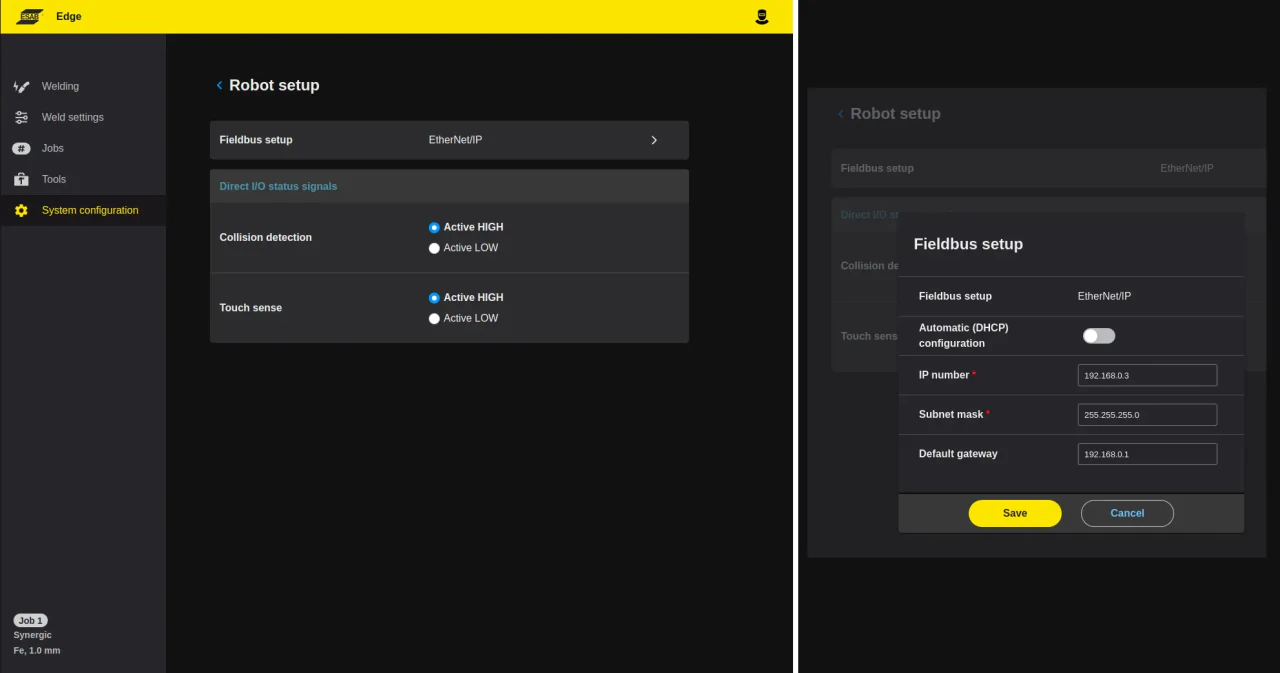
Enter a suitable IP address for the machine’s EtherNet/IP interface according to your network setup.
Connect the EtherNet/IP module port (port 2) to the robot using another Ethernet cable (or reuse the cable from the previous step).
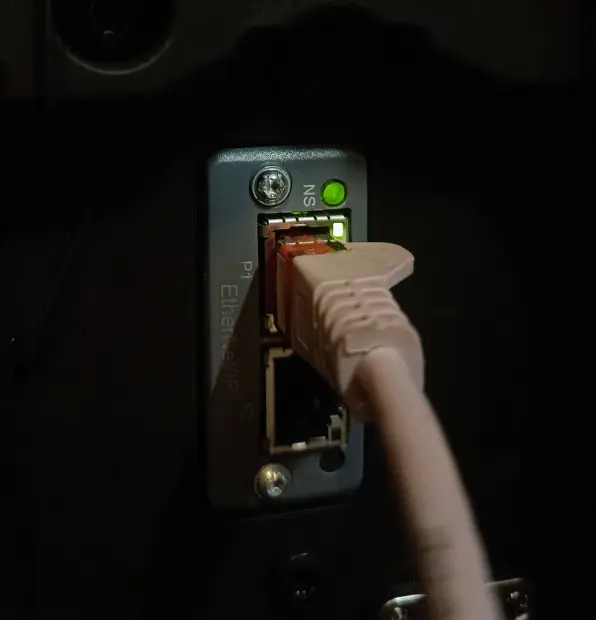
Software Configuration
Once the hardware is configured, add and connect the ESAB Edge R in SmoothTool X.
Add the ESAB Edge R
Tap SmoothTool X Settings from the Application view. In the sidebar, under Components, tap Power Sources, then tap Add new power source.
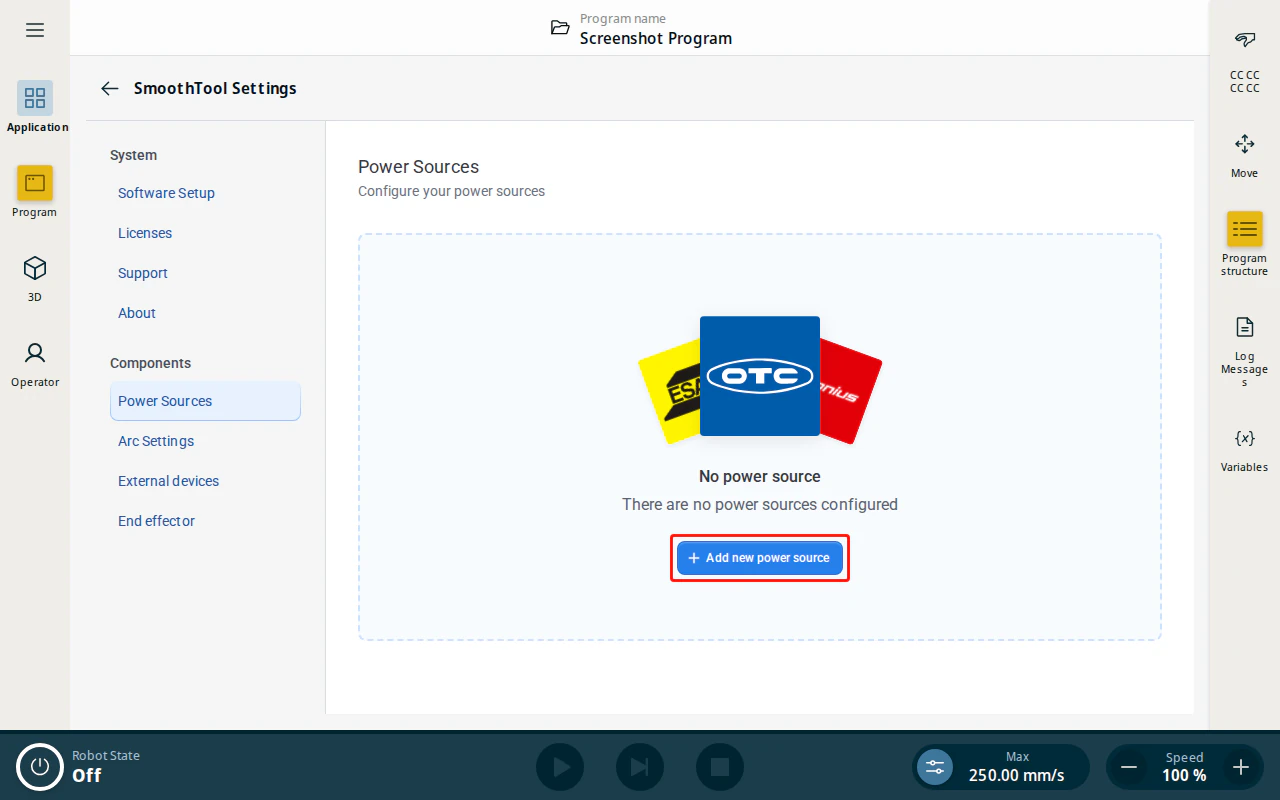
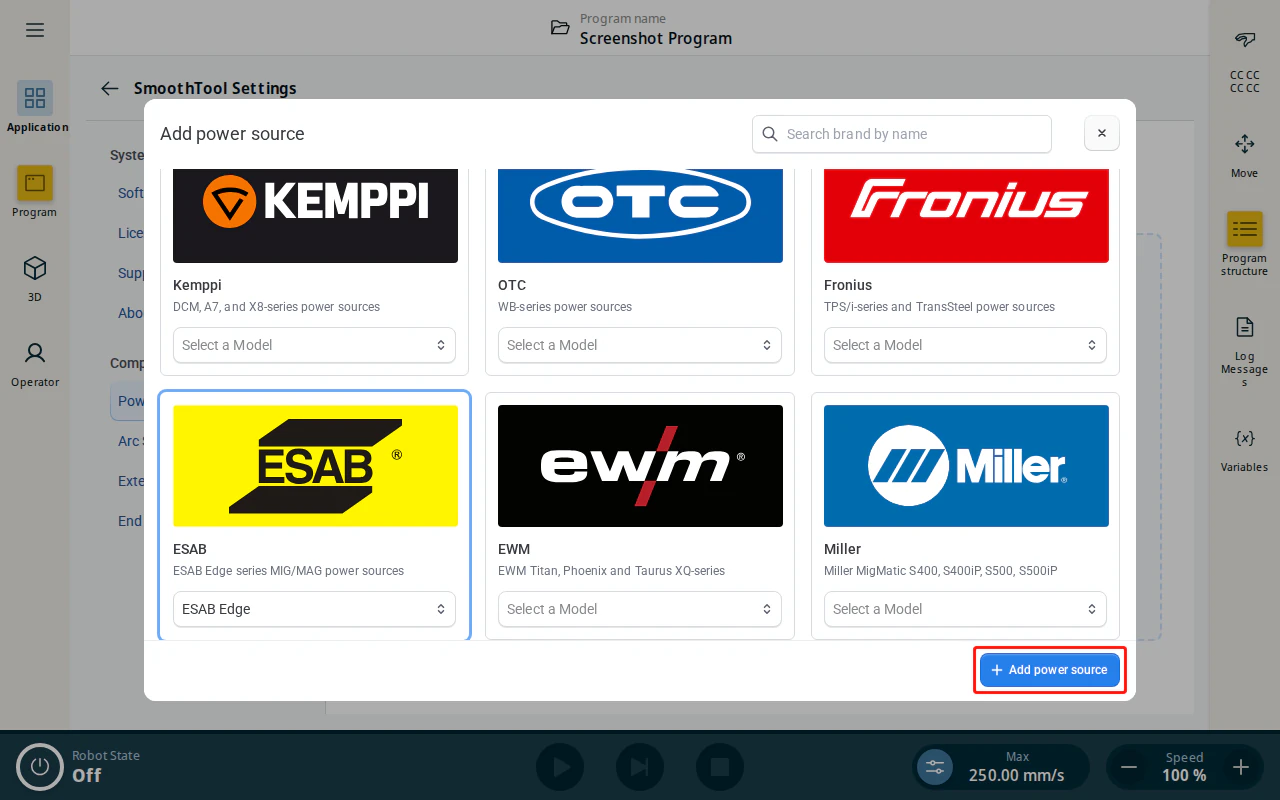
In the Add power source dialog, select the ESAB tile and choose the ESAB Edge model, then tap Add power source.
Configure the ESAB Edge R
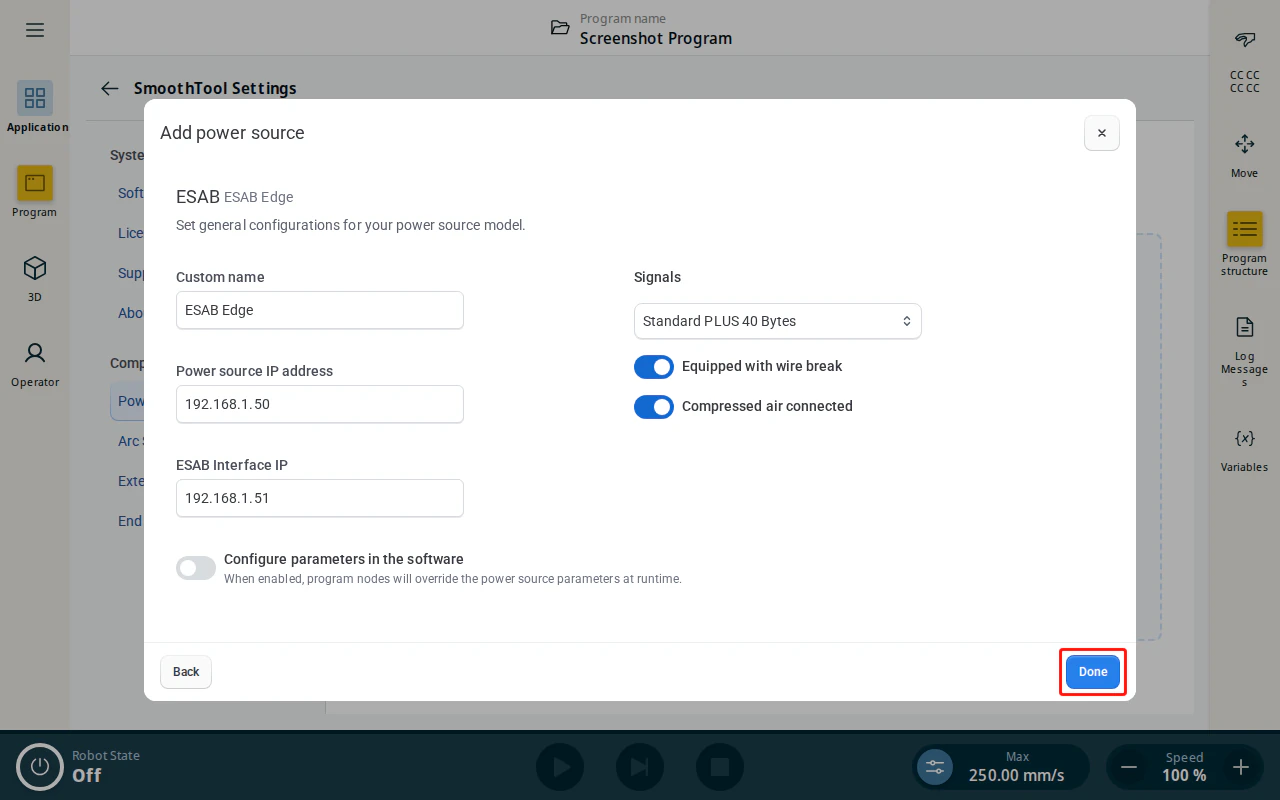
Fill in the configuration fields:
| Field | Description |
|---|---|
| Custom name | A name to identify this power source. |
| Power source IP address | The EtherNet/IP address you set under EtherNet/IP settings in the ESAB web interface. The robot uses this address to communicate with the power source. |
| Signals | The device map the power source uses — Standard PLUS 16 Bytes or Standard PLUS 40 Bytes. The 40 bytes map enables fine tuning on the Power Source Parameters node. |
| Equipped with wire break | Enables the wire-break option. |
| Compressed air connected | Enables the blow-out-air option. Only enable if an external device is connected. |
| Configure parameters in the software | Controls whether program nodes override the power source parameters at runtime — see Configure parameters in the software below. |
Caution
Determine whether your power source uses the 16 or 40 bytes device map and select the matching Signals option. If the wrong option is selected, the connection will fail.
When done, tap Done to save the power source.
Configure parameters in the software
The Configure parameters in the software toggle controls how welding parameters are applied:
- Disabled (default) — the power source keeps the parameters set on the machine; program nodes do not override them.
- Enabled — program nodes override the power source parameters at runtime, letting you set welding parameters per node from the Power Source Parameters node.
Connect to the ESAB Edge R
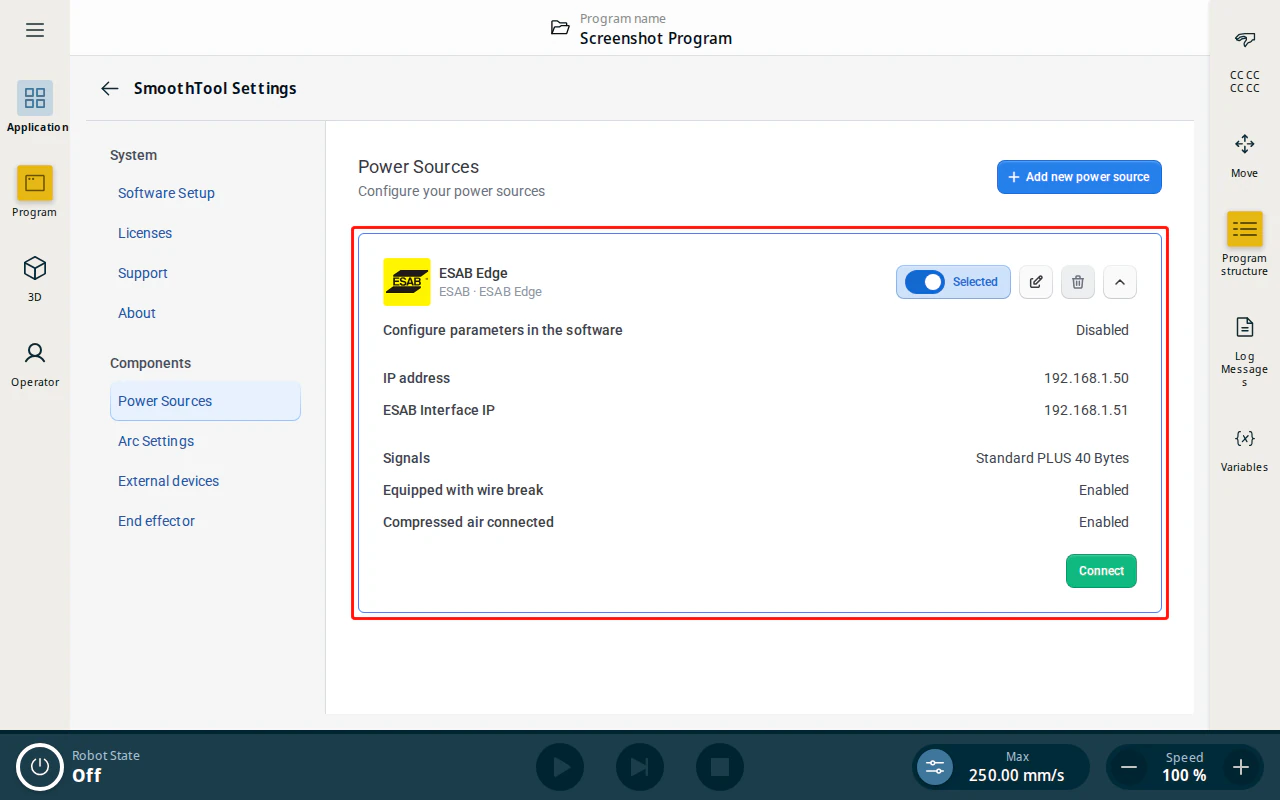
Back on the Power Sources page, expand the new entry, tap Selected to make it the active power source, then tap Connect. When the connection is established, a connection status tag is shown on the entry.
Note
If unsure about the IP address configuration, set the EtherNet/IP interface IP to 192.168.0.1 and subnet mask 255.255.255.0, connecting the module directly to the robot (not through a router). Then on the teach pendant go to Settings → System → Network, select Static address, and enter IP address 192.168.0.2 with subnet mask 255.255.255.0.
Programming with SmoothTool X and ESAB Edge R
When Configure parameters in the software is enabled, you can adjust the welding parameters per node from the program tree.
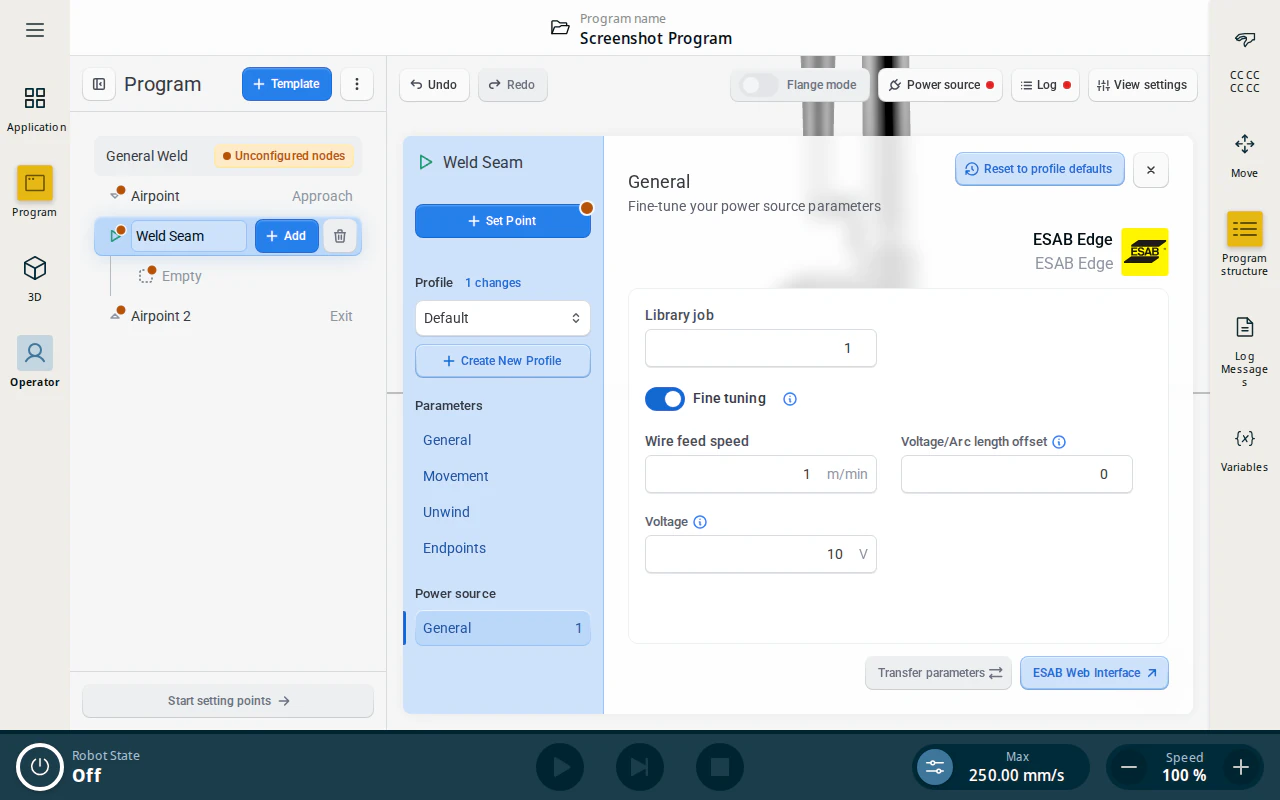
Select a weld node (e.g. Weld Seam) in the program tree and open its Power source (General) tab to set the parameters. The parameters apply when the program reaches that node.
| Identifier | Description |
|---|---|
| Job number | The library job saved on the ESAB Edge R that the power source should run. |
| Fine tuning | Enable to override the job’s parameters below. |
| Wire feed speed | Desired wire feed speed. |
| Voltage/Arc length offset | Voltage or arc length offset relative to the library job. |
| Voltage | Sets the welding voltage directly. Applies as an absolute value when fine tuning is enabled. |
| Transfer parameters | Sends the current parameters to the power source. Available once connected. |
Note
Fine tuning, Wire feed speed, Voltage/Arc length offset and Voltage need the Standard PLUS 40 Bytes signal set. On a machine running Standard PLUS 16 Bytes, the node shows only Job number and Transfer parameters.
Manual power source controls
The manual controls live in the Power source popover, opened from the button in the operator screen toolbar.
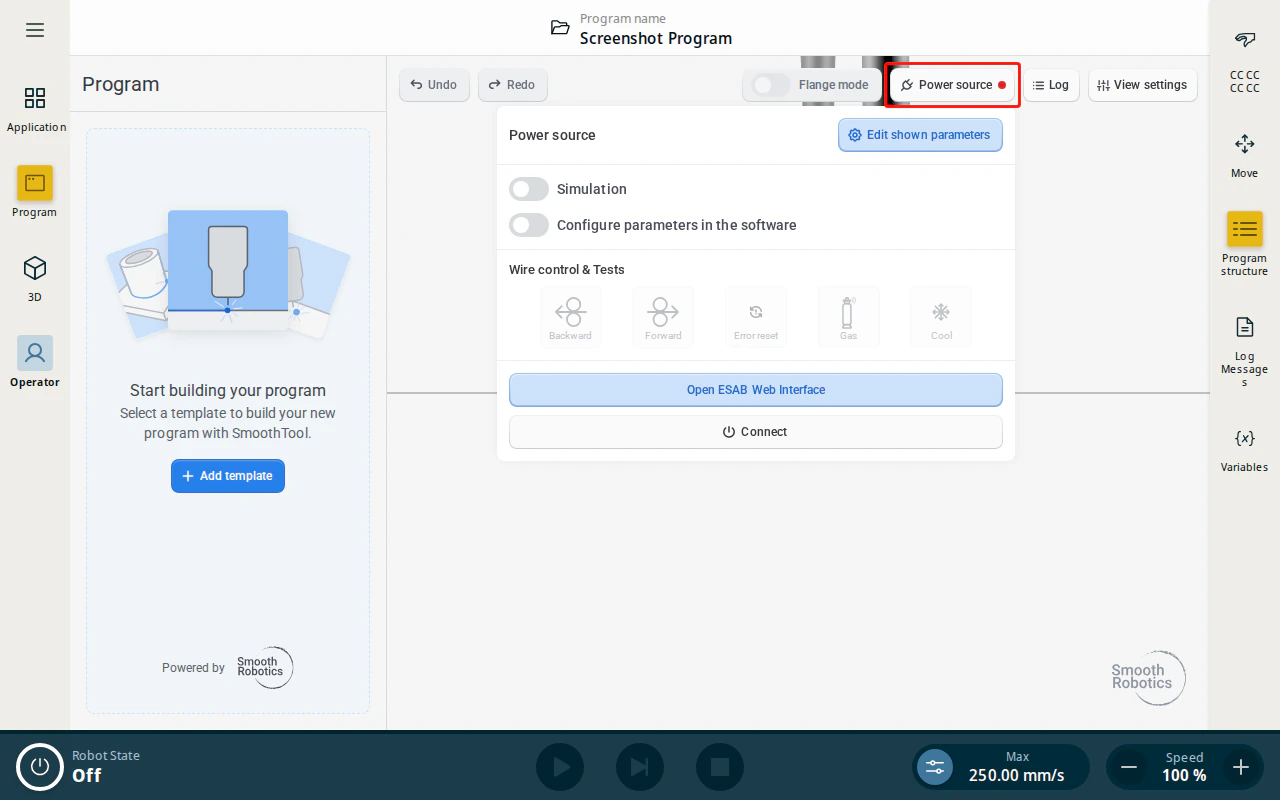
When connected to the ESAB Edge R, the following manual controls are available:
| Control | Description |
|---|---|
| Forward | Feeds the welding wire forward. |
| Backward | Retracts the welding wire. |
| Error reset | Clears the current error on the power source. |
| Gas | Opens the gas valve for the duration of the press. |
| Cool | Runs the water-cooling function for the duration of the press. |
Two further buttons appear only when their configuration option is enabled: Air (blow-out air) when Compressed air connected is on, and Wire Break when Equipped with wire break is on.
Warning
Connected to a power source that provides the option to control the wire. Do not use these functions without ensuring no harm can come to people or material. Make sure the area around the welding torch is clear before use.
Simulation
The Simulation toggle at the top of the popover runs the program as a dry run: the robot executes the full program and motion path, but the power source does not weld (no arc, wire feed, or gas). Use it to test a program safely, then turn it off to weld for real.