This page describes how to integrate and set up communication between EWM Titan/Phoenix/Taurus power sources and SmoothTool X.
Hardware Configuration
SmoothTool X is compatible with the product series of both manual and robotic power sources. To set up communication between the software and a power source, the following items are required:
- One of the compatible EWM power source models:
- Titan XQ / Titan XQ R
- Phoenix XQ / Phoenix XQ R
- Taurus XQ / Taurus XQ R
- Phoenix [XX]2
- Phoenix Rob / Phoenix RC
- If in doubt, contact your local EWM supplier or the Smooth Robotics team.
- A communication module — depending on the model, one of two options is available:
- AnyRobInt XQ — for XQ models only. Provides the option for two wire feeders.
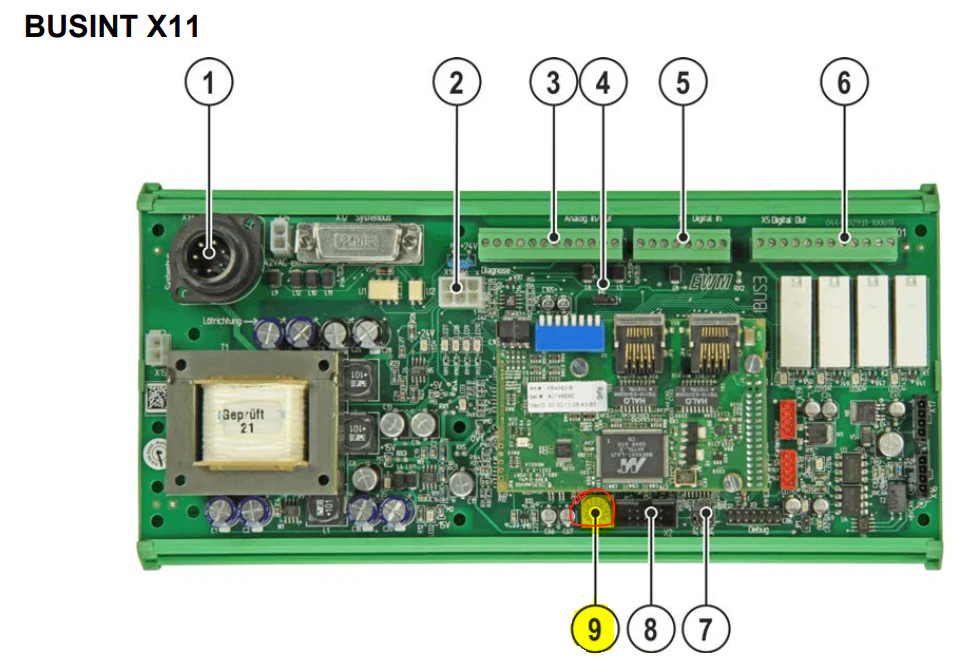
- BUSINT X11 — for all others, if not already included with the power source (Item no. 090-008614-00000). A casing is needed for the BUSINT X11 module.
- Ethernet RJ45 cable from the power source to the robot.
Ethernet/IP Module — IP Address
Before installing the Ethernet/IP module, select a valid IP address for the interface. The IP address must be on the same subnet as the robot.
- If the selected IP address falls under 192.168.0.X, specify the last number using the 8 physical dip-switches located on the interface. Each dip-switch is interpreted as a bit, and together they represent the missing byte of the IP address.
- If the selected IP address does not fall under 192.168.0.X, set all dip-switches to 0 and configure the IP address via the web interface of the power source.
More information about setting the IP address can be found in the instruction manual of the interface. Visit the EWM website to acquire the specific manual.
Installing the Module
After setting the physical dip-switches on the interface according to the desired IP address, install the EtherNet/IP module by following its instruction manual. The module must be configured to use the Multimatrix machines profile by setting the switch position to 2.
Software Configuration
Once the hardware is configured, add and connect the EWM power source in SmoothTool X.
Add the EWM power source
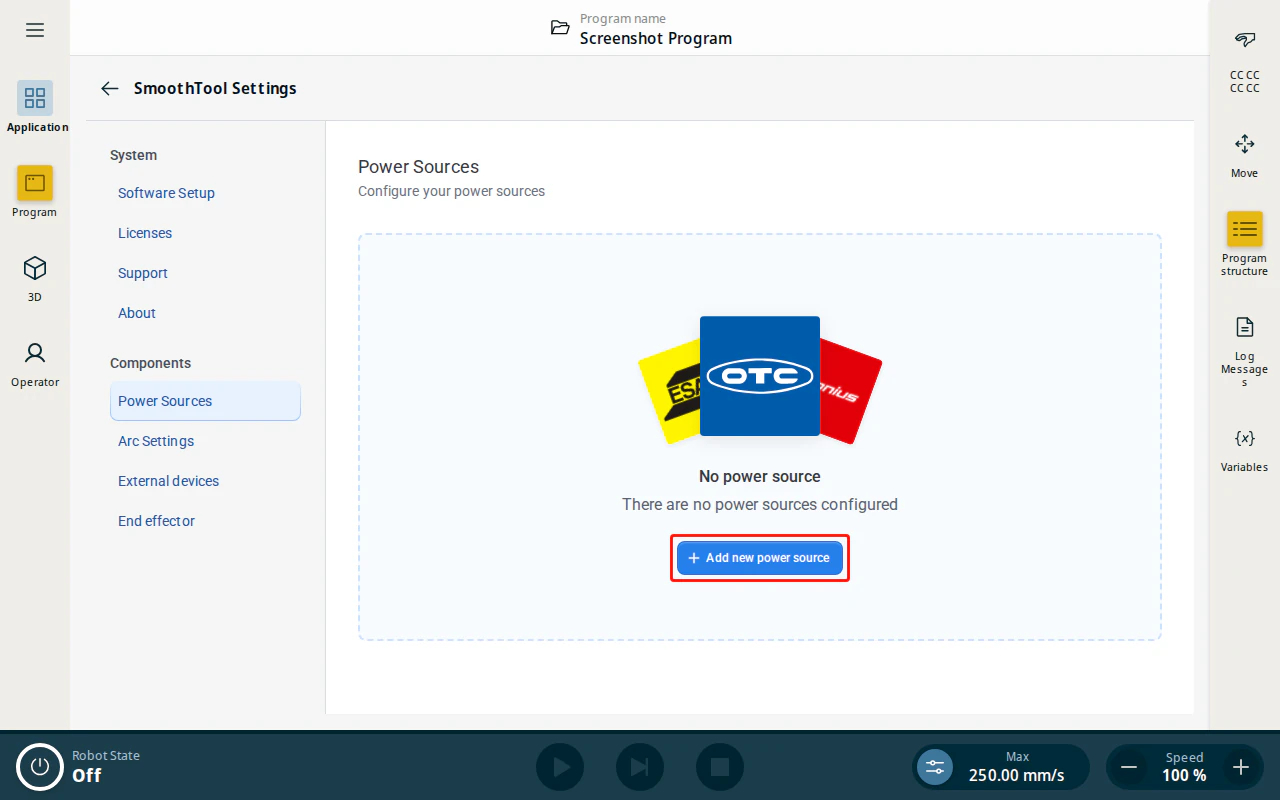
Tap SmoothTool X Settings from the Application view. In the sidebar, under Components, tap Power Sources, then tap Add new power source.
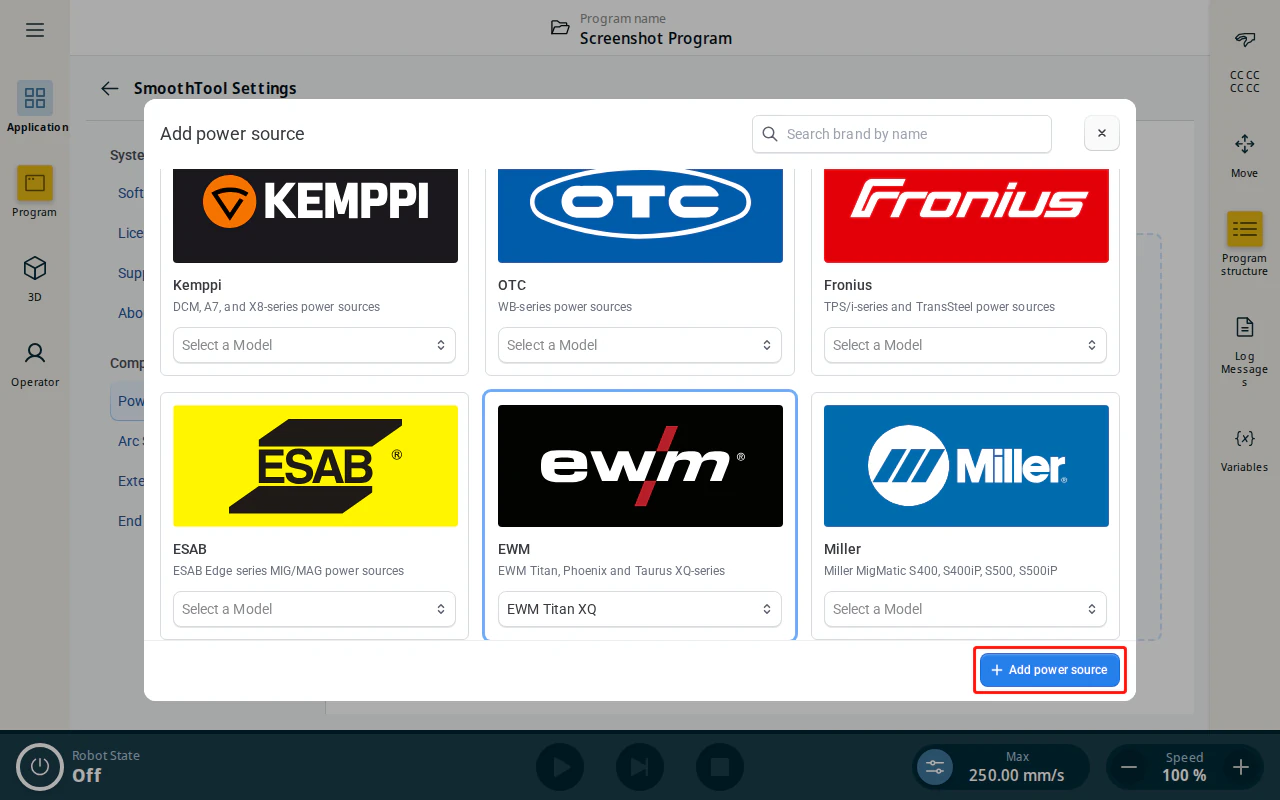
In the Add power source dialog, select the EWM tile and choose your model — EWM Titan XQ, EWM Titan AC XQ, EWM Titan XQ with React, EWM Phoenix XQ, or EWM Taurus XQ — then tap Add power source.
Configure the EWM power source
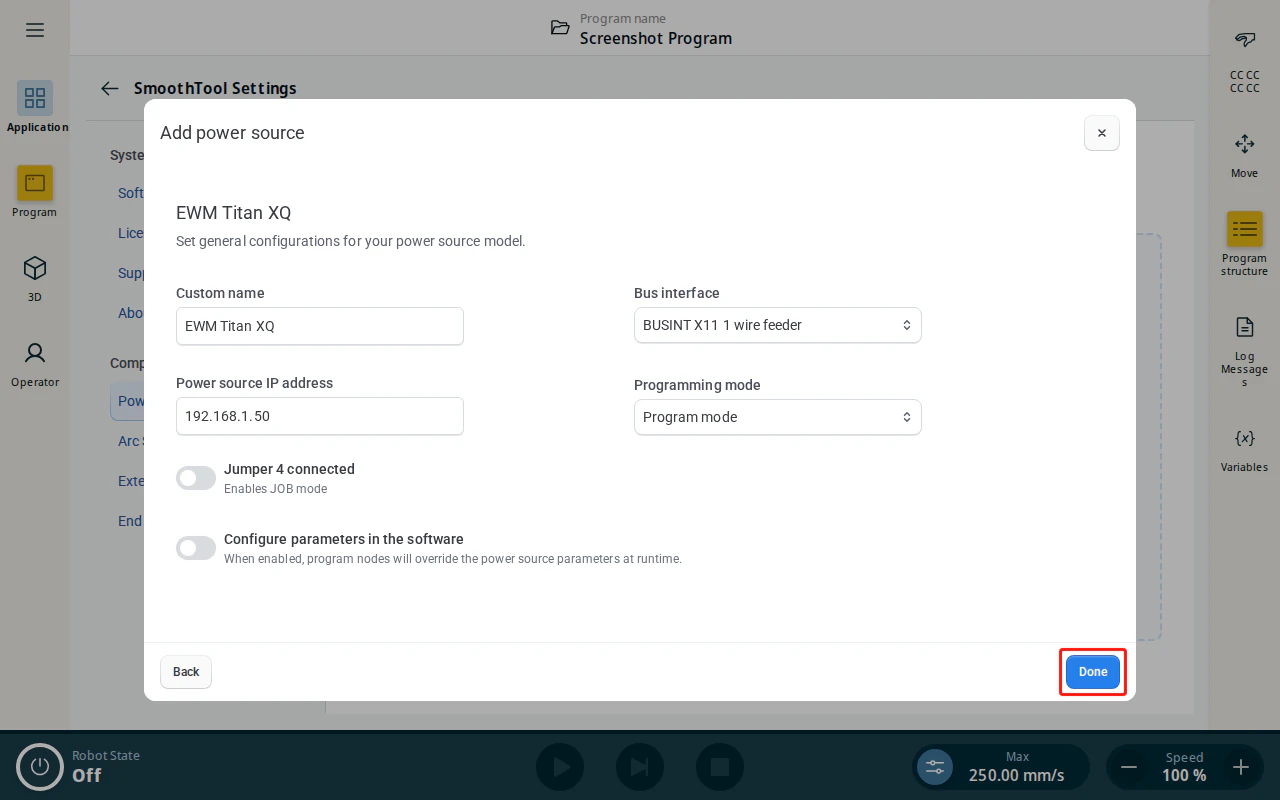
Fill in the configuration fields:
| Field | Description |
|---|---|
| Custom name | A name to identify this power source. |
| Power source IP address | The IP address you set for the Ethernet/IP interface. The robot uses this address to communicate with the power source. Ensure it is set correctly; otherwise the robot cannot connect. |
| Bus interface | The communication module used, and whether one or two wire feeders are connected — AnyRobInt XQ (1 or 2 wire feeders), BUSINT X11, or BUSINT 4.0. |
| Programming mode | Controls how the power source is operated (a robot restart is required after a change). Program mode recalls a saved program from the power source. Control signal mode controls Wire feed speed, Voltage correction, and Dynamic directly. |
| Jumper 4 connected | The jumper on the BUSINT X11 board. When connected, the power source controls welding type, SuperPuls, and Operation mode; otherwise the robot controls them. Connecting it enables JOB mode. Selecting the AnyRobInt XQ 2 wire feeders bus interface forces this on and locks it. |
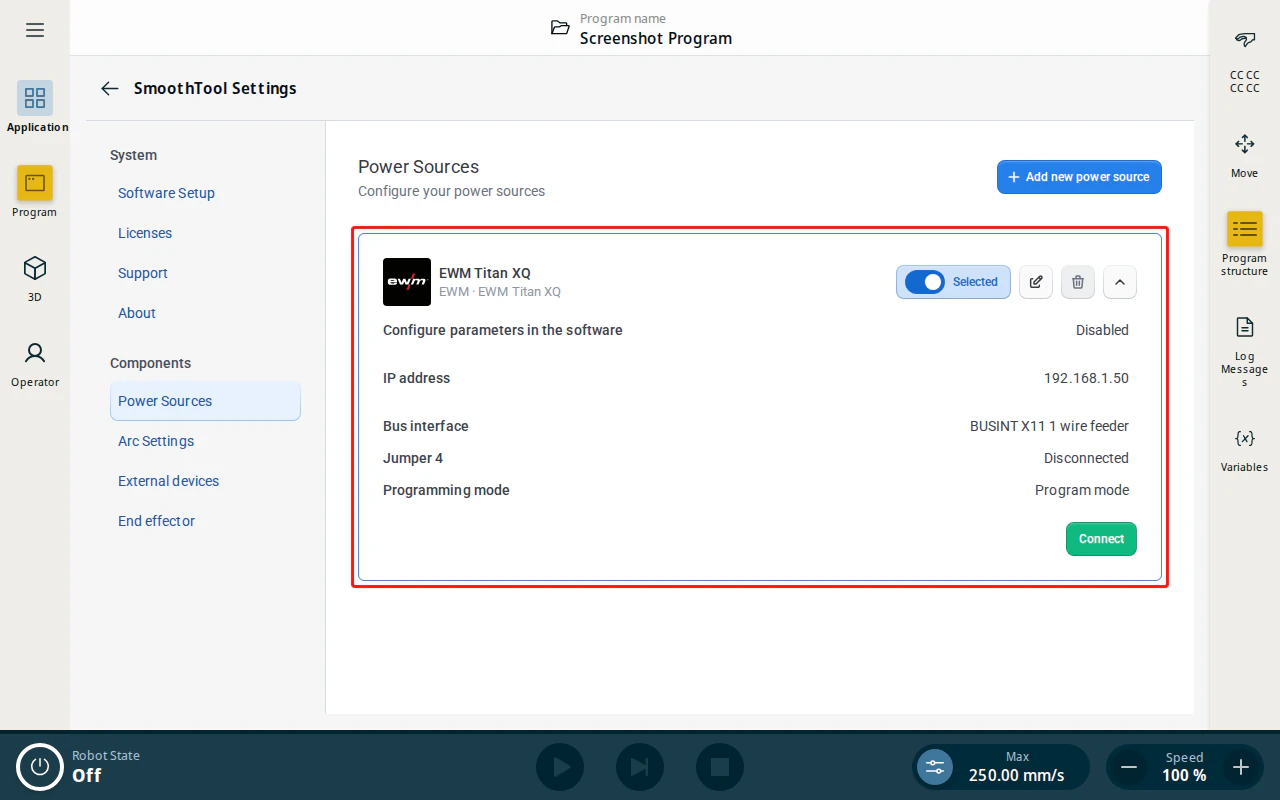
| Configure parameters in the software | Controls whether program nodes override the power source parameters at runtime — see Configure parameters in the software below. |
Warning
When using Control signal mode, make sure the power source allows program 0. See the EWM manual for more information.
When done, tap Done to save the power source.
Configure parameters in the software
The Configure parameters in the software toggle controls how welding parameters are applied:
- Disabled (default) — the power source keeps the parameters set on the machine; program nodes do not override them.
- Enabled — program nodes override the power source parameters at runtime, letting you set welding parameters per node from the Power Source Parameters node.
Connect to the EWM power source
Back on the Power Sources page, expand the new entry, tap Selected to make it the active power source, then tap Connect. When the connection is established, a connection status tag is shown on the entry.
Programming with SmoothTool X and EWM Titan/Phoenix/Taurus
When Configure parameters in the software is enabled, you can adjust the welding parameters per node from the program tree.
Select a weld node (e.g. Weld Seam) in the program tree and open its Power source tab. The parameters apply when the program reaches that node. The power source uses a job to decide a synergic line, and the node offers both ways to set it side by side: type the number into Synergic line number, or use the picker next to it to browse by material, gas, wire diameter and process.
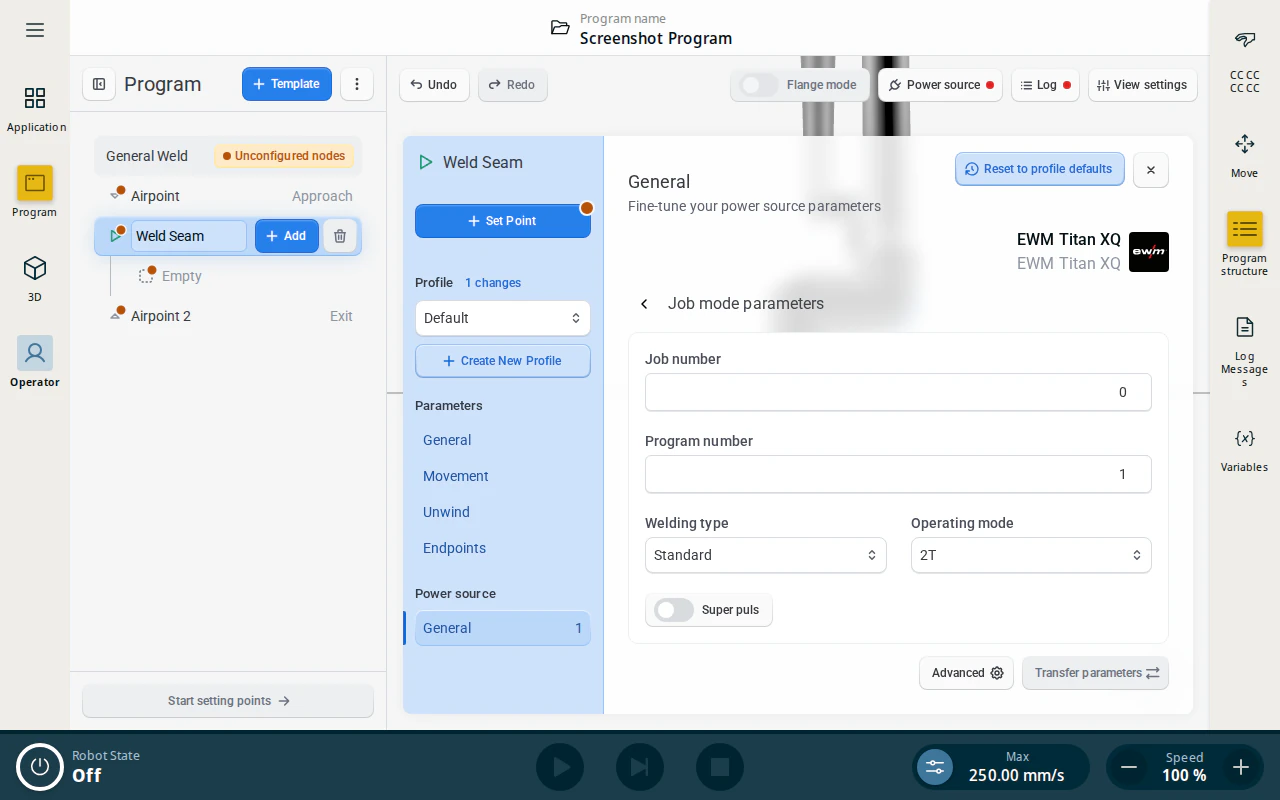
Both methods give access to the same parameters:
| Identifier | Description |
|---|---|
| Synergic line number | The synergic job the power source uses. |
| Job number | (Program mode only) The program recalled from the power source. |
| Wire feed speed | (Control signal mode only) Welding wire feed speed. |
| Voltage | (Control signal mode only) Offsets the voltage of the selected synergic line. |
| Dynamic | (Control signal mode only) Welding dynamic. |
| Welding type | (Only without Jumper 4) Decides the welding type. Hidden entirely when the selected job’s synergic line has no pulse process. |
| Super puls | (Only without Jumper 4) Enables SuperPuls. |
| Operating mode | (Only without Jumper 4) 2T and Special 2T. Special 2T can be used to enable sloping. |
| Transfer parameters | Sends the current parameters to the power source. Available once connected. |
Manual power source controls
The manual controls live in the Power source popover, opened from the button in the operator screen toolbar.
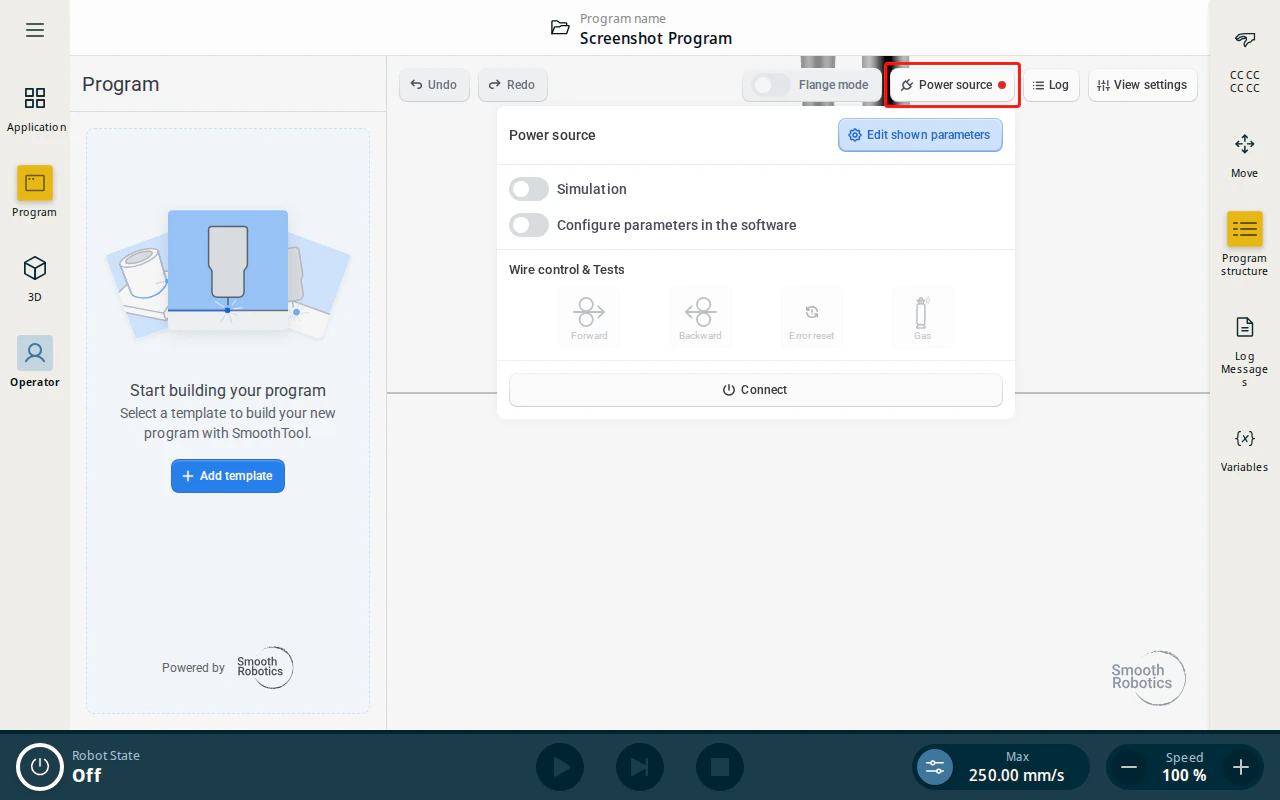
When connected to the EWM power source, the following manual controls are available:
| Control | Description |
|---|---|
| Forward | Feeds the welding wire forward. |
| Backward | Retracts the welding wire. |
| Error reset | Sends a reset-error signal to the power source. |
| Gas | Opens the gas valve for the duration of the press. |
| Air | Blows compressed air through the torch for the duration of the press. |
Warning
Connected to a power source that provides the option to control the wire. Do not use these functions without ensuring no harm can come to people or material. Make sure the area around the welding torch is clear before use.
Simulation
The Simulation toggle at the top of the popover runs the program as a dry run: the robot executes the full program and motion path, but the power source does not weld (no arc, wire feed, or gas). Use it to test a program safely, then turn it off to weld for real.