After mounting the programming flange, register it in SmoothTool X — see Add the Programming Flange. Adding it is all that is needed on an e-series robot: SmoothTool X takes over as the robot’s tool controller and applies the tool settings the flange needs, so there is nothing to set by hand in PolyScope X.
A UR8-long robot needs one extra step, because safety settings can only be changed in PolyScope X’s own Safety page: see Enable Freedrive on UR8-long.
If the flange does not respond
SmoothTool X applies these settings for you when you add the flange. Check them only when the flange’s buttons do nothing — if they have been changed elsewhere, or another tool controller has taken the tool connector, reclaiming tool control from the External devices page restores them.
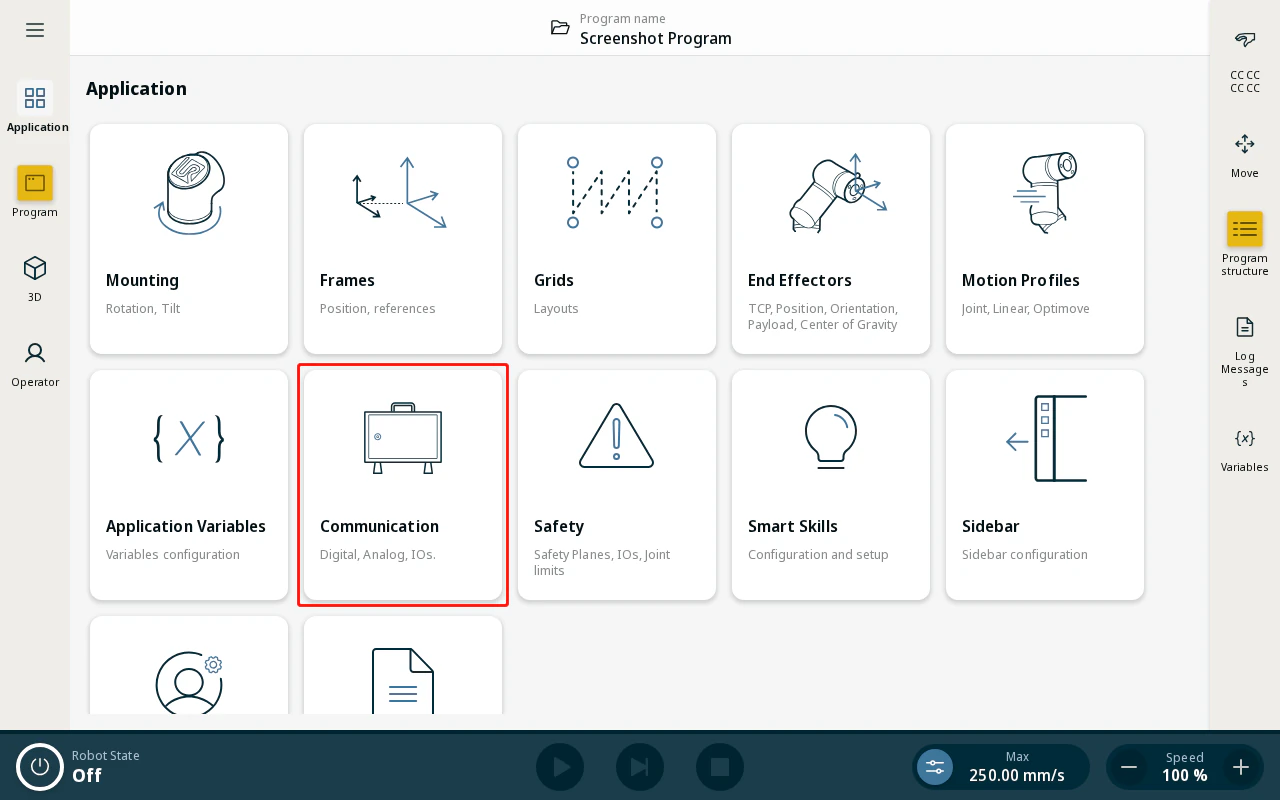
- From the Application view, tap Communication.
- In the left sidebar, tap Tool Flange under Robot.
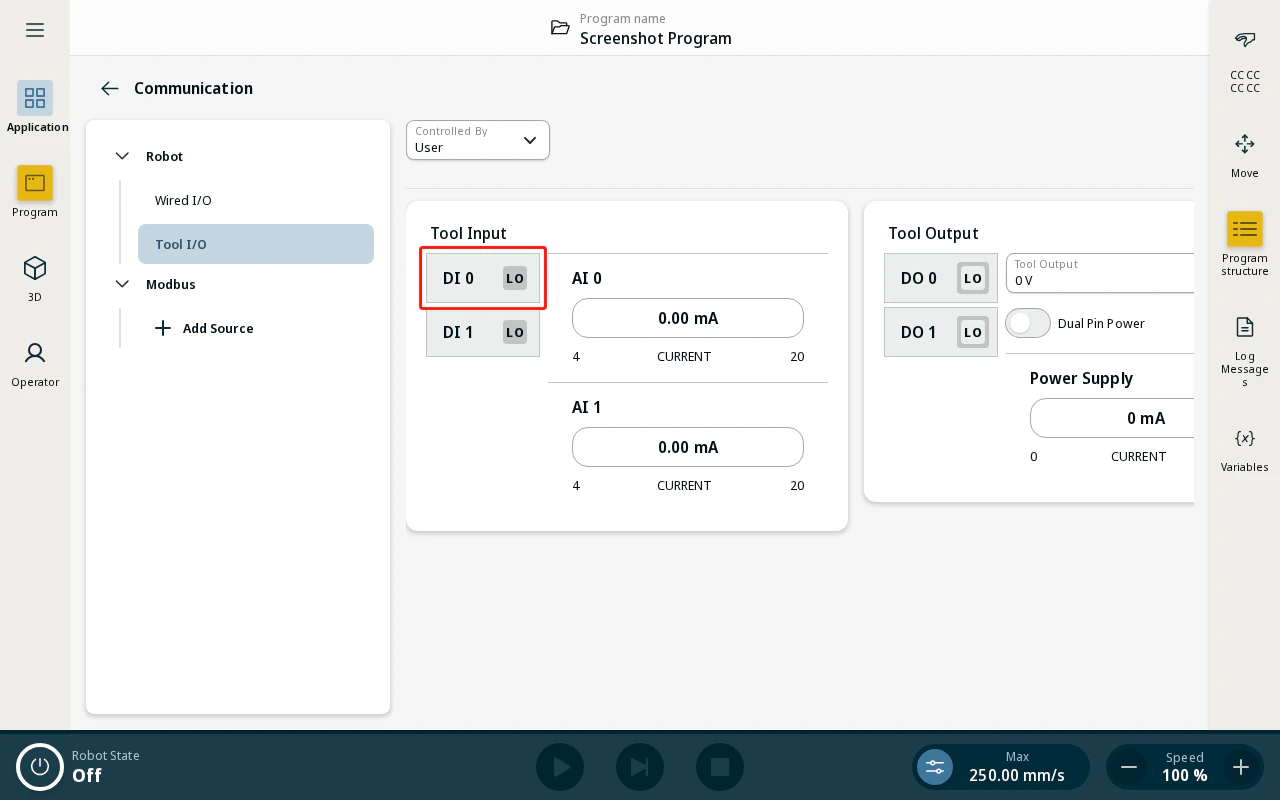
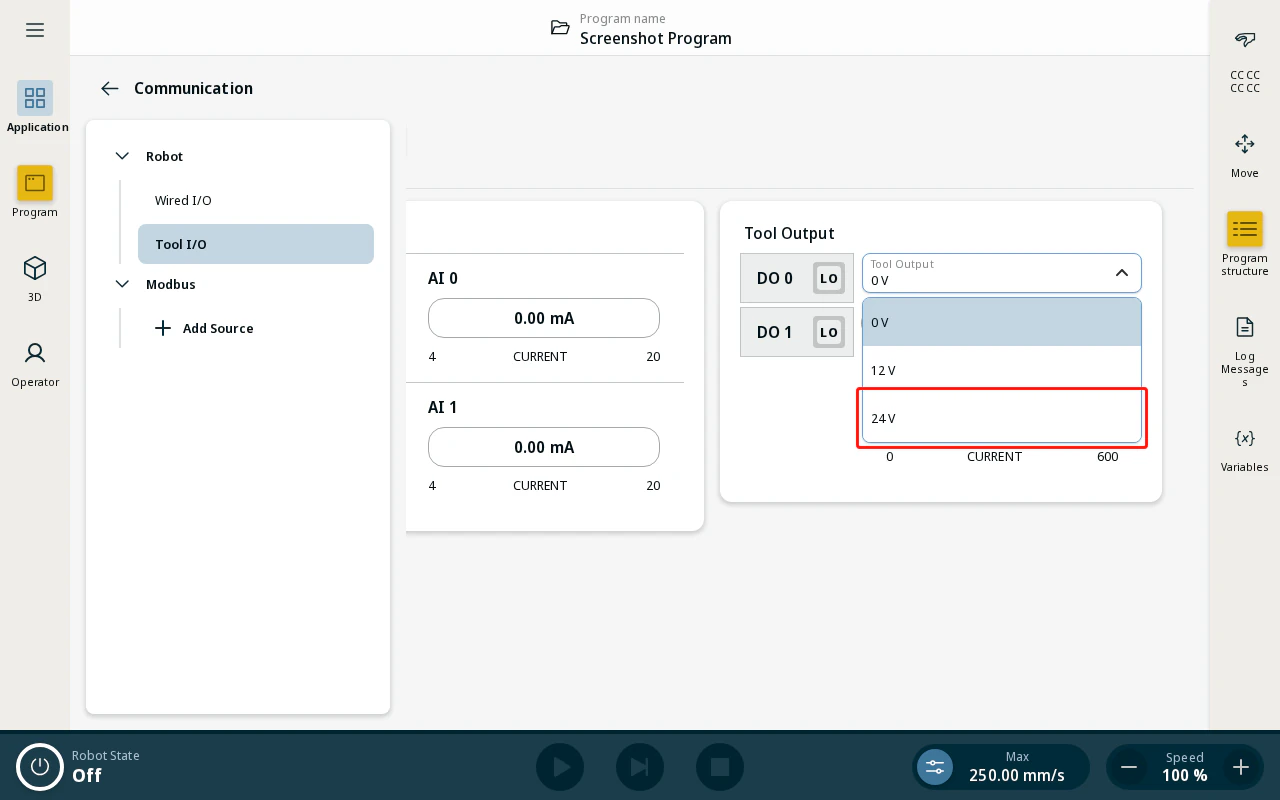
- The page shows Controlled by SmoothTool X, and Tool Output reads 24 V and is read-only. Both are set by SmoothTool X; if the page instead names another tool controller, the flange will not work until tool control is reclaimed.
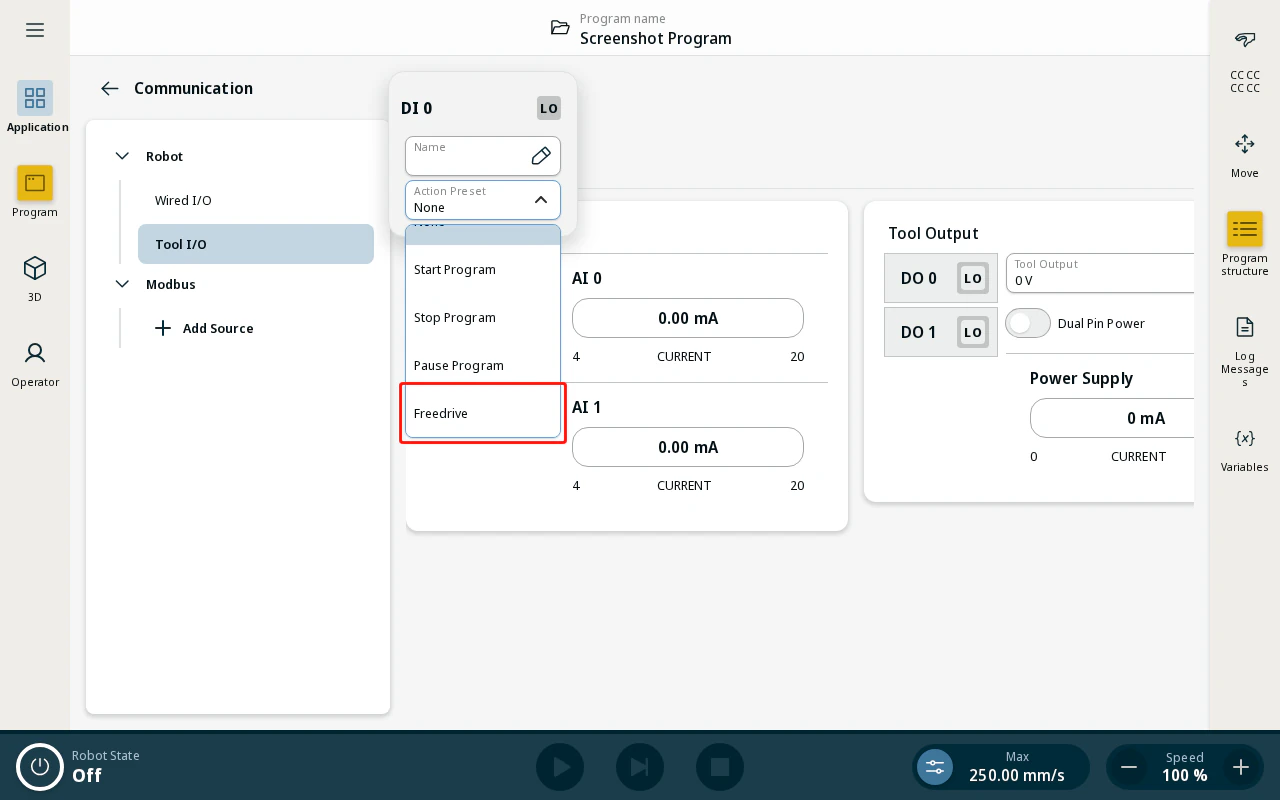
- On an e-series robot, DI 0 carries the Freedrive action preset. SmoothTool X re-applies this at every program start, so it does not need to be set by hand.
Enable Freedrive on UR8-long
A UR8-long robot takes Freedrive from a safety input instead of the tool connector’s action preset, and safety settings can only be changed in PolyScope X. Configure the input pair once, then tell SmoothTool X which pair you used when you add the flange (Safety Input Pair in the dialog).
Which pair that is depends on the robot and on how the flange is wired. A flange wired to the tool connector uses the tool input pair (DI 0 / DI 1, under Tool Inputs); one wired through the control box uses a configurable pair (CI, under Wired Inputs) — see Installing the Jumper Cable. Check which inputs your robot exposes before picking one.
Note
The safety page requires a password to unlock. The default safety password is ursafe.
- Open the Safety page from the Application view. In the left sidebar, navigate to Safety I/O and open the tab holding your pair — Tool Inputs or Wired Inputs. Tap Unlock and enter the safety password.
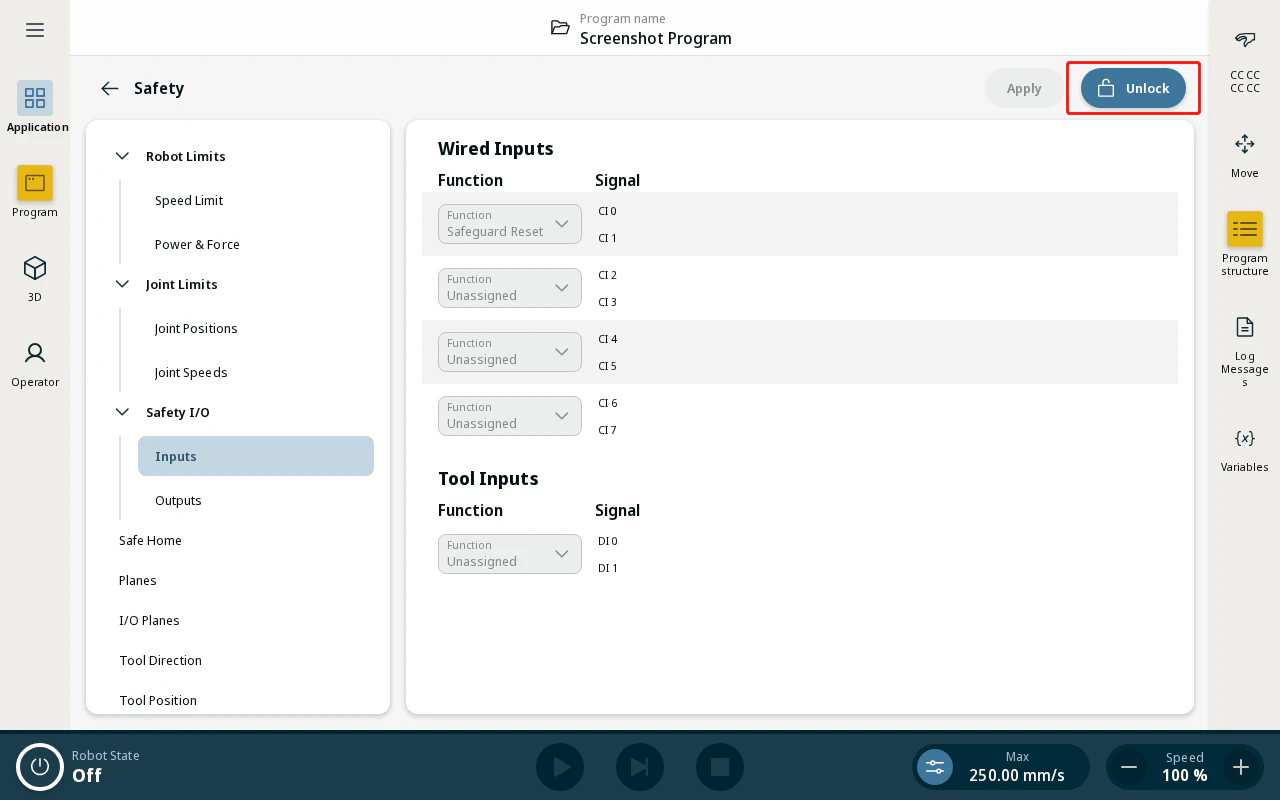
- Tap the Function dropdown for your input pair. The screenshots below show the tool pair DI 0 / DI 1 as an example.
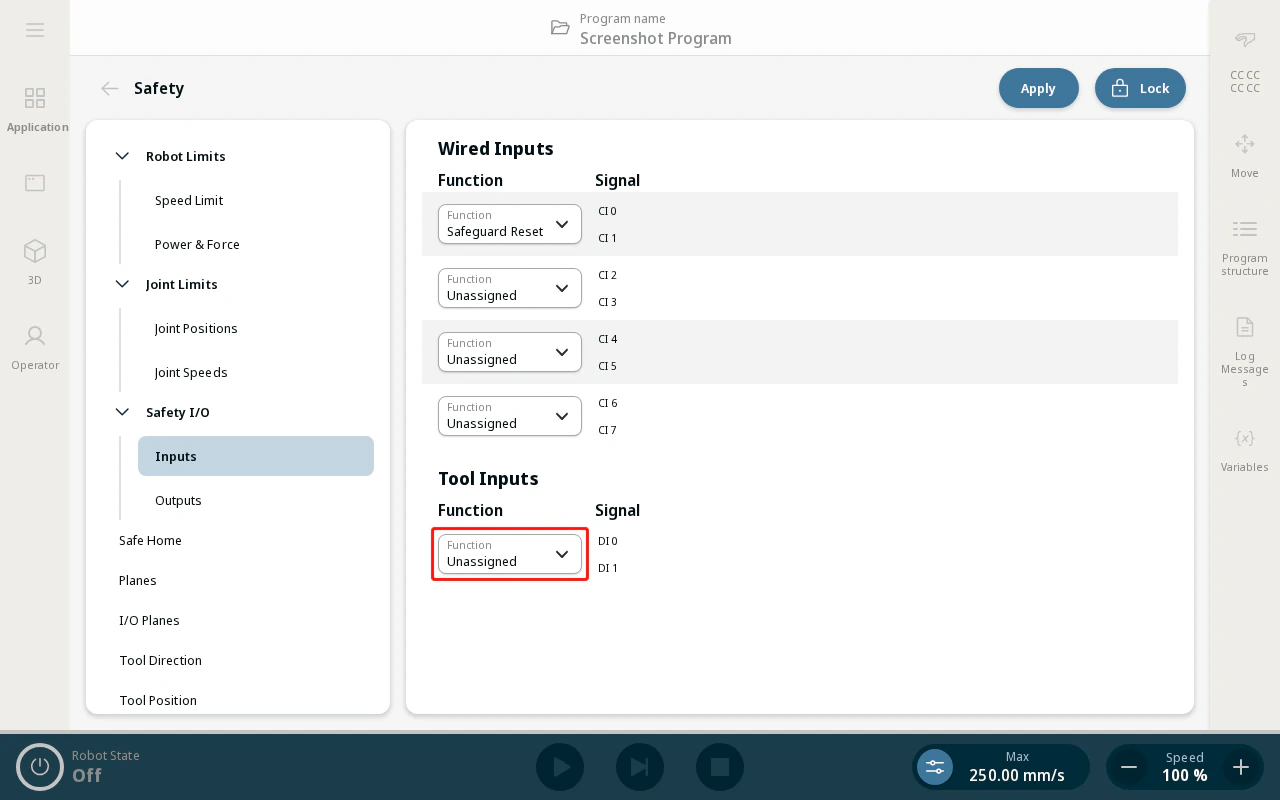
- Select Freedrive Enabled Input.
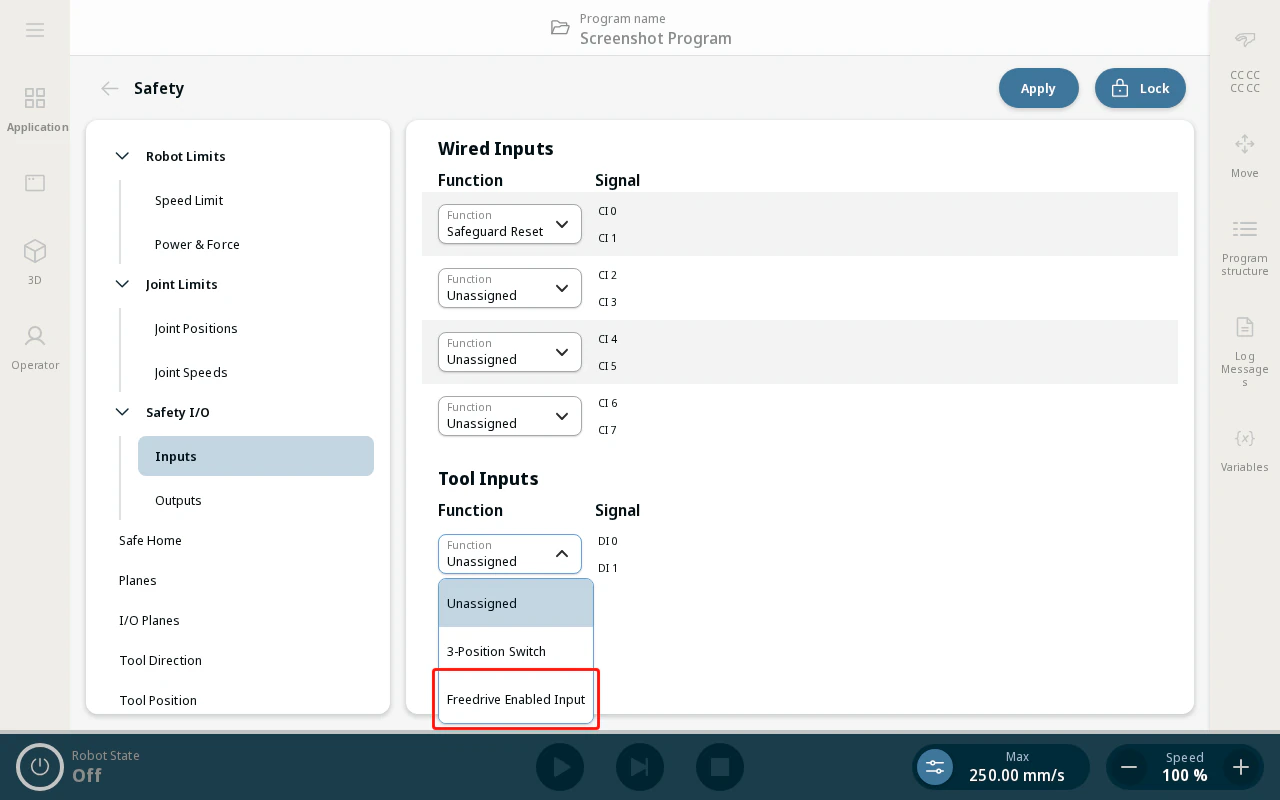
- Tap Apply, then Lock to save and re-lock the safety settings.
Add the Programming Flange in SmoothTool X
Note
Only one programming flange can be active in SmoothTool X at a time. If one is already listed under External devices, use the edit button to update its settings rather than adding a new one.
- Open SmoothTool X Settings from the Application view and tap External devices under Components in the sidebar.
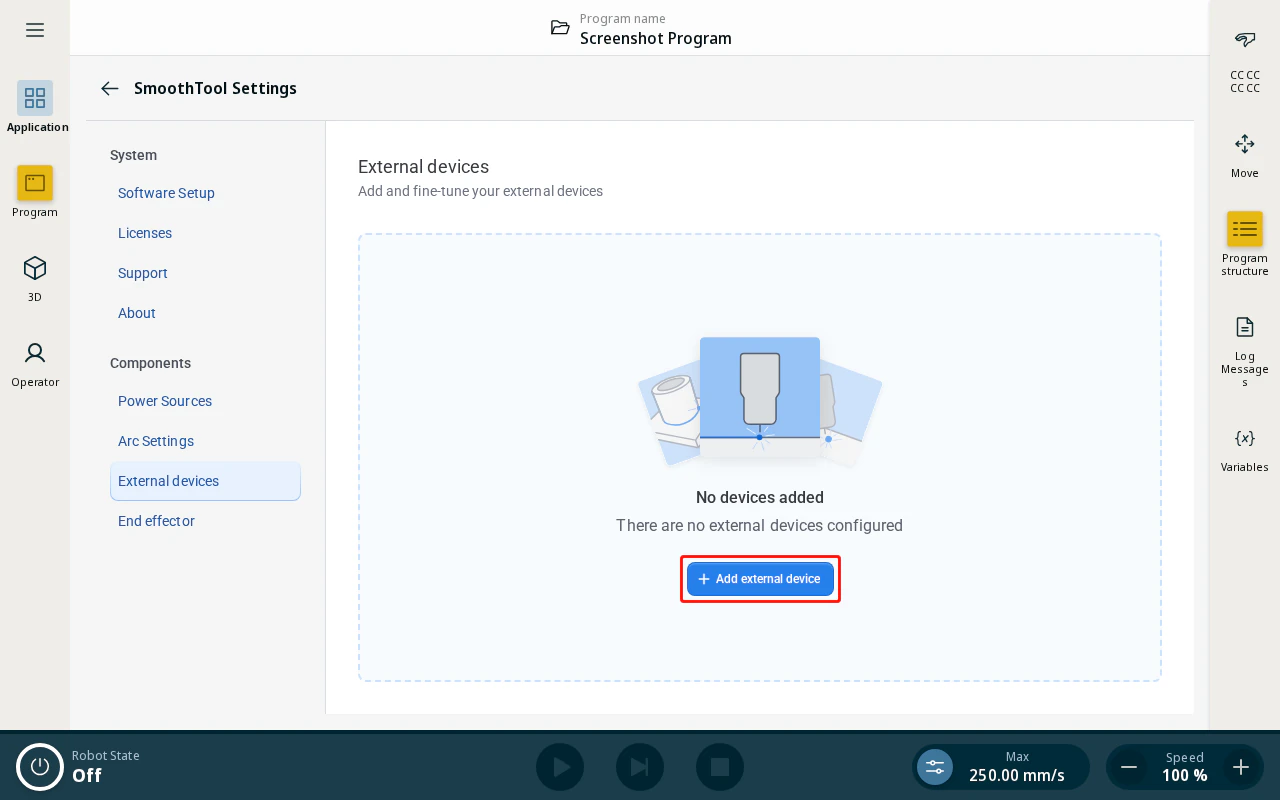
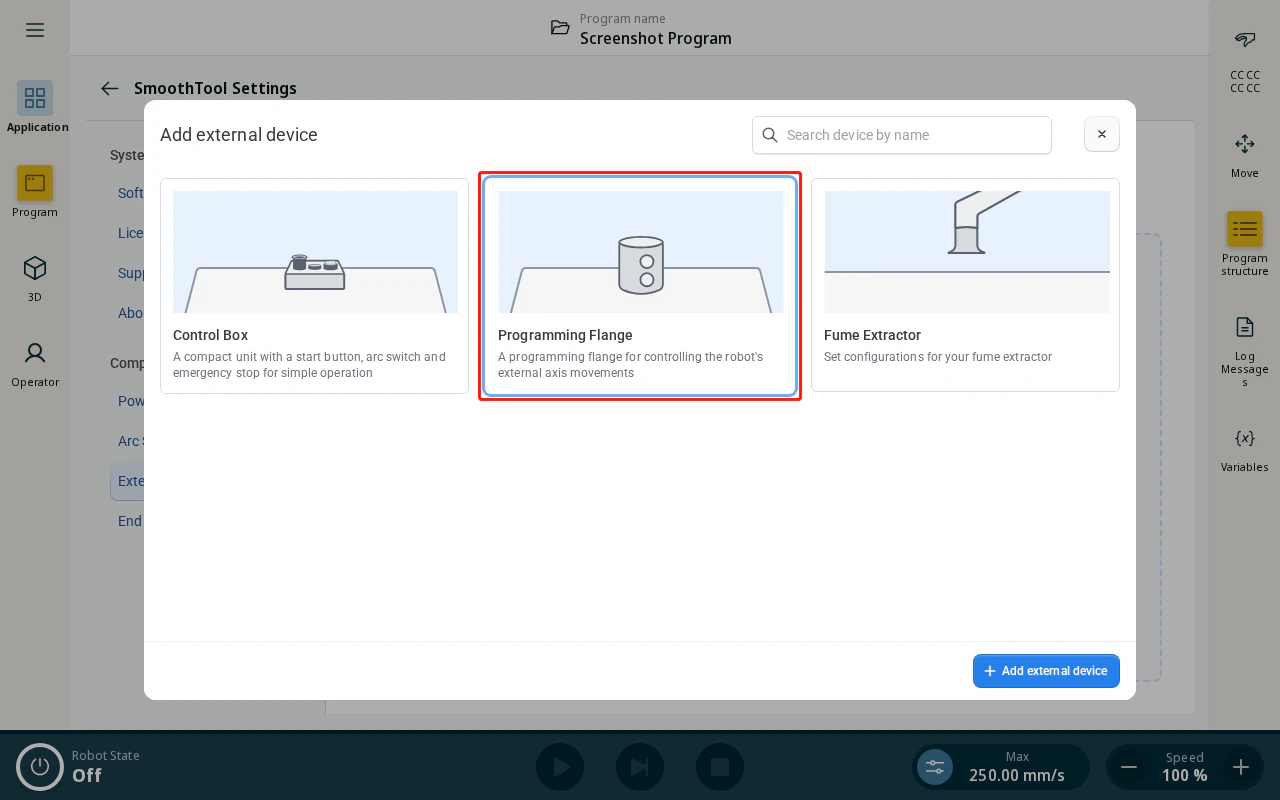
- Tap + Add external device. In the dialog, select Programming Flange.
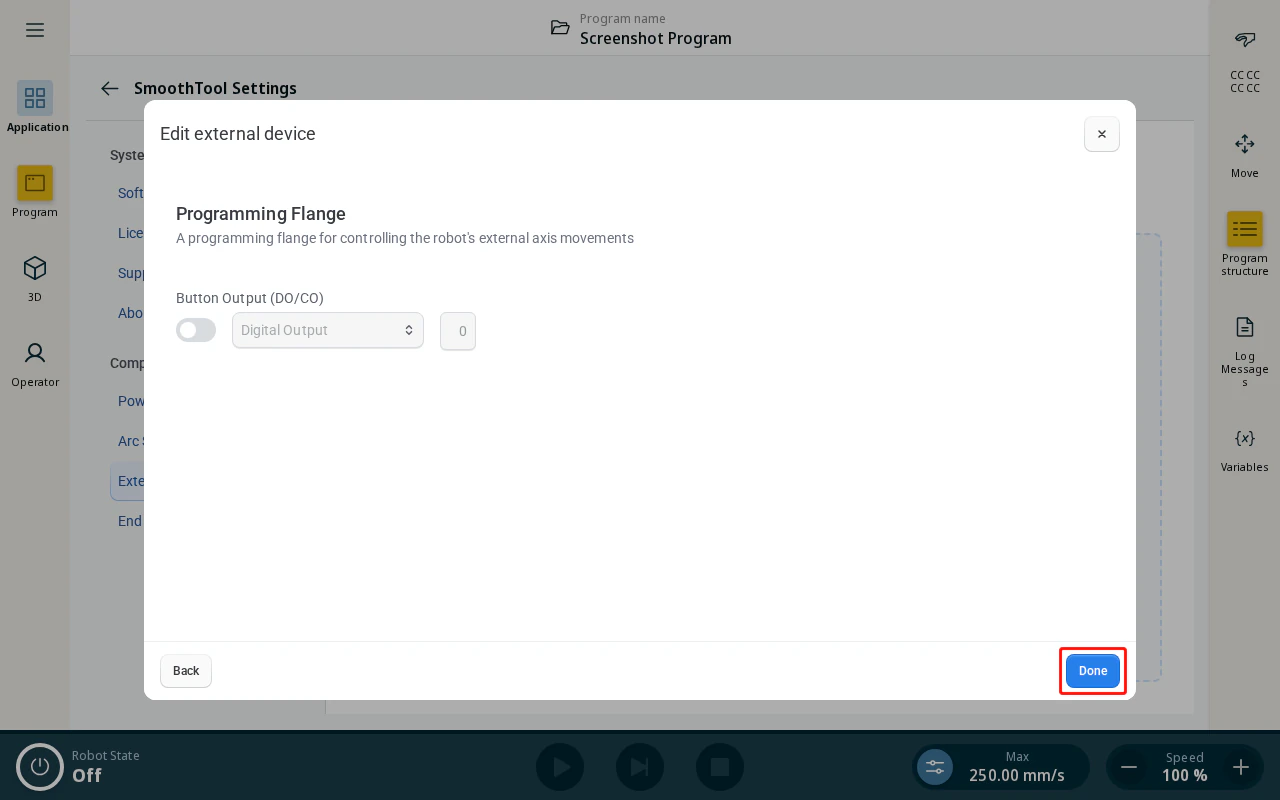
- Review the Button Output (DO/CO) settings and tap Done.
Note
On older UR8-long units that do not have safety available in the tool flange, this Button Output can be enabled to pass the signal through the arm and enable Freedrive. See Installing the Jumper Cable for the wiring required to connect it.
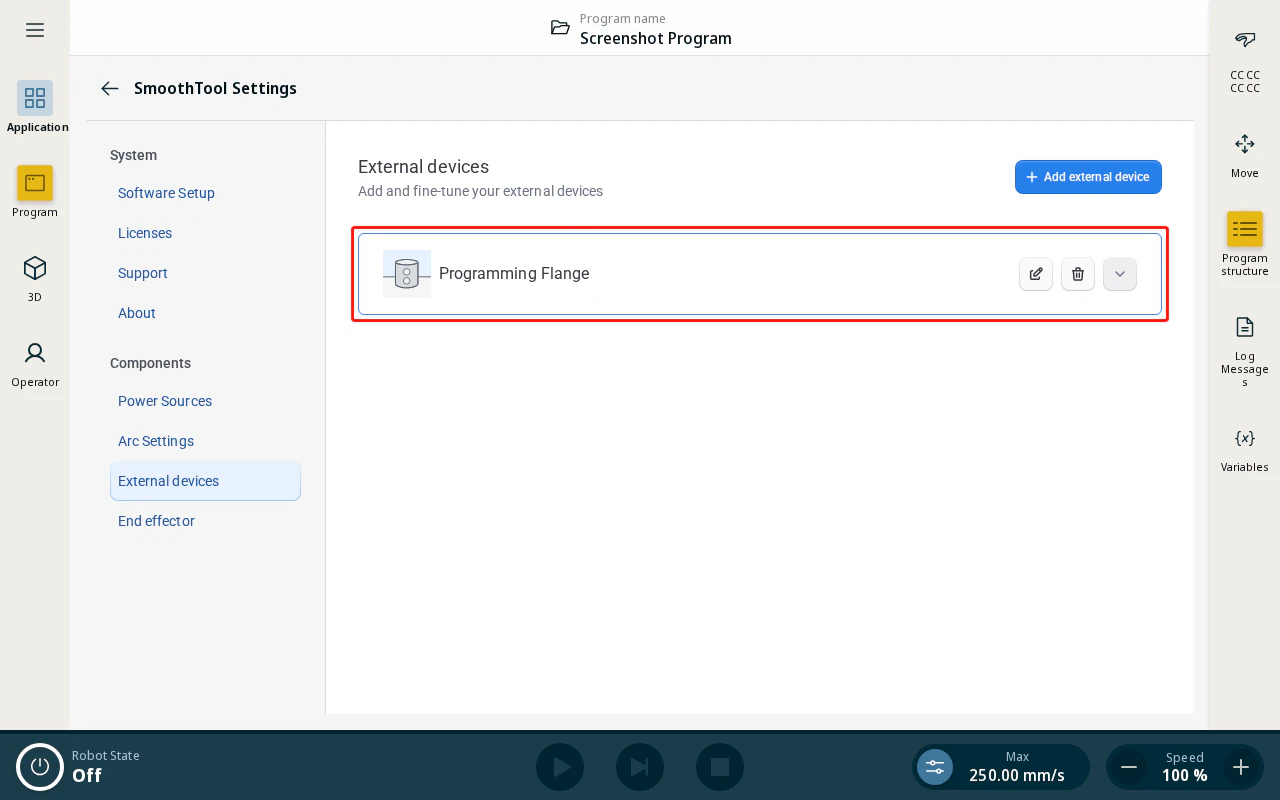
- The Programming Flange now appears in the External devices list and is active.
Installing the Jumper Cable (UR8L, pre-2026 units only)
UR8-long units manufactured before 2026 require a jumper cable to be installed inside the control box to enable Freedrive. Connect the jumper cable using the wiring diagram below. If digital output 0 is already occupied, use the next available output, or one of the configurable outputs.
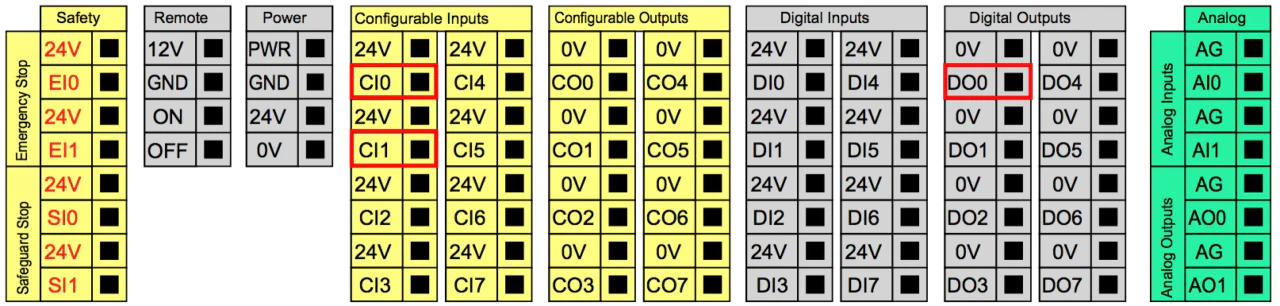
Connect the selected Digital Output/Configurable Output to 2 Configurable Inputs
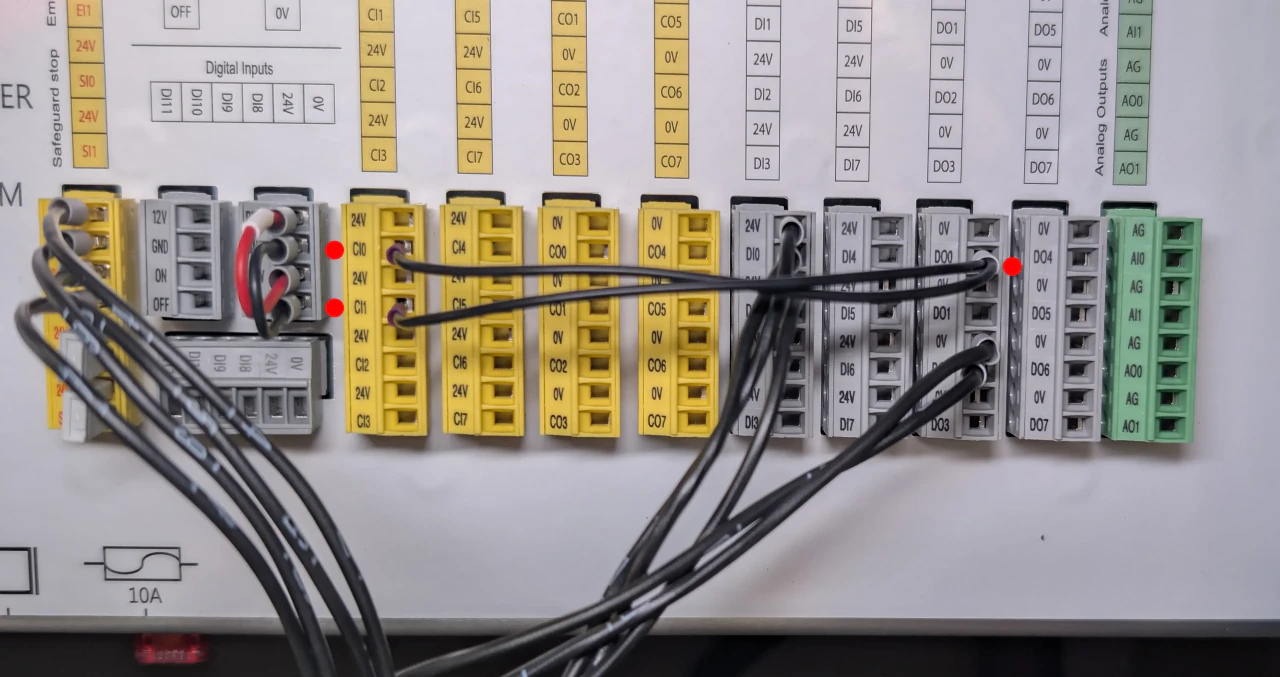
Example of possible wiring inside the control box after installing the jumper cable