A program normally runs from the top: Home Position first, then every template in order. This page covers the controls that change that — starting somewhere else, switching a template off, and picking up a weld that stopped part-way.
Start and stop
The run controls sit in the bottom toolbar, next to the robot state.
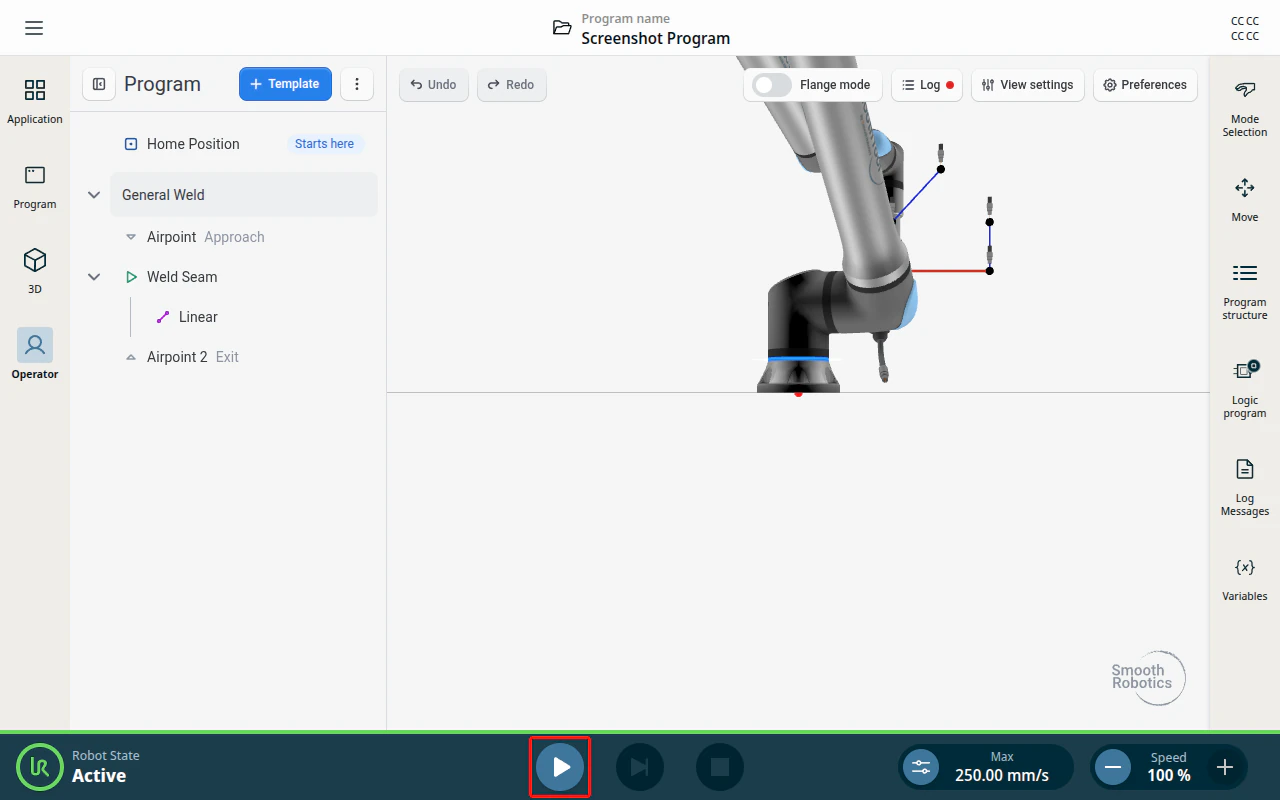
- Play starts the program. While it runs, the row the robot is working on carries a Running badge.
- Stop ends the run. A run that stops before the end leaves the program unfinished, which is what the resume offer below is about.
A program only starts once every node it will run is ready, and a template row says which of the two problems it has:
| Badge | Meaning |
|---|---|
| Unconfigured | A node inside is still waiting for a position. |
| Invalid | A node inside has an error. |
| Configured | Everything inside is ready to run. |
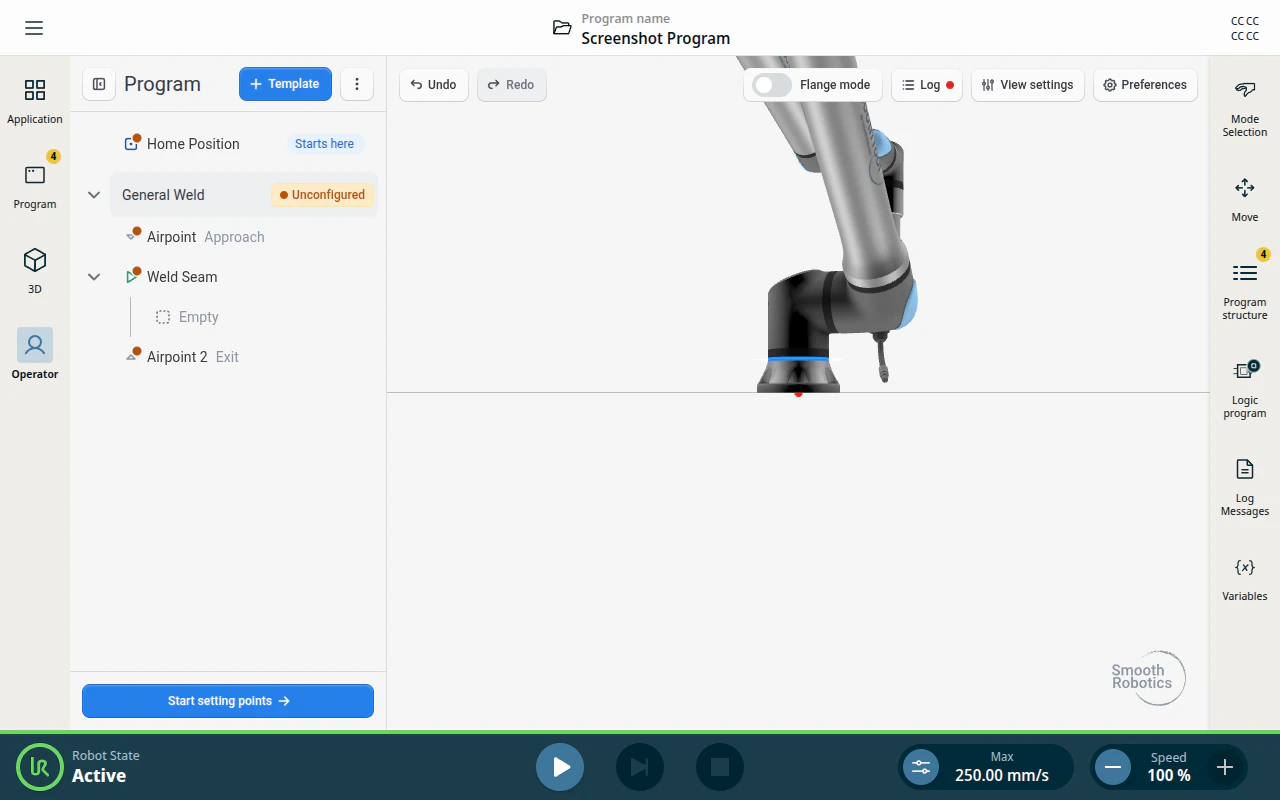
Unconfigured takes precedence, so a template shows Invalid only once every position has been taught. Play refuses the program while either is outstanding.
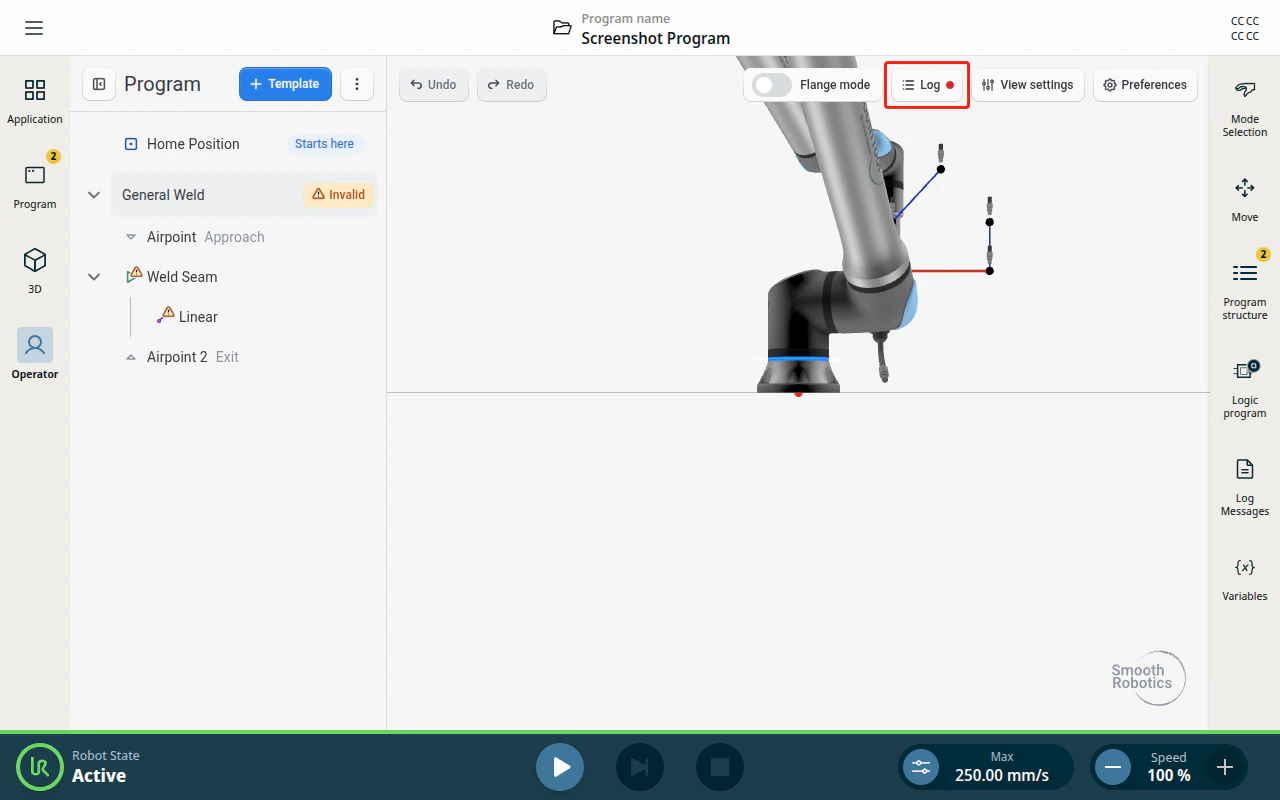
The badge says what kind of problem it is, not what caused it. For that you should check the log message. They can be accessed by clicking the Log button in the operator screen toolbar.
Start here
Start here sets where the next run begins, so you can re-run one weld without repeating the whole program. Open a template’s or a node’s ⋮ menu and tap Start here.
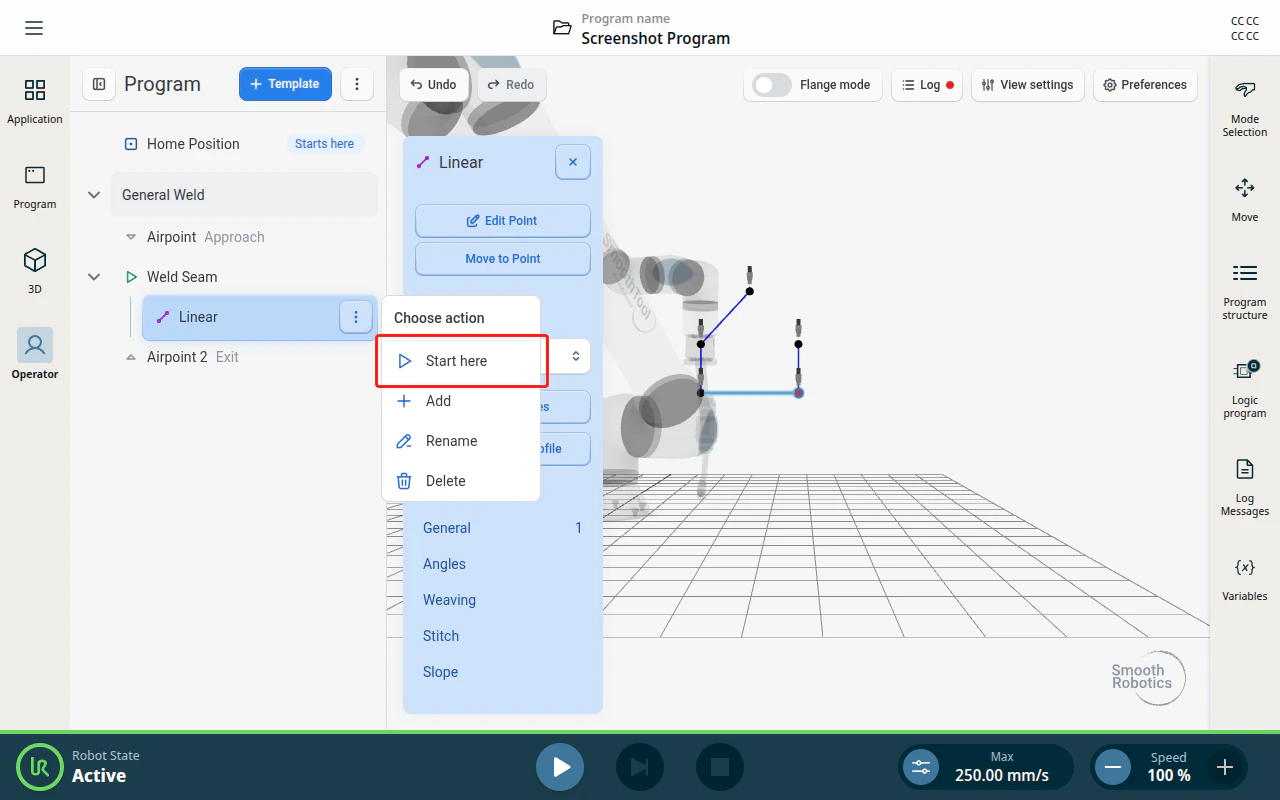
The row you picked now shows a Starts here badge. A collapsed template holding the start point shows Starts inside instead, so you can see where it is without expanding the row.
The robot still goes to Home Position first, whatever the start point is — a run always begins from there so it reaches the workpiece along a known path. What the start point changes is only which work is done: the Skipped rows are passed over, and welding picks up at the row marked Starts here.
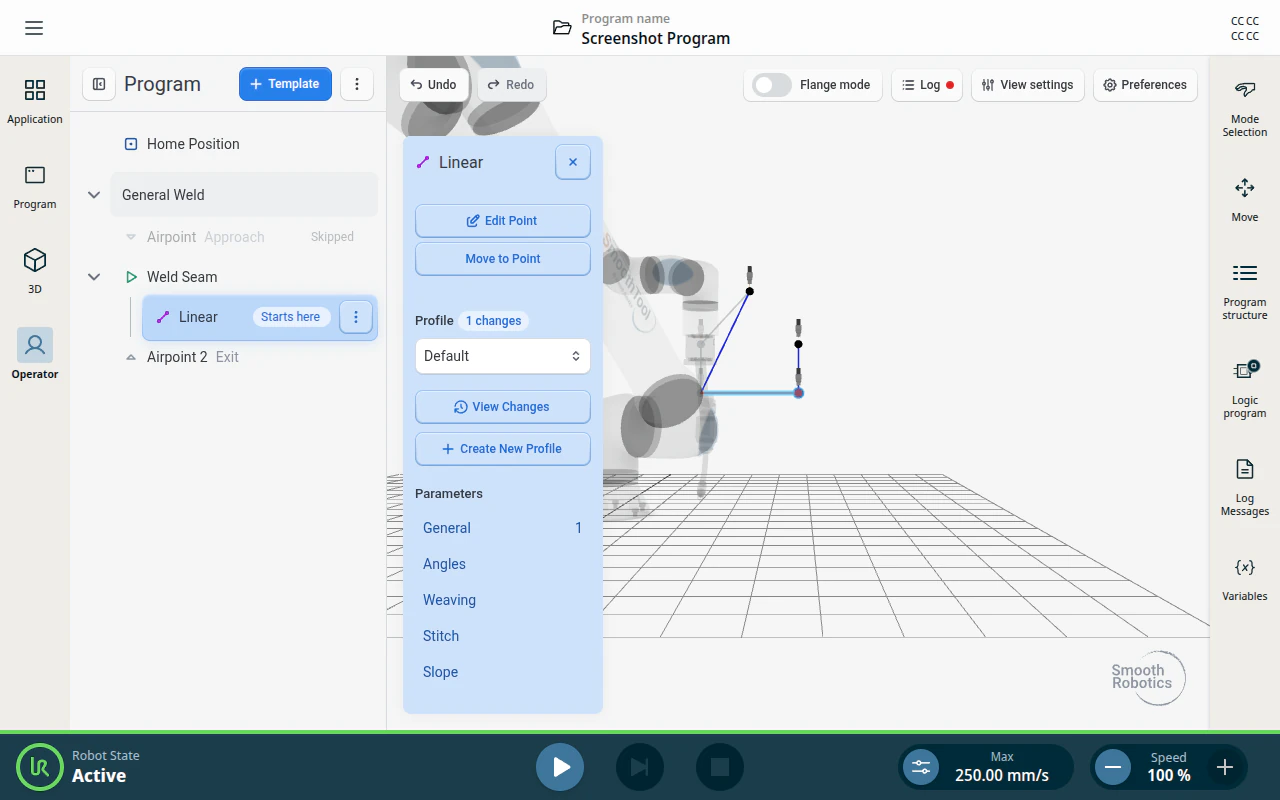
There is one start point per program. Setting another moves it, and Clear start — the same menu entry once a start point is set — returns the program to running from the beginning.
Note
The start point is run intent, not an edit: it is not added to the undo history, and it survives until you clear it or the node it points at leaves the program.
Suppress a template
Suppress switches a template off without deleting it. Nothing inside it runs, and its unconfigured nodes stop holding up Play — useful for parking a weld you are not ready to run, or for running one weld out of a program that contains several.
Open the template’s ⋮ menu and tap Suppress. The row shows a Suppressed badge, and everything inside it is suppressed too.
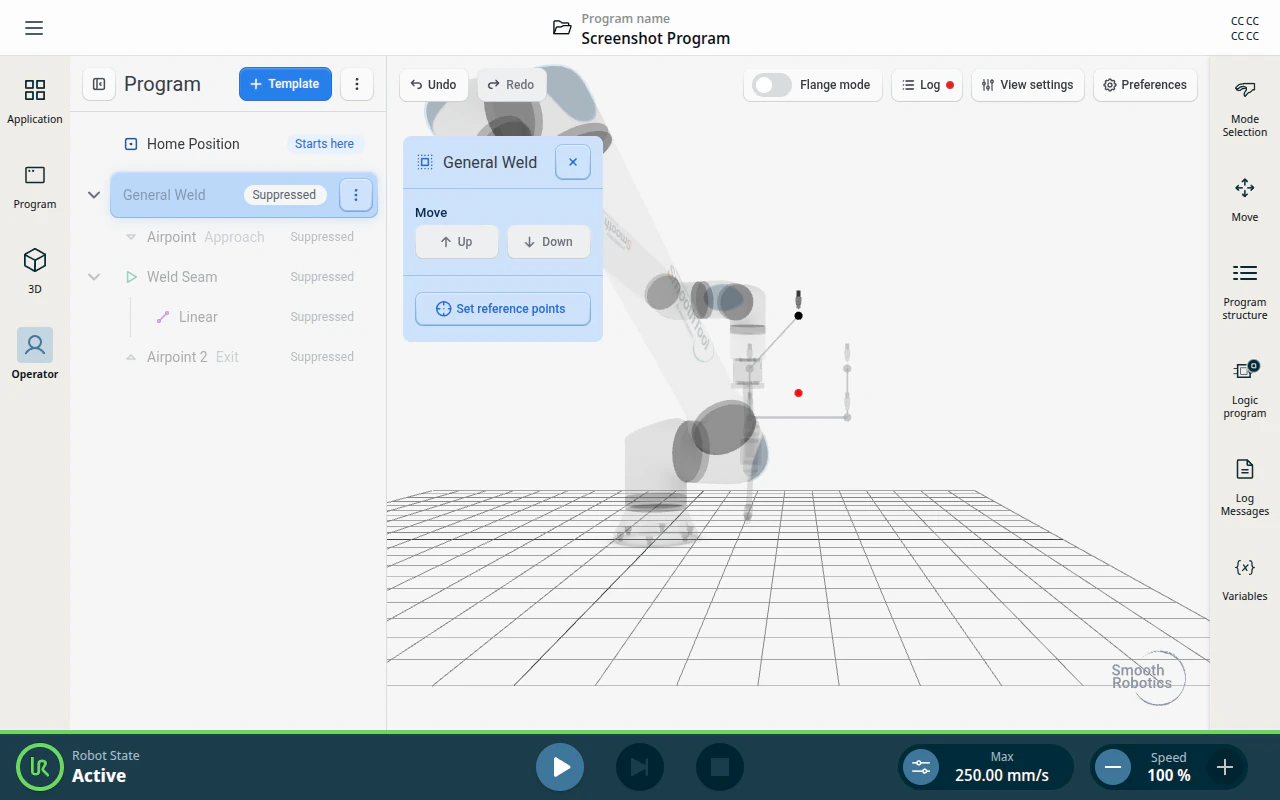
Tap Activate in the same menu to switch it back on.
Note
A suppressed template cannot be a start point, and suppressing one clears a start point inside it. Start here is unavailable on a suppressed row for that reason.
Resume a weld that did not finish
When a run stops before the end — a stop, or a fault that halts the program — SmoothTool X offers to pick up where it left off. The offer appears on the operator screen once the program has settled.
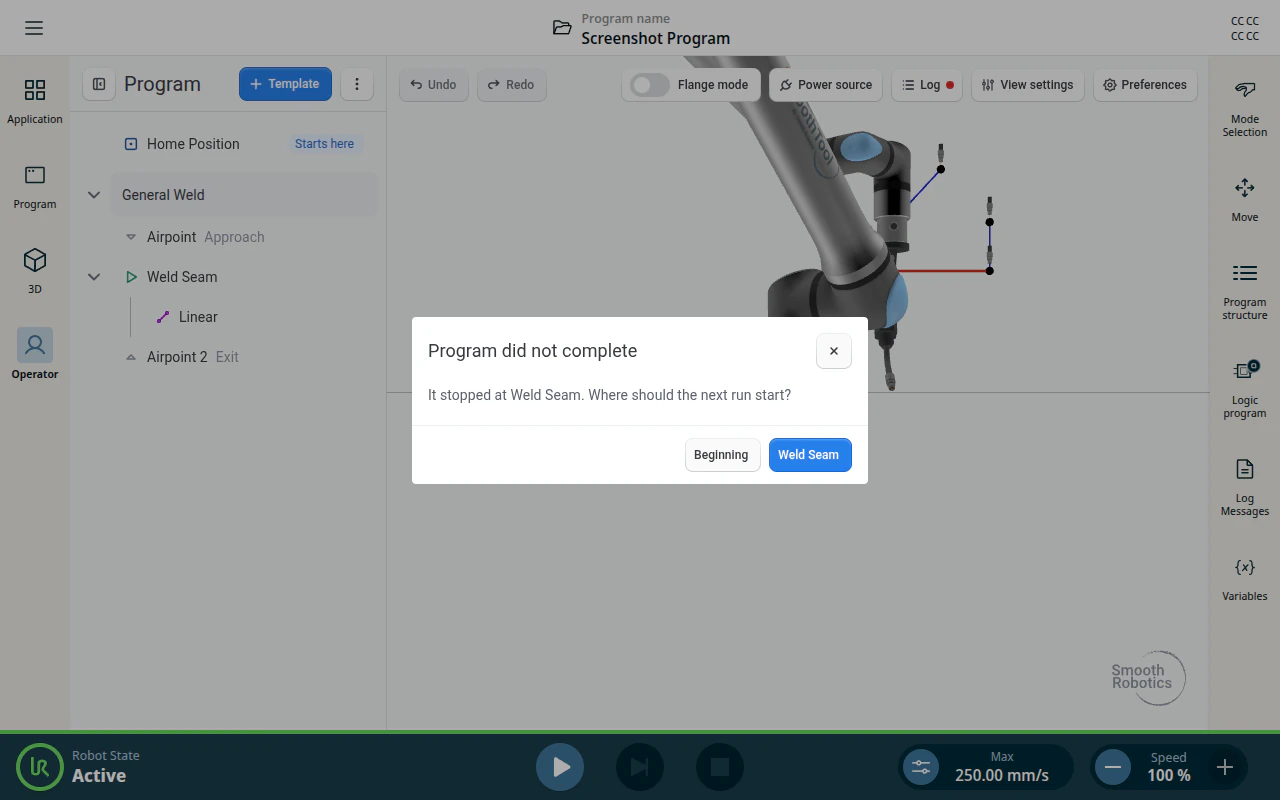
It names the node the run stopped at and asks where the next run should start:
| Answer | Result |
|---|---|
| The node’s name | Sets that node as the start point, so the next Play continues from there. |
| Beginning | Clears the start point; the next Play runs the whole program. |
Either answer is a program change, so the dialog stays up showing Applying… until it is written.
Turning the offer off
The offer is on by default. To stop it appearing, open SmoothTool X Settings → Software Setup and switch off Offer to resume a stopped run.