This page describes how to integrate and set up communication between Lorch S-series and MICORMIG power sources and SmoothTool X.
Hardware Configuration
SmoothTool X is compatible with the Lorch S-series and the robotic MICORMIG. To set up communication between the software and a power source, the following items are required:
- One of the compatible Lorch power source models:
- Lorch S3 (MOBIL) PULSE XT
- Lorch S5 PULSE XT
- Lorch S8 PULSE XT
- Lorch ROBO MICORMIG
- If in doubt, contact your local Lorch supplier or the Smooth Robotics team.
- A LorchNet Connector, ordered in its EtherNet/IP version. It is an add-on: it does not come with the machine and has to be ordered separately. SmoothTool X talks to the machine through this connector, not to the power source directly.
- Ethernet M12-to-RJ45 cable from the LorchNet Connector to the robot — NBC-MSD/2,0-93E/R4AC SCO (GTIN 4046356774895) or similar.
Note
All four models are driven through the same integration and share the same configuration fields, welding methods and value ranges. The model you pick does decide one thing: which synergic program table Synergic mode browses, since each machine ships its own set of weld programs. Pick the tile that matches the machine in your cell.
Installing the LorchNet Connector
Install the LorchNet Connector by following its own instruction manual. For details about the connector, the cable or the power source itself, contact your local Lorch dealer.
IP Address
SmoothTool X communicates with the Lorch power source over the EtherNet/IP protocol. Select a valid IP address for the LorchNet Connector. The address must be on the same subnet as the robot.
Set the address from the power source itself: the interface settings are reached from the machine’s control panel, where the IP address can be specified. Follow the procedure in the LorchNet Connector’s own documentation.
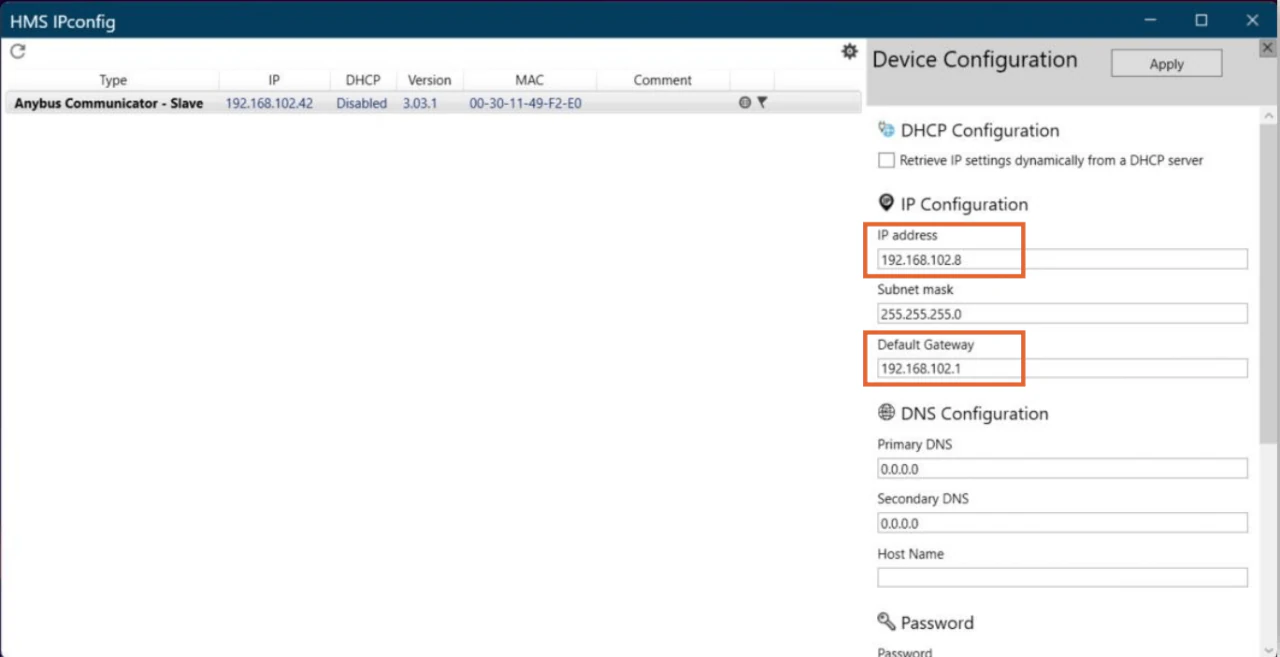
If that procedure is not available, the connector’s address can also be set from a PC with the HMS IPconfig tool:
- Download HMS IPconfig from the Anybus website and install it. If it does not start after installation, right-click it and choose Run as administrator.
- Connect the LorchNet Connector to the PC with an Ethernet cable.
- Open the tool and refresh the device list — the connector appears in it.
- Select the connector and enter its IP address and a Default Gateway on the same subnet.
- Click Apply to transfer the settings to the module.
Tip
Smooth Robotics suggests 192.168.102.8 for the power source, 192.168.102.3 for the robot, subnet mask 255.255.255.0 and default gateway 192.168.102.1. If you prefer your own addresses, keep the same network ID — the first three octets — on every device, and give each a distinct host ID.
Note
There is no protocol to select on the connector itself. The LorchNet Connector is ordered as the EtherNet/IP version, and that choice fixes the protocol.
Note
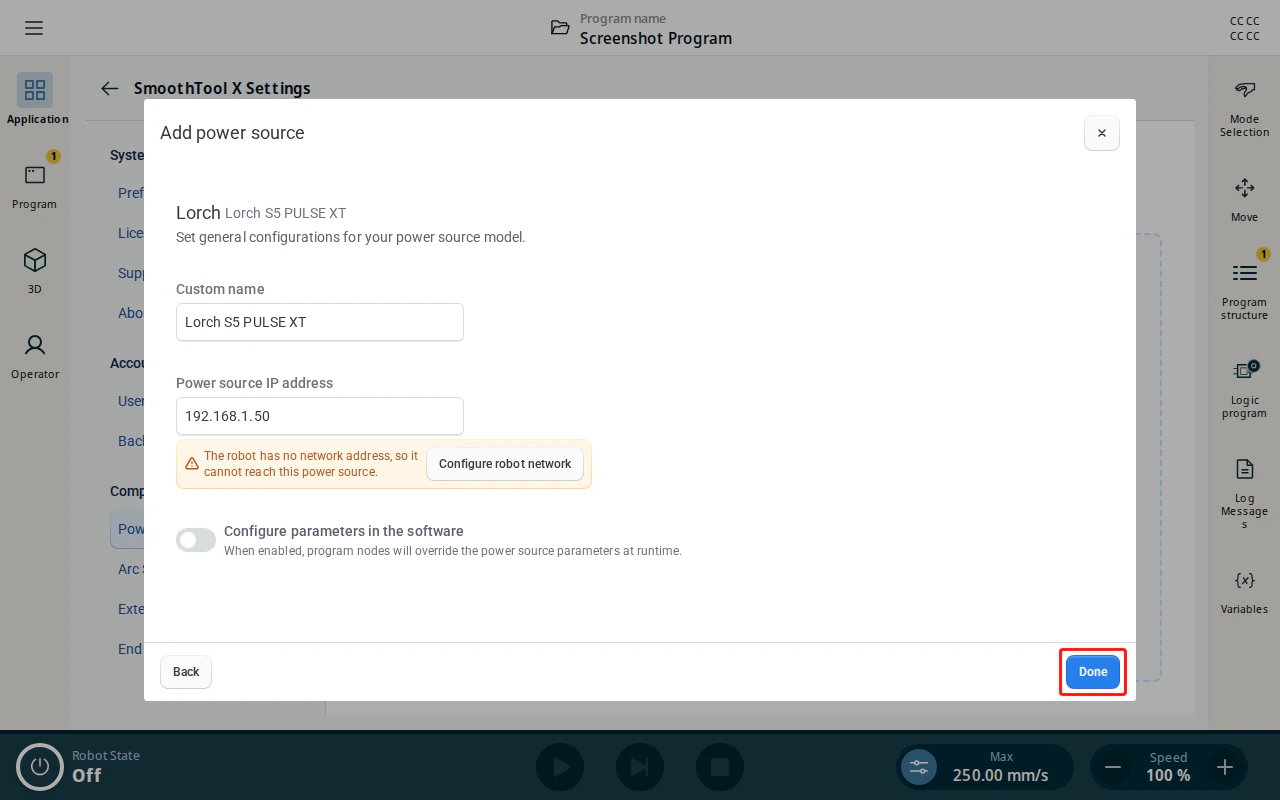
The robot itself must also have an IP address on that subnet. If the robot network is not configured yet, SmoothTool X prompts you to set it up when you save the power source.
Software Configuration
Once the hardware is configured, add and connect the Lorch power source in SmoothTool X.
Add the Lorch power source
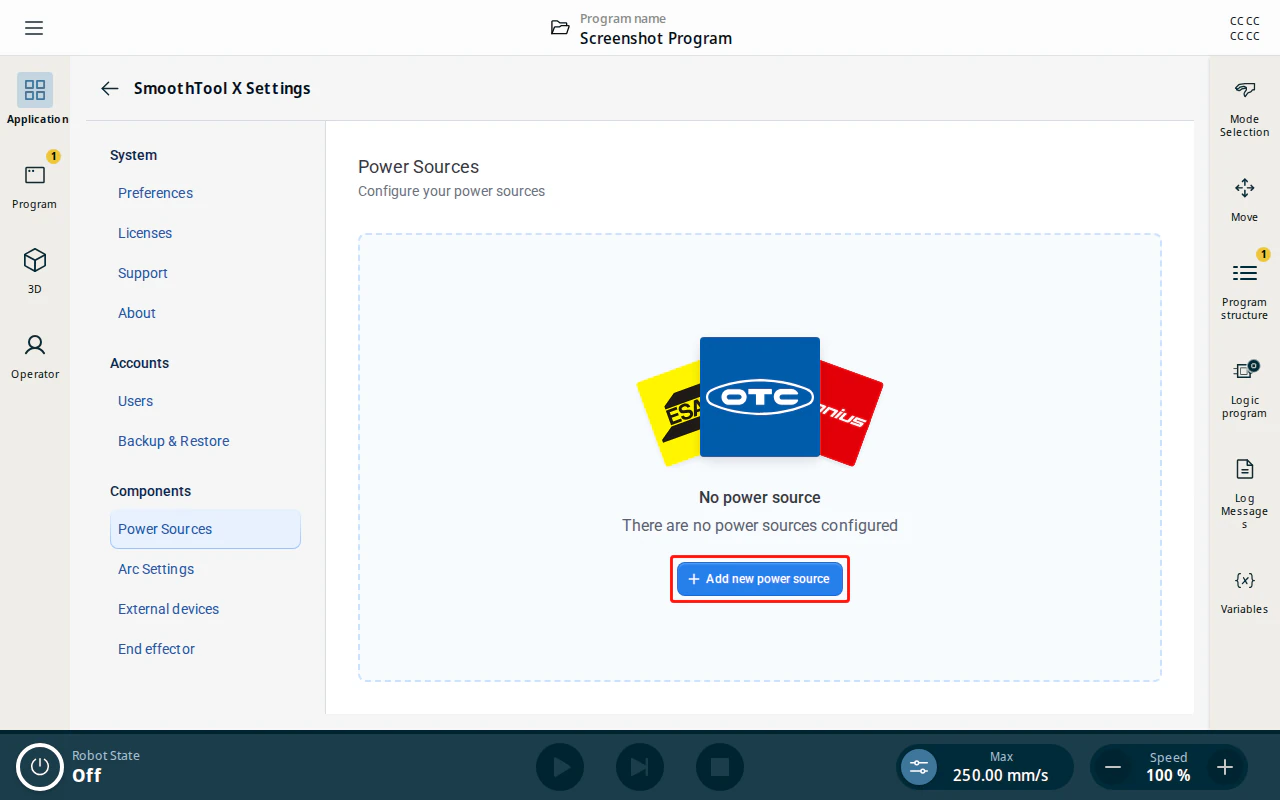
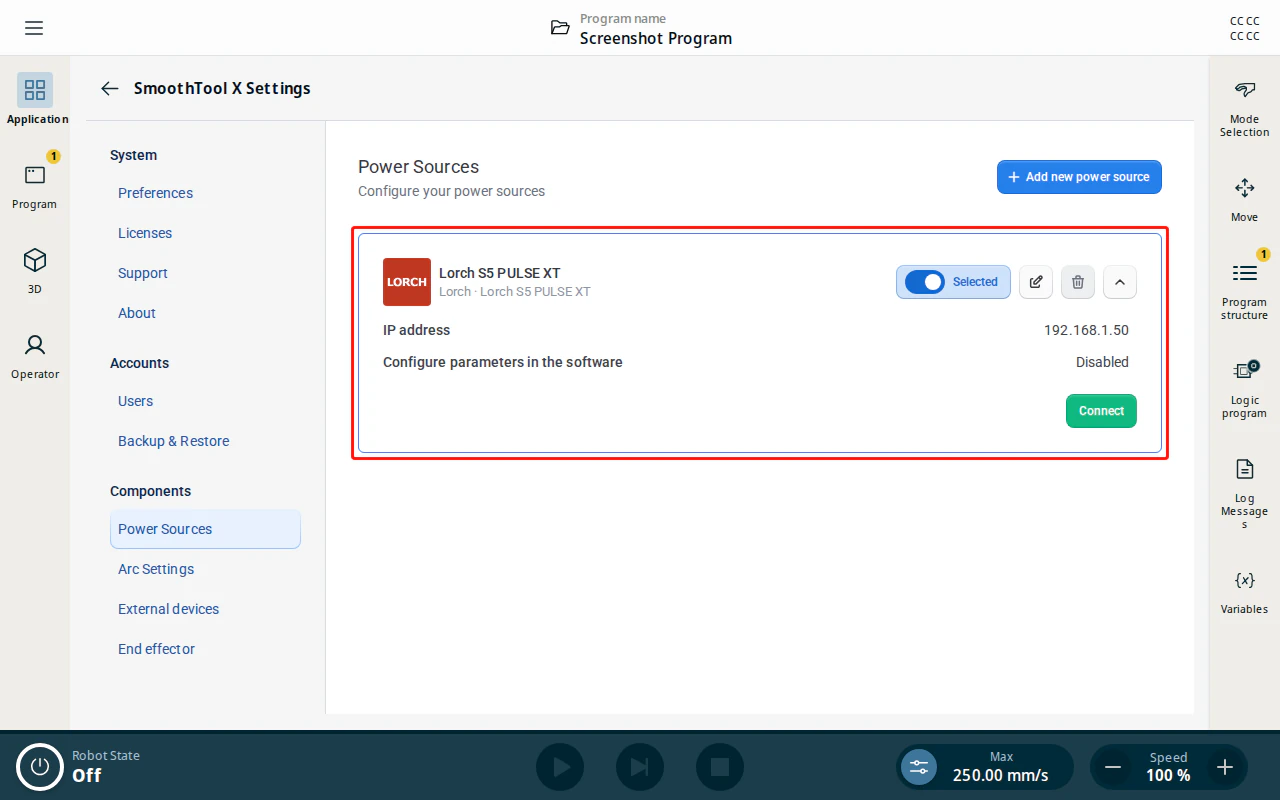
Tap SmoothTool X Settings from the Application view. In the sidebar, under Components, tap Power Sources, then tap Add new power source.
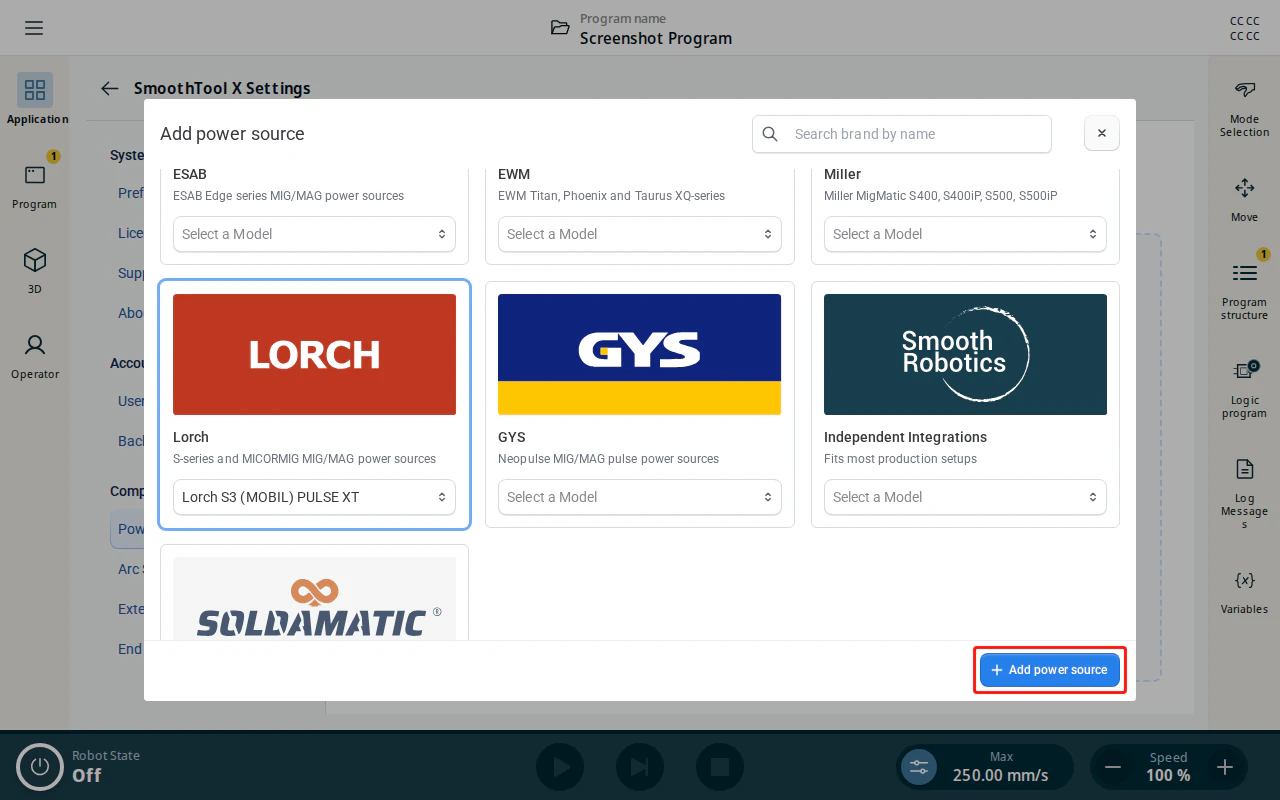
In the Add power source dialog, select the Lorch tile and choose your model — Lorch S3 (MOBIL) PULSE XT, Lorch S5 PULSE XT, Lorch S8 PULSE XT, or Lorch ROBO MICORMIG — then tap Add power source.
Configure the Lorch power source
Fill in the configuration fields:
| Field | Description |
|---|---|
| Custom name | A name to identify this power source. Prefilled with the model name. |
| Power source IP address | The IP address you set for the power source interface. The robot uses this address to communicate with the power source. Ensure it is set correctly; otherwise the robot cannot connect. |
| Configure parameters in the software | Controls whether program nodes override the power source parameters at runtime — see Configure parameters in the software below. |
Done stays inactive until both the custom name and a valid IP address are filled in. When done, tap Done to save the power source.
Configure parameters in the software
The Configure parameters in the software toggle controls how welding parameters are applied:
- Disabled (default) — the power source keeps the parameters set on the machine; program nodes do not override them.
- Enabled — program nodes override the power source parameters at runtime, letting you set welding parameters per node from the weld node’s Power source tab.
Connect to the Lorch power source
Back on the Power Sources page, expand the new entry, tap Selected to make it the active power source, then tap Connect. When the connection is established, a connection status tag is shown on the entry.
Programming with SmoothTool X and Lorch
When Configure parameters in the software is enabled, you can adjust the welding parameters per node from the program tree.
Select a weld node (e.g. Weld Seam) in the program tree and open its Power source tab. The parameters apply when the program reaches that node.
The Lorch integration offers three ways of setting the weld, and the node opens on the chooser so you can pick one:
| Method | What it does |
|---|---|
| Job number mode | Runs a job stored on the power source. |
| Synergic mode | Picks a weld program from the machine’s synergic table, through guided steps or by number. |
| Job parameter fine-tuning | Sets voltage and wire feed speed directly, in manual MIG/MAG. |
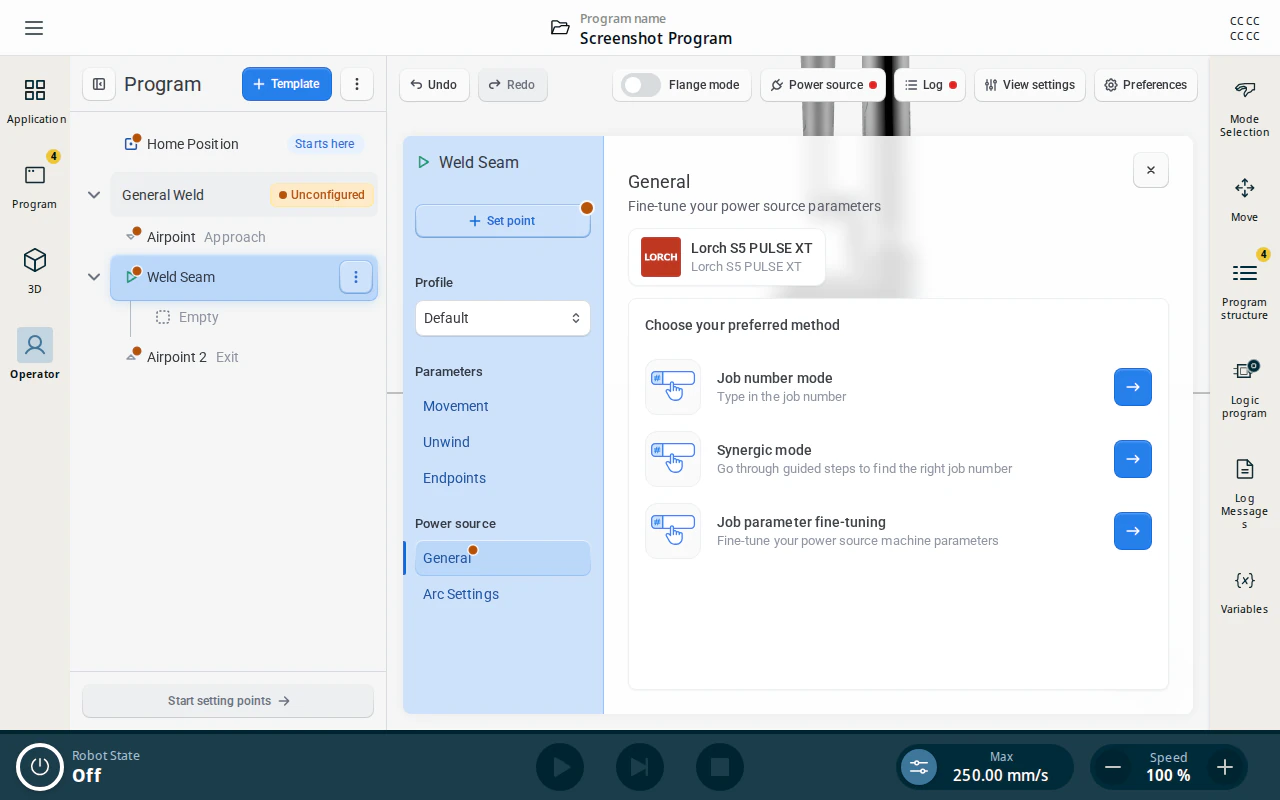
A method must be picked before the node counts as configured. Each method has its own page with a back arrow to the chooser, and each page carries its own Transfer parameters button.
Note
Only the values of the method you picked are sent to the power source. Switching methods switches what the node writes; the values you entered on the other pages stay stored on the node, but are not used.
Job number mode
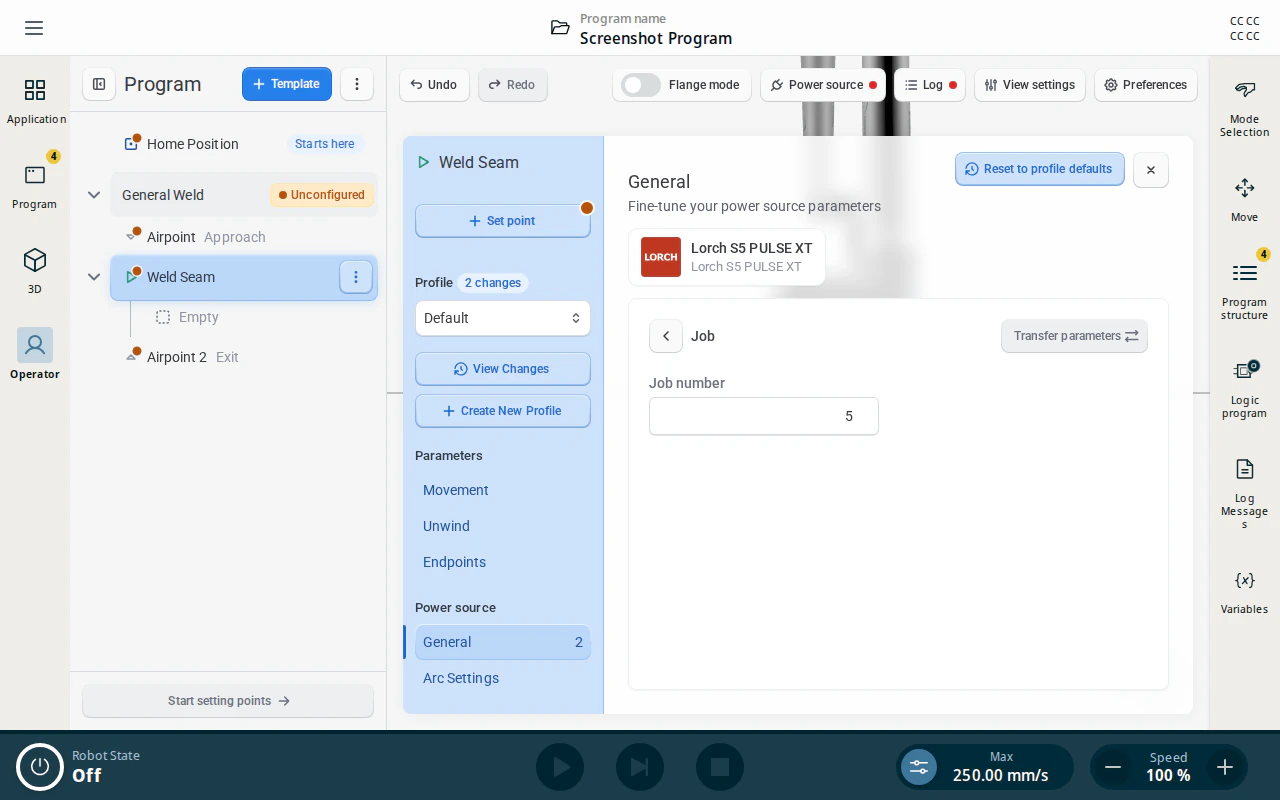
Tap Job number mode to run a job stored on the power source. The page is titled Job.
| Identifier | Description |
|---|---|
| Job number | The job stored on the power source that this node runs. Between 0 and 99. |
| Transfer parameters | Sends the current parameters to the power source. Available once connected. |
Note
In Job number mode the power source uses the parameters stored under the selected job; arc length correction, dynamics and slope cannot be overridden. Use Synergic mode if you need to override those.
Synergic mode
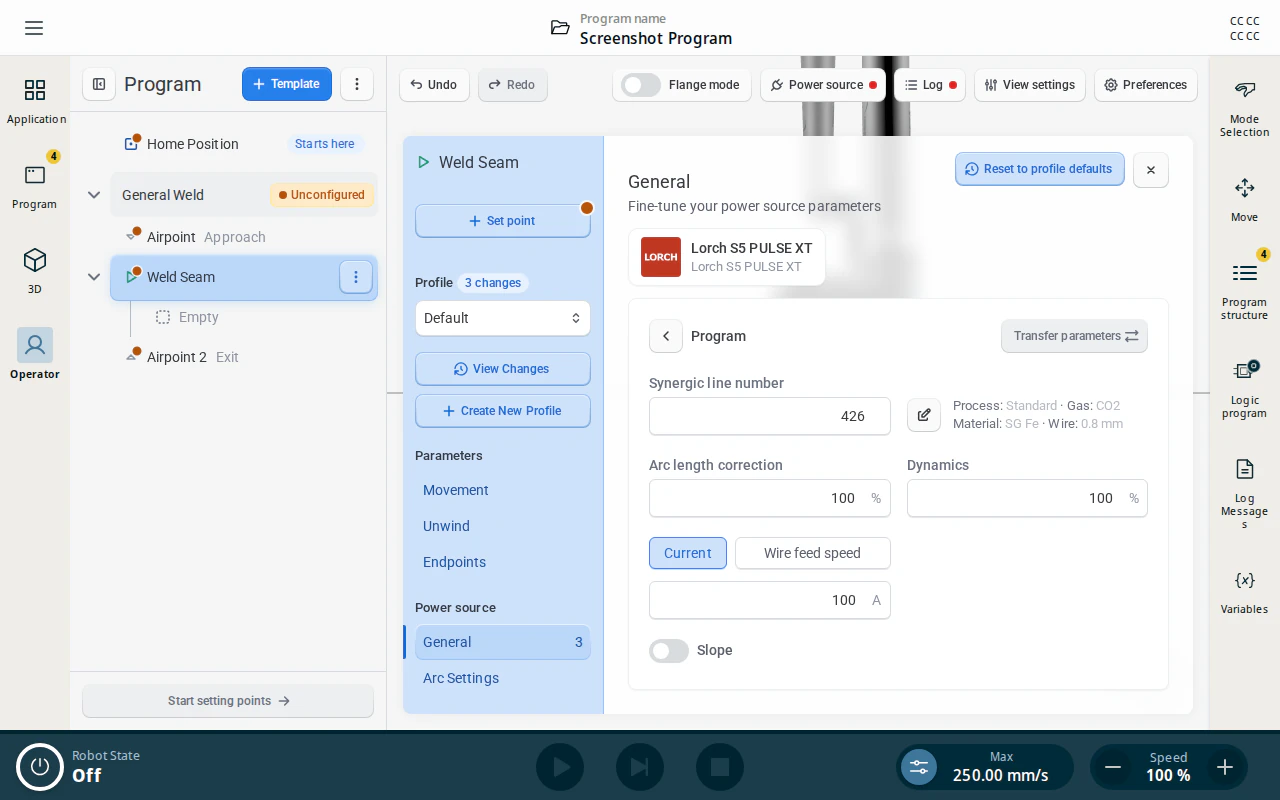
Tap Synergic mode to weld from the machine’s synergic program table. The page is titled Program.
There are two ways to choose the program, side by side: type a known number into Synergic line number, or tap Guided setup next to it and step through Process, Material, Gas and Wire diameter. Once a program is selected, the picker shows a summary of what it is, and the pencil next to it reopens the steps.
| Identifier | Description |
|---|---|
| Synergic line number | The weld program the power source runs. Between 0 and 1023. |
| Arc length correction | Corrects the arc length of the selected program, in percent. Between 60 and 140, default 100. |
| Dynamics | Corrects the arc dynamics of the selected program, in percent. Between 50 and 140, default 100. |
| Current or Wire feed speed | Selects which of the two drives the arc, then sets its value — Current in amps (A), Wire feed speed in m/min. Only the selected one is sent; the other is sent as zero. |
| Slope | Enables or disables slope. |
| Transfer parameters | Sends the current parameters to the power source. Available once connected. |
Note
The limits on Current and Wire feed speed follow the selected program: when you pick a synergic line, its own minimum and maximum replace the defaults. Until a program is selected, the fallback ranges are 0–500 A and 0–25 m/min.
Caution
Some processes can only be driven by wire feed speed — SpeedArc, SpeedArcXT and Synergic. Selecting a program that uses one of them locks the Current option out, and the node sends wire feed speed regardless of what was selected before.
Job parameter fine-tuning
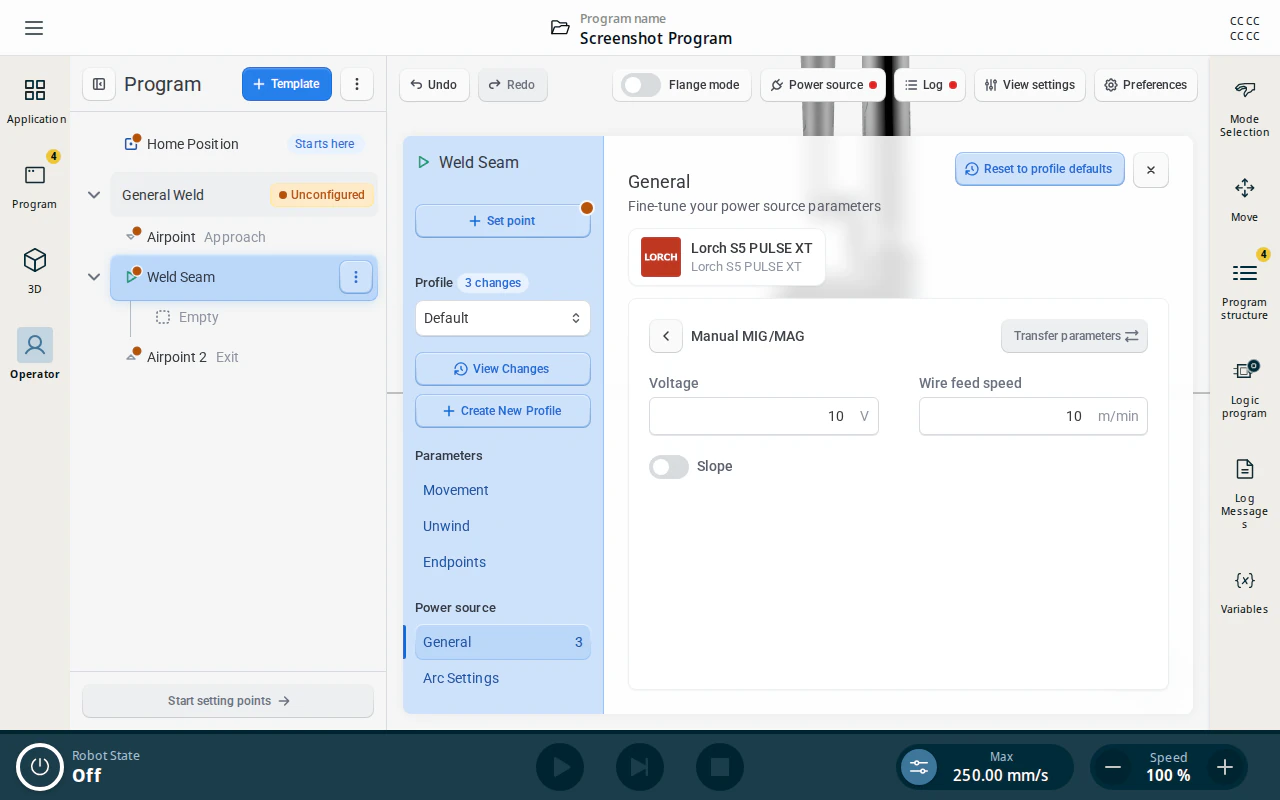
Tap Job parameter fine-tuning to set the weld values directly, without a job or a synergic program. The page is titled Manual MIG/MAG.
| Identifier | Description |
|---|---|
| Voltage | Welding voltage, in volts (V). Between 10 and 40. |
| Wire feed speed | Welding wire feed speed, in m/min. Between 0 and 25. |
| Slope | Enables or disables slope. |
| Transfer parameters | Sends the current parameters to the power source. Available once connected. |
Manual power source controls
The manual controls live in the Power source popover, opened from the button in the operator screen toolbar.
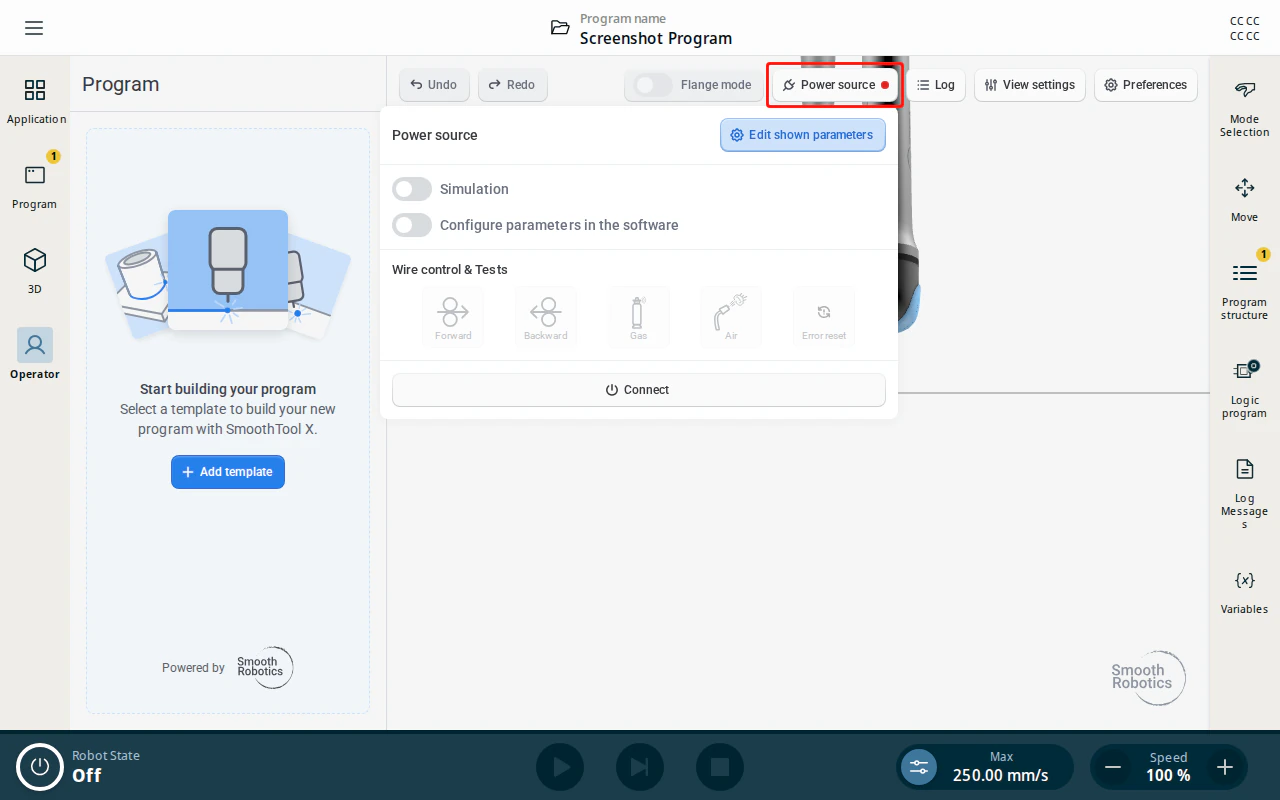
When connected to the Lorch power source, the following manual controls are available:
| Control | Description |
|---|---|
| Forward | Feeds the welding wire forward. |
| Backward | Retracts the welding wire. |
| Gas | Opens the gas valve for the duration of the press. |
| Air | Runs the power source’s air-clean function for the duration of the press. |
| Error reset | Sends a reset-error signal to the power source. |
All five are press-and-hold buttons, and they stay inactive until the power source is connected.
The popover also shows two status readouts from the machine under Parameters: Communication ready and Power source ready.
Warning
Connected to a power source that provides the option to control the wire. Do not use these functions without ensuring no harm can come to people or material. Make sure the area around the welding torch is clear before use.
Simulation
The Simulation toggle at the top of the popover runs the program as a dry run: the robot executes the full program and motion path, but the power source does not weld (no arc, wire feed, or gas). Use it to test a program safely, then turn it off to weld for real.