If you’re experiencing an issue with a specific feature or function, start by reviewing the corresponding feature in Usage Guides, where you’ll find feature-specific instructions and requirements.
If your issue is related to a power source, refer to the Power Sources section for guidance specific to your power source brand and model.
Exporting a Support File
If you can’t resolve an issue on your own, export a support bundle and attach it to your support ticket so Smooth Robotics can diagnose the problem. The bundle packages application logs, your currently loaded program, and basic system information into a single file. No personal data beyond what is normally stored on the robot is collected.
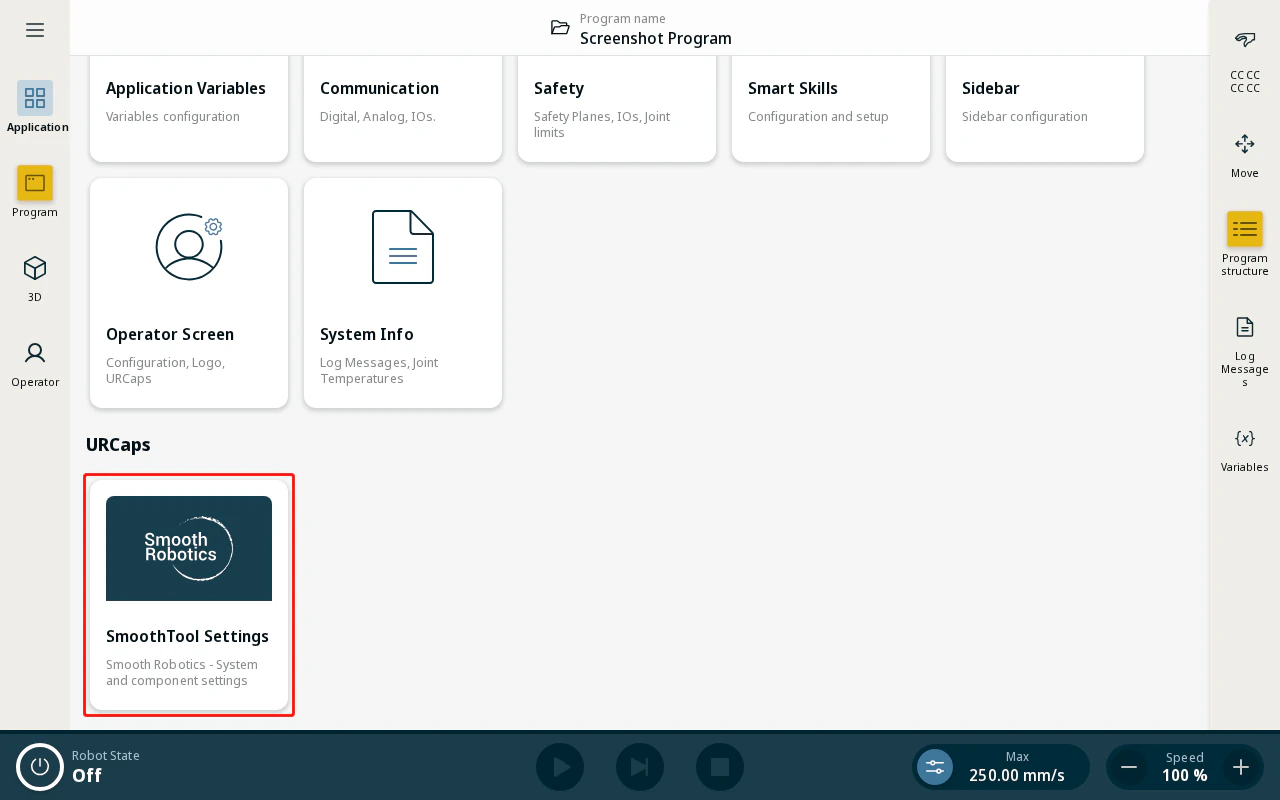
- From the Application view, tap SmoothTool X Settings.
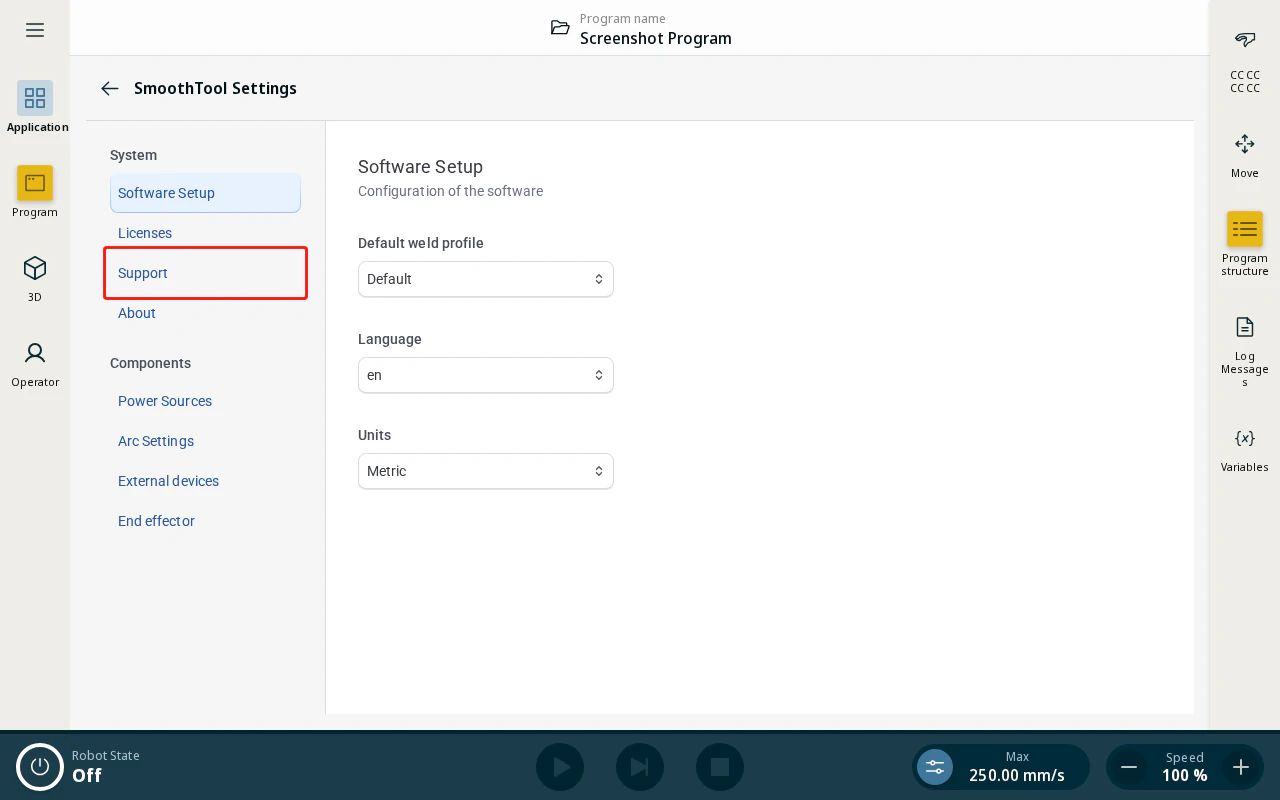
- In the sidebar, tap Support.
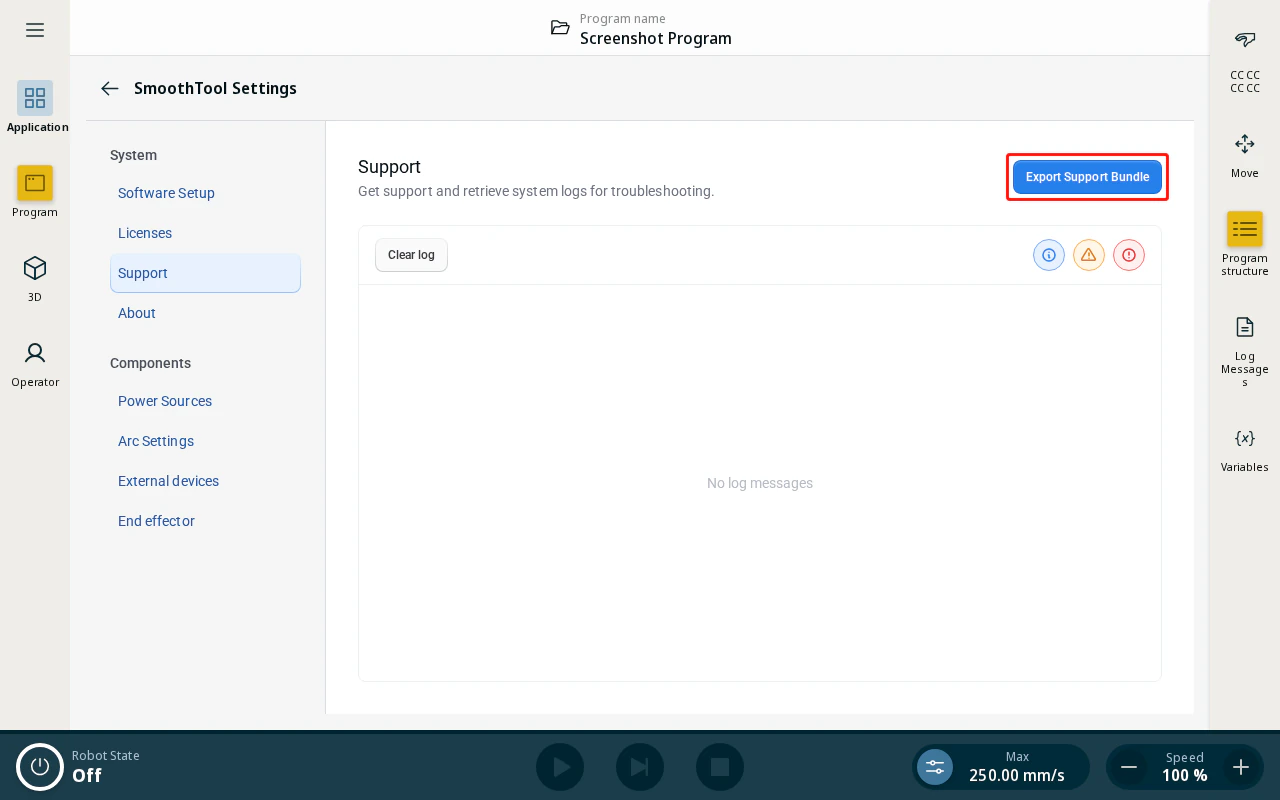
- Tap Export Support Bundle.
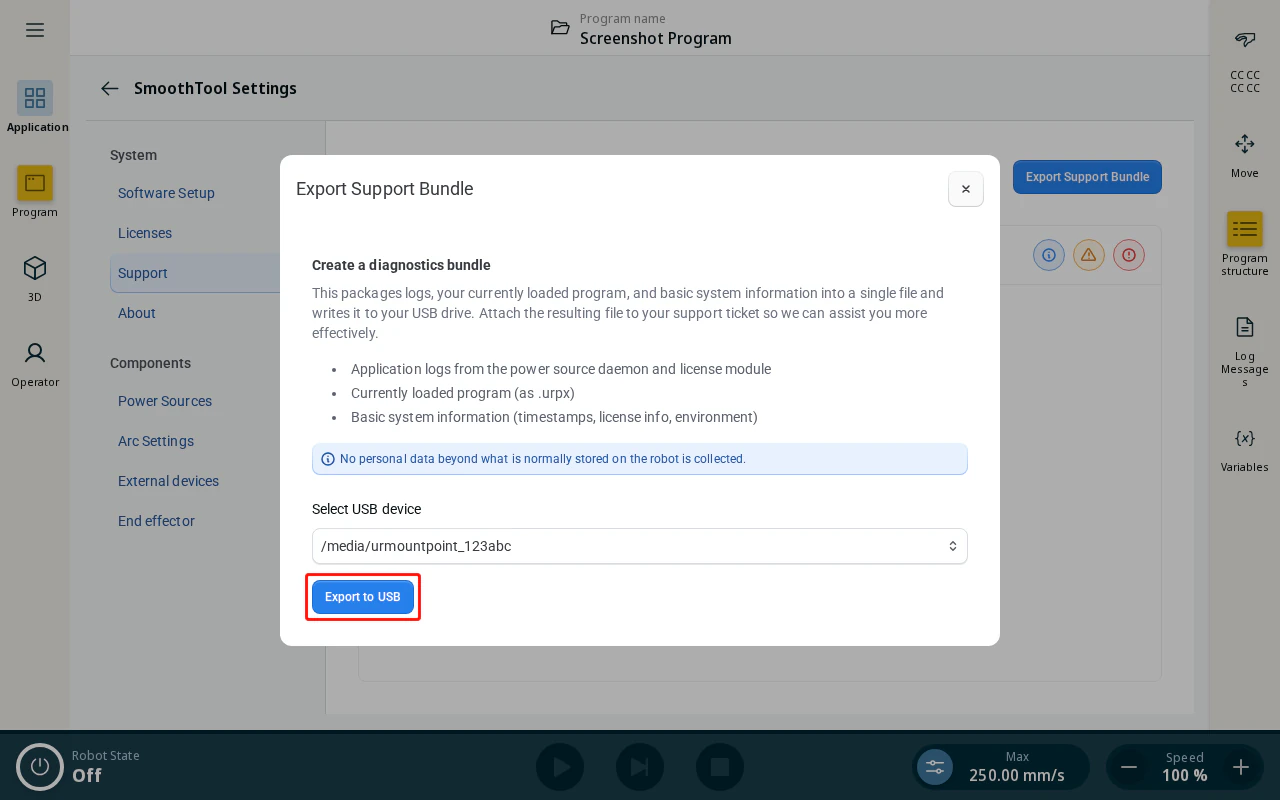
- Insert a USB storage device into the robot, select it from the Select USB device dropdown, and tap Export to USB. The bundle is written to the root of the USB device.
- Send the exported file to Smooth Robotics. Open a support ticket at hub.smooth-robotics.com/help-center and attach the file, or, if you’re already in contact with someone from Smooth Robotics, send it directly to them.