Backup & Restore copies the accounts and personal settings SmoothTool X keeps on this robot to a USB stick, as one encrypted file, and puts them back on this robot or another one. Commissioning a second cell for the same crew, or rebuilding a control box, becomes one export and one restore instead of retyping every account by hand.
A backup holds:
| Contents | |
|---|---|
| User accounts | Username, role, whether the account is disabled, and the PIN — stored scrambled, exactly as the robot stores it. |
| Preferences | Each account’s language, units, default weld profile, and which buttons its operator screen shows. |
| Audit history | This robot’s record of who did what, carried along for reference. |
It does not hold programs, TCPs, payloads, torch or power-source configuration, network settings, or your licence. Those stay with the robot they were set up on.
Note
Backup & Restore is for administrators. Other roles see the entry in the sidebar but cannot open it.
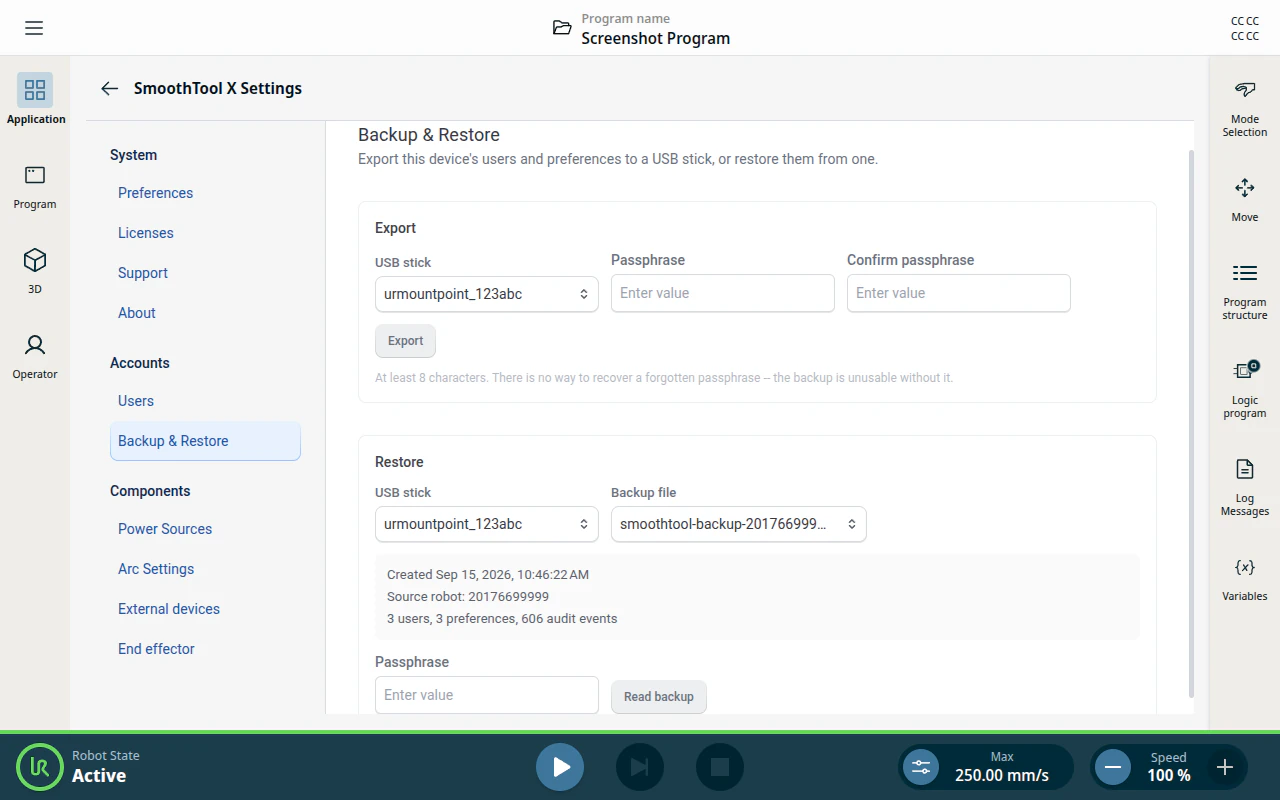
Open Backup & Restore
From the Application view, tap SmoothTool X Settings, then Backup & Restore under Accounts.
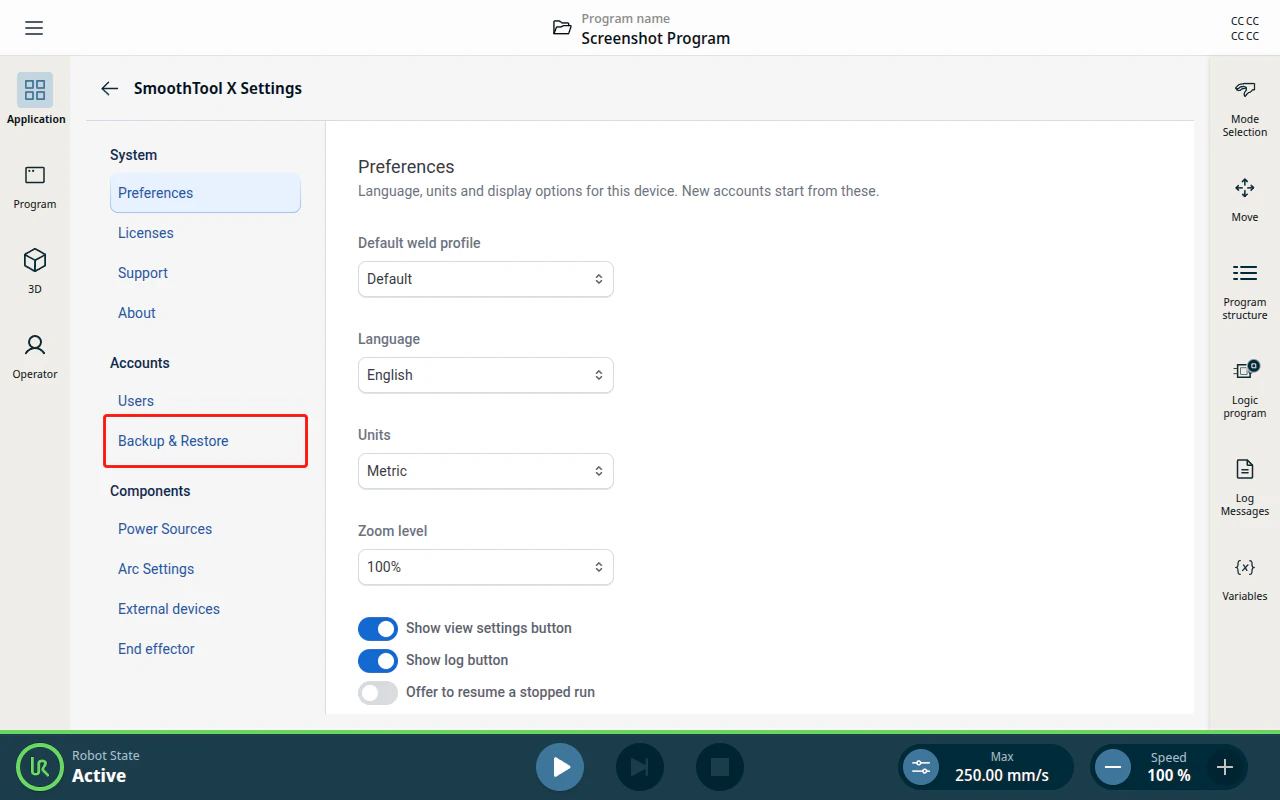
Both halves of the page work off a USB stick, so plug one into the robot before you start. Until one is detected the page says so and shows nothing else.
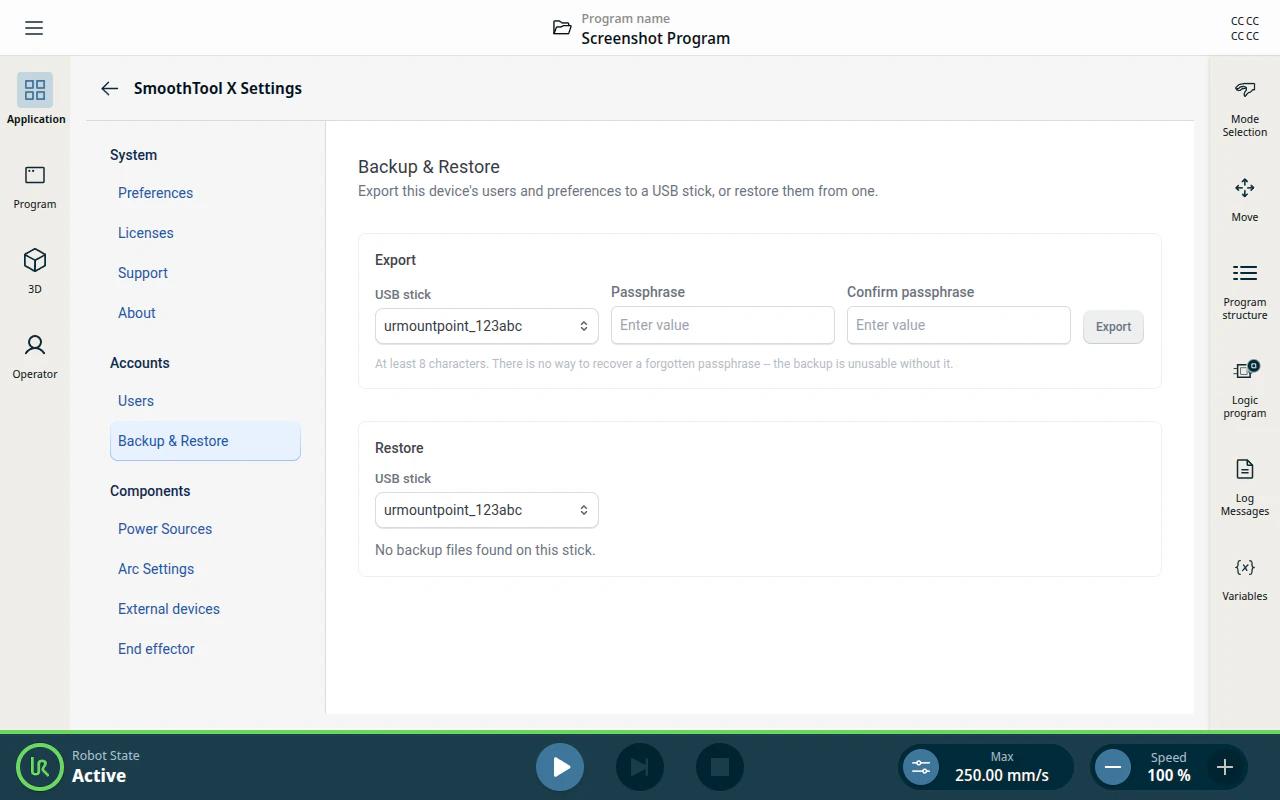
Export a backup
- Pick the USB stick. A stick the robot mounted read-only is listed as (read-only) and cannot be exported to — reseat it, or use another one.
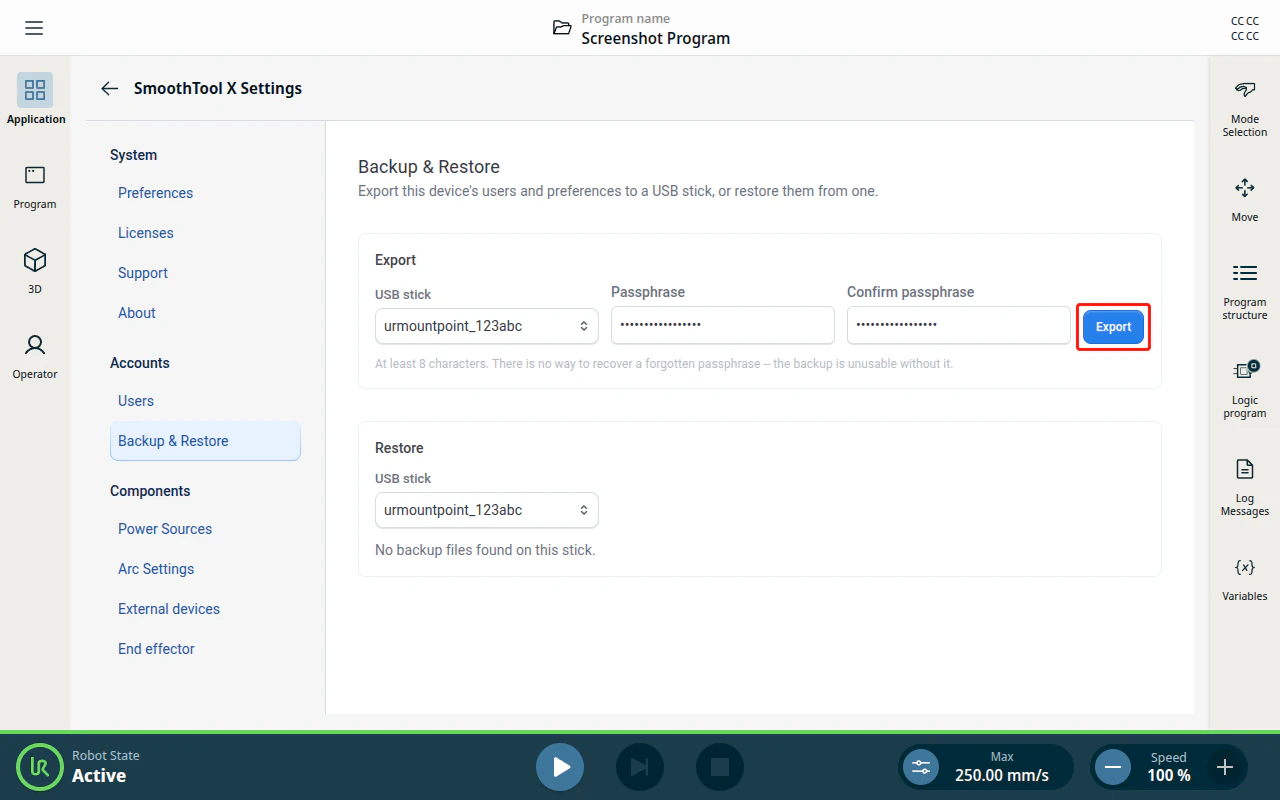
- Type a Passphrase, then repeat it in Confirm passphrase. It must be at least 8 characters; Export stays greyed out until both fields match.
- Tap Export.
Warning
Keep the passphrase somewhere safe. It is never stored on the robot or in the file, and there is no way to recover it or to reset it — a backup whose passphrase is lost cannot be opened again by anyone, including Smooth Robotics.
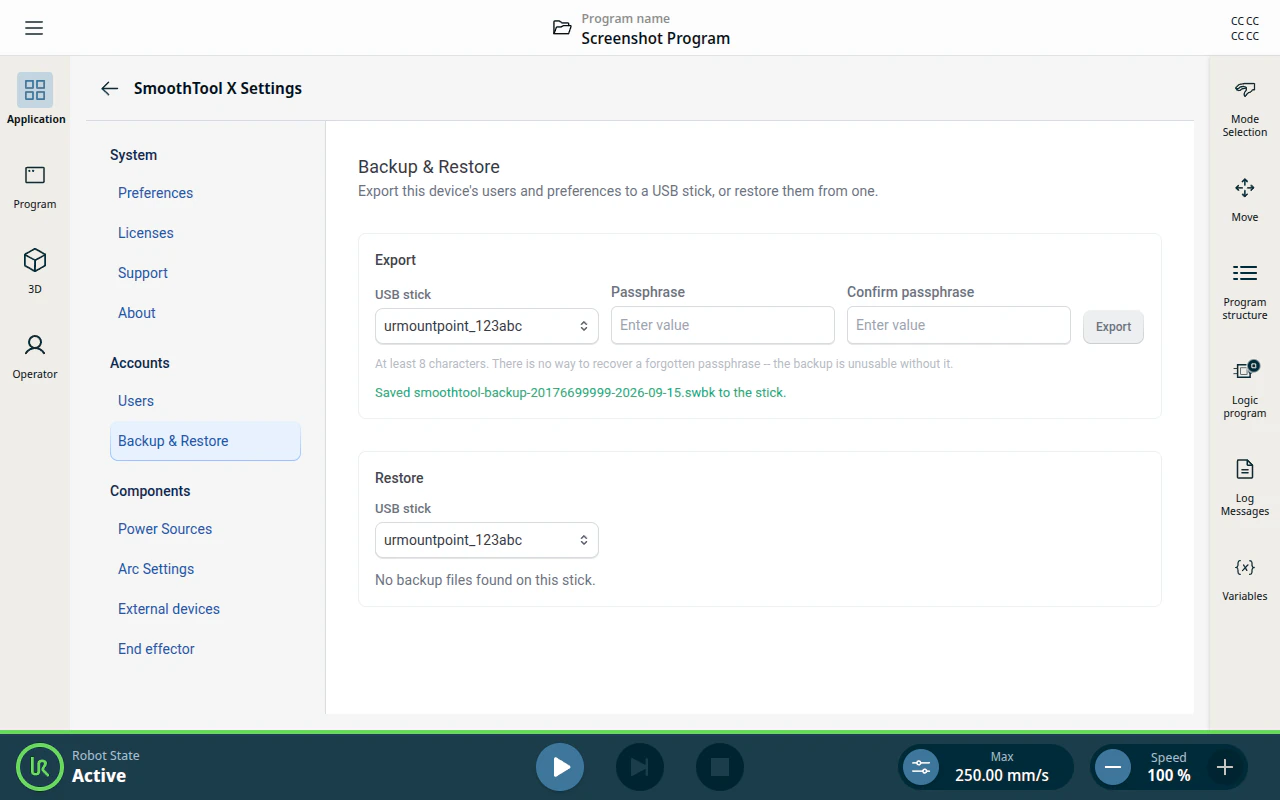
The file is written to the top level of the stick and named after the robot it came from, for example smoothtool-backup-20176699999-2026-09-15.swbk. Wait for the green confirmation before pulling the stick out — it appears only once the file is completely written.
Restore a backup
A restore is two deliberate steps: SmoothTool X first tells you exactly what it would do, and changes nothing until you tap Apply.
1. Pick the file and unlock it
Choose the USB stick and then the Backup file. Only .swbk files sitting at the top level of the stick are listed, newest first.
As soon as a file is selected, its label is shown — when it was made, which robot it came from, and how much it holds. If the robot it came from had user accounts switched on, the administrator who made it is named too. This needs no passphrase, so you can identify a stick before unlocking anything.
Type the Passphrase the backup was exported with and tap Read backup.
2. Review, then apply
SmoothTool X compares the file against this robot and reports what it found.
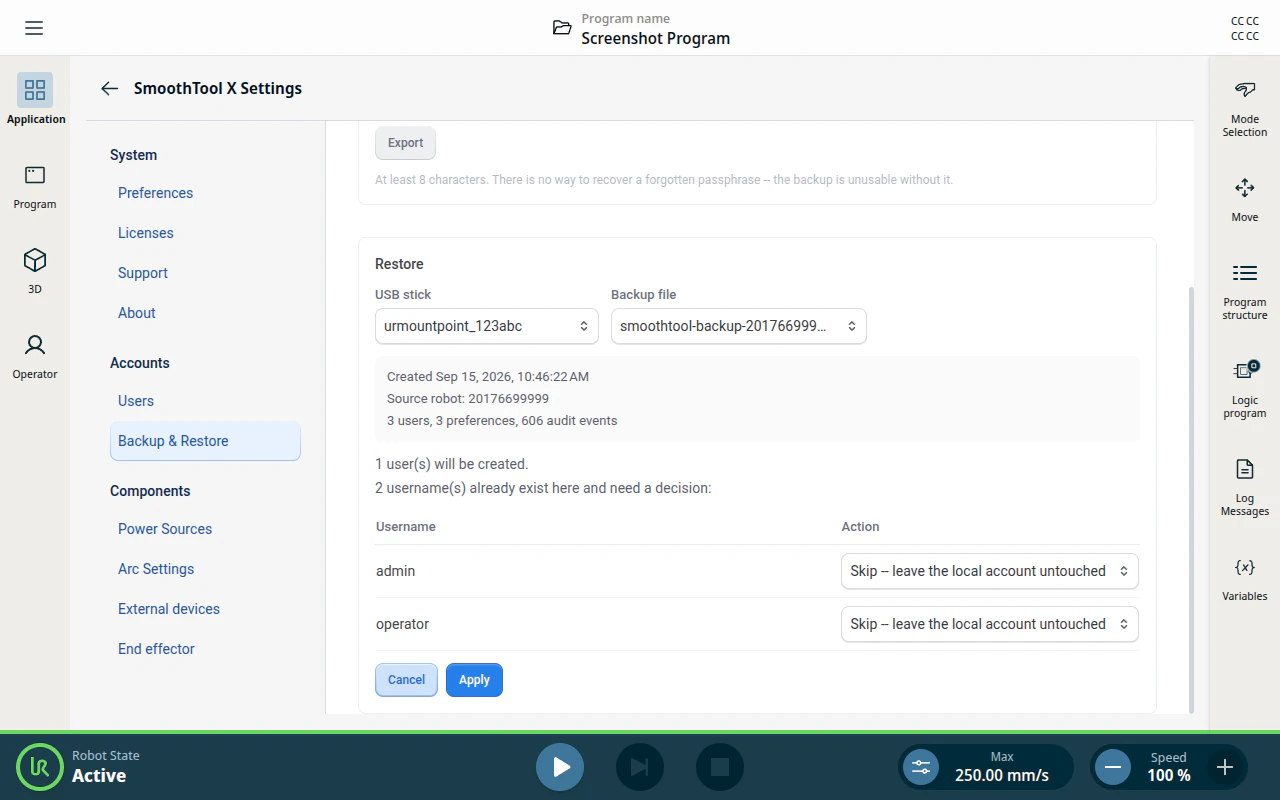
Accounts whose usernames are free here are simply listed as will be created. A username that already exists on this robot is never resolved automatically — it gets a row of its own, and you choose what happens:
| Action | Result |
|---|---|
| Skip | The account on this robot is left exactly as it is. The one in the backup is dropped. |
| Replace | The account on this robot keeps its name, but takes the PIN, role and status from the backup. |
Usernames are matched without regard to capitalisation, so Jens and jens count as the same person.
Tap Apply when the list says what you want. Cancel throws the plan away and returns you to the file list.
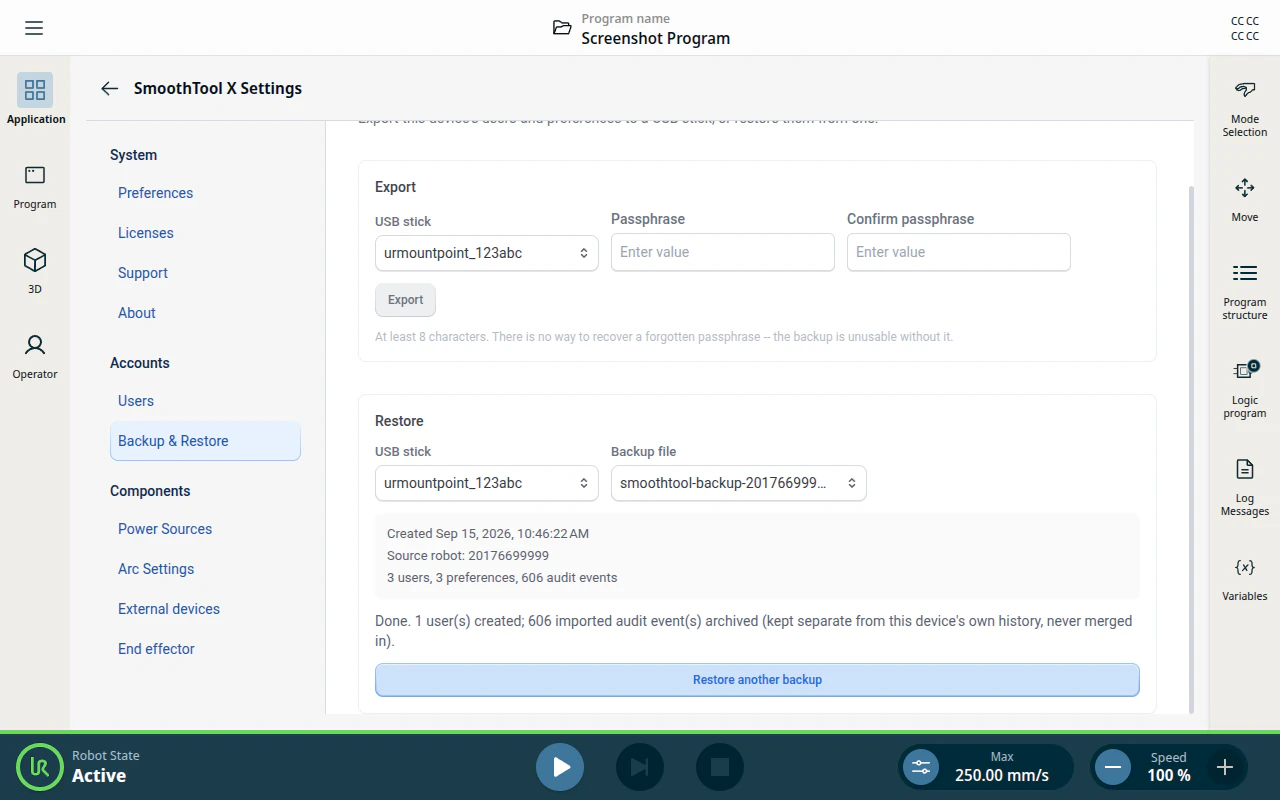
What a restore changes
- Accounts are created, or replaced where you said so. Everything else on the robot is untouched.
- Preferences follow each account that was created or replaced. A default weld profile is only restored if that same profile also exists on this robot; otherwise the account starts on the built-in default.
- Device settings — the robot-wide language and units, and whether user accounts are required at all — travel in the file but are never applied. They are commissioning choices for the robot in front of you, and importing them could lock out operators who have no PIN here.
- Audit events from the backup are filed separately, marked as imported and tagged with the robot they came from. They never merge into this robot’s own history.
Note
A restore can never leave the robot without an administrator. If the choices you made would disable or demote the last active administrator, Apply is refused and nothing is written.
A plan is good for 10 minutes. After that — or if the stick is swapped, or the file changes, between Read backup and Apply — you are asked to read the backup again, so a plan can never be applied to different contents than the ones you reviewed.
How the file is protected
The backup is a single encrypted file. Its contents are sealed with AES-256-GCM, using a key stretched from your passphrase with Argon2id — deliberately slow, so guessing at a stolen stick is expensive rather than instant.
Only the label — creation date, author, source robot, and the item counts — is readable without the passphrase, which is what lets the Restore card describe a stick before you unlock it. That label is signed along with the contents: edit it and the file no longer opens at all.
Because account PINs travel inside the file, treat an exported stick as you would a key to the cell.
If something goes wrong
| Message | What to do |
|---|---|
| Incorrect passphrase. | Check the passphrase. Capitalisation counts. |
| This backup failed authentication — the file is damaged or was modified. | The file is not intact. Export a fresh backup from the source robot. |
| This isn’t a valid SmoothTool X backup file, or it has been corrupted. | The file is not a .swbk backup, or the copy on the stick is incomplete. |
| This backup was created by a newer version of the software. Update the URCap first. | The source robot runs a newer SmoothTool X. Update this robot, then restore again. |
| This import plan has expired. Re-read the backup and try again. | More than 10 minutes passed since Read backup. Read it again. |
| The backup file changed since it was read. Re-read it and try again. | The stick was swapped or the file rewritten mid-restore. Read it again. |
| Applying this plan would leave no active administrators. | Change at least one Replace to Skip, or make sure another administrator account stays active. |
| The target location is not writable. | The stick is read-only or write-protected. Reseat it, or use another one. |
| Not enough free space on the target. | Free up space on the stick, or use another one. |