A profile is a saved, reusable set of weld parameters — travel speed, movement, angles, weaving, slope, tack and power-source settings. Apply a profile to a weld node to configure all of those values at once, and reuse it across nodes and programs. SmoothTool X ships with a Default profile.
Apply a profile
- Select a weld node in the program tree. In the node panel, open the Profile dropdown, choose a profile, and confirm.
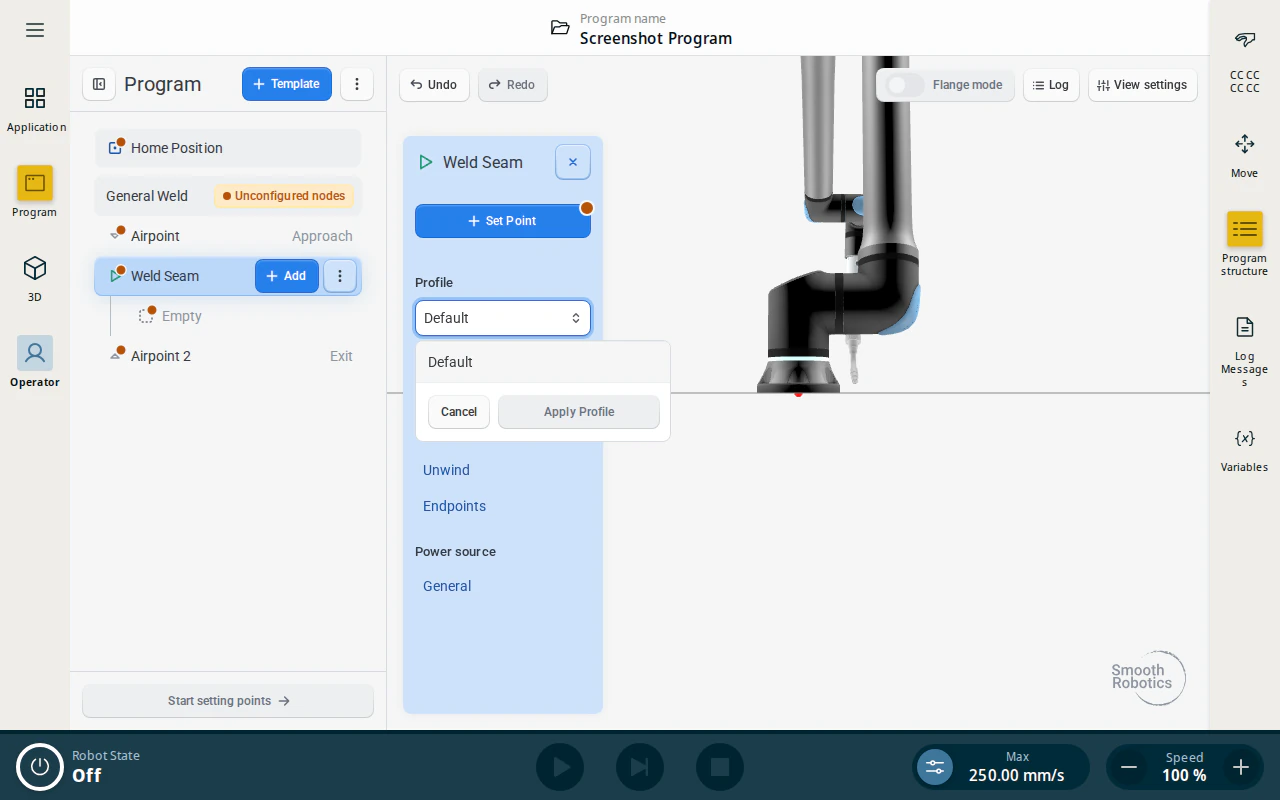
The node’s parameters update to the profile’s values.
Create a profile
- Adjust any parameters on a node (for example the travel speed). Once the values differ from the active profile, a Create new profile button appears in the node panel. Tap it, enter a name, and tap Create.
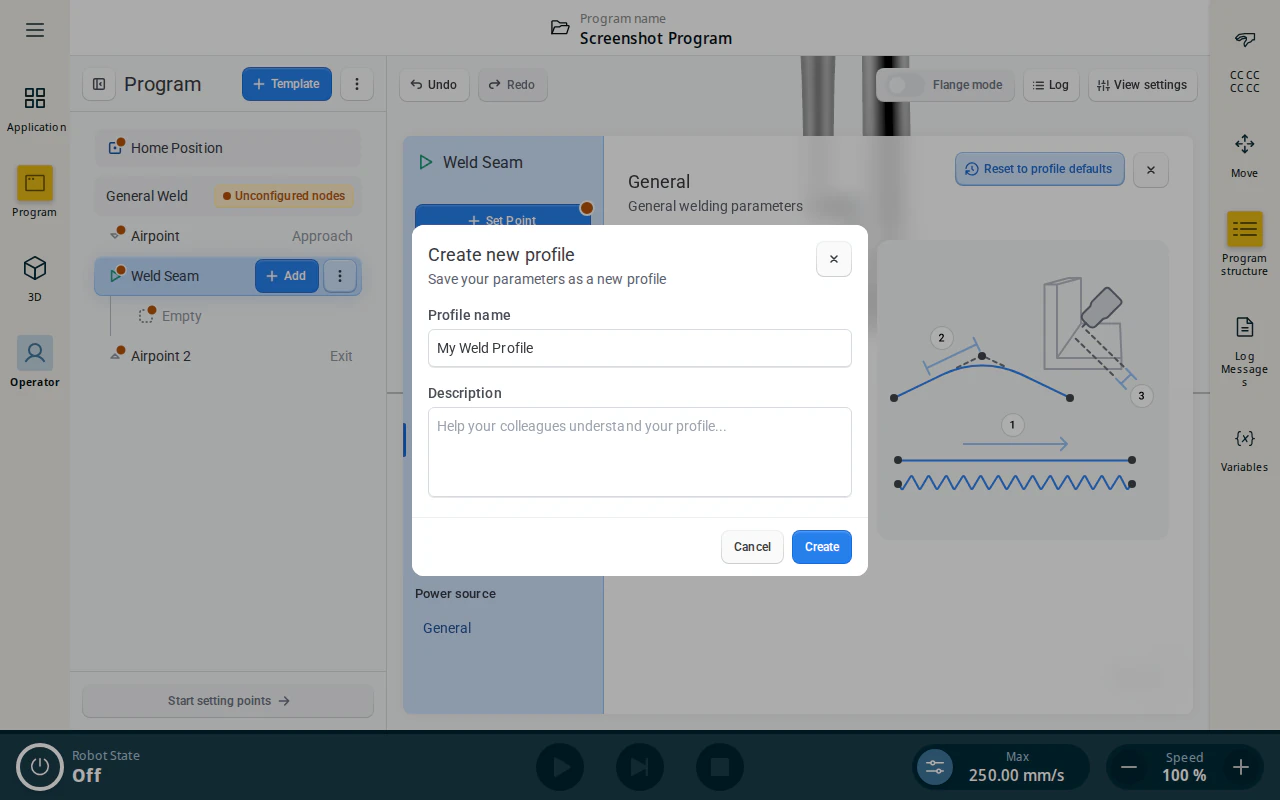
Your new profile now appears in the Profile dropdown and can be applied to other nodes.
Update a profile
- With a custom profile active, change its parameters and tap Update profile. Review the old → new values and tap Apply changes to save them back to the profile.
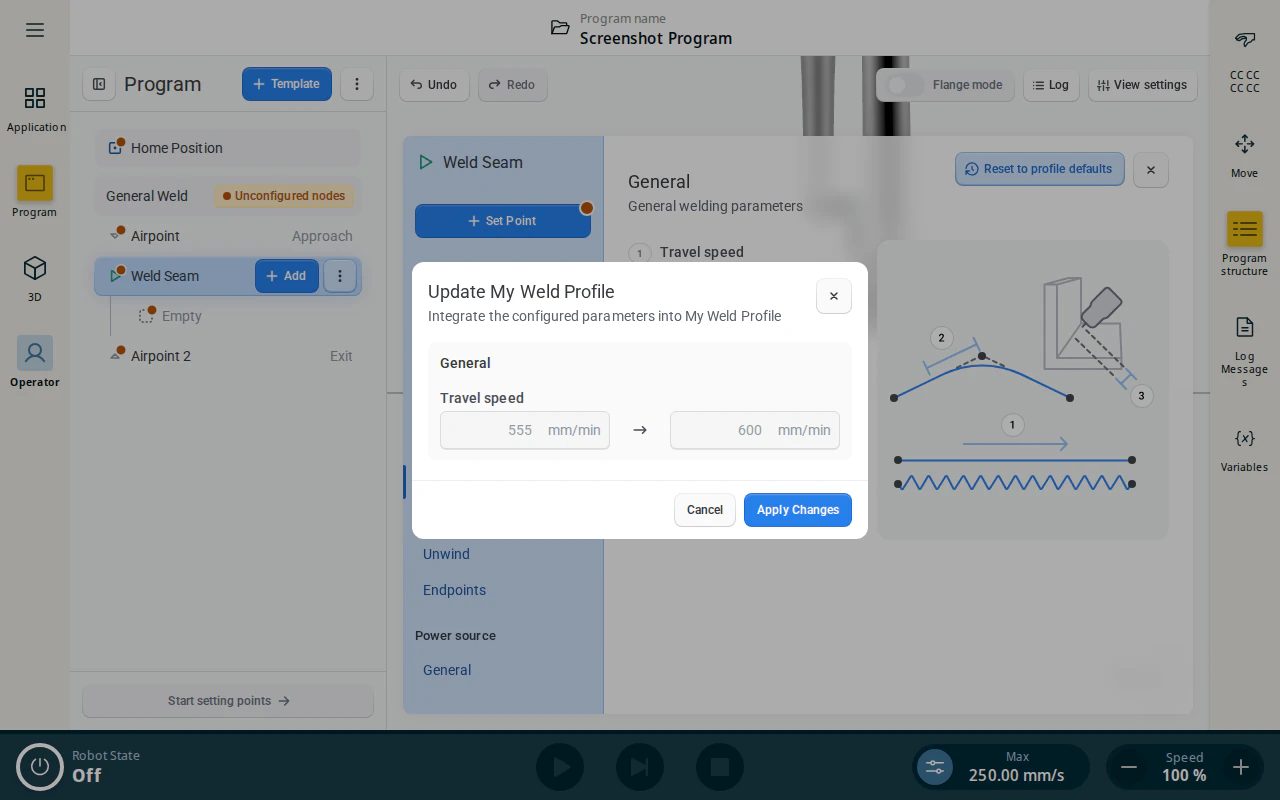
Note
Updating a profile saves the new values to the profile itself — it does not change nodes already in the program tree that use it. To make a node match the saved profile again, tap Reset to profile defaults on that parameter tab. The built-in Default profile cannot be updated — save your changes as a new profile instead.