An offset moves a piece of your program to where the workpiece actually is. Instead of re-teaching every point, you nominate a reference point you already taught, tell SmoothTool X where that point sits now, and the whole selection moves with it.
Three actions share this flow. They differ only in what is written back to the program:
| Action | Result |
|---|---|
| Reposition Weld | The selected welds move to the new position. Nothing is added. |
| Create Copy | A full, independent duplicate is added at the new position — named Copy of …. Editing it never affects the original. |
| Create Reference Copy | A single row is added that keeps following the original. It has no points or parameters of its own — every later change to the original applies to it too. |
Note
Offset actions are a paid feature: they need the Offset add-on on your license. See License Features for what each add-on covers and how to activate an upgraded license.
1. Set the reference points
An offset is measured from a point you can find again on the workpiece itself. Each template carries three of its own — Point A, B and C — taught against permanent marks on the fixture. They are what makes an offset repeatable: any taught weld point can be used instead, but a weld point only tells you where the torch was, while a mark on the fixture can be located again by eye.
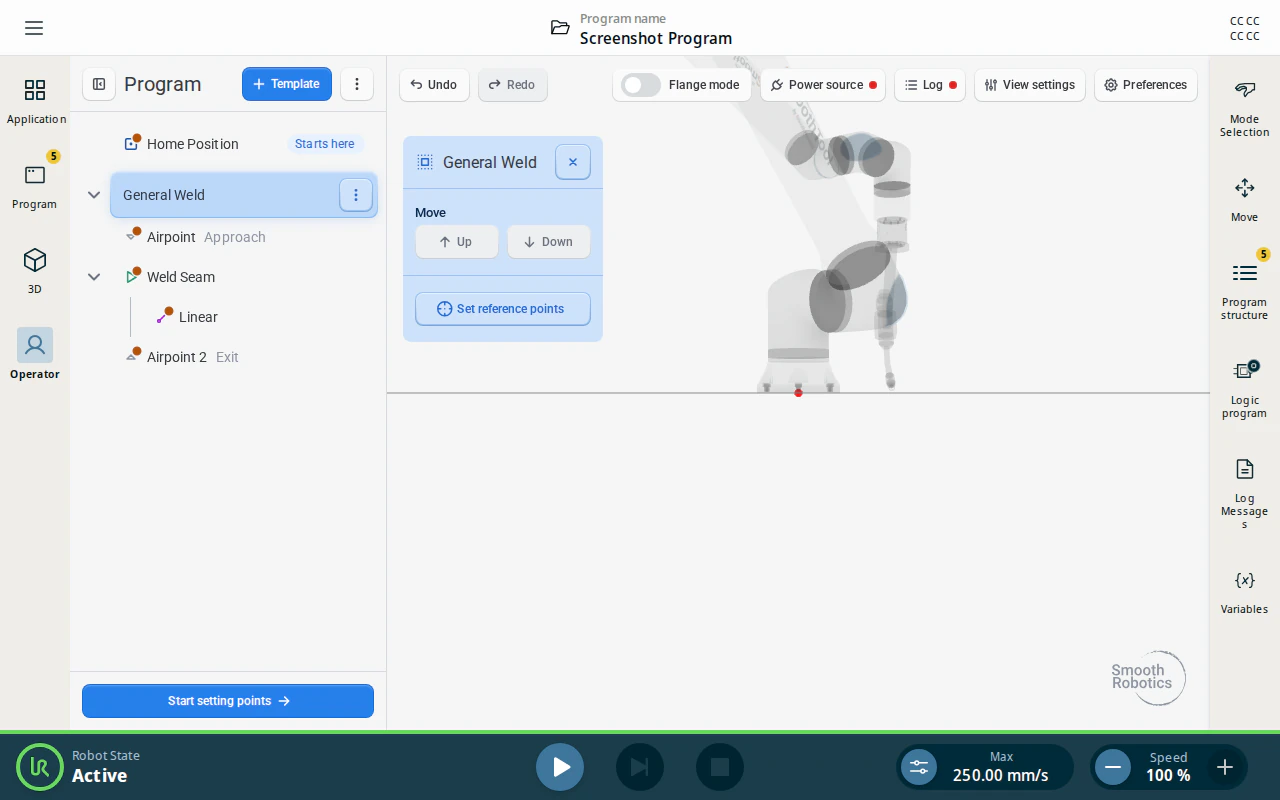
Select the template in the program tree, then tap Set reference points in its panel. (Once any of them is taught the button reads See reference points, and reopens the same wizard.)
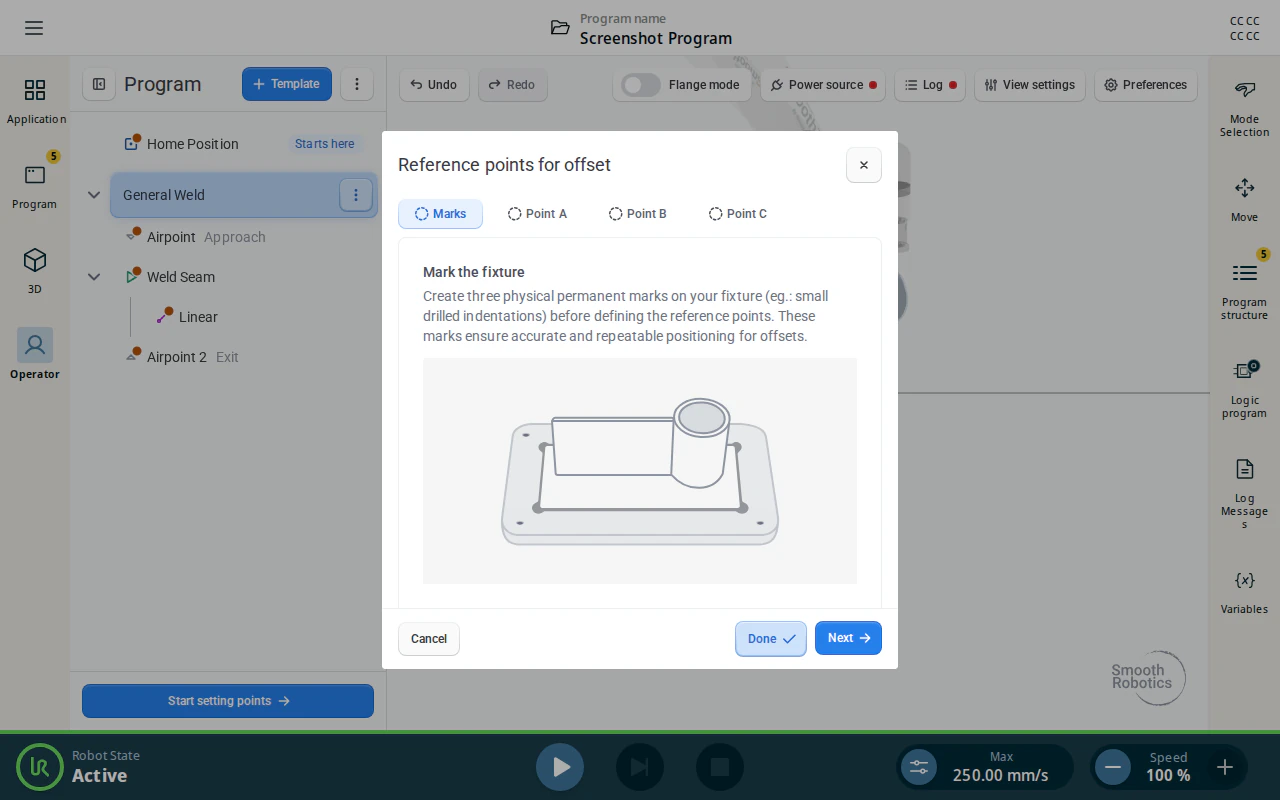
The wizard opens on Marks. Make three permanent physical marks on the fixture first so the same three positions can be found again after the workpiece moves.
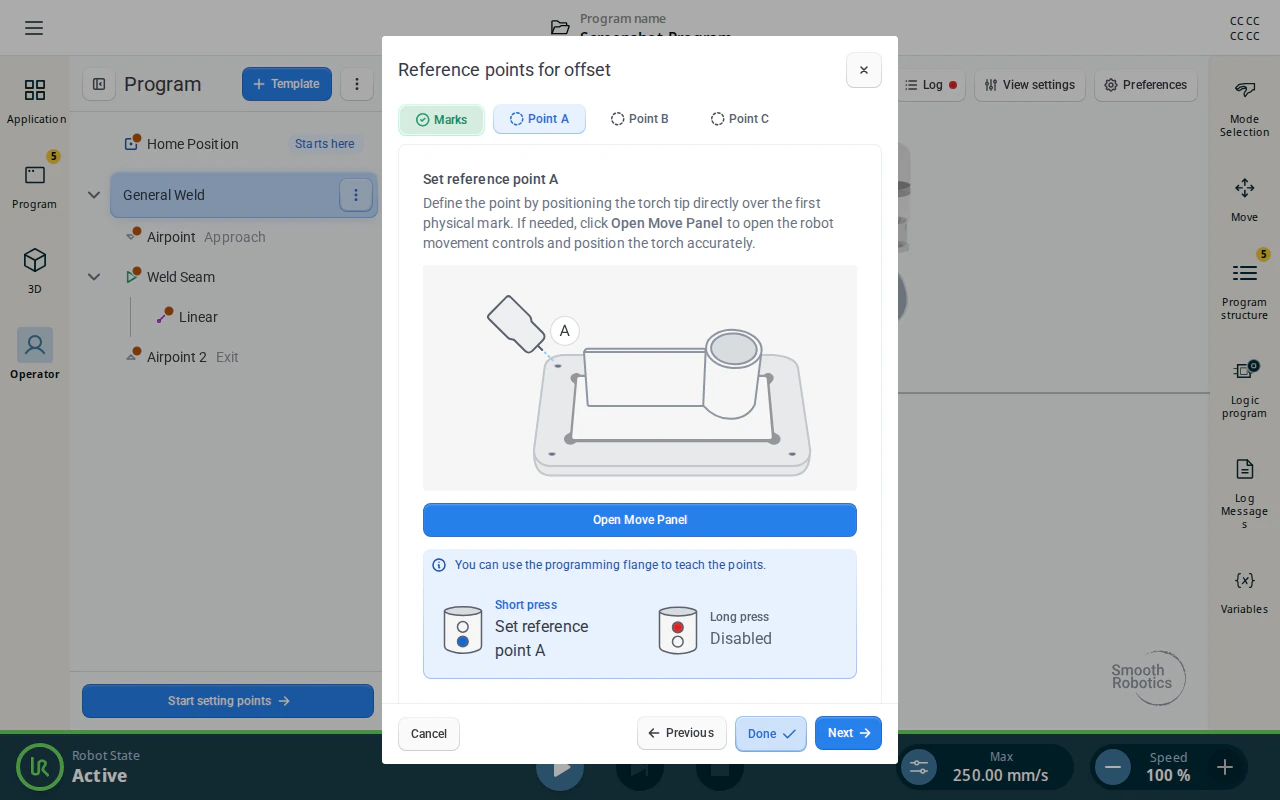
Step on to Point A, B and C in turn. For each, put the torch tip directly over its mark — Open Move Panel brings up the robot movement controls. Done saves what you have taught and is available on every step.
Tip
Space the three marks well apart and do not put them in a straight line. Three marks closer than 100 mm to each other, or lying along one line, cannot pin the workpiece down — the three-point method rejects them and says so.
Teaching them is optional: an offset can use any taught weld point instead. Nothing here is required before you carry on.
2. Choose an action
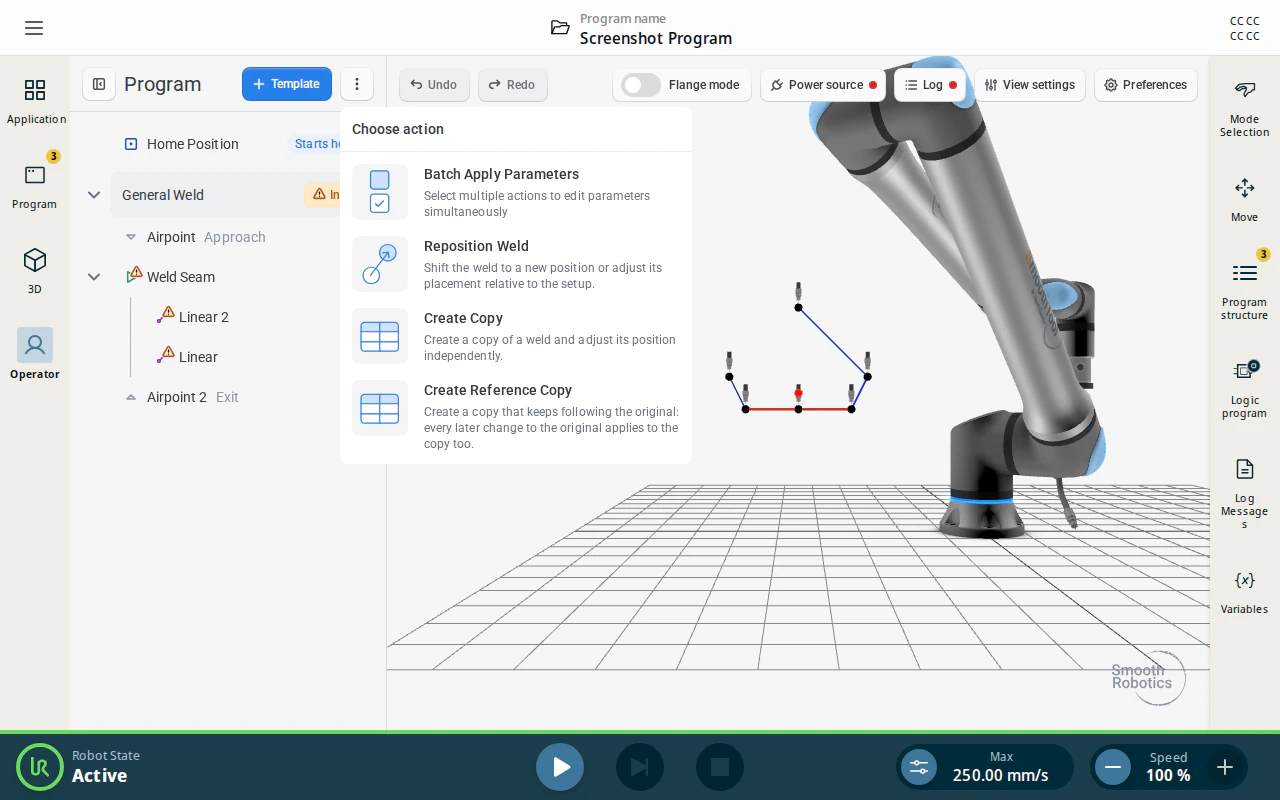
On the program screen, open the ⋮ menu in the program header and tap Reposition Weld, Create Copy or Create Reference Copy.
3. Select what to offset
The program tree turns into a checkbox list of the program’s top-level items. Tick everything the offset applies to — a whole workpiece comes along with all of its nodes — then tap Create offset.
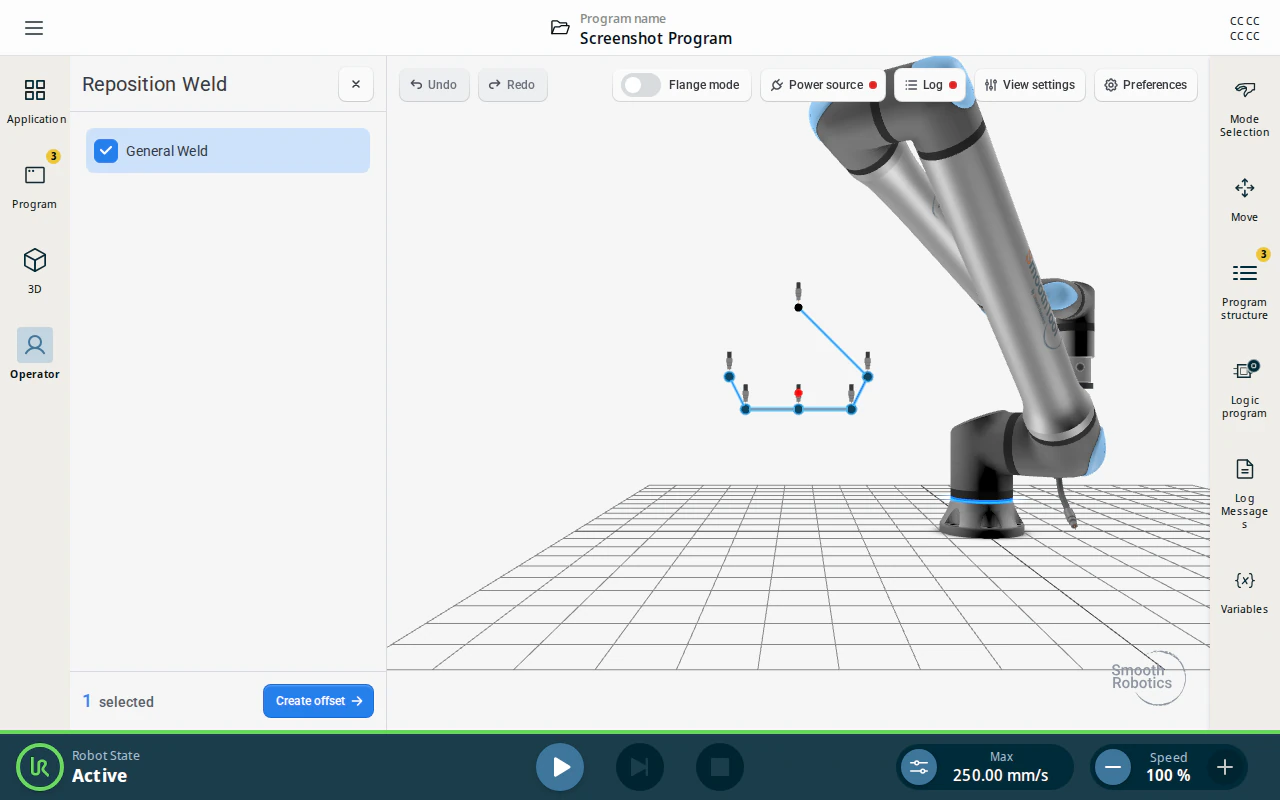
Note
Only whole top-level items can be selected. Home Position is not offered, because it is a robot position rather than workpiece geometry, and reference copies are not offered either — they hold no points of their own.
4. Choose a method
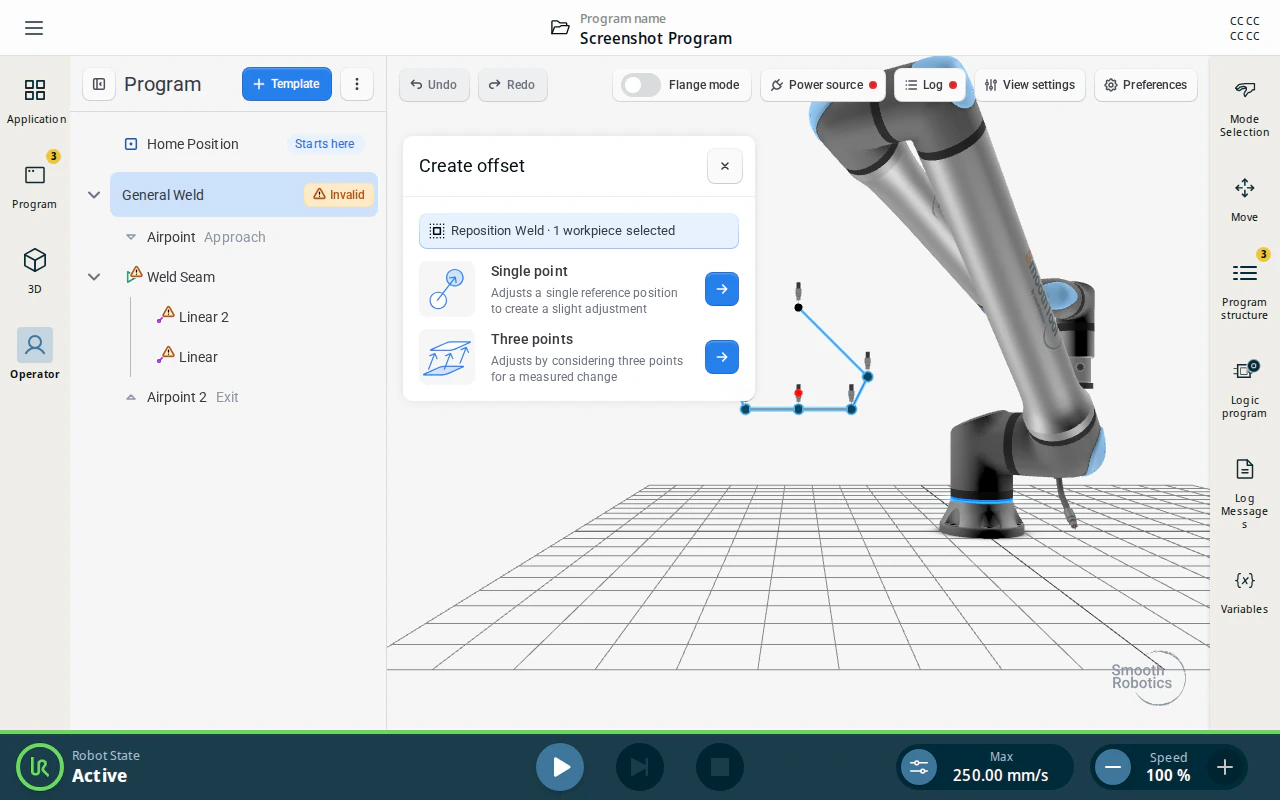
Single point adjusts one reference position. Use it when the workpiece has shifted but not turned — it produces a translation only, and leaves orientation untouched.
Three points compares three reference positions before and after, so it can recover rotation as well as a shift. Use it when the workpiece has also been turned or tilted.
Three points is unavailable — with an explanation in the panel — unless your selection contains three taught reference points that can actually define a plane:
| Message | Meaning |
|---|---|
| Not enough reference points available | Fewer than three taught points are in the selection. Only a single-point offset is possible. |
| Reference points too close | The points sit too close together to define a reliable plane. Move them further apart, or pick different ones. |
| Reference points in a line | The points lie on a single straight line. Pick one that is off that line. |
5. Single point
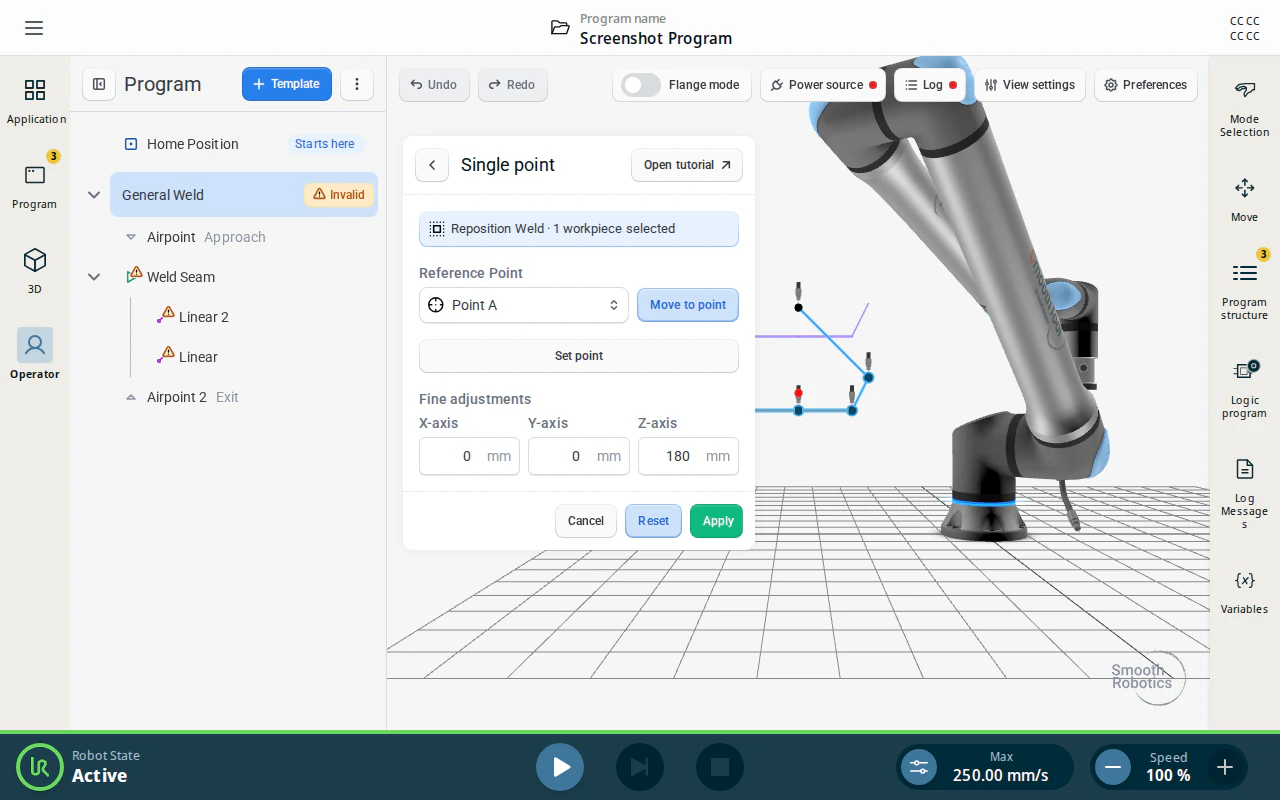
- Reference point — pick the point the offset is measured from. The list offers the workpiece’s own reference points (Point A, B, C) first, then every taught point in your selection, grouped under the item it belongs to. Points that have not been taught are listed but cannot be picked.
- Move to point drives the robot to where that point sits now, before any offset — useful for checking you picked the right one.
- Set point opens the move screen so you can jog to where the reference point sits on the workpiece today. The measured difference is written into Fine adjustments.
- Fine adjustments holds the offset itself, in millimetres along the robot’s X, Y and Z axes. You can correct the measured values, or type an offset outright without nominating a reference point at all.
- Apply writes the offset. Reset clears the reference point, the taught position and the adjustments, keeping your selection.
Tip
In flange mode the flange’s own buttons replace the on-screen ones: the blue button teaches the new position, the red button forgets it again, and a short red press steps through the reference-point list.
6. Three points
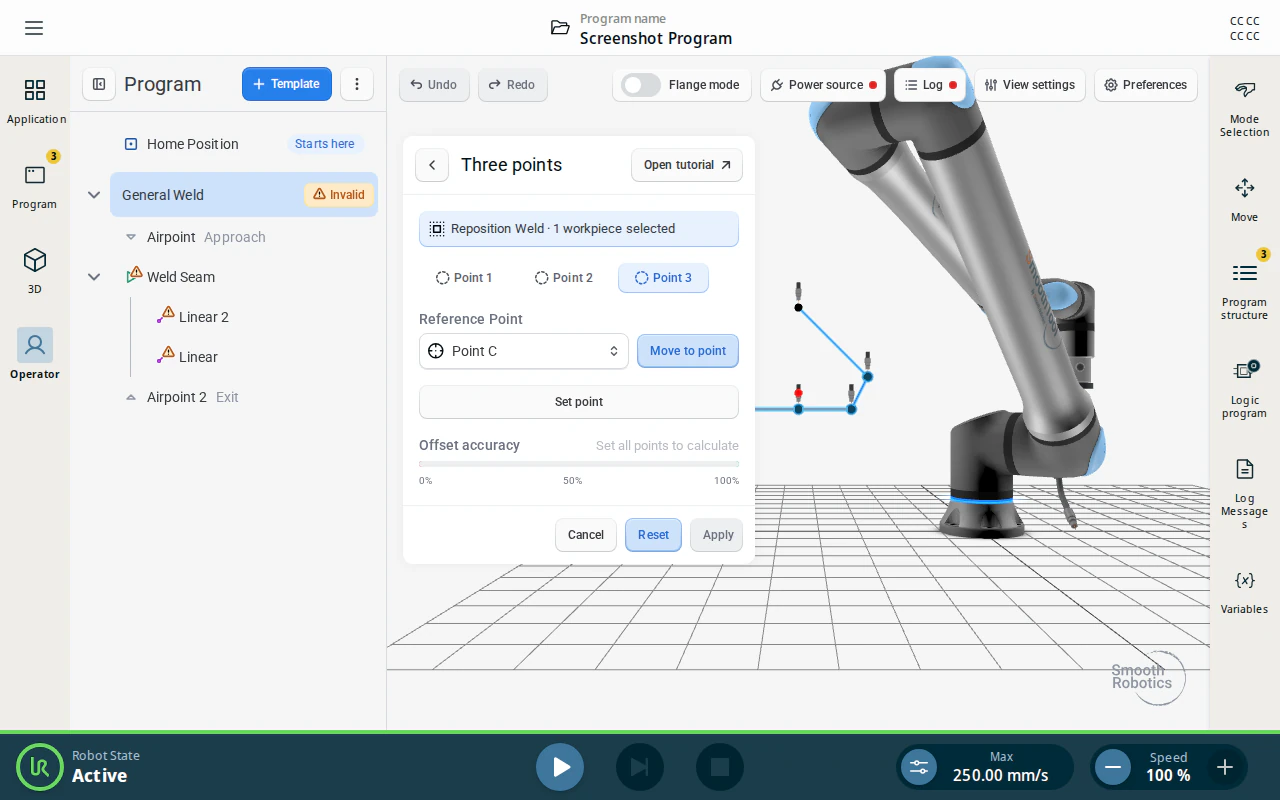
Work through Point 1, Point 2 and Point 3 in turn. For each: pick its reference point, then tap Set point and jog to where that point sits now. You can fill the slots in any order and revisit any of them.
Offset accuracy reports how closely the three positions you taught keep the spacing of the original three. It stays empty — Set all points to calculate — until all three are taught.
- High / Medium precision — the taught triangle matches the original well.
- Low precision — the spacing has drifted, so the offset may come out tilted. Apply still works, but re-teaching the points gives a better result.
If the three taught positions fall on a straight line they cannot define a plane, and the panel says so rather than applying a silently wrong rotation.
7. Reposition Weld
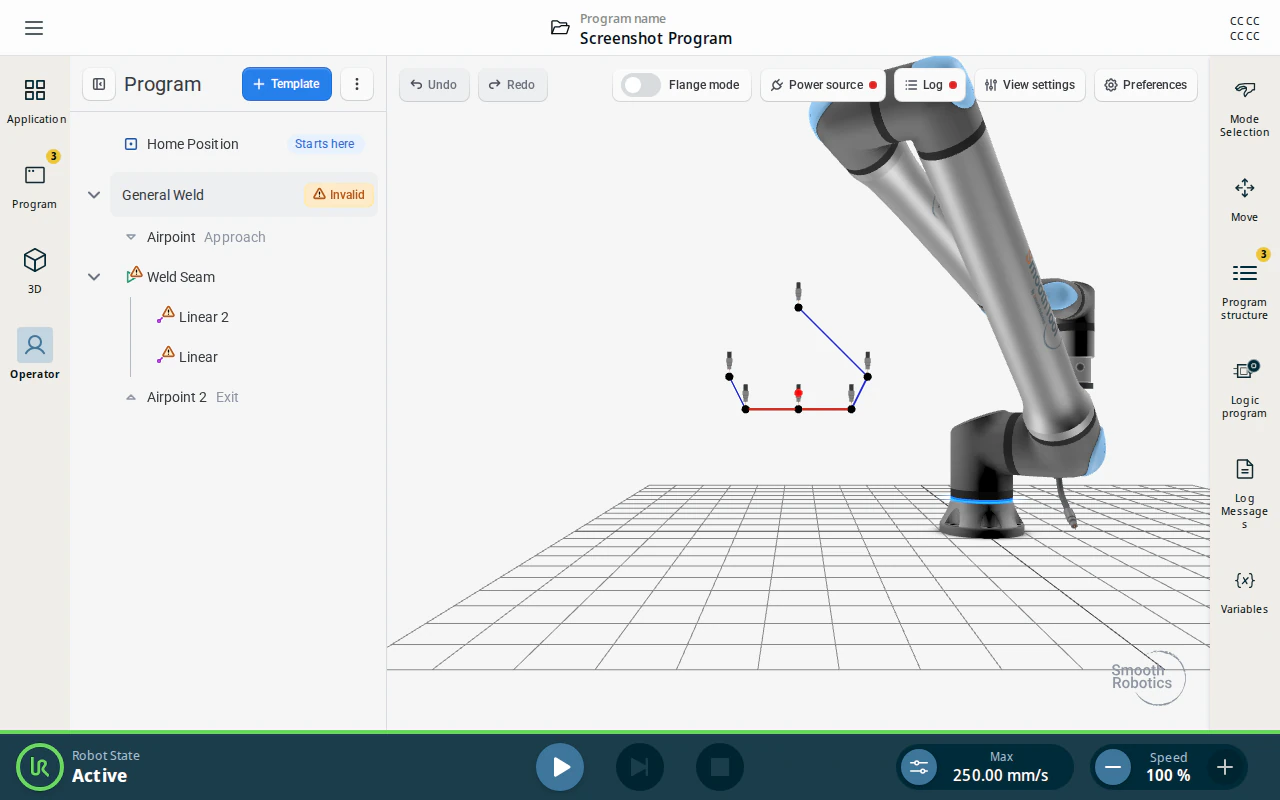
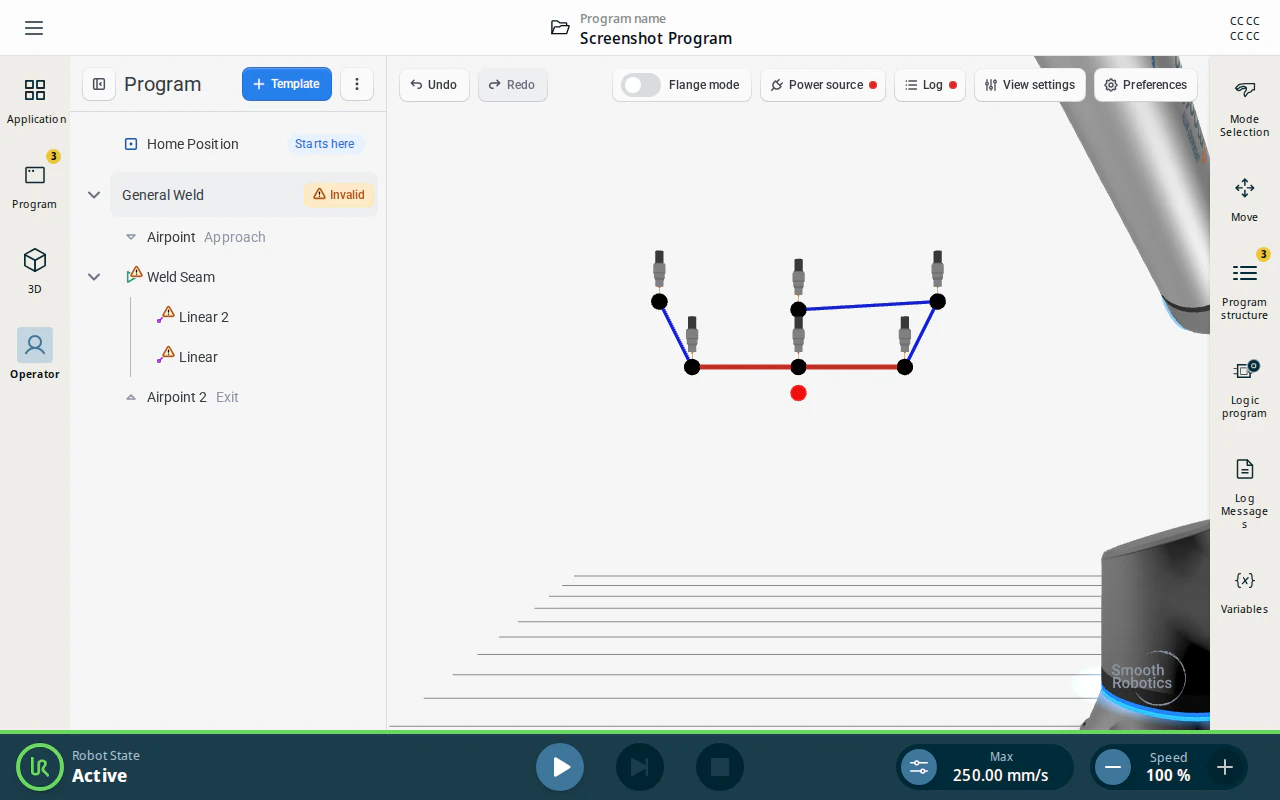
Reposition Weld moves the selected welds to the new position. Nothing is added and nothing is duplicated — the program keeps exactly the same structure, with its points rewritten.
Use it when the workpiece itself has moved and the program should follow it.
8. Create Copy
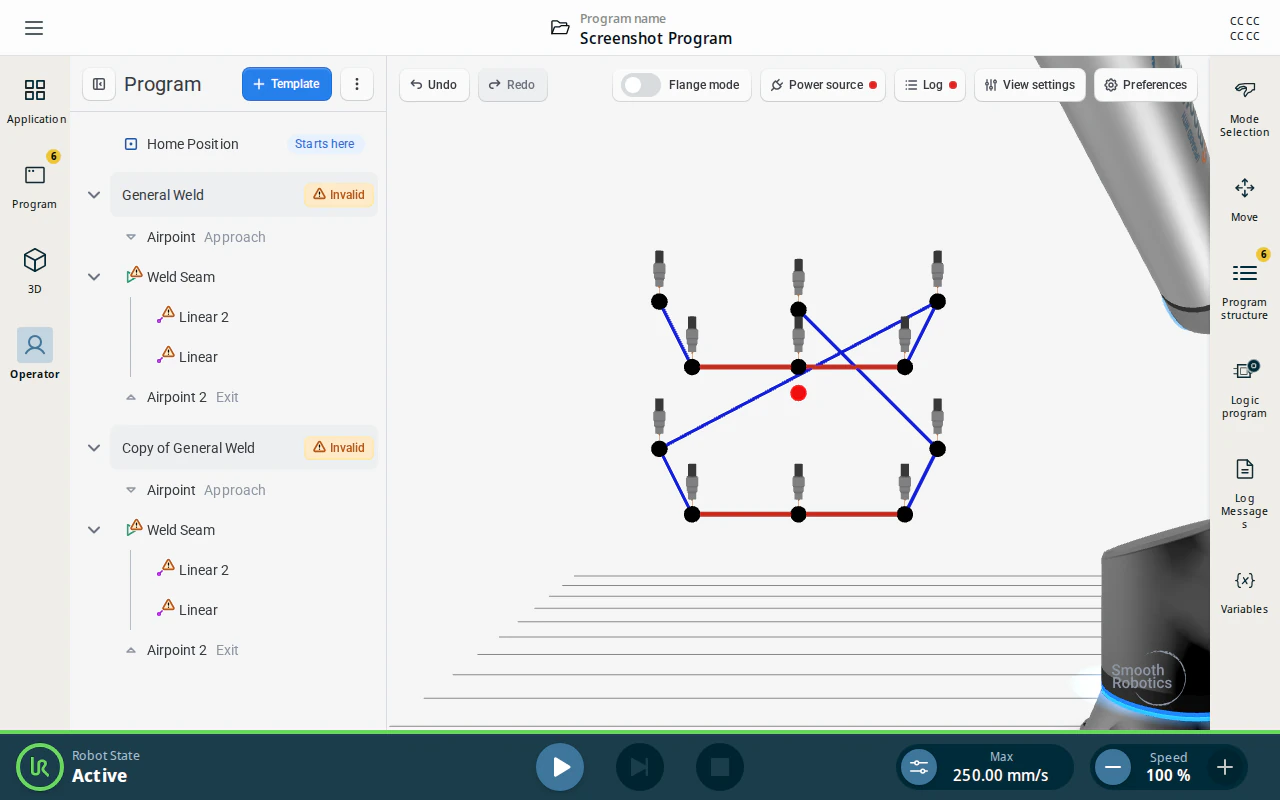
Create Copy leaves the original where it is and adds a full duplicate after it, at the offset position, named Copy of ….
The copy is independent: its points and parameters are its own, so editing either one never affects the other. Use it when the same weld is repeated on a second part and the two will be tuned separately.
9. Create Reference Copy
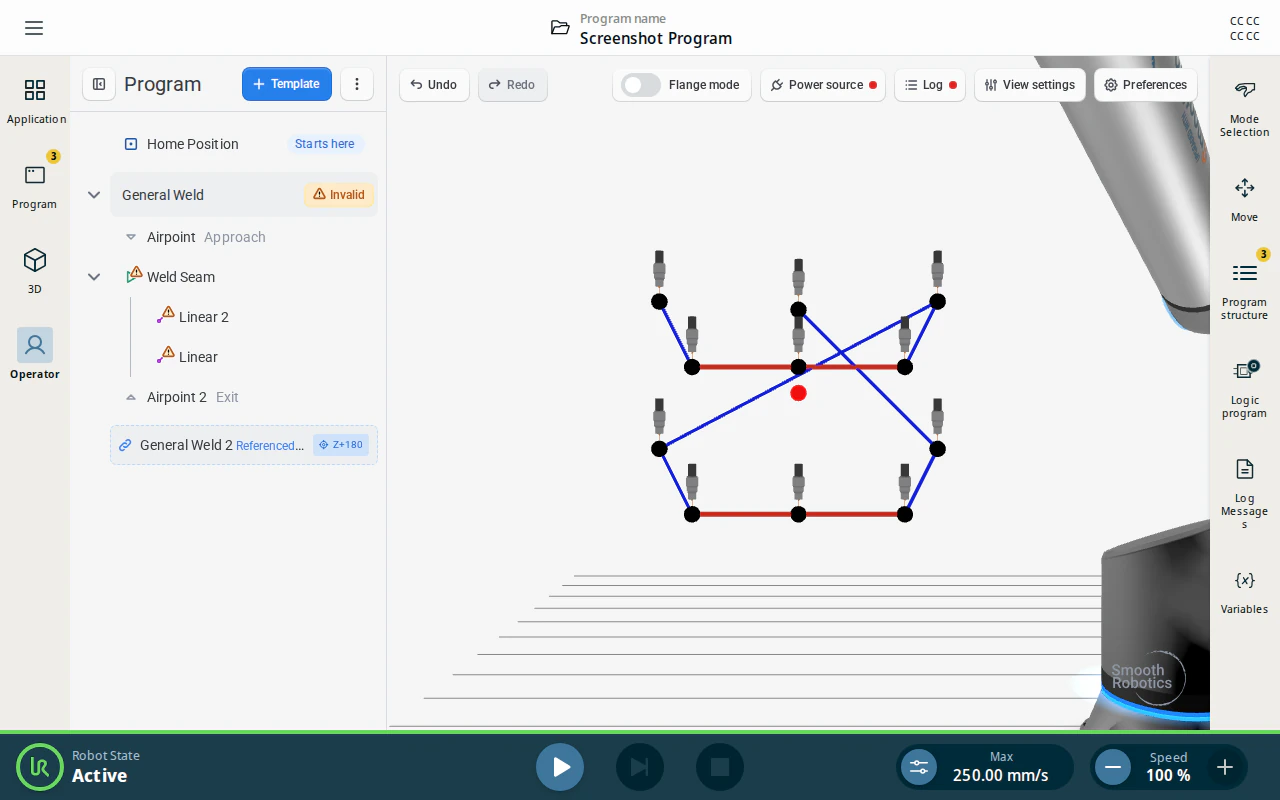
Create Reference Copy also leaves the original where it is, but adds a single dashed row rather than a duplicate — marked Referenced to …, with a chip showing its offset.
The row has no points or parameters of its own. Select it and the panel says so: only its order in the program belongs to it, which you change with Up and Down. Use it when the same weld is repeated across a fixture and every copy must stay identical to the original.
Note
A reference copy always welds what the original currently says. Edit the original’s points or parameters and the copy follows automatically. Remove the original and the copy goes with it; remove the copy on its own and the original is untouched.
Any offset can be reverted in one step with Undo.