SmoothTool X keeps its own user accounts, separate from the robot’s PolyScope admin password. Everyone who uses the tool signs in with a username and a PIN of 4–6 digits, and what they are allowed to do depends on the role their account carries.
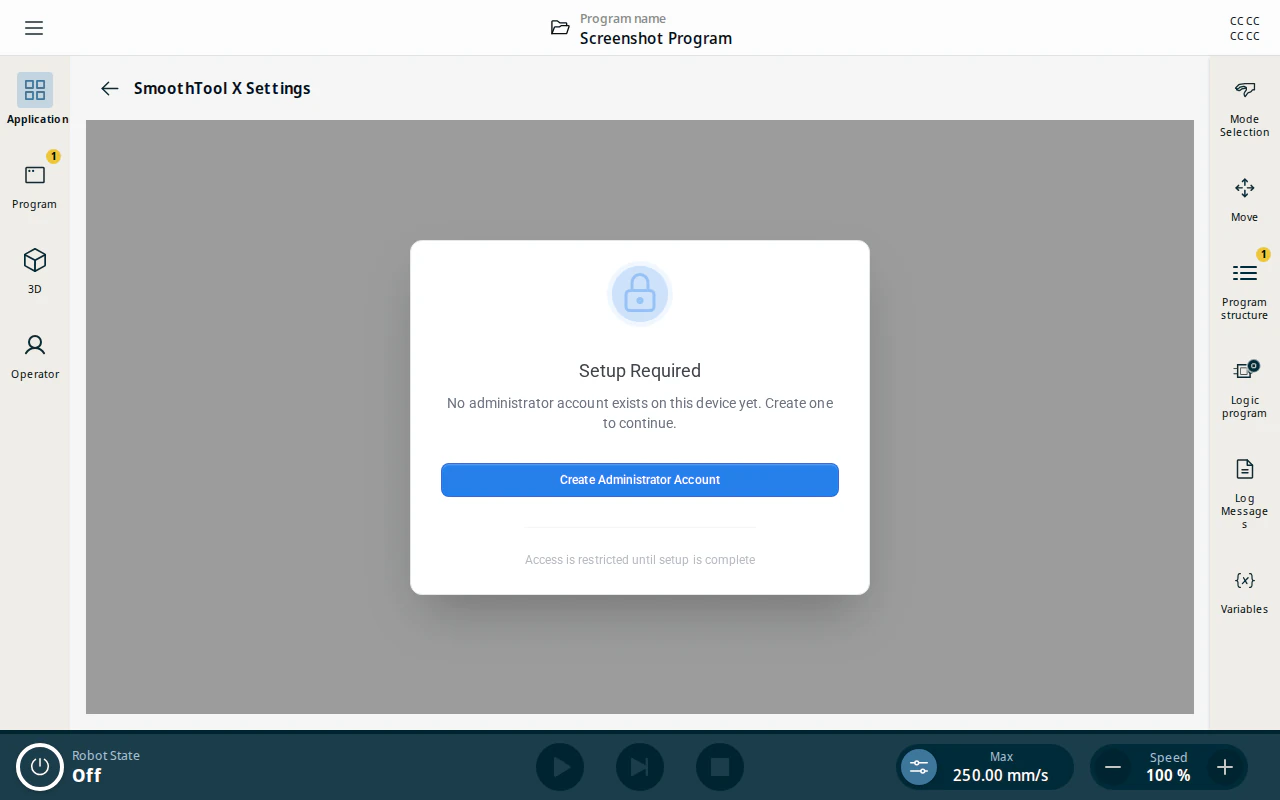
Creating the first administrator is a required onboarding step: until one account exists, the SmoothTool X pages stay locked.
Roles
| Role | What it allows |
|---|---|
| Operator | Sign in, load and run programs, and change their own preferences. Editing is blocked — adding templates, creating programs, changing weld parameters, adding power sources and updating the license all refuse with You must be a technician or administrator to edit. |
| Technician | Everything an operator can do, plus editing programs and device settings, and running the onboarding wizard. |
| Administrator | Everything a technician can do, plus the Users and Backup & Restore pages: adding and removing accounts, changing roles, unlocking accounts, automatic sign-out, and turning user accounts on or off. |
Preferences (language, units, display options) are personal: each account keeps its own, and changing yours leaves everyone else’s alone.
Create the administrator account
On a device with no accounts, open the onboarding wizard and go to the Users step. It opens by itself on an unconfigured device.
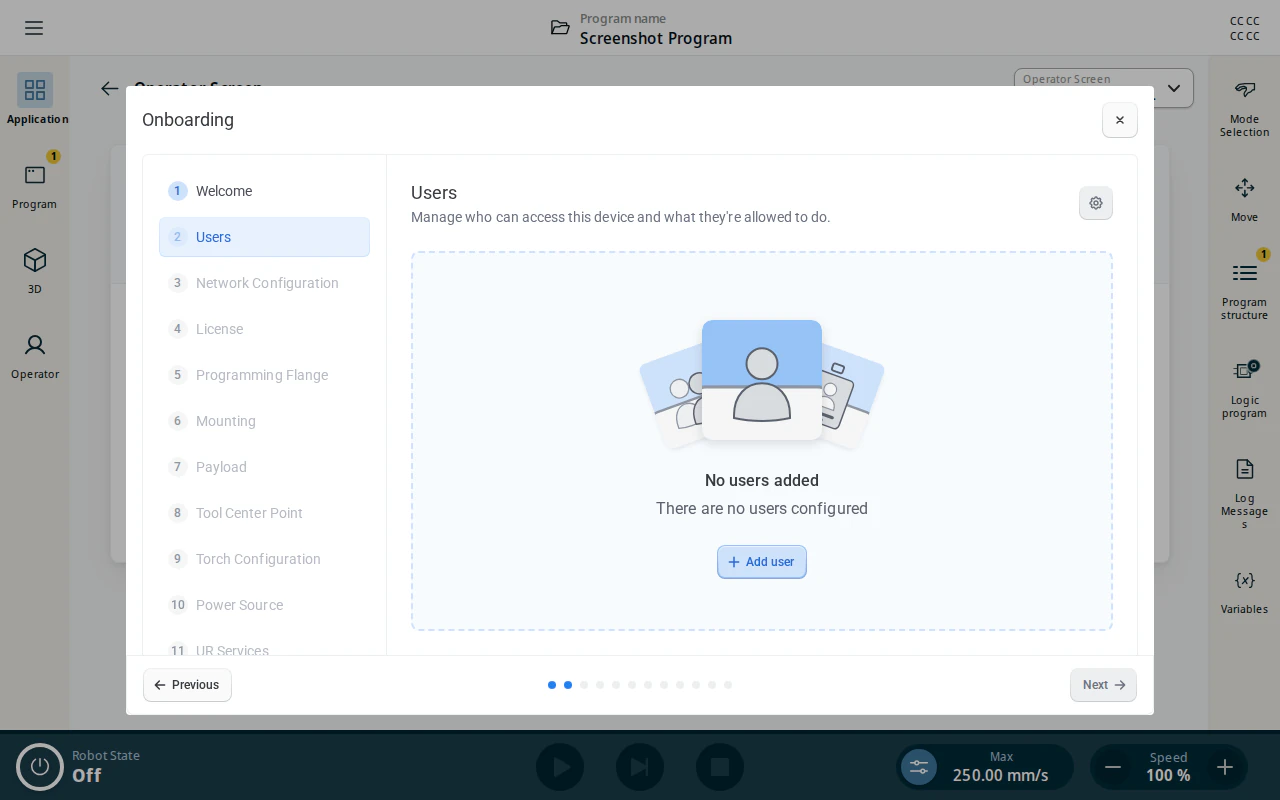
- Tap Add user.
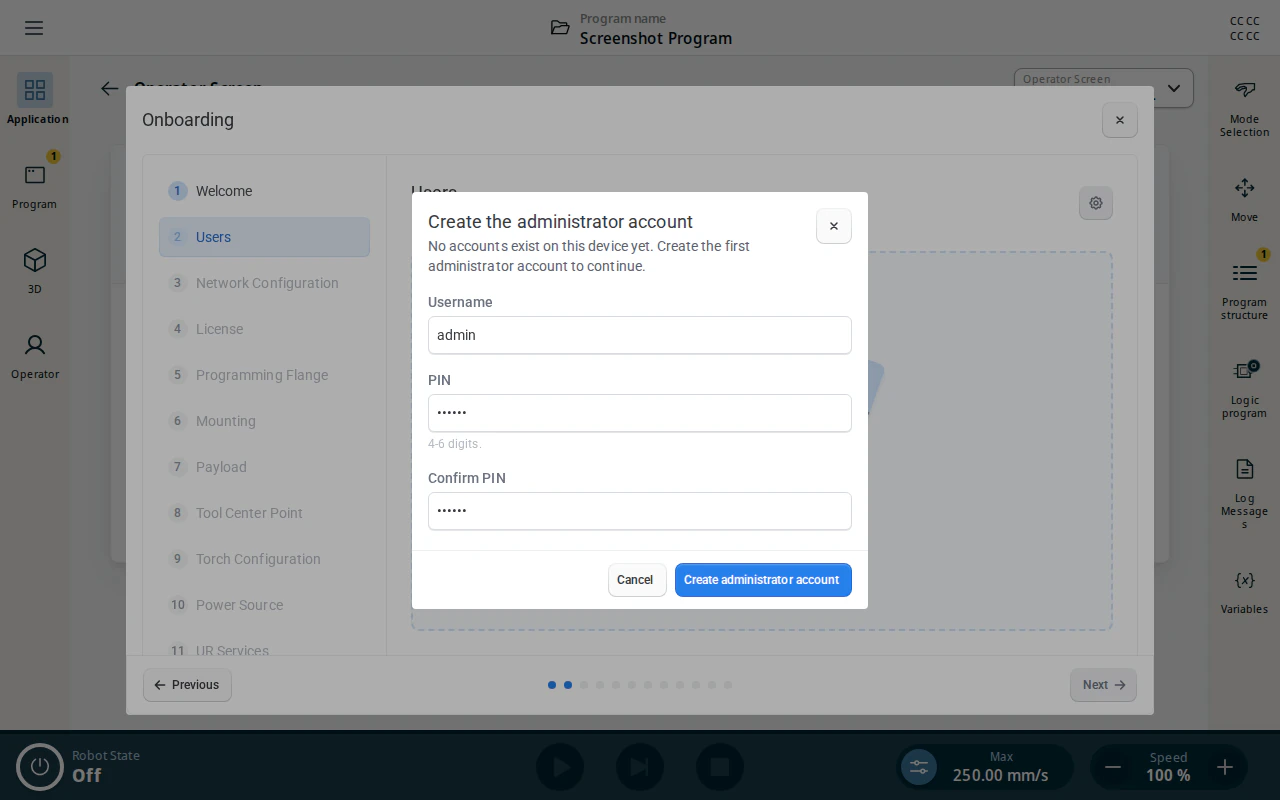
- Enter a username and a PIN of 4–6 digits, then repeat the PIN under Confirm PIN.
- Tap Create administrator account. You are signed in as that account straight away.
Note
Keep these credentials safe. The device ships with no accounts and no default PIN, and the backend refuses to delete or demote the last administrator — but an administrator who cannot sign in cannot be replaced from the tool either.
Until that account exists, the other SmoothTool X pages show a Setup Required lock instead of their content.
Add a user
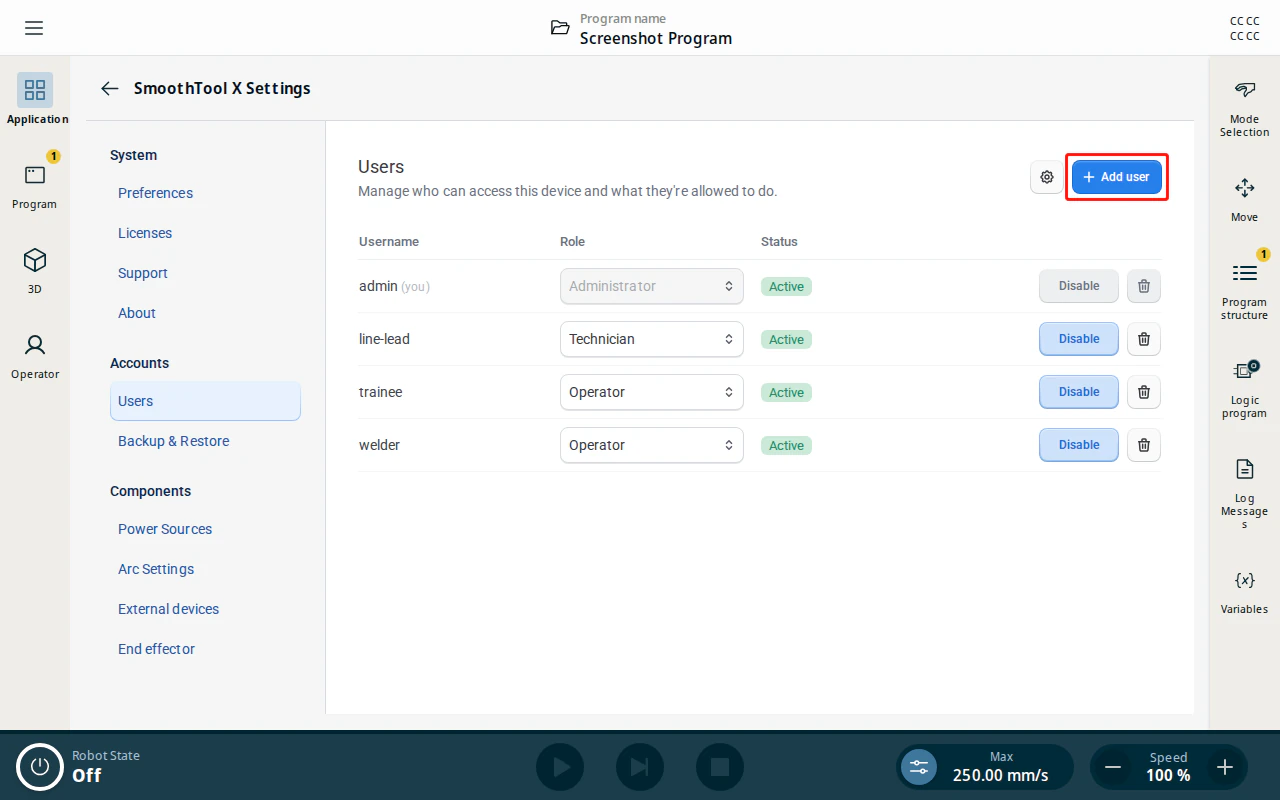
Accounts are managed from Application → SmoothTool X Settings → Users. The page lists every account with its role and status.
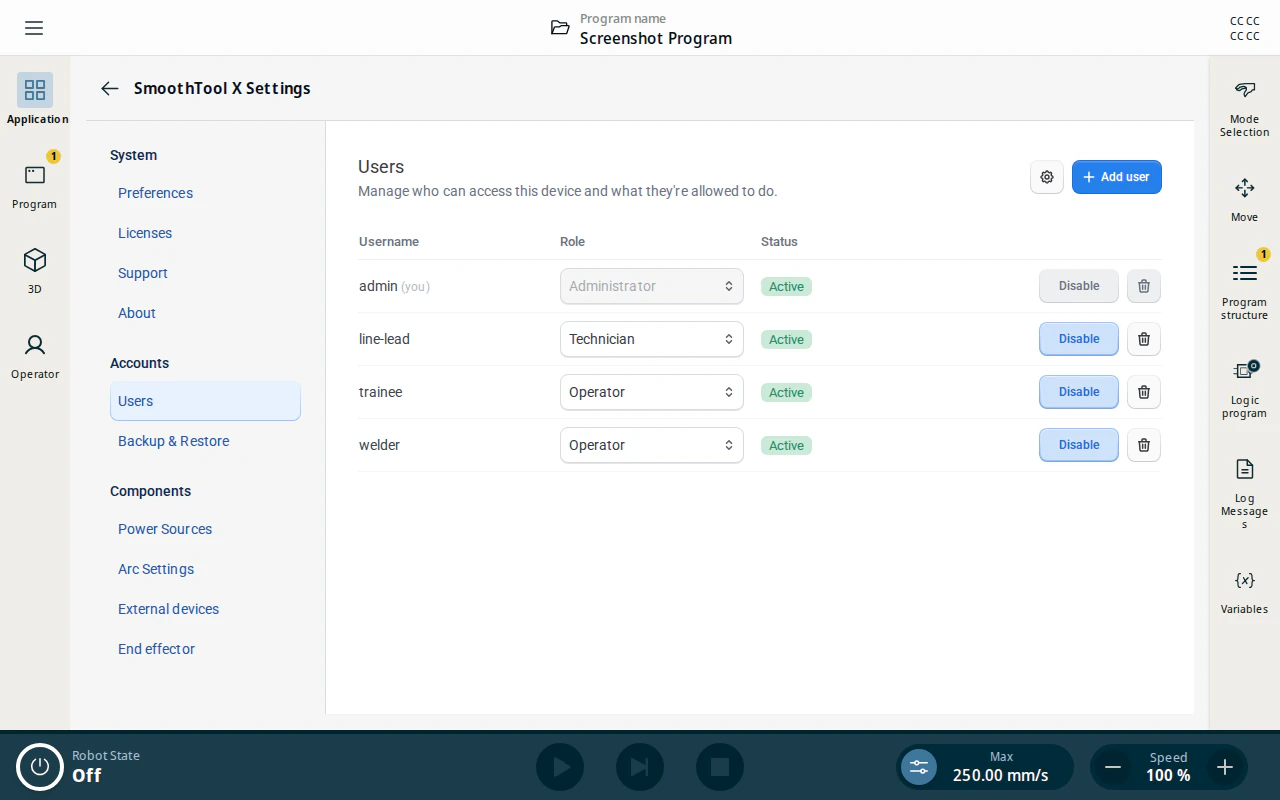
- Tap Add user.
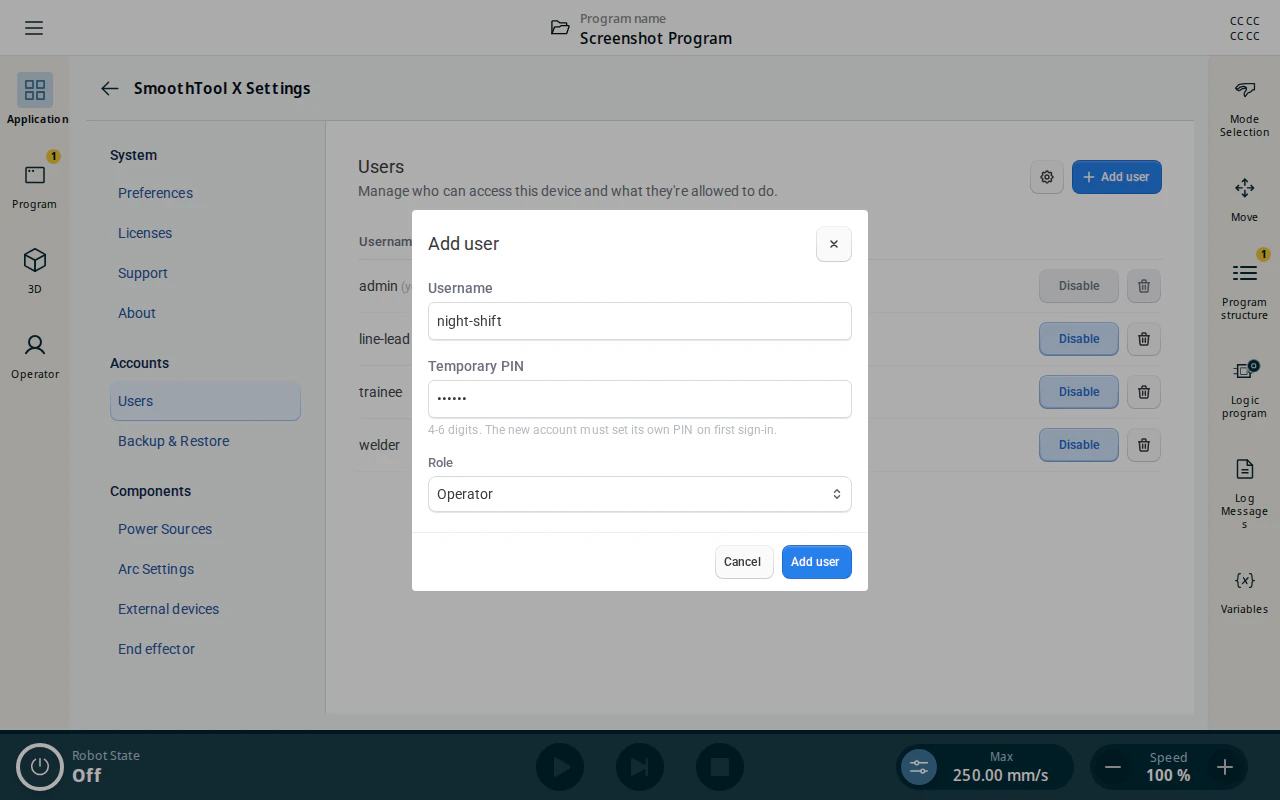
- Enter the username and a temporary PIN of 4–6 digits, and pick the role.
- Tap Add user.
Usernames are case- and accent-folded, so Jens and jens are the same account and a second one cannot be added.
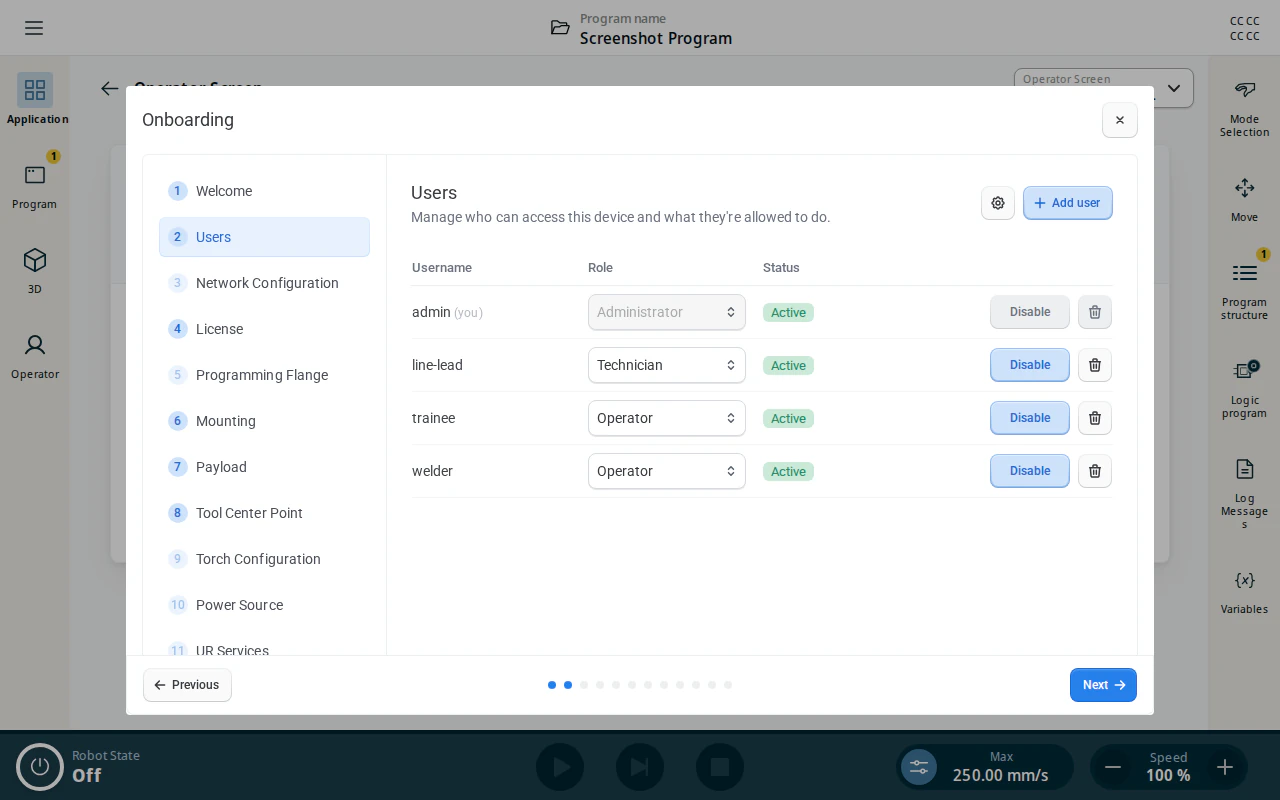
The wizard’s Users step is the same page, so accounts can also be added while running through onboarding.
First sign-in: setting a PIN
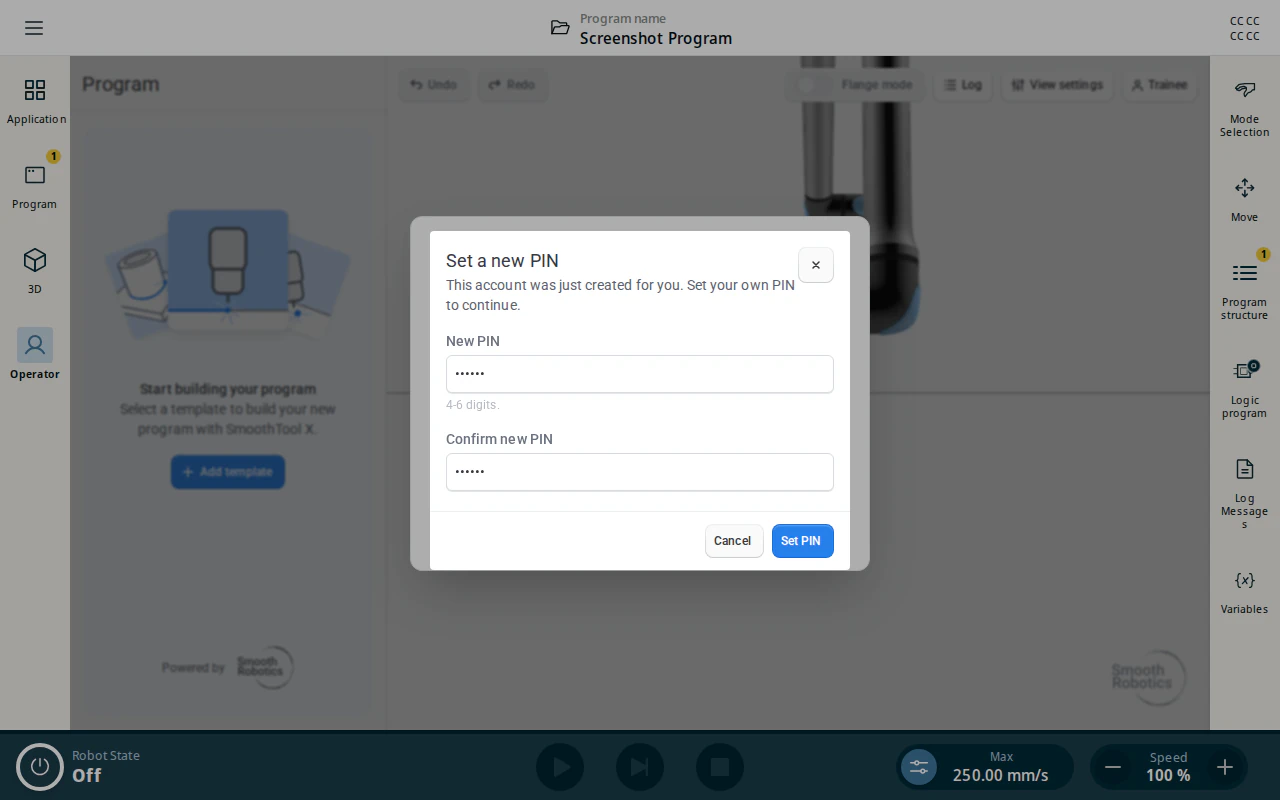
The PIN an administrator types when creating an account is temporary. The first time that account signs in, the screen is held behind a PIN Change Required lock.
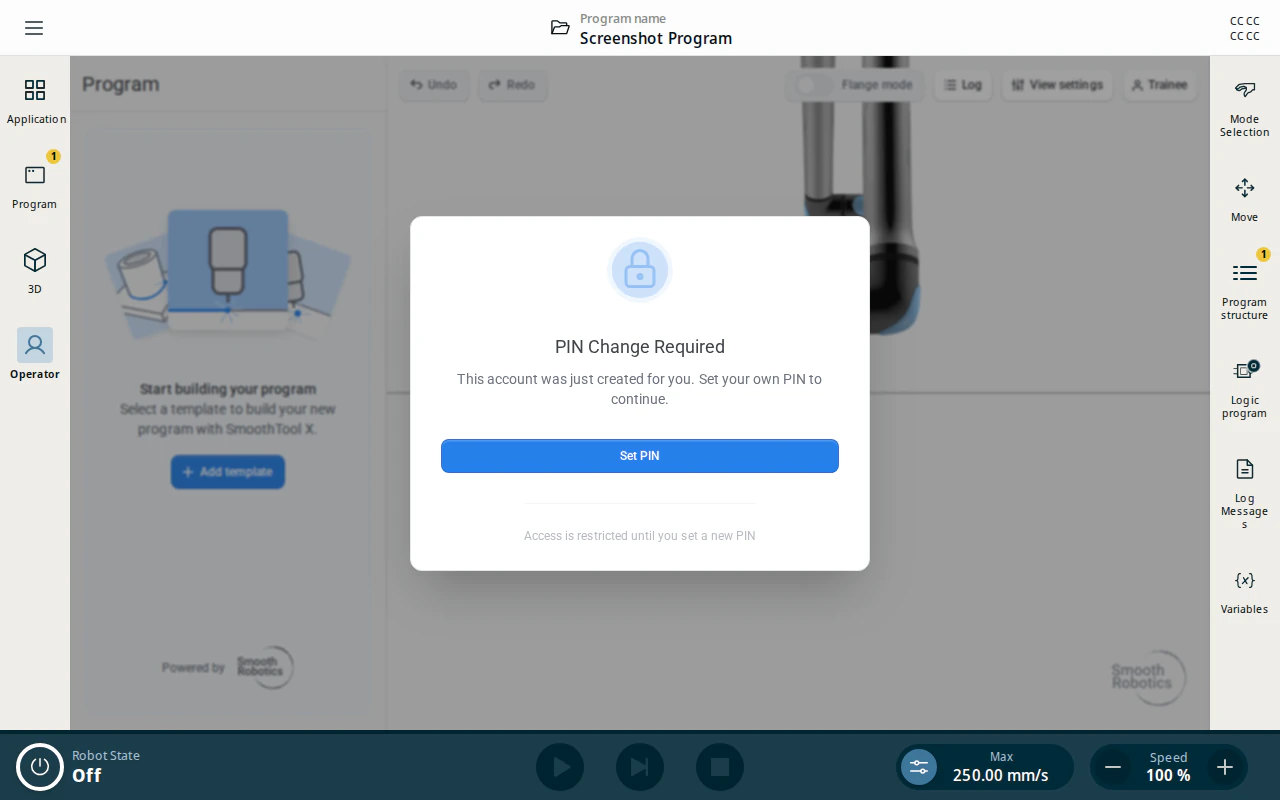
Tap Set PIN, enter a new PIN of 4–6 digits twice, and tap Set PIN. The temporary PIN stops working immediately.
Sign in and out
When nobody is signed in, the operator screen is covered by a Login Required lock.
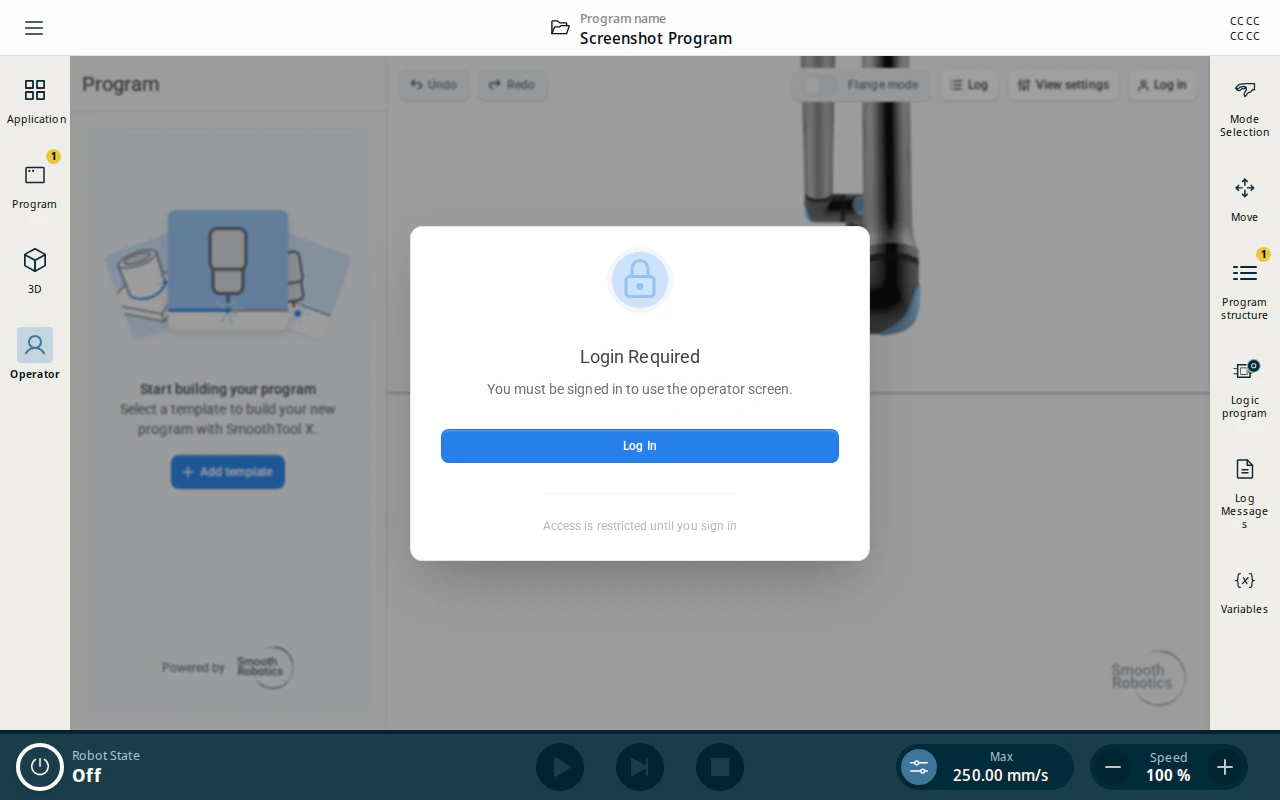
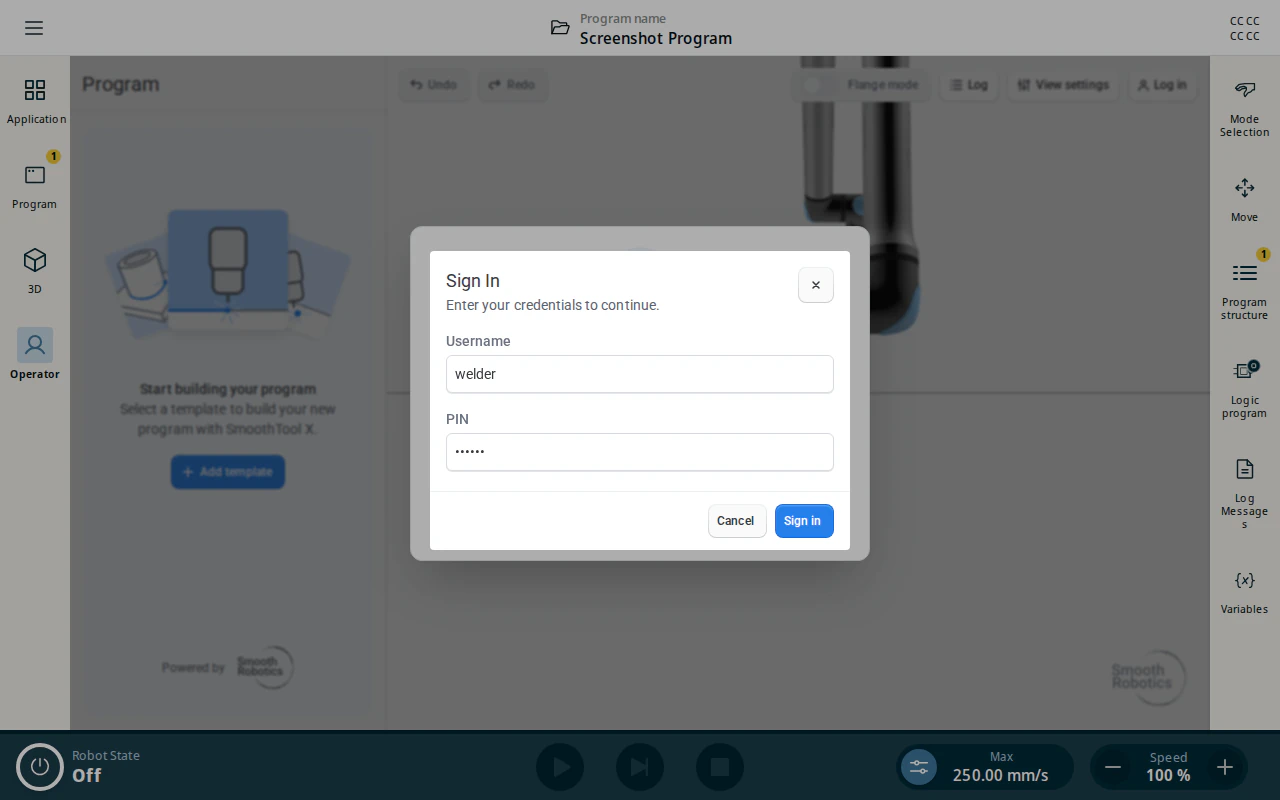
Tap Log In, enter your username and PIN, and tap Sign in.
Once signed in, your username appears in the top-right of the operator screen. Tapping it opens the account menu, with Preferences, Change PIN and Log out.
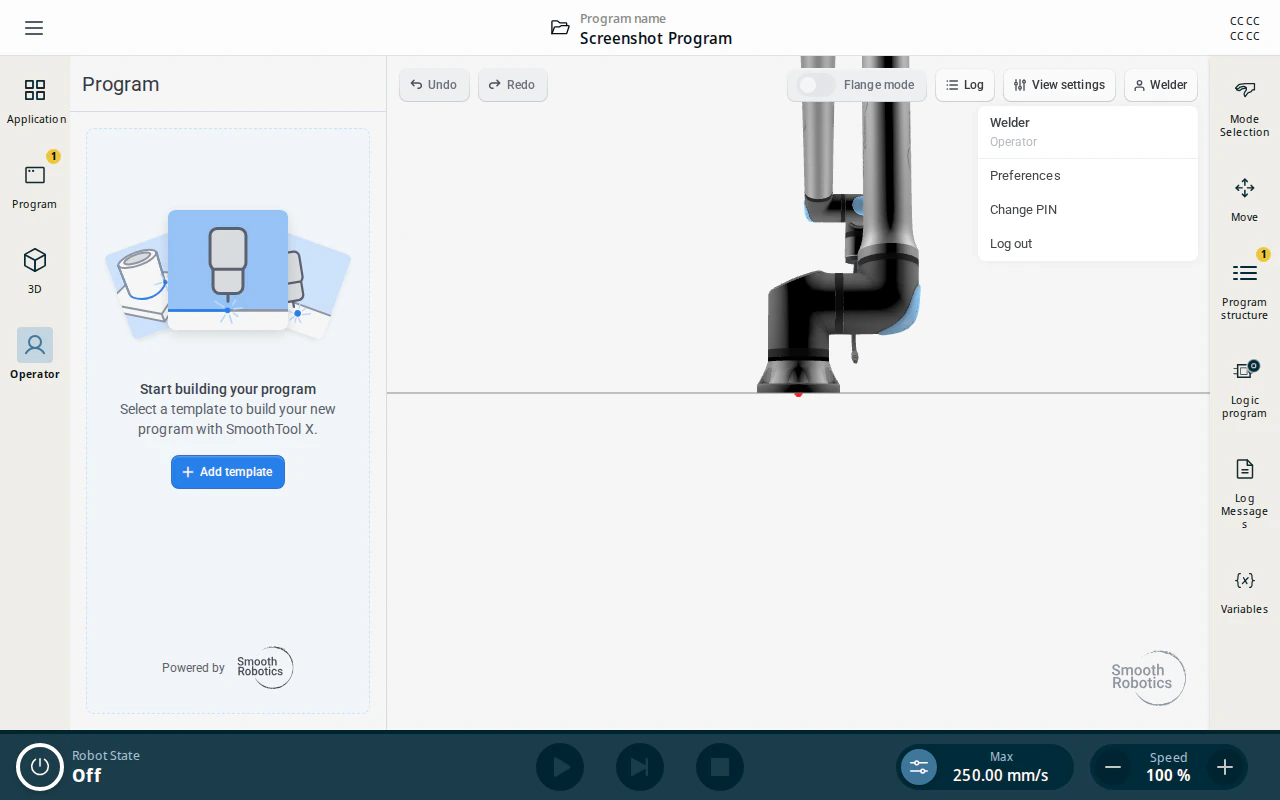
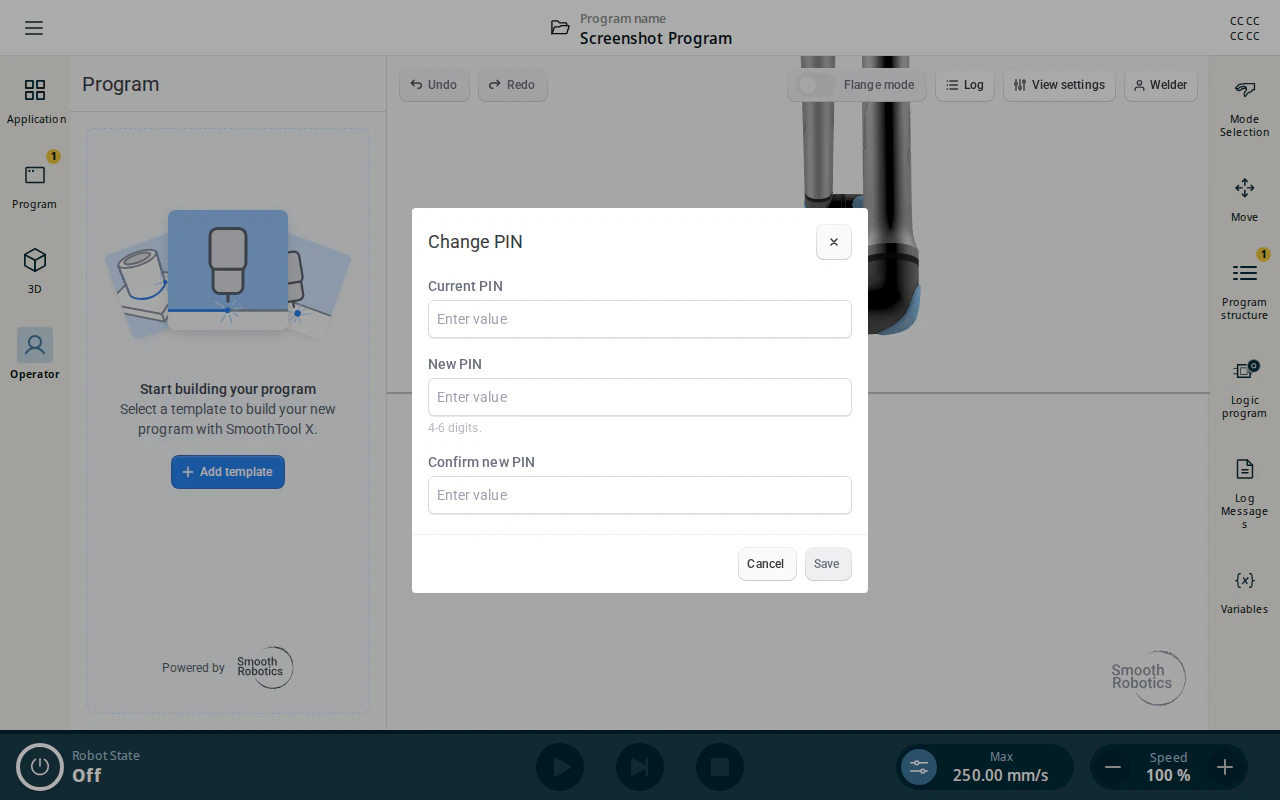
To change your own PIN, tap Change PIN, enter your current PIN and the new one twice, and tap Save.
Manage existing accounts
All of this is on the Users page, and all of it is administrator-only.
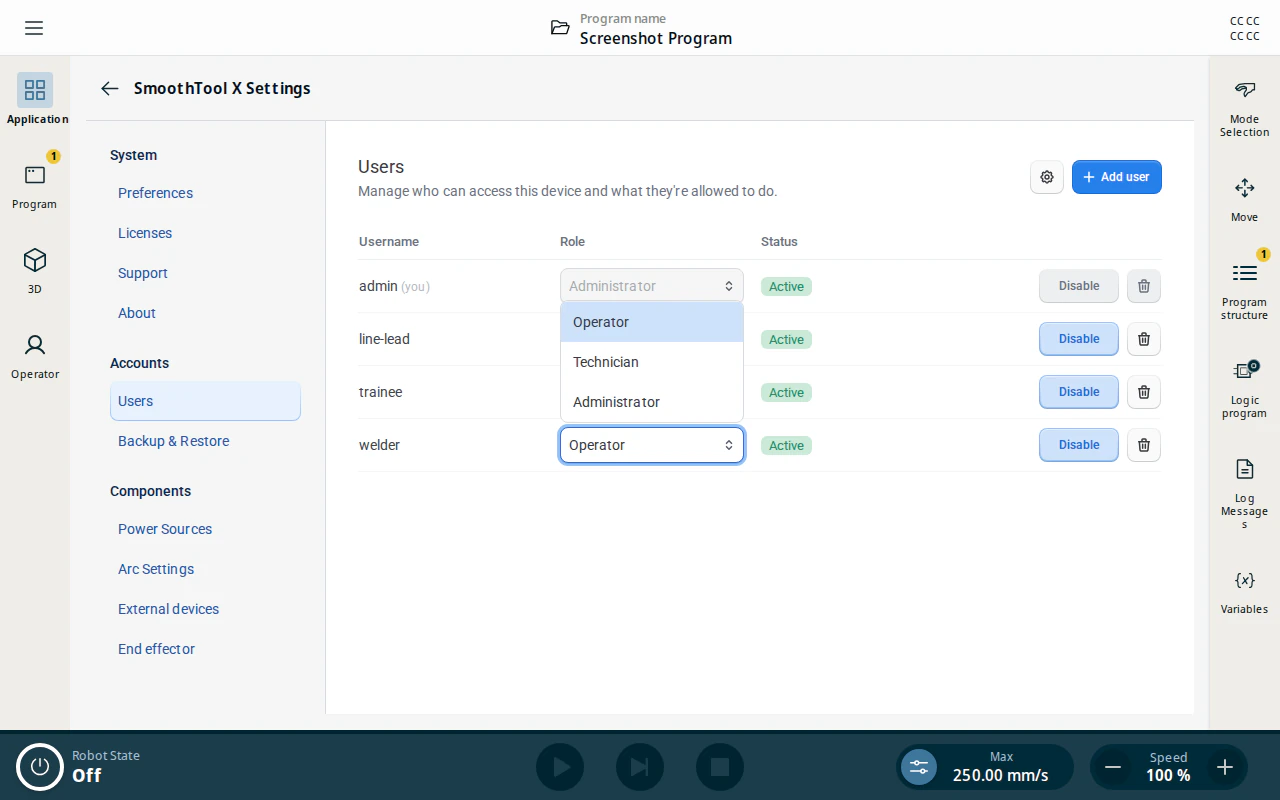
- Change a role — pick another role from the dropdown in the account’s row. An account that is signed in at the time keeps its old permissions until it signs in again.
- Disable an account — tap Disable. The account stays on the device with the status Inactive, cannot sign in, and any session it has open is ended. Enable puts it back.
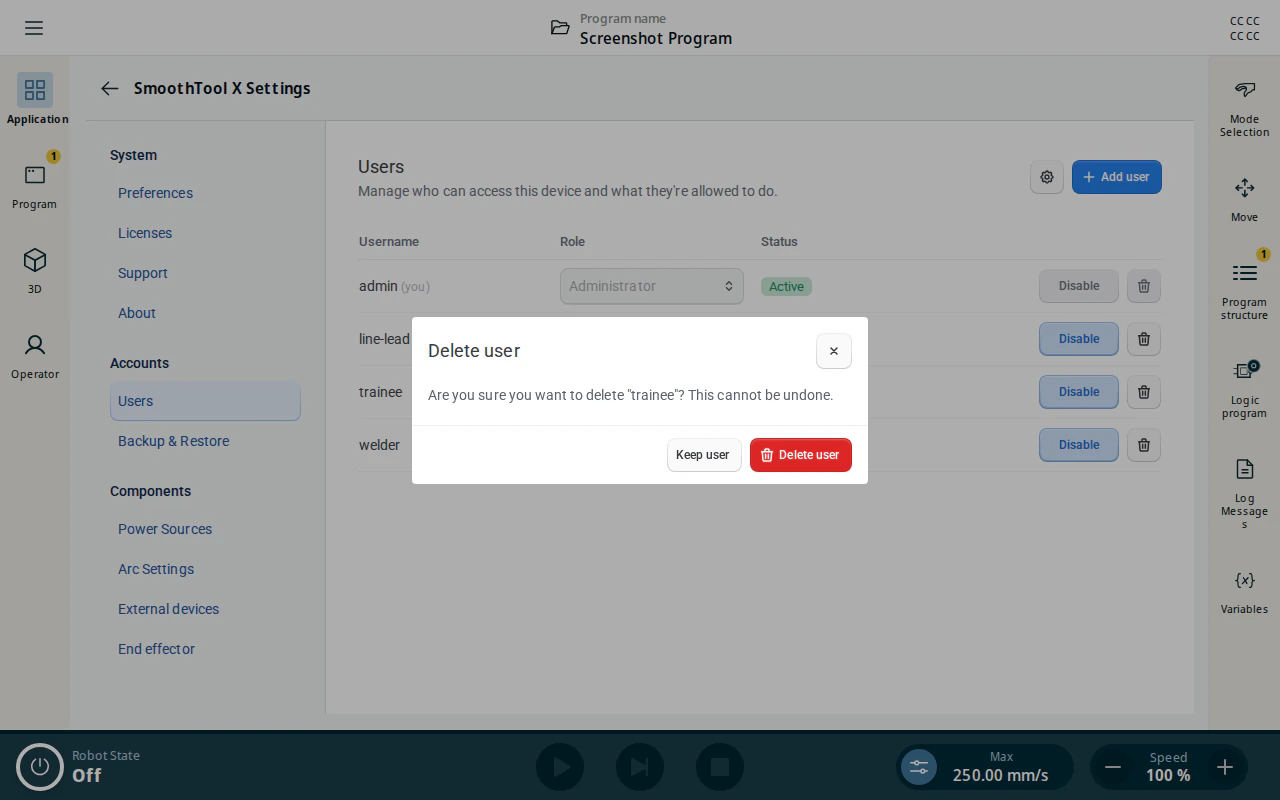
- Delete an account — tap the bin icon and confirm with Delete user. This cannot be undone.
Note
You cannot change the role of, disable, or delete the account you are signed in as, and the device always keeps at least one administrator who can sign in — demoting, disabling or deleting the last one is refused.
Locked accounts
A 4–6 digit PIN is short, so repeated wrong entries lock the account for a while. The first two mistakes cost nothing; from the third the wait grows with each further attempt:
| Failed attempts in a row | Result |
|---|---|
| 1–2 | Nothing — try again |
| 3 | Locked for 30 seconds |
| 4 | Locked for 2 minutes |
| 5 | Locked for 5 minutes |
| 6 | Locked for 15 minutes |
| 7 | Locked for 30 minutes |
| 8 | Locked for 1 hour |
| 9 | Locked for 2 hours |
| 10 | Locked until an administrator unlocks it |
While an account is locked, the sign-in dialog answers Account temporarily locked. Try again later. — and at the last rung, Account locked. Ask an administrator to unlock it. A successful sign-in clears the counter.
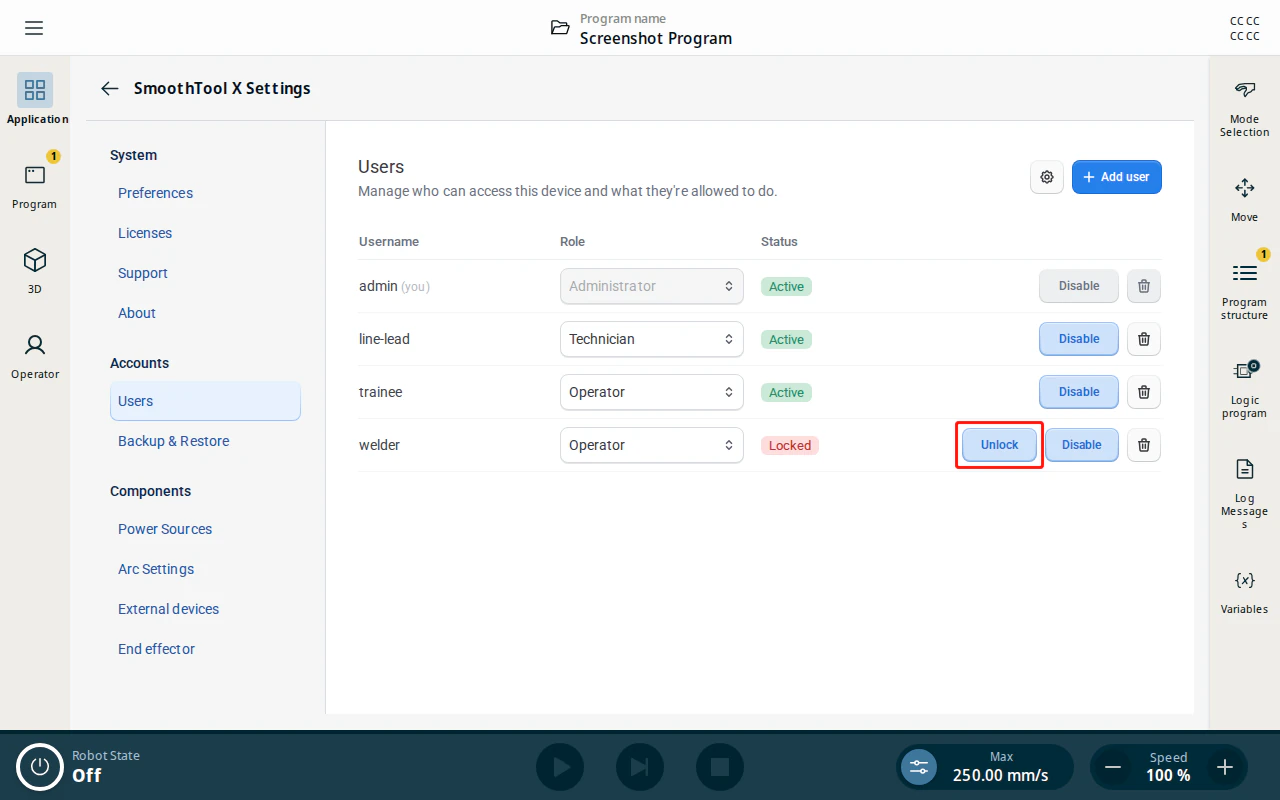
On the Users page a locked account shows as Locked (or Locked (needs unlock)), with an Unlock button next to it. Unlocking clears the wait and the counter without needing the account’s PIN; the account keeps its own PIN.
Note
Sign-in attempts are also rate-limited to 10 a minute. Past that, the dialog answers Too many sign-in attempts. Wait a minute and try again. — wait a minute rather than keep trying.
Automatic sign-out
Sessions end by themselves after a period of inactivity, so an unattended pendant does not stay signed in. Open the ⚙ button at the top of the Users page to change it.
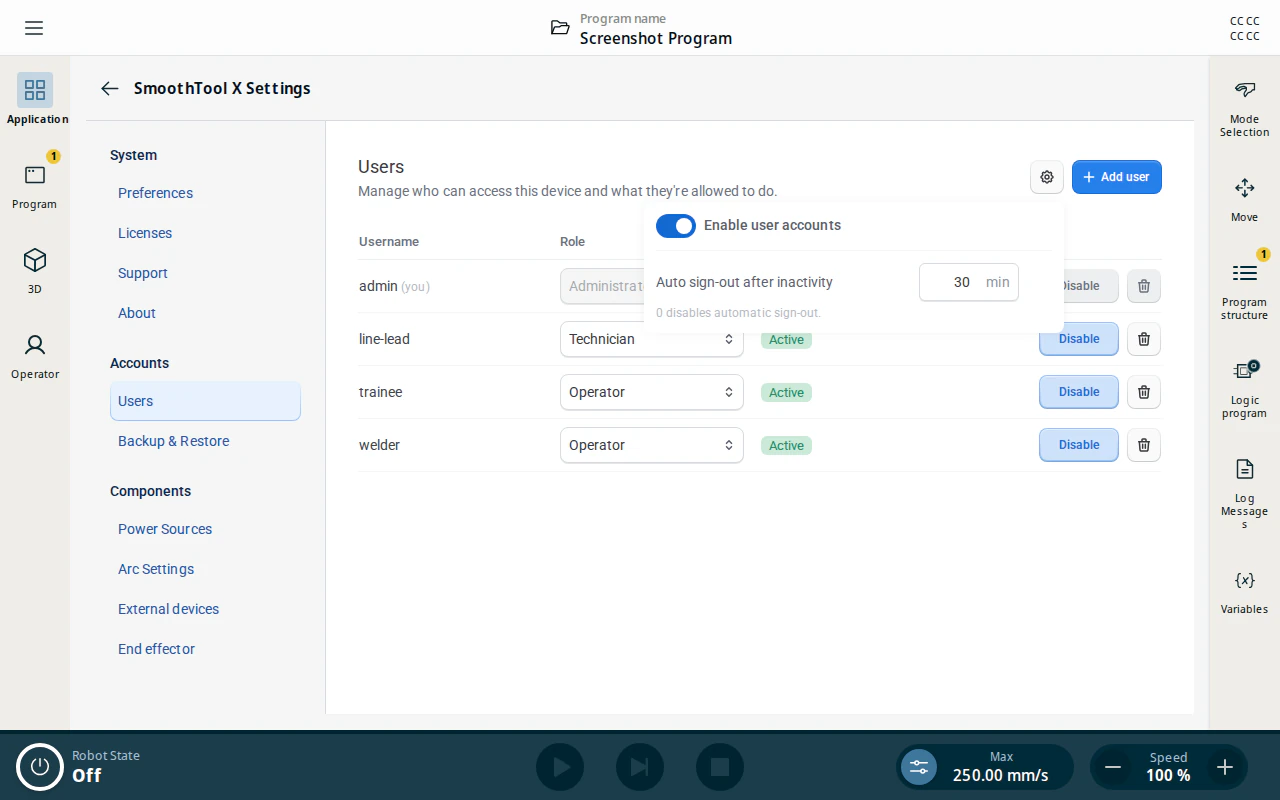
- Auto sign-out after inactivity is in minutes, up to 1440 (24 hours). It defaults to 720 (12 hours).
- 0 disables it: sessions are then no longer cut short for inactivity.
- The setting is device-wide, not per account, and takes effect on open sessions immediately.
Regardless of this setting, no session lives longer than 24 hours from the moment it was created.
Turning user accounts off
The same panel carries the Enable user accounts toggle. With it off:
- Nobody signs in, and no page asks for credentials.
- Everything is editable — the role lock is what enforces it, and there is no role.
- Preferences become device-wide rather than personal.
- The Status column shows —: the accounts and their roles are kept, they are simply not in force.
Turning it back on requires an administrator to sign in, so a device cannot be handed back to a user system nobody holds the keys to. Turning it off ends every open session.