The onboarding wizard‘s Network step sets the robot controller’s IP address and DNS servers for external communication. You can configure exactly the same settings directly in PolyScope, without the wizard. As these are standard Universal Robots PolyScope X screens, always refer to Universal Robots’ own user manual for the most up-to-date and complete instructions.
Note
Changing network settings requires the admin password. See Set Admin Password if you have not set one yet.
Open the network settings
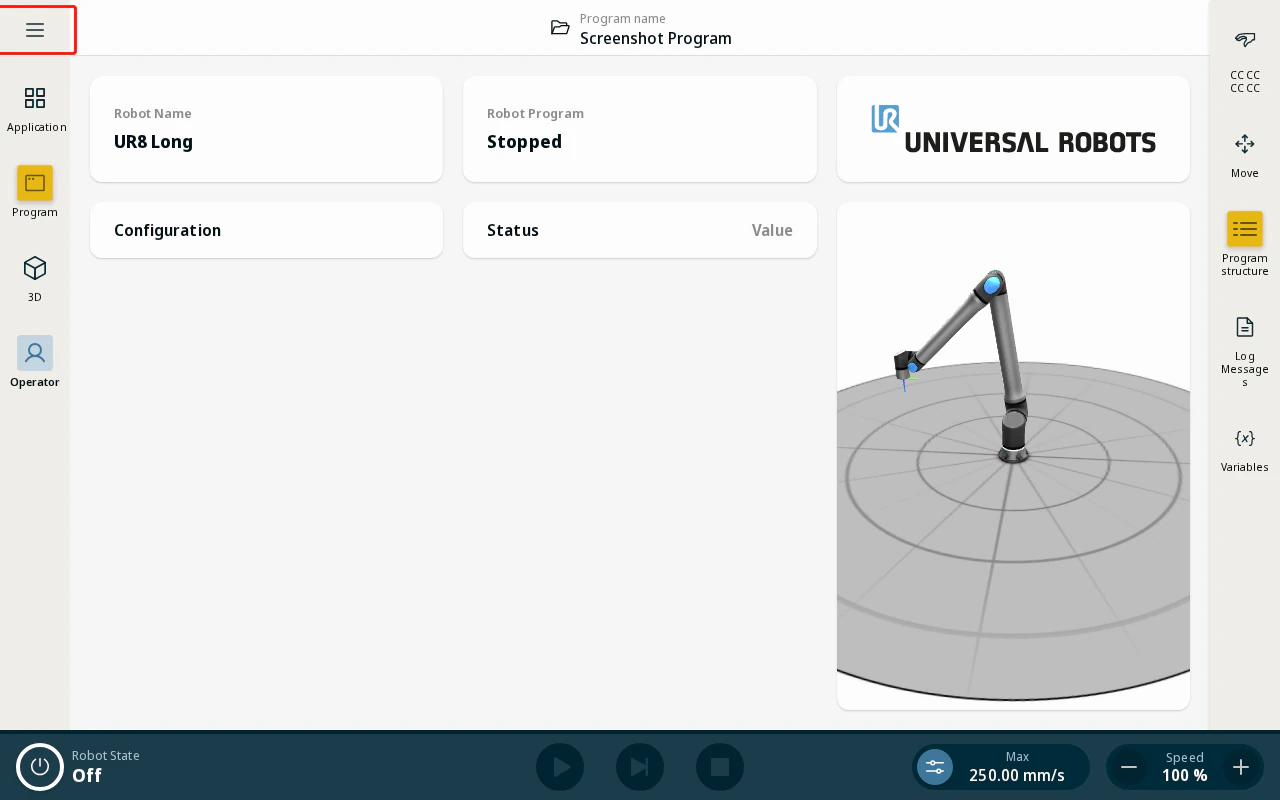
- On the operator screen, tap the hamburger menu icon in the top-right corner.
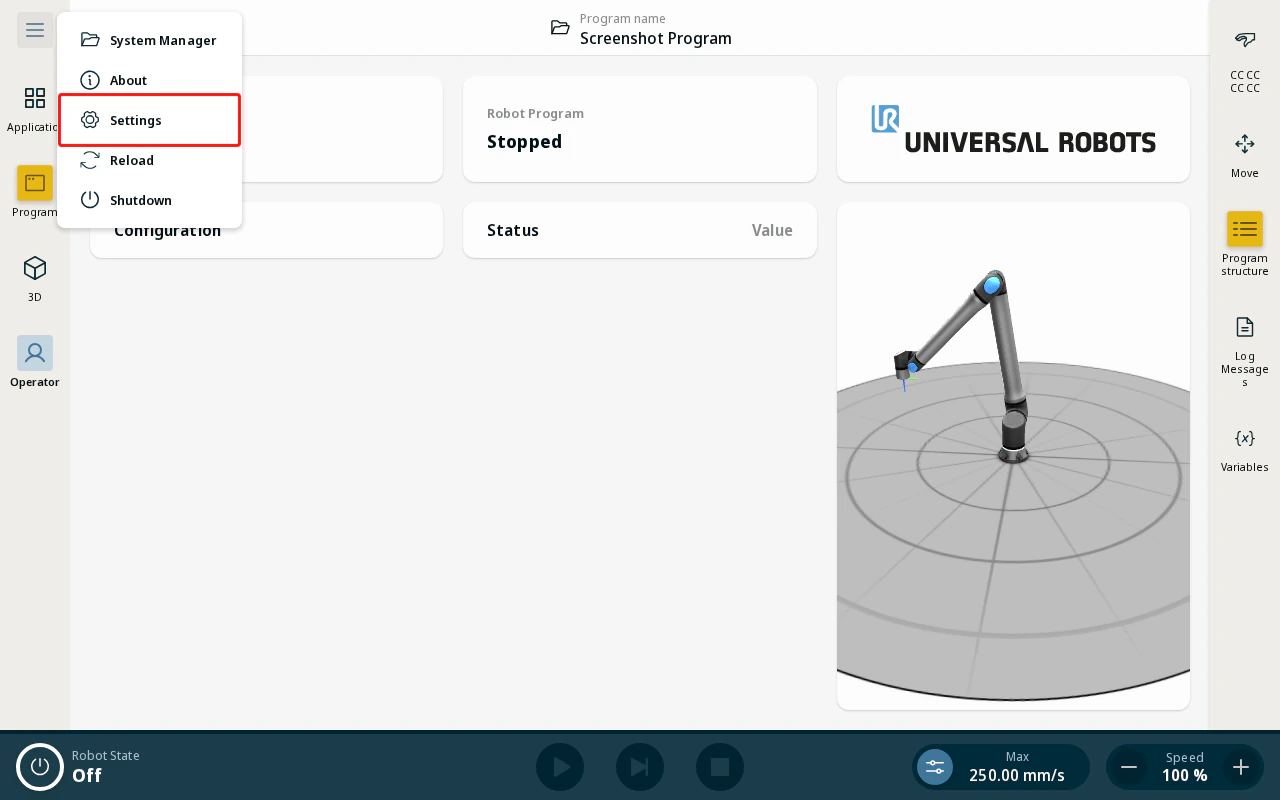
- Tap Settings from the menu.
- Under Connection, tap Network.
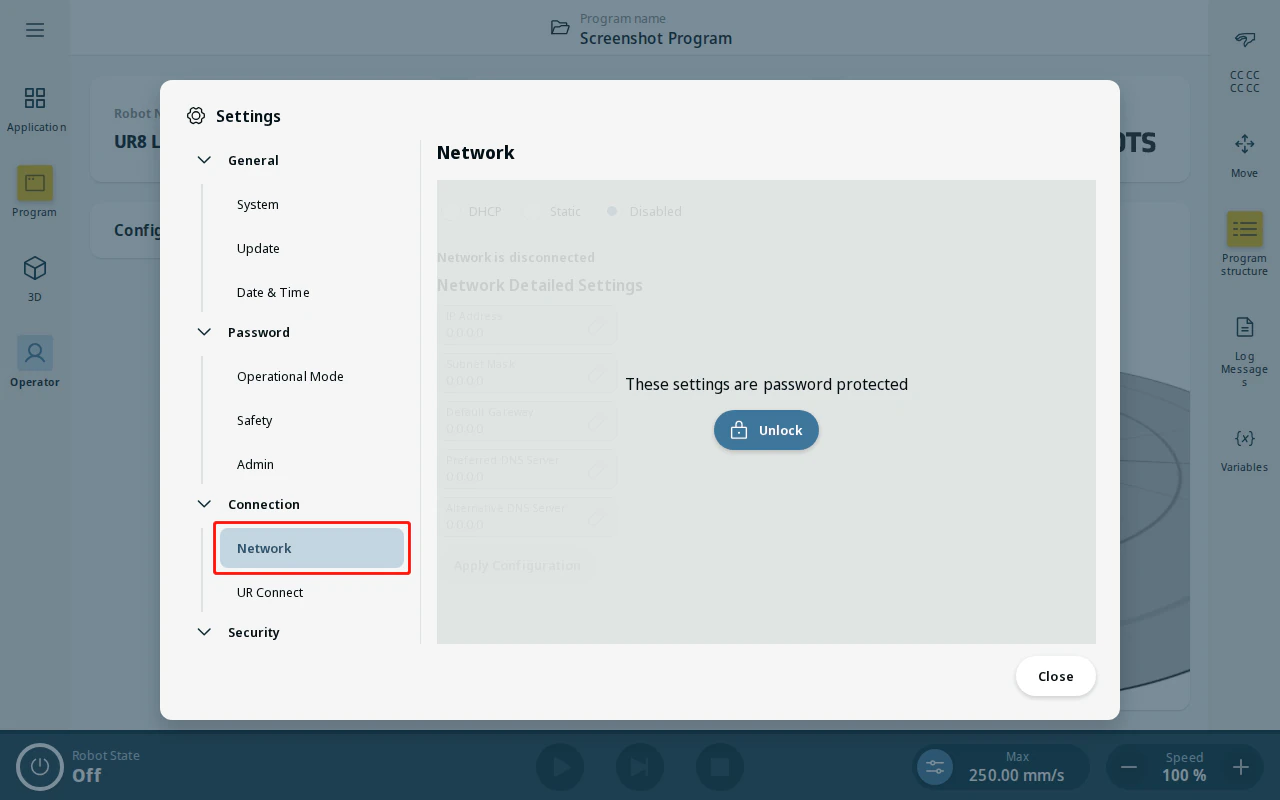
Set the robot IP address
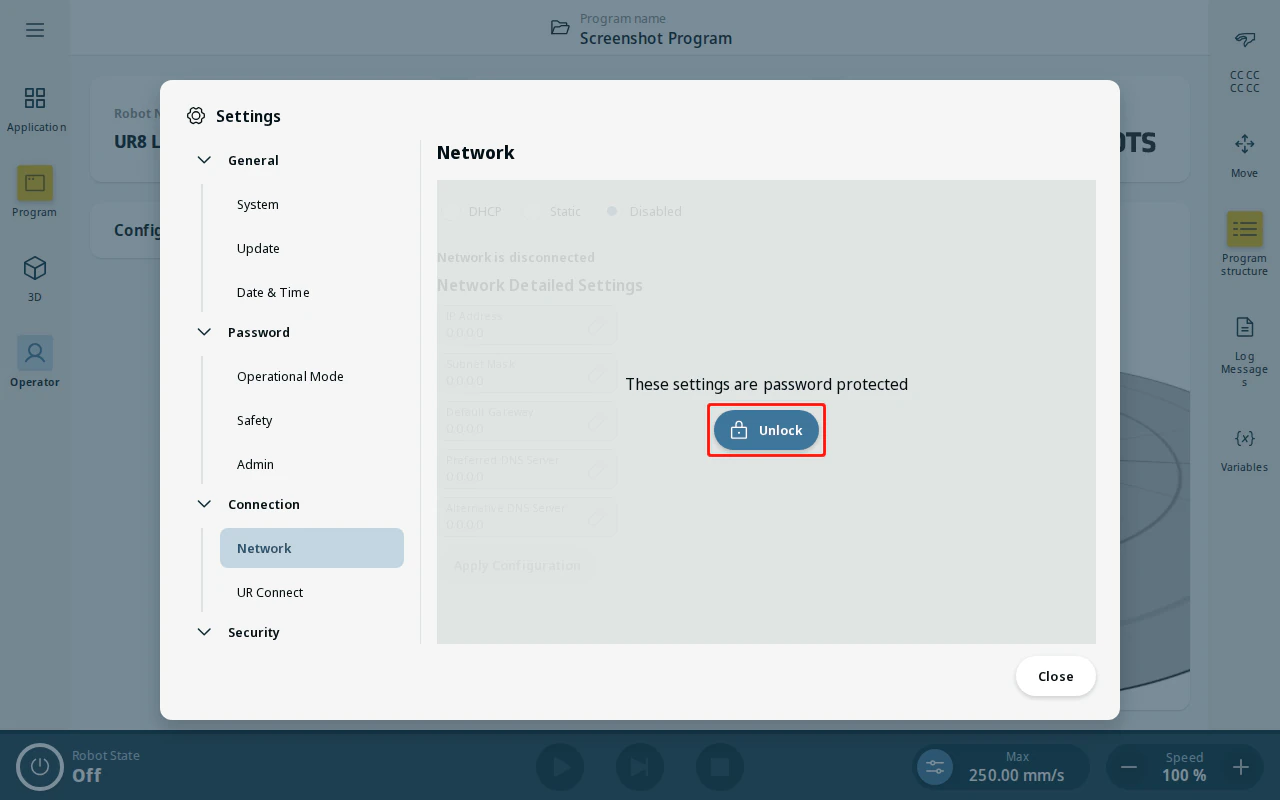
- The network settings are password protected. Tap Unlock and enter your admin password.
-
Choose how the controller obtains its address:
- DHCP — the address is assigned automatically by your network.
- Static — you enter a fixed address.
-
Tap Apply Configuration.