A General Weld node represents the sequence of moves and settings the robot follows to perform a single welding operation. Add one with + Template in the program header, then pick General Weld in the Add template dialog and tap Add template.
Weld Path Structure
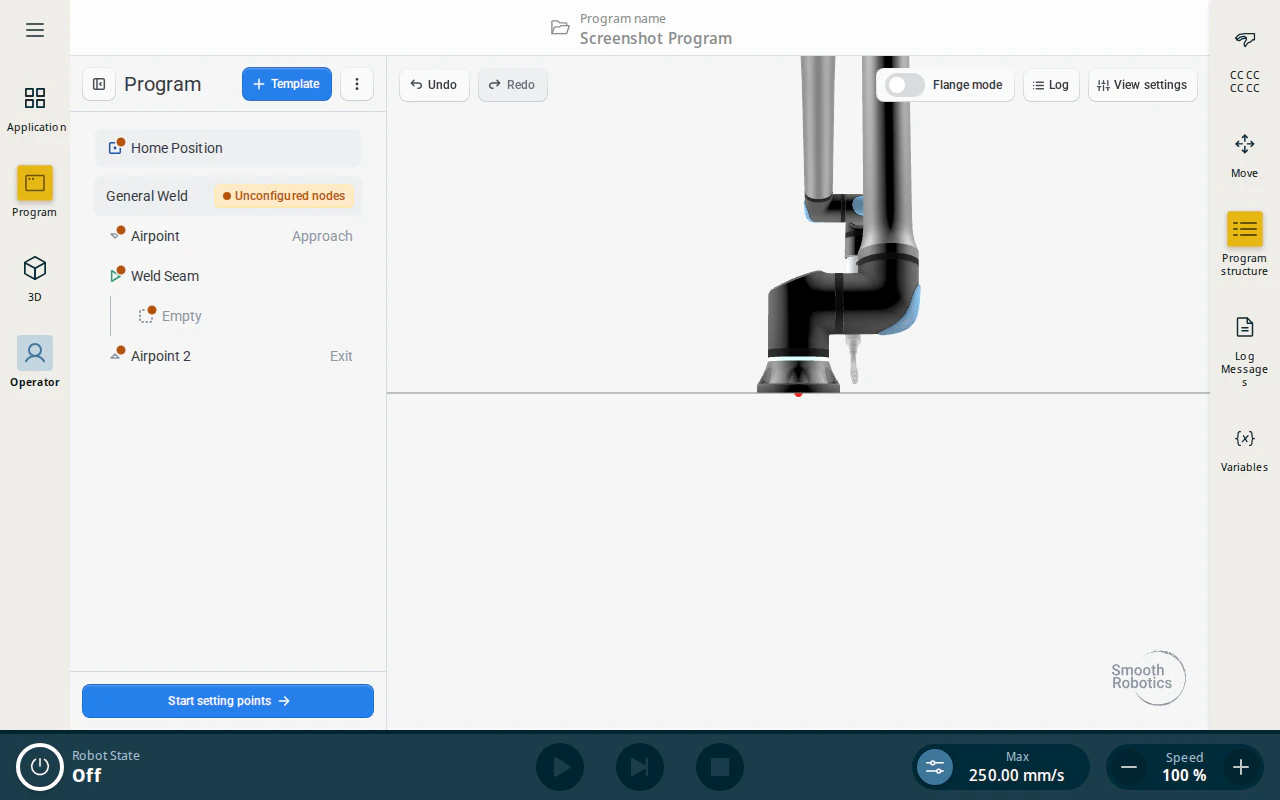
Every weld node contains the following sub-nodes:
- Home Position — a top-level node (always first in the program) that defines a safe pose the robot moves to at the start of the program.
- General Weld — the parent container node holding general weld parameters, offsets, and profile details.
- Airpoint (Approach) — one or more points describing the path the robot takes to reach the start of the seam safely.
- Weld Seam — where welding begins. This node is taught at the weld start position, and the Linear/Circular segments inside it describe the path from there; it shows as Empty until segments are added.
- Airpoint (Exit) — one or more points describing how the robot leaves the workpiece after the arc is extinguished.
Creating a Weld Using the Programming Flange
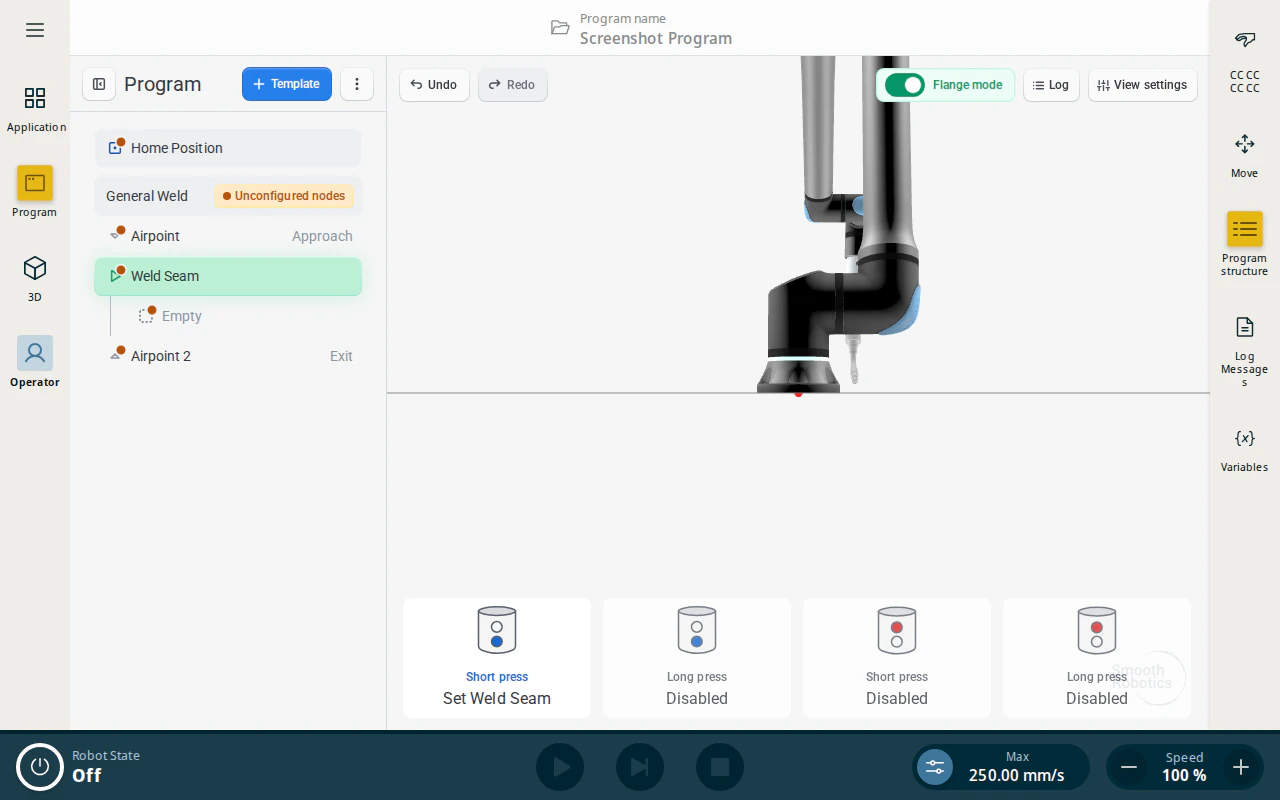
Once you have inserted a template into the program tree, you can teach the entire program using the programming flange by enabling Flange Mode. While in Flange Mode, the options available at each step are shown in the guide at the bottom of the screen.
Weld Parameters
The Parameters tab shows only the parameters the selected node owns. Select a node in the program tree, then pick a tab down the left-hand side of the panel.
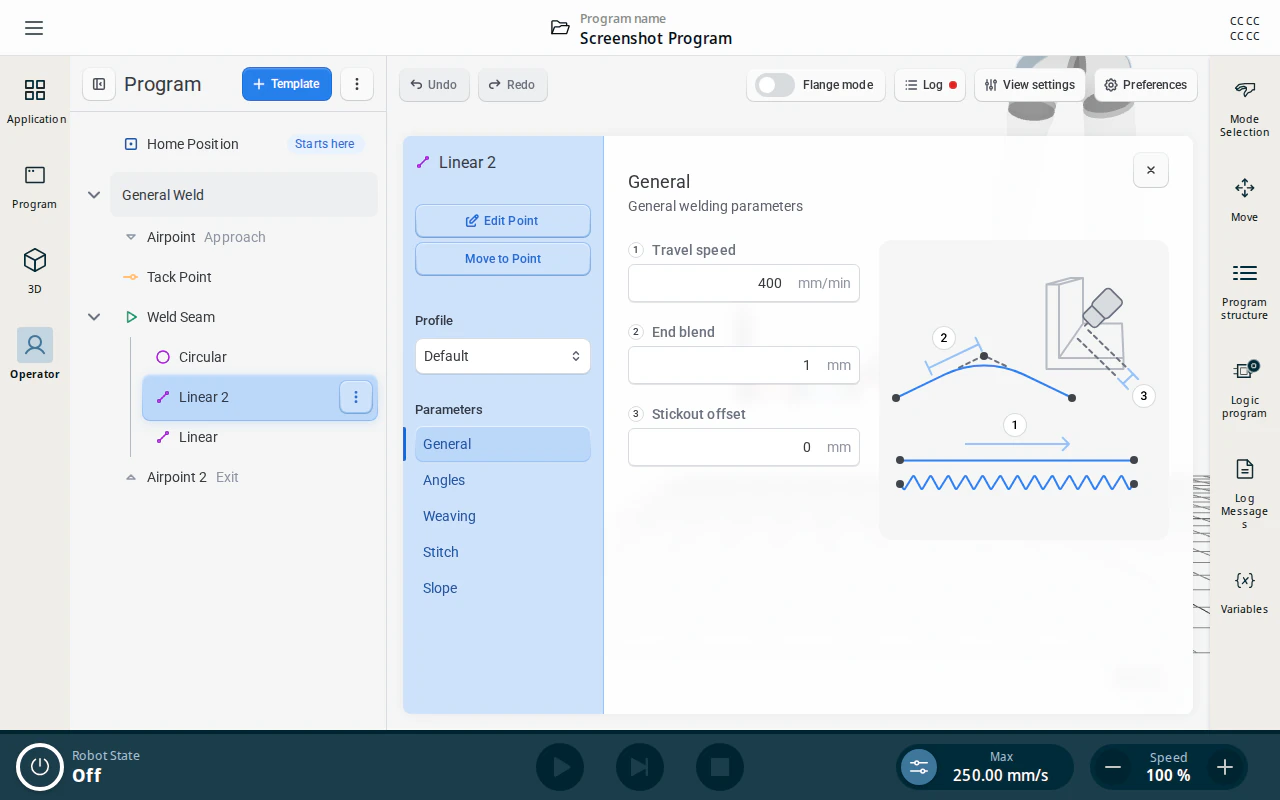
Which tabs appear depends entirely on the node you selected:
| Tab | Appears on | Controls |
|---|---|---|
| General | Linear, Circular | Travel speed, blend, stickout |
| Circle | Circular | Overriding the swept arc angle |
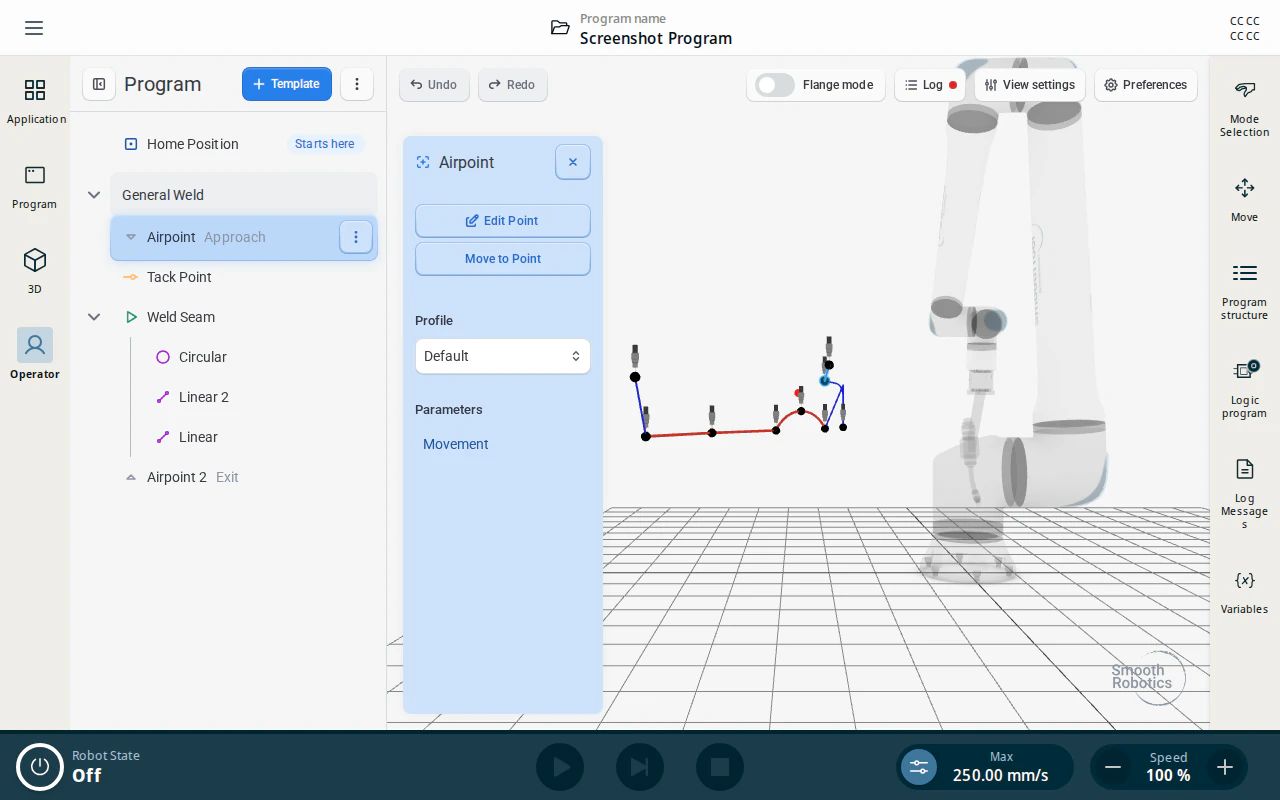
| Movement | Weld Seam, Approach, Exit, Airpoint, Home Position | Speed and acceleration of non-welding moves |
| Angles | Linear, Circular | Torch orientation and corner handling |
| Weaving | Linear, Circular | Weaving pattern |
| Stitch | Linear, Circular | Intermittent (stitch) welding |
| Unwind | Weld Seam | Backtracking at the end of the seam |
| Endpoints | Weld Seam | Start and end angle ramps |
| Slope | Linear, Circular | Slope down before the end of the path |
| Tack | Tack Point | Arc dwell and stand-off for a tack |
The General Weld container node itself carries no parameter tabs — it only holds the sub-nodes.
Arc settings are separate from the tabs above: they belong to the Weld Seam and Tack Point nodes, and every segment inside a seam inherits them. See Arc Settings.
All lengths and speeds follow the installation’s metric/imperial setting. Angles are always in degrees and ramp speeds always in percent.
General Settings
Set per segment, on a Linear or Circular node.
| Setting | Description | Range | Default |
|---|---|---|---|
| Travel speed | Velocity of the TCP along the welding path. | 1–3000 mm/min | 400 mm/min |
| End blend | Blend radius used to smooth the transition into the next path segment. | 0–100 mm | 1 mm |
| Stickout offset | Moves the weld path closer to (negative) or further from (positive) the workpiece, relative to the taught positions. | −10–10 mm | 0 mm |
Circle
Set per segment, on a Circular node only.
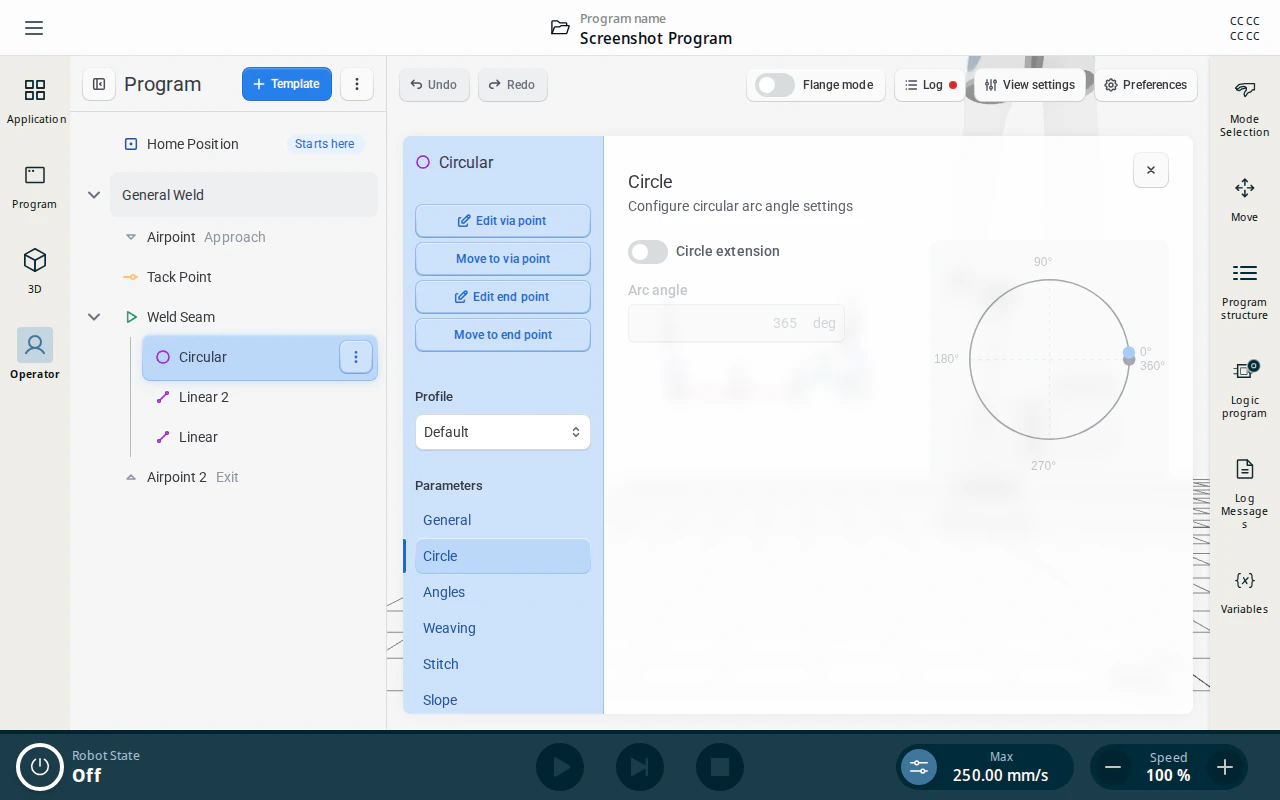
A circular segment normally sweeps whatever arc its taught via point and end point imply, stopping at the end point. Circle extension overrides that: the three taught points still define the circle, but the robot sweeps exactly the Arc angle you enter instead of stopping at the end point.
That makes it possible to weld a closed circle, which three points alone cannot describe. The default of 365° welds a full turn plus a 5° overlap so the end of the bead ties into its start. A value below the natural arc angle trims the segment short instead.
| Setting | Description | Range | Default |
|---|---|---|---|
| Circle extension | Turns the override on. While it is off, the arc simply runs to the end point and Arc angle is greyed out. | on/off | Off |
| Arc angle | The arc to sweep, measured from the start point. | 1–540° | 365° |
If the taught points cannot form a usable circle, the program reports Circle start and end points are too close, Circle radius is too small or Circle is too flat. Re-teach the via point further from the straight line between start and end.
This tab has no Reset to profile button: whether a segment overrides its arc angle is always a per-node decision, never something a profile supplies.
Movement
Set on the Weld Seam, on Approach, Exit and Airpoint nodes, and on Home Position. These are the non-welding moves — welding travel speed lives on General instead.
The move type is fixed by the node and cannot be changed here. Home Position moves in joint space (MoveJ), so its speed and acceleration are angular; every other node moves linearly (MoveL). The panel header tells you which one you are looking at.
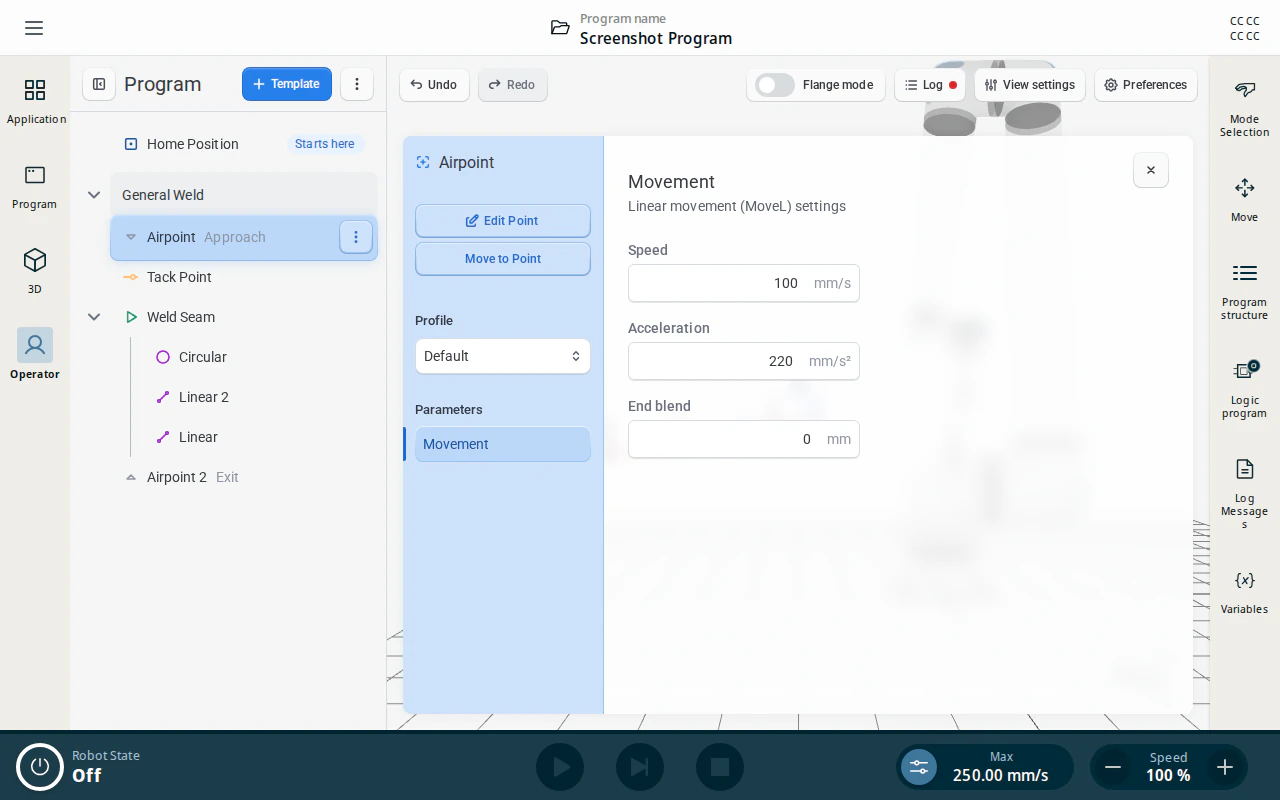
Linear moves (MoveL) — Weld Seam, Approach, Exit, Airpoint:
| Setting | Description | Range | Default |
|---|---|---|---|
| Speed | TCP speed of the move. | 1–250 mm/s | 100 mm/s |
| Acceleration | TCP acceleration of the move. | 1–1200 mm/s² | 220 mm/s² |
| End blend | Blend radius into the next move. Not shown on the Weld Seam — a seam blends using its segments’ End blend instead. | 0–100 mm | 0 mm |
Joint moves (MoveJ) — Home Position:
| Setting | Description | Range | Default |
|---|---|---|---|
| Speed | Joint speed of the move. | 1–180 °/s | 25 °/s |
| Acceleration | Joint acceleration of the move. | 1–1000 °/s² | 50 °/s² |
| End blend | Blend radius into the next move. | 0–100 mm | 0 mm |
Angles
Set per segment, on a Linear or Circular node.
Controls how the torch is held along the path. Turn on Use angles corners to enable the section, then set:
- Work angle and Travel angle — the torch orientation relative to the weld.
- Plane and Side — the reference plane the angles are measured against, and which side of it to weld from.
- Rotation mode and Rotation angle offset — how the torch rotates through the path.
- Corner mode, Corner distance and Corner speed — automatic corner handling for sharp edges.
Weaving
Set per segment, on a Linear or Circular node.
Applies a weaving pattern to the weld pass. Set the Weaving type to No Pattern to disable weaving. Available patterns:
- Crescent
- Circles
- Zig zag
- Back and forth
- Pendulum
Stitch
Set per segment, on a Linear or Circular node.
Breaks the segment into a series of short welds separated by gaps, instead of one continuous bead. Between stitches the arc goes out, the torch lifts by Retraction, travels to the next stitch at Air speed, and drops back down.
Turn Enable stitch on first — every other field in the tab stays greyed out until you do. The illustration on the right of the panel updates as you change the settings, and its numbered callouts match the numbers beside the fields.
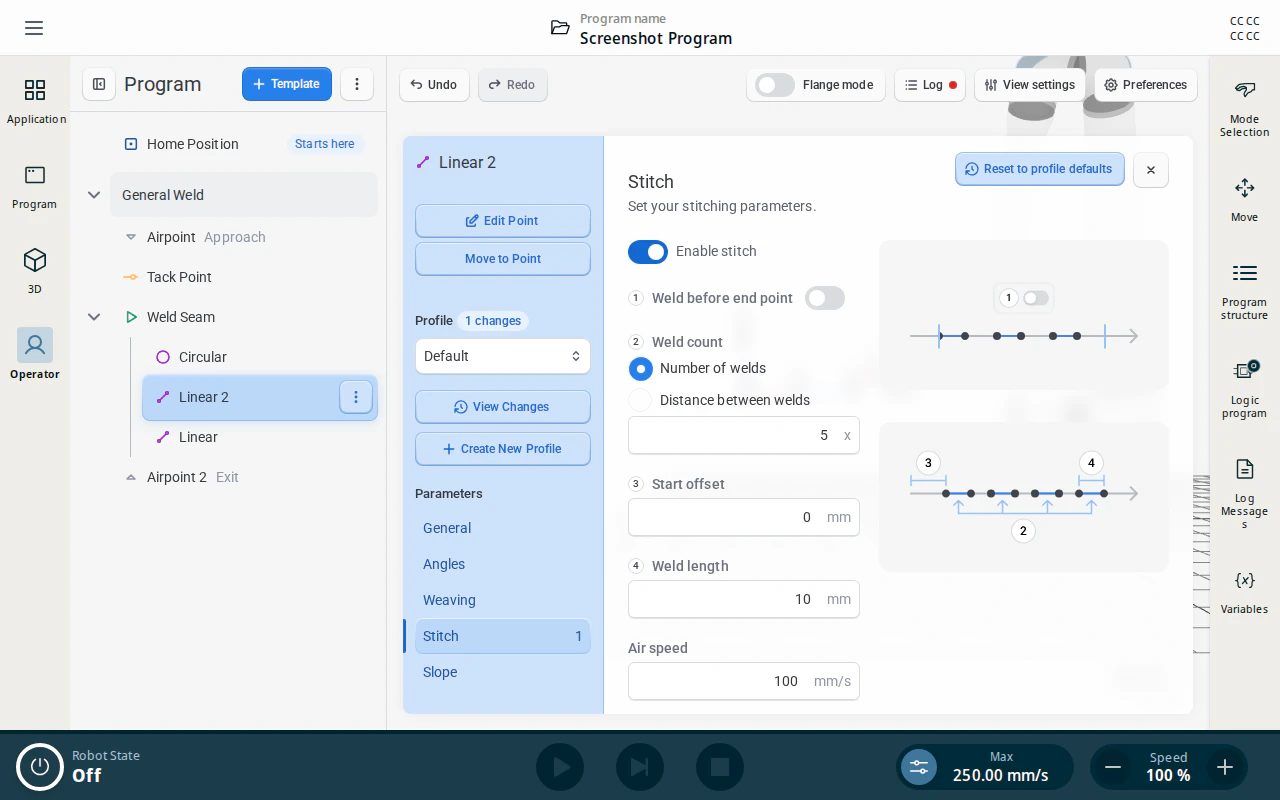
| Setting | Description | Range | Default |
|---|---|---|---|
| Enable stitch | Turns stitching on for this segment. | on/off | Off |
| Weld before end point | On, the last stitch finishes at the segment’s end point. Off, the segment ends with a gap instead of a weld. | on/off | Off |
| Weld count | Whether you specify how many welds to make, or how big the gaps between them are. See below. | Number of welds / Distance between welds | Number of welds |
| Number of welds | How many stitches to spread evenly along the segment. | 2–100000 | 5 |
| Distance between welds | The gap to leave between stitches. The number of stitches follows from the length of the segment. | 0.1–1000 mm | 10 mm |
| Start offset | An unwelded lead-in at the start of the segment. The robot travels this far with the arc off before the first stitch. | 0–1000 mm | 0 mm |
| Weld length | The length of each individual stitch. | 0.1–1000 mm | 10 mm |
| Air speed | Travel speed of the non-welding hops between stitches. | 1–250 mm/s | 100 mm/s |
| Retraction | How far the torch lifts off the path while hopping between stitches. | 0–250 mm | 2 mm |
| Allow merge | Lets consecutive segments that share identical stitch and weaving settings be treated as one continuous path, so the stitch pattern carries across the join instead of restarting on each segment. | on/off | Off |
Number of welds and Distance between welds are alternatives — pick one with the radio buttons and only that field is shown.
If the stitches do not fit — for example too many welds, or welds too long for the segment — the program reports Stitch distance error and highlights Number of welds and Weld length. Shorten the welds, reduce the count, or increase the gap.
Unwind
Set on the Weld Seam, which owns the whole path.
Allows the robot to backtrack the weld path automatically. When enabled:
- The robot welds to the end of the path and extinguishes the arc.
- It moves back toward the Weld Seam position while retracting the specified amount.
- It then continues to the Exit point.
| Setting | Description | Range | Default |
|---|---|---|---|
| Enable unwind | Turns backtracking on for this seam. | on/off | Off |
| Retraction distance | How far back along the path to travel. | 1–100 mm | 25 mm |
| Maximum unwind speed | Speed limit for the backtracking move. | 1–250 mm/s | 100 mm/s |
Endpoints
Set on the Weld Seam.
Holds the torch at a different work and travel angle at the very start and the very end of the seam, then blends into the segments’ normal Angles over a short distance. Use it to dig in at the strike point, or to fill the crater at the end of the bead.
The tab has two independent sections, Start Angles and End Angles, with identical fields. Each has its own toggle — Use start angles and Use end angles — and the fields below stay greyed out until it is on.
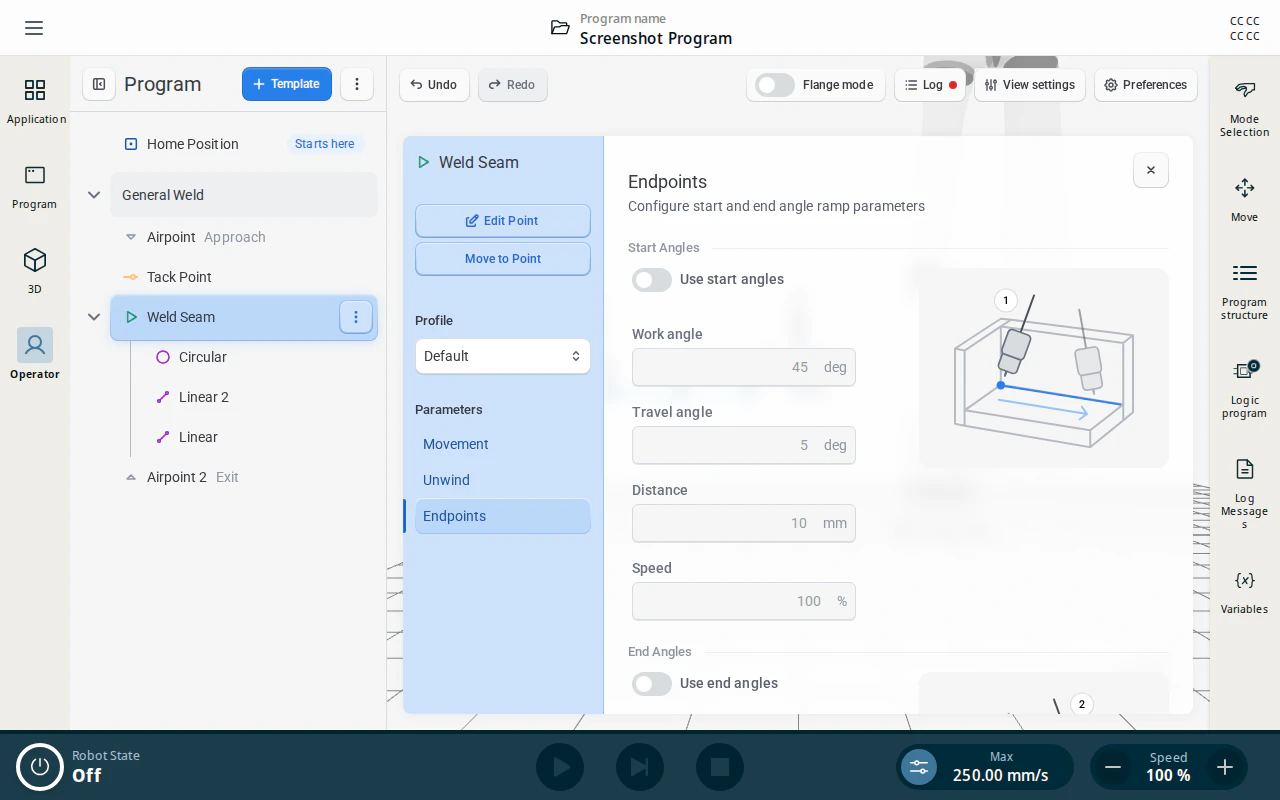
| Setting | Description | Range | Default |
|---|---|---|---|
| Work angle | Torch work angle to hold at the endpoint, before blending into the segment’s own angle. | −180–180° | 45° |
| Travel angle | Torch travel angle to hold at the endpoint. | −80–80° | 5° |
| Distance | The length of path over which the torch rotates between the endpoint angle and the segment’s normal angle. | 1–500 mm | 10 mm |
| Speed | Travel speed through that ramp, as a percentage of the segment’s travel speed. | 1–200 % | 100 % |
Note
Endpoint angles need angles enabled on the segments themselves. If they are not, the program reports Start angles configured without angles enabled (or the end-angle equivalent). Turn on Use angles corners on the Linear and Circular nodes flagged with a warning icon — batch apply can do all of them at once.
Slope (Slope Down)
Set per segment, on a Linear or Circular node.
Controls the robot’s behavior right before completing the weld path:
- Time to slope down — sends the arc-off command X seconds before reaching the final waypoint. Match this to the slope-down time of your power source.
- Slope type:
- Linear — weaving stops immediately and the robot moves in a straight line for the remainder of the slope down.
- Pattern — weaving continues through the slope down.
Tack
Set on a Tack Point node.
A tack is a single spot weld rather than a path, so it has only two settings. At the taught point the robot approaches along the torch axis, strikes the arc, holds it for Tack time, extinguishes it and retracts back out the same way.
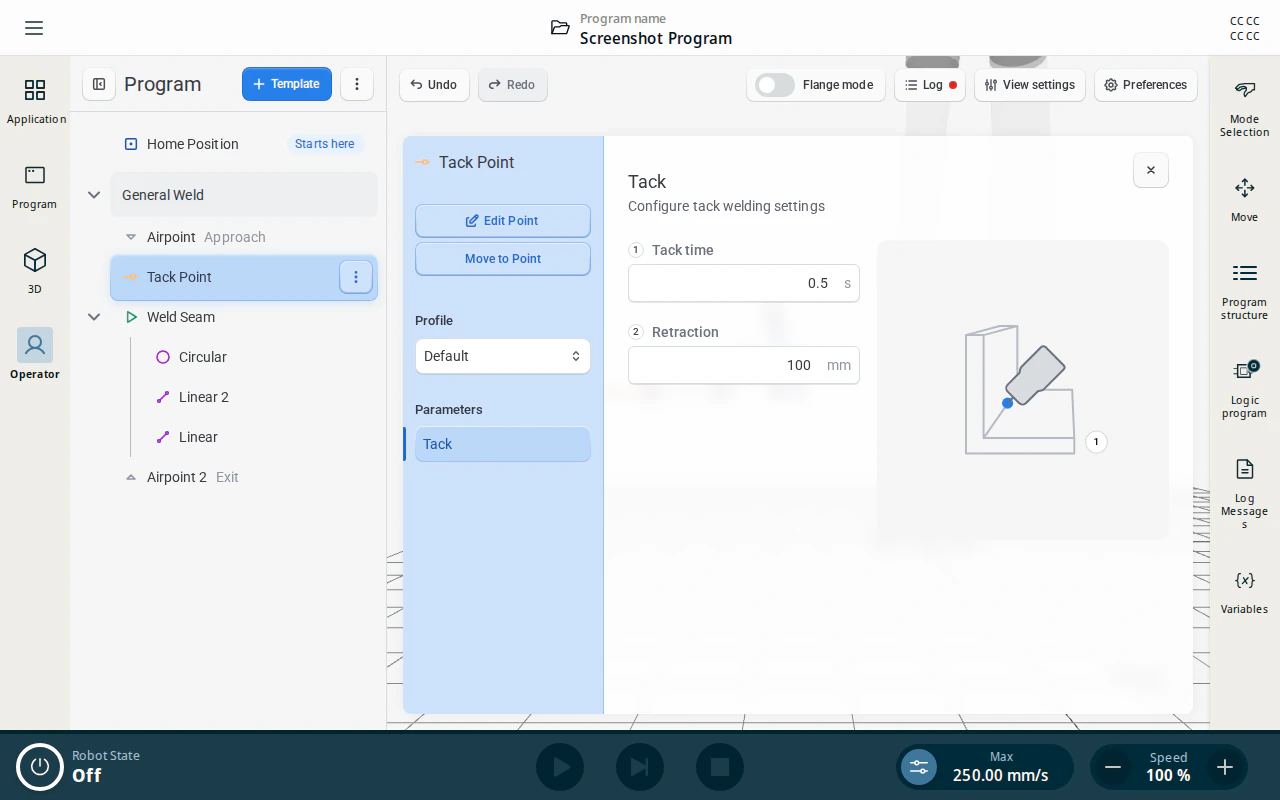
| Setting | Description | Range | Default |
|---|---|---|---|
| Tack time | How long the arc burns at the point. | 0.1–10 s | 0.5 s |
| Retraction | How far back along the torch axis the robot stands off before and after the tack. | 1–500 mm | 100 mm |
Path Sub-Nodes
Approach Point
Defines the TCP speed, acceleration, and blend parameters for the approach move. Approach, Exit and standalone Airpoint nodes are all the same node type and share this configuration page.
Weld Seam
Identifies where welding begins — this node is taught at the weld start position. While it is still Empty, use its Add button to insert the first path segment; afterwards add more from a segment’s ⋮ menu with Add, choosing Linear or Circular.
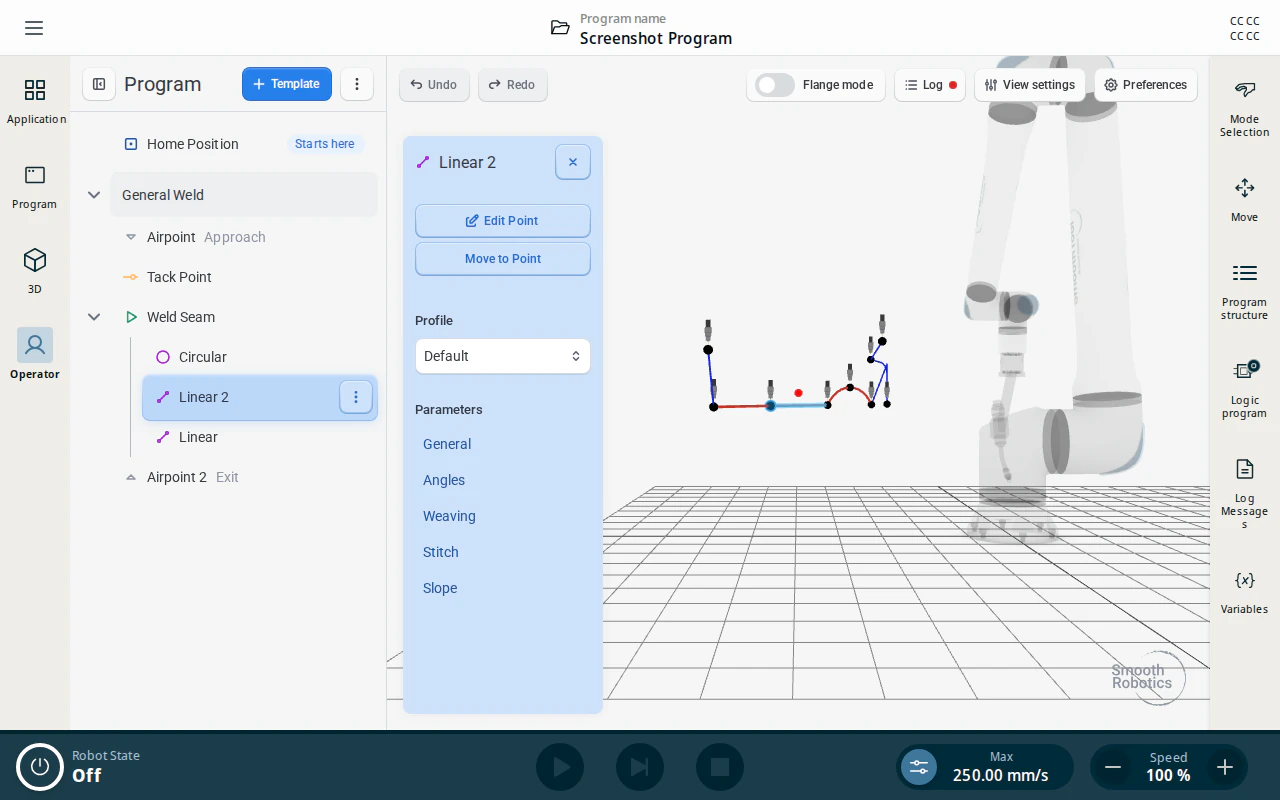
Line Segment
Defines a linear path segment. Parameters changed here override the parent Weld node settings for this segment only.
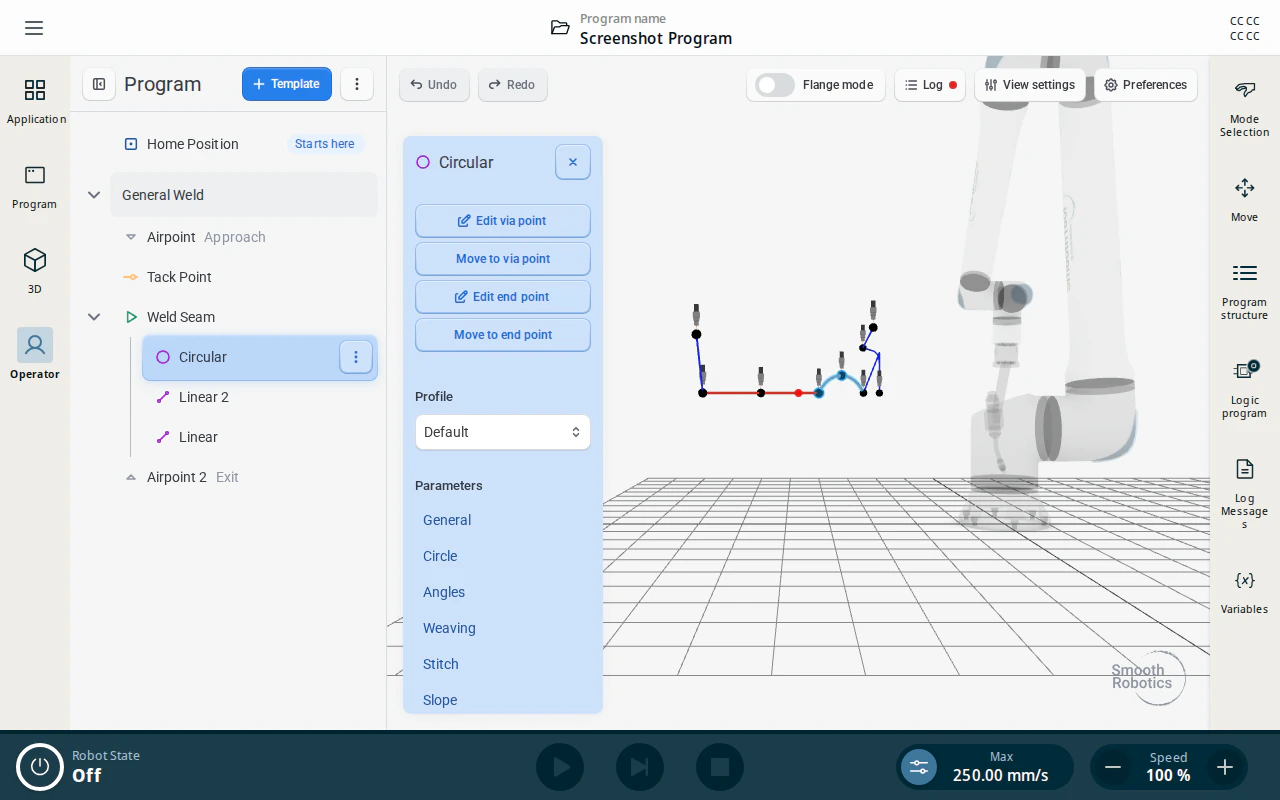
Circular Segment
Defines a circular arc segment using a via point and an end point. You can extend or trim the arc to a precise angle on the Circle tab.
Airpoint
Moves the torch without welding (arc off) — used to jump over obstructions or navigate to another seam on the same workpiece. It uses the same configuration page as the Approach Point above.
Tack Point
Lays a single tack weld at one taught point, with no path and no segments. Add one from a node’s ⋮ menu with Add → Tack Point; it sits alongside Weld Seam and Airpoint nodes rather than inside a seam. If a Tack Point would be the last node in the program, an Airpoint is appended automatically — a program has to finish on an airpoint to run.
Its settings are on the Tack tab, and it carries its own power source parameters and arc settings.