The onboarding wizard‘s Mounting and Payload steps tell the robot how it is physically installed and how much weight it carries, so it can compensate for gravity correctly. You can set both directly in PolyScope. As these are standard Universal Robots PolyScope X screens, always refer to Universal Robots’ own user manual for the most up-to-date and complete instructions.
Caution
Mounting and payload affect the robot’s motion and safety behaviour. Enter values that match your real installation.
Mounting
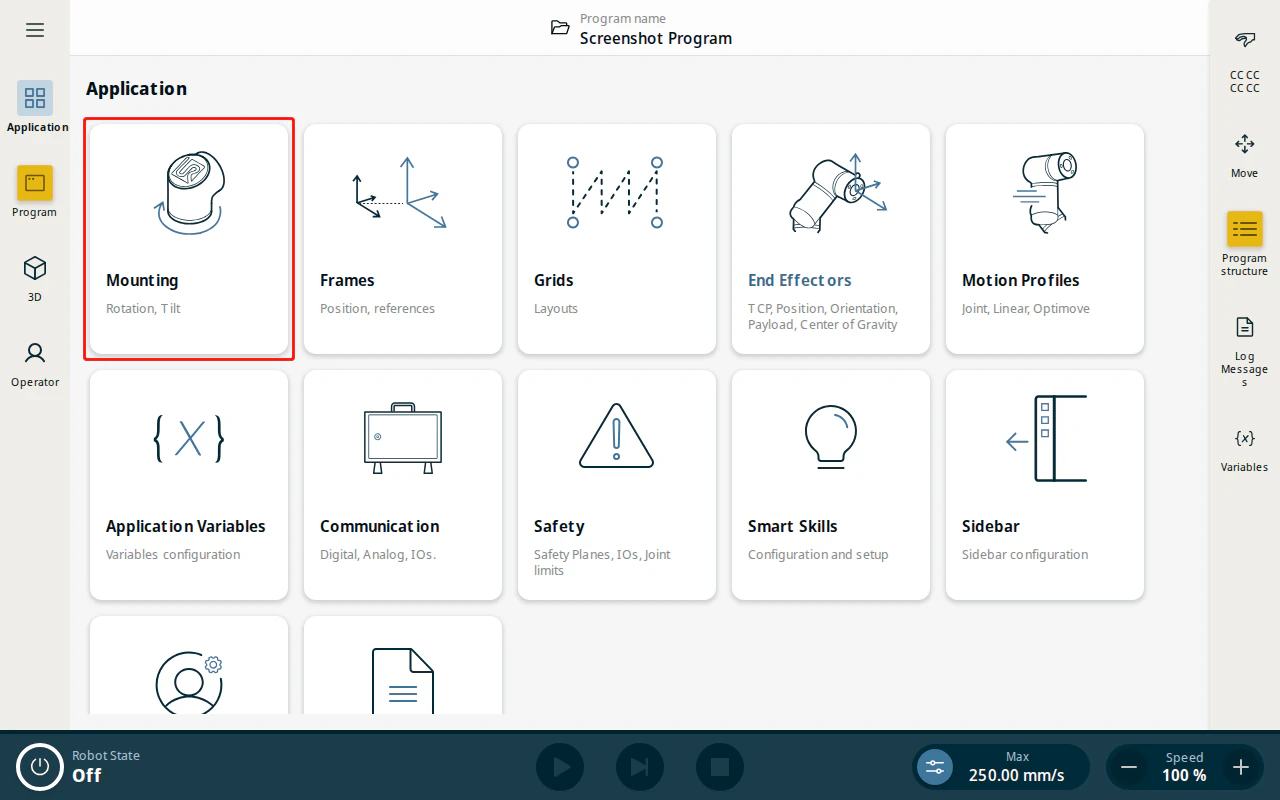
- From the Application view, tap Mounting.
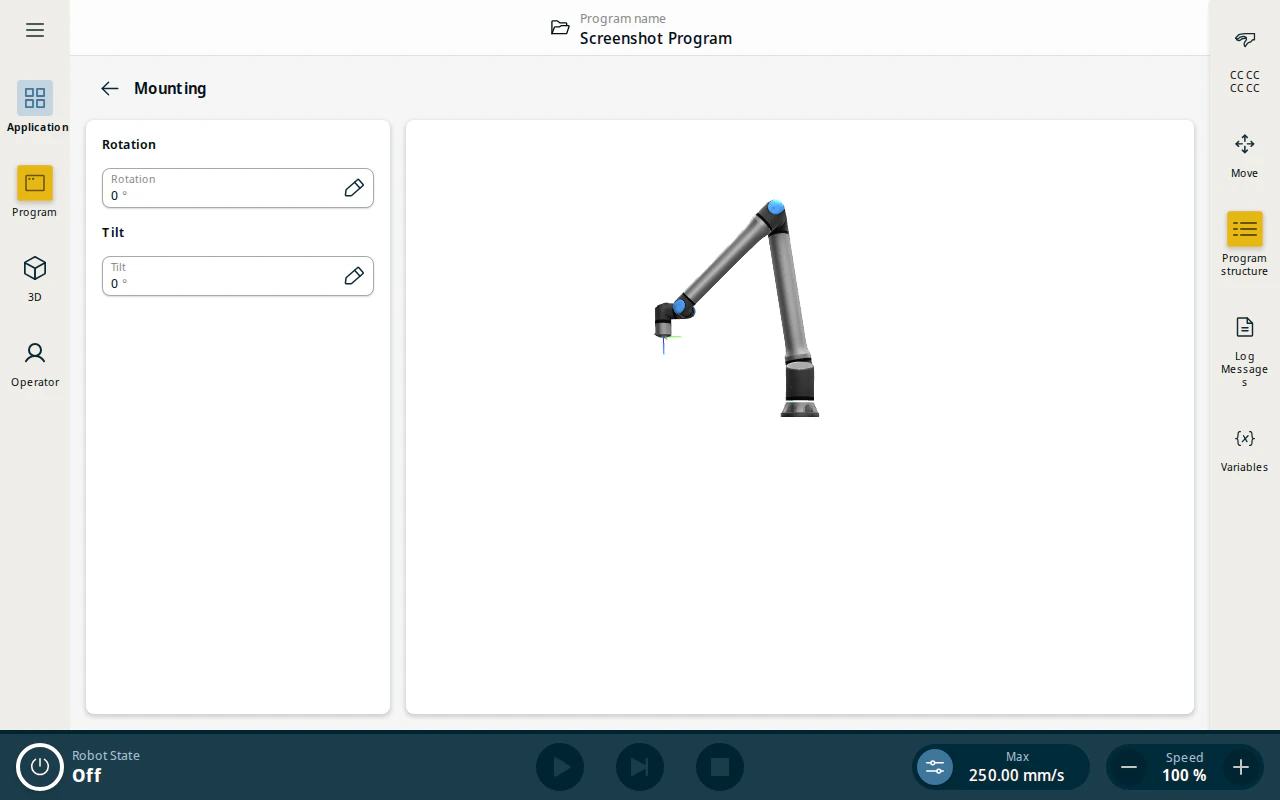
- Set the Rotation and Tilt angles to match how the robot is physically mounted (for example, on a wall or at an angle). For a robot mounted upright on a level surface, both remain 0°.
Payload
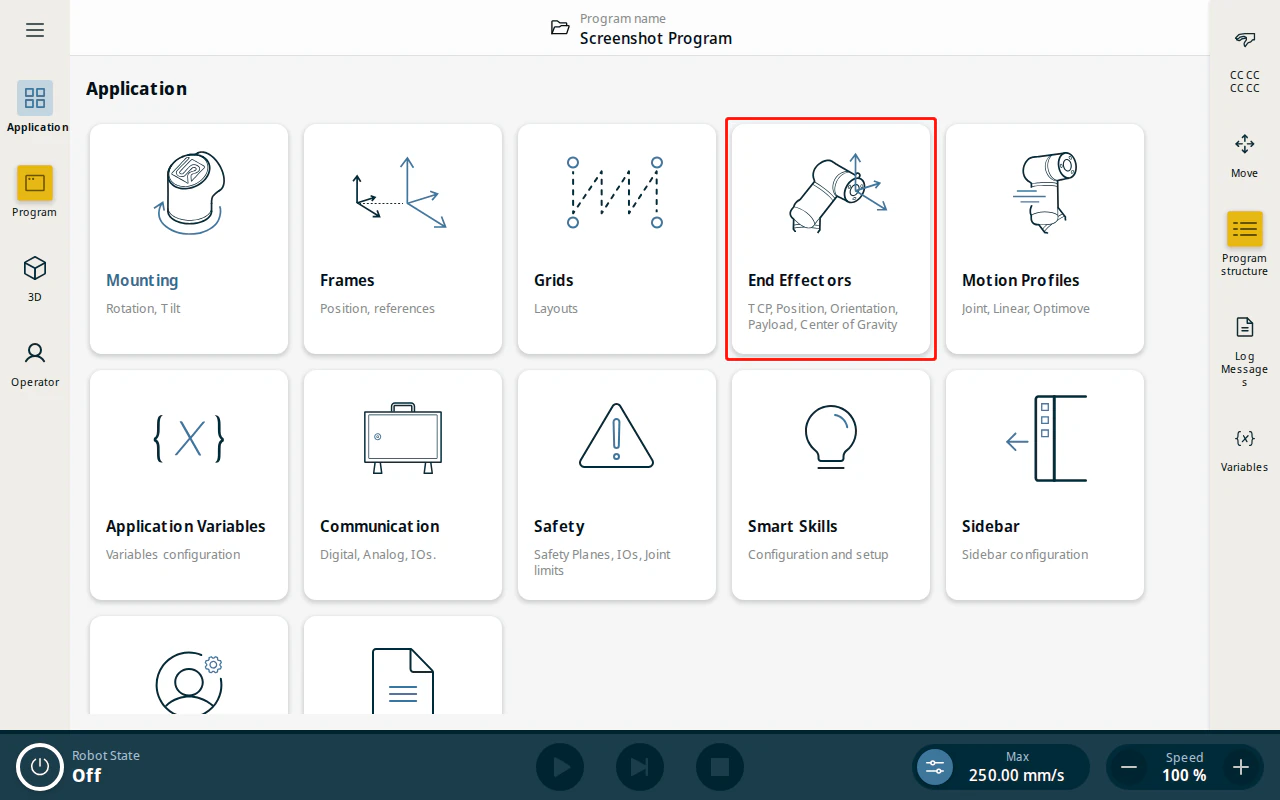
- From the Application view, tap End Effectors.
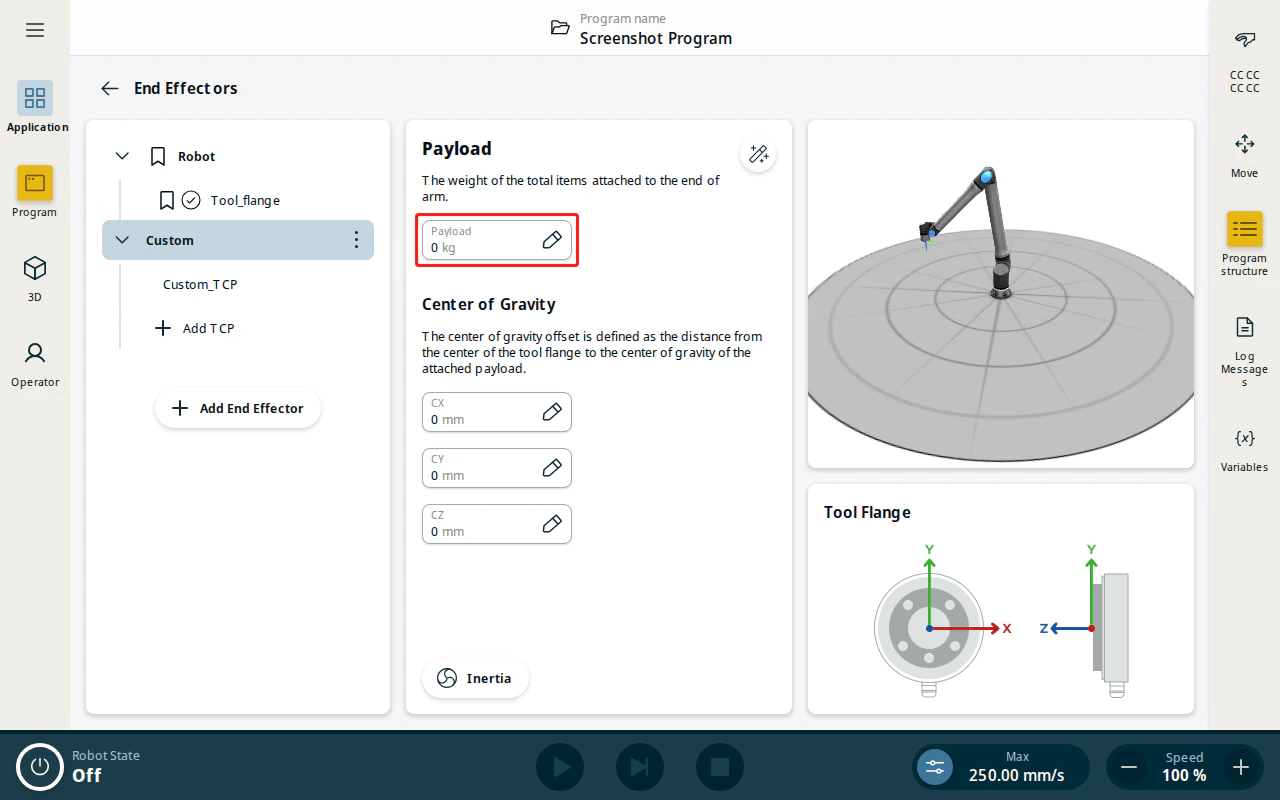
- Payload is set on your tool’s end effector. The built-in Robot flange is read-only, so add one with Add End Effector if you haven’t already (see TCP Configuration). With it selected, under Payload enter the total mass attached to the tool flange (torch, cabling and any fixtures) and the Center of Gravity offsets (CX, CY, CZ).
Warning
SmoothTool X recognizes the end effector only when it is named exactly Custom (with a TCP named Custom_TCP) — the same tool its onboarding wizard creates. Rename a new end effector to Custom via its ⋮ menu → Rename. See TCP Configuration for details.
Note
The payload is the combined weight at the end of the arm. Include the welding torch and everything mounted with it.
Estimate the payload automatically
If you don’t know the exact mass and center of gravity, use the built-in payload estimation wizard provided by Universal Robots.
- Under the end effector, tap the payload estimation wizard button next to the payload value.
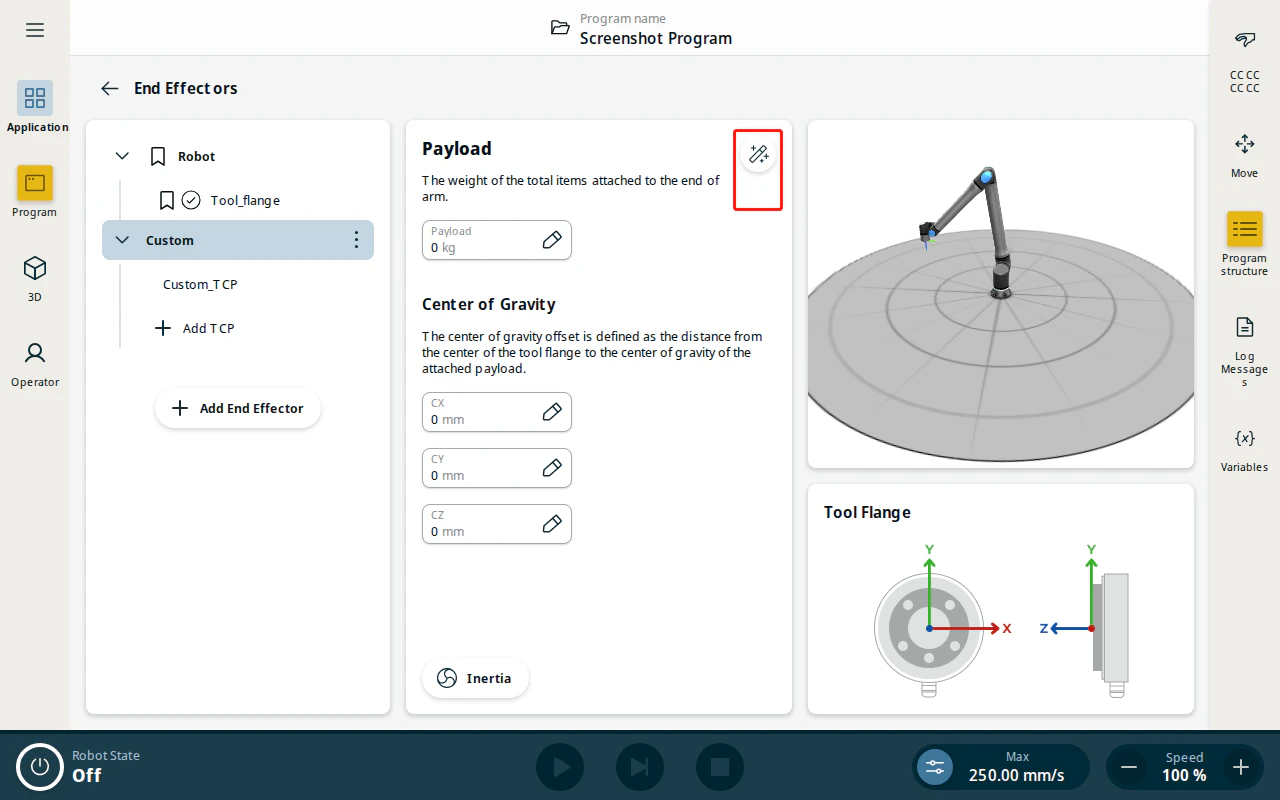
- Follow the wizard. It moves the robot through four distinct positions and measures the joint torques at each to calculate the payload mass and center of gravity automatically.