The Tool Center Point (TCP) defines the exact position and orientation of the welding torch tip relative to the robot’s tool flange. An accurate TCP is essential for correct motion and weld positioning. The onboarding wizard‘s Tool Center Point step sets this up; you can also configure it directly in PolyScope’s End Effectors page. As these are standard Universal Robots PolyScope X screens, always refer to Universal Robots’ own user manual for the most up-to-date and complete instructions.
Add or edit a TCP
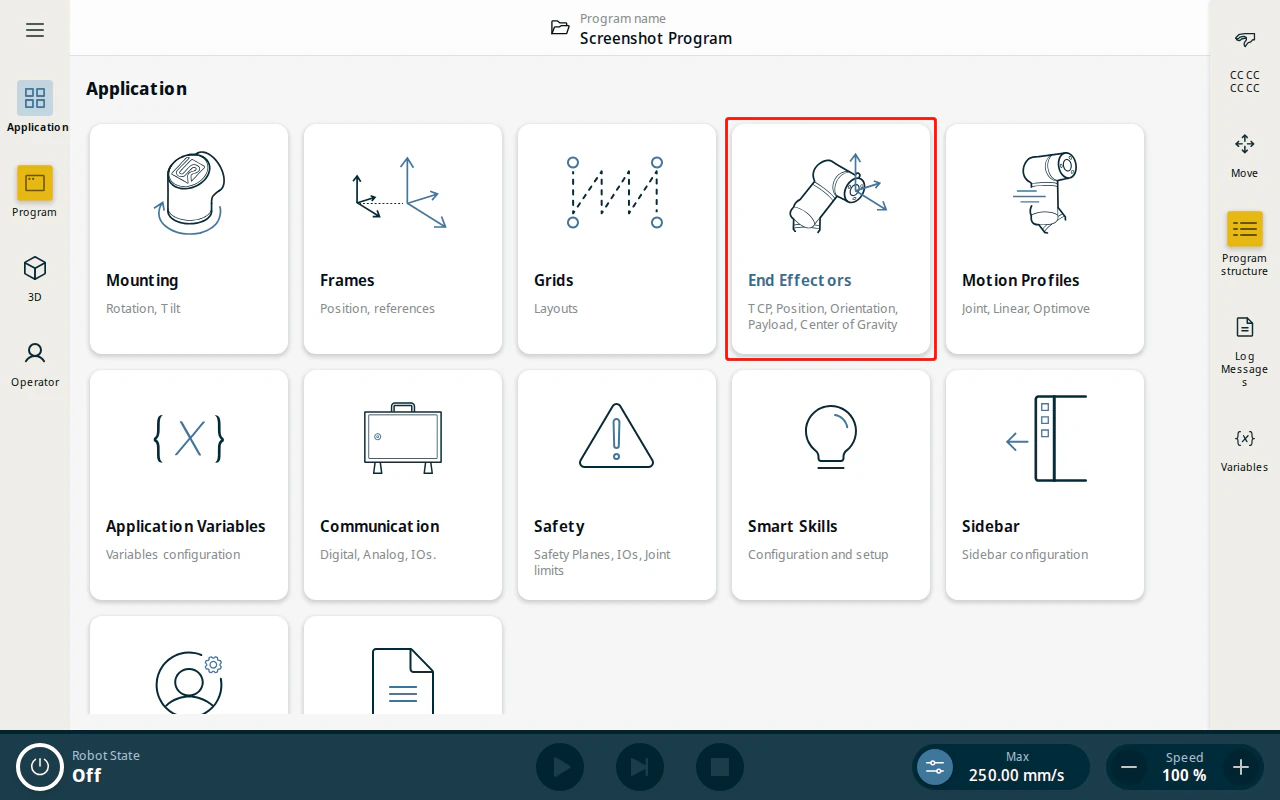
- From the Application view, tap End Effectors.
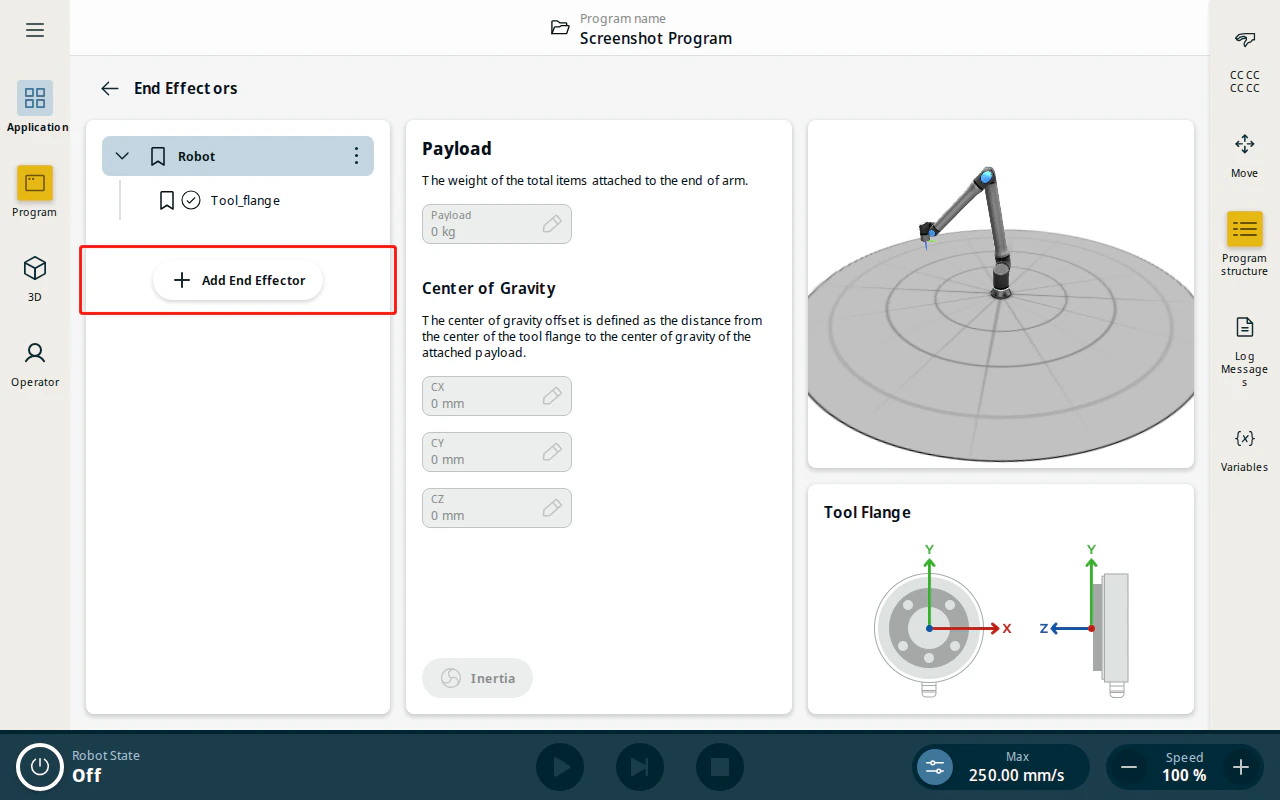
- The end effectors are listed on the left. A fresh installation has only the default Robot with its Tool_flange. Tap Add End Effector to create a tool for your torch.
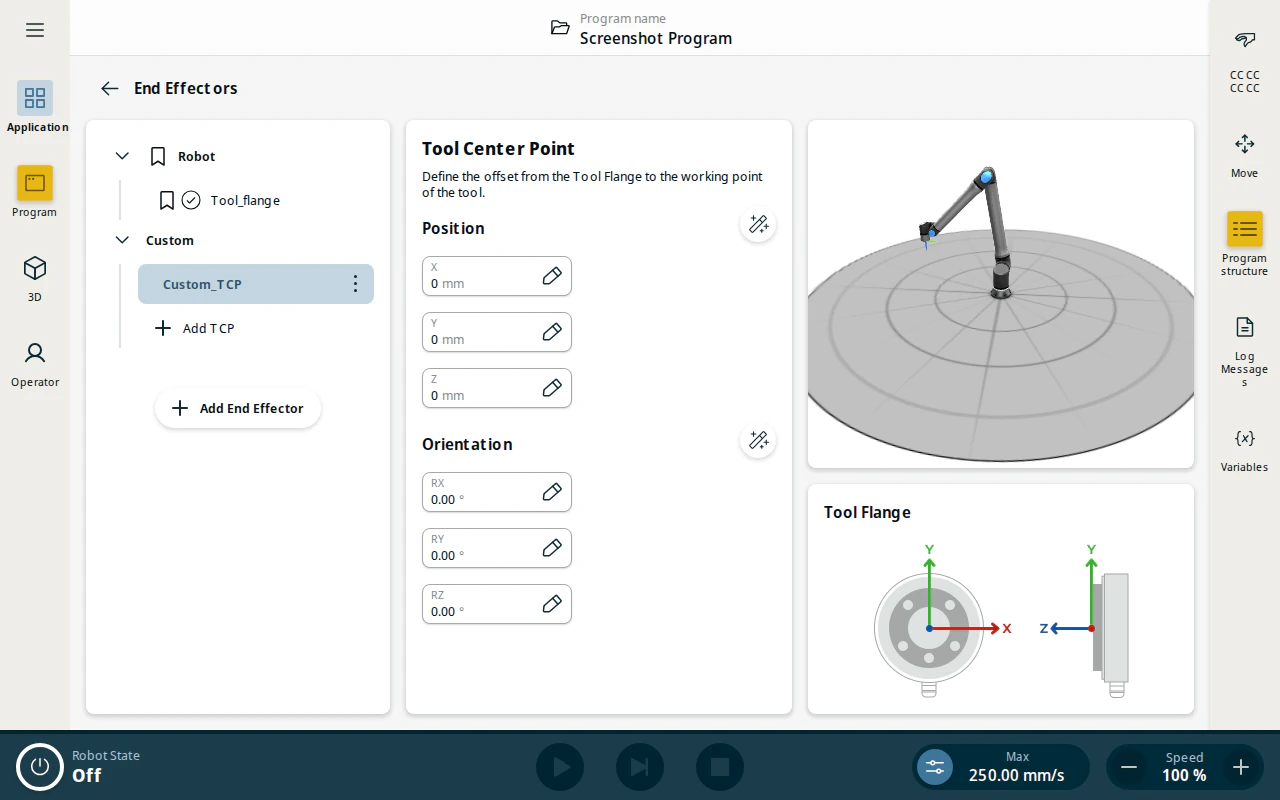
- The new tool is added and automatically selected, together with a TCP.
Warning
SmoothTool X looks for an end effector named exactly Custom with a TCP named Custom_TCP — this is what its onboarding wizard creates. PolyScope names the new end effector End_effector_1 and its TCP TCP_1, so rename both: use each item’s ⋮ menu → Rename to set Custom and Custom_TCP. If the names don’t match, SmoothTool X’s Settings screens won’t recognize your tool and will create a separate Custom end effector.
-
Select Custom_TCP and enter its pose relative to the tool flange:
- Position — the X, Y and Z offset of the torch tip, in millimetres.
- Orientation — the RX, RY and RZ rotation of the tool.
You can enter the values directly if you know them from the torch datasheet, or teach them by jogging the robot.
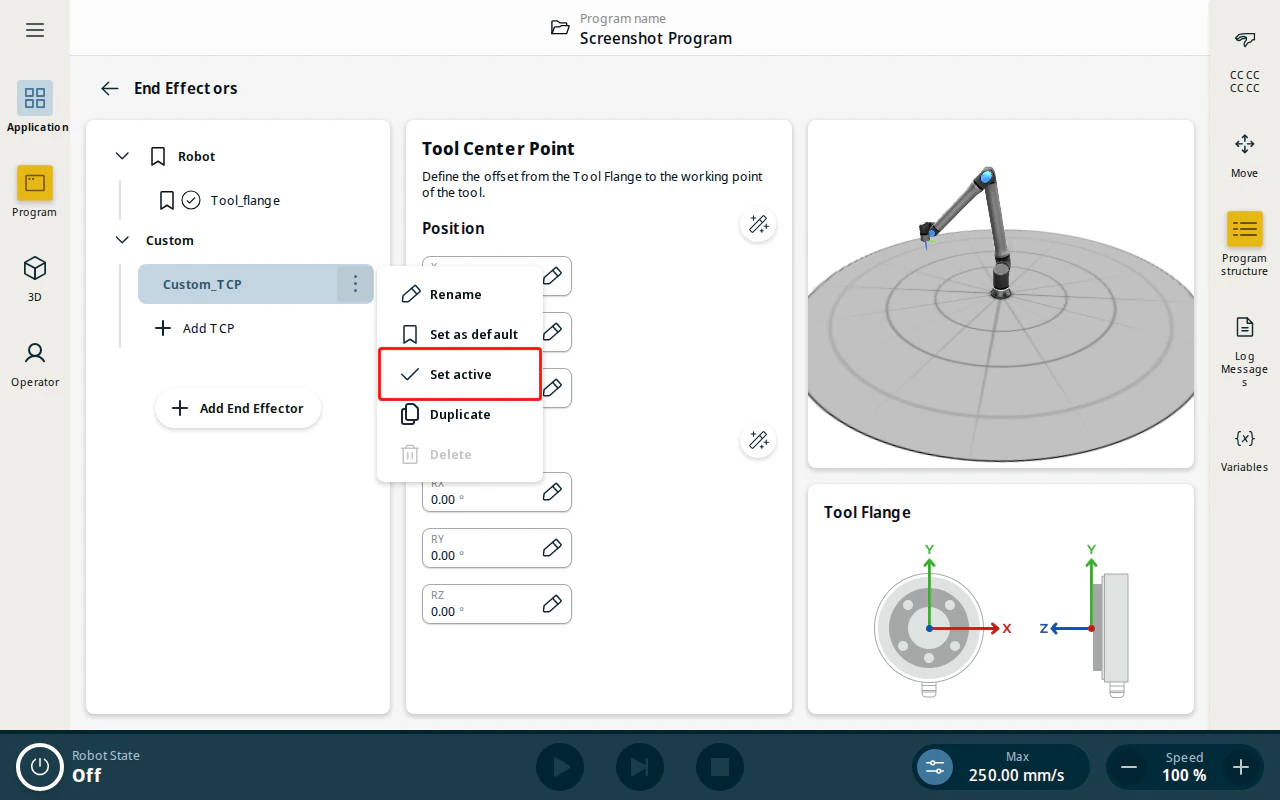
- Make it the active TCP so programs use it: open the Custom_TCP ⋮ menu and tap Set as active.
Teach the TCP with the wizard
If you don’t know the exact offsets, use the teach wizard provided by Universal Robots instead of typing values:
- Position — the wizard has you jog the torch tip to the same physical point from four different approach angles. From those poses it calculates the X/Y/Z offset of the tip.
- Orientation — a further step lets you jog the robot to define the tool’s direction (for example, aligning the torch angle), from which it calculates the RX/RY/RZ orientation.