This page describes how to integrate and set up communication between the Soldamatic augmented reality welding simulator and SmoothTool X.
Soldamatic is a welding simulator, not a welding machine: it is used for training and for dry-running a program without an arc, wire or real shielding gas. It therefore behaves differently from every other power source in SmoothTool X — it has no synergic database, no welding parameters such as current or voltage, and no live parameter readout. What a program node sets on it is which exercise from the simulator’s job library to run, and whether the (simulated) gas valve is opened.
Hardware Configuration
SmoothTool X communicates with the Soldamatic over EtherNet/IP. To set up communication between the software and the simulator, the following items are required:
- A Soldamatic augmented reality welding simulator with its robot (EtherNet/IP) interface available.
- If in doubt, contact your local Soldamatic supplier or the Smooth Robotics team.
- Ethernet RJ45 cable from the simulator to the robot.
- A USB keyboard for the simulator. The IP address and the protocol are set from a text menu on the Soldamatic itself.
On the EtherNet/IP network the Soldamatic acts as the adapter and the robot as the scanner.
Connect the simulator
Power on the Soldamatic module and connect it to the robot control box with the Ethernet cable.
The support menu
The IP address and the protocol are both set from the simulator’s support menu. To open it, connect a keyboard to the Soldamatic and press Ctrl + Alt + F4, then select Robot Configuration. The menus are text-based: move with the arrow keys, select with Enter, and leave a menu with Esc.
IP Address
Select a valid IP address for the simulator’s interface. The IP address must be on the same subnet as the robot. Set it on the simulator itself:
-
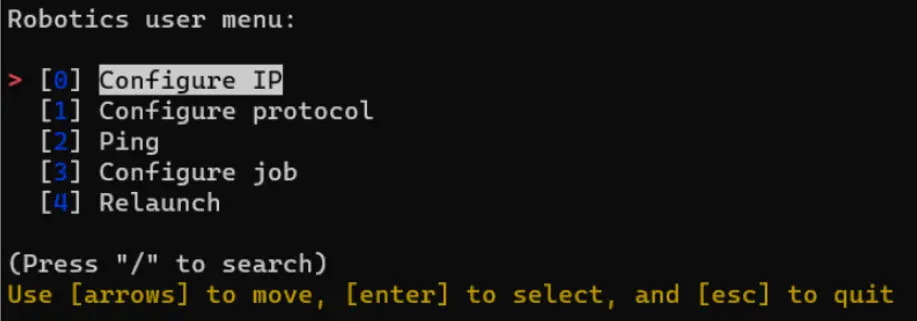
Open the support menu and select Configure IP.
-
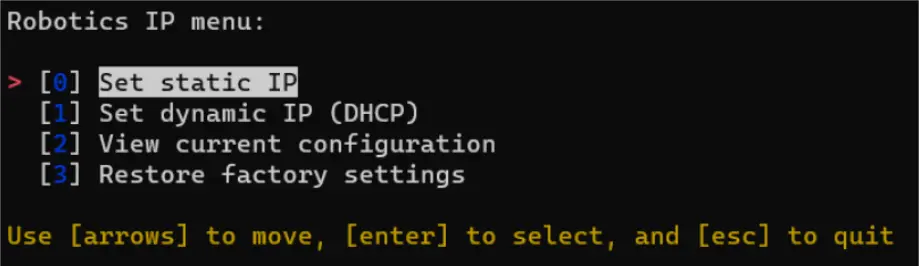
Select Set static IP.
-
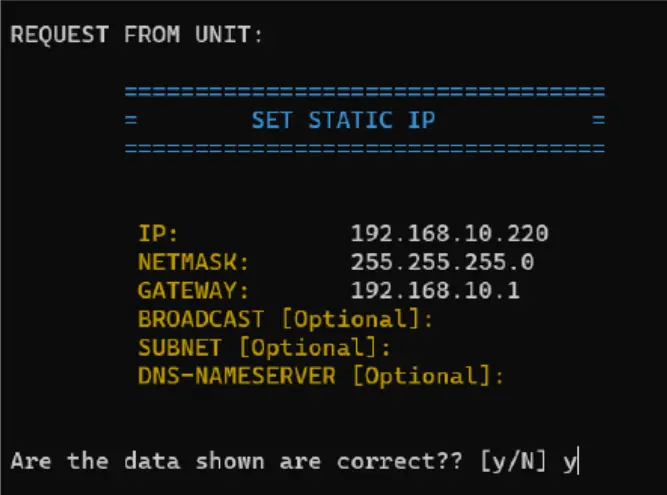
Fill in the IP, netmask and gateway. The broadcast, subnet and DNS-nameserver fields are optional and can be left blank. Confirm with y when asked whether the data shown is correct.
-
Note down the IP address — it is needed when the power source is added in SmoothTool X.
-
Restart the Soldamatic.
Protocol
The simulator also has to be told which protocol configuration file to use:
-
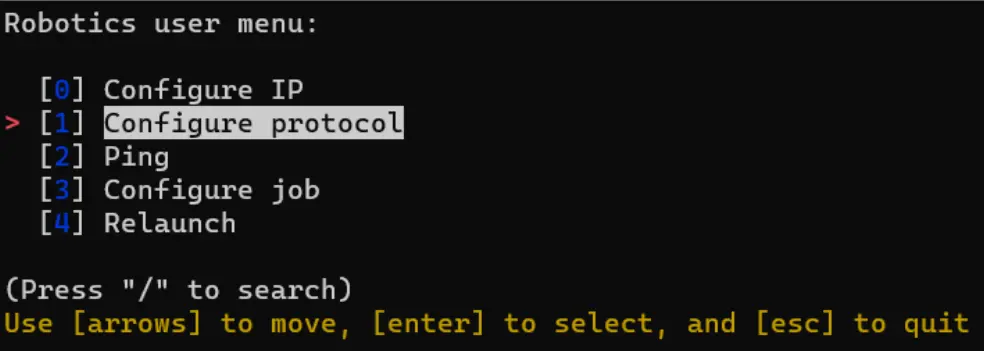
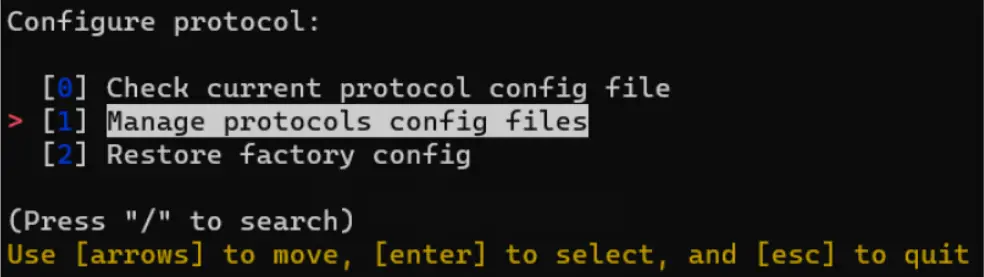
Open the support menu and select Configure protocol.
-
Select Manage protocols config files.
-
Select Default config files, then default/eip_abb.yml. A preview of the selected file is shown at the bottom of the screen; the protocol reads
ethernet_ip.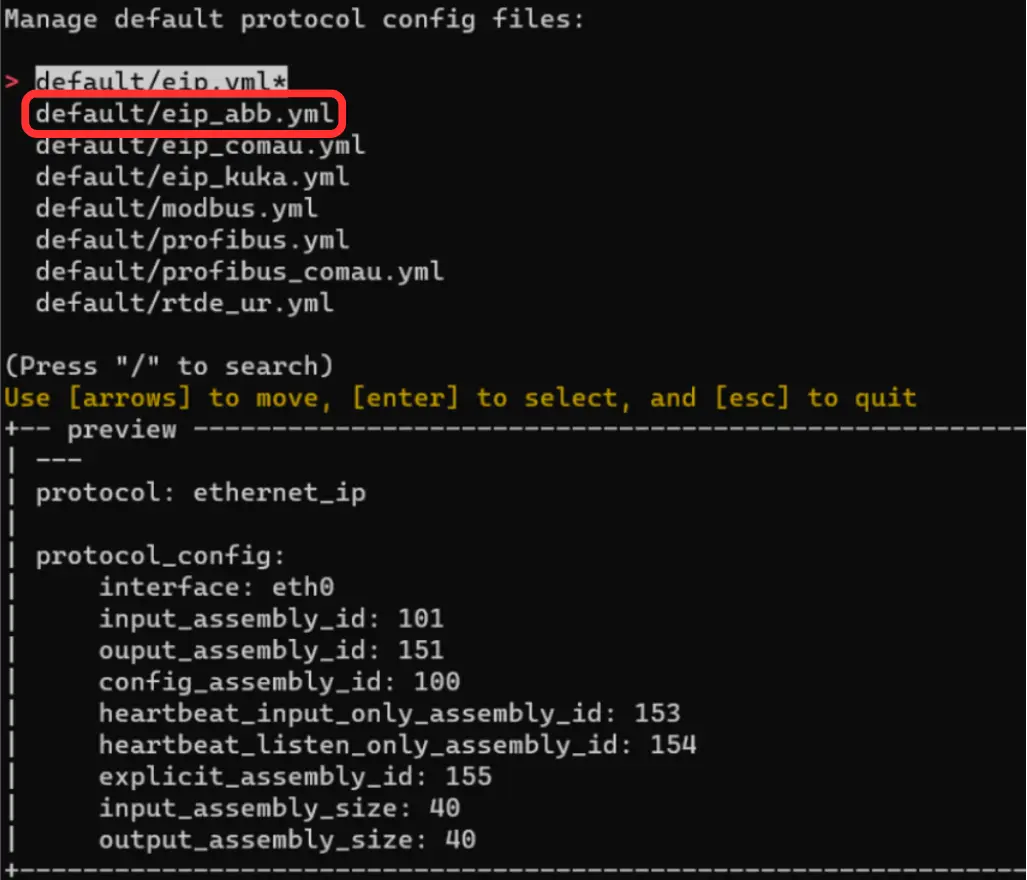
-
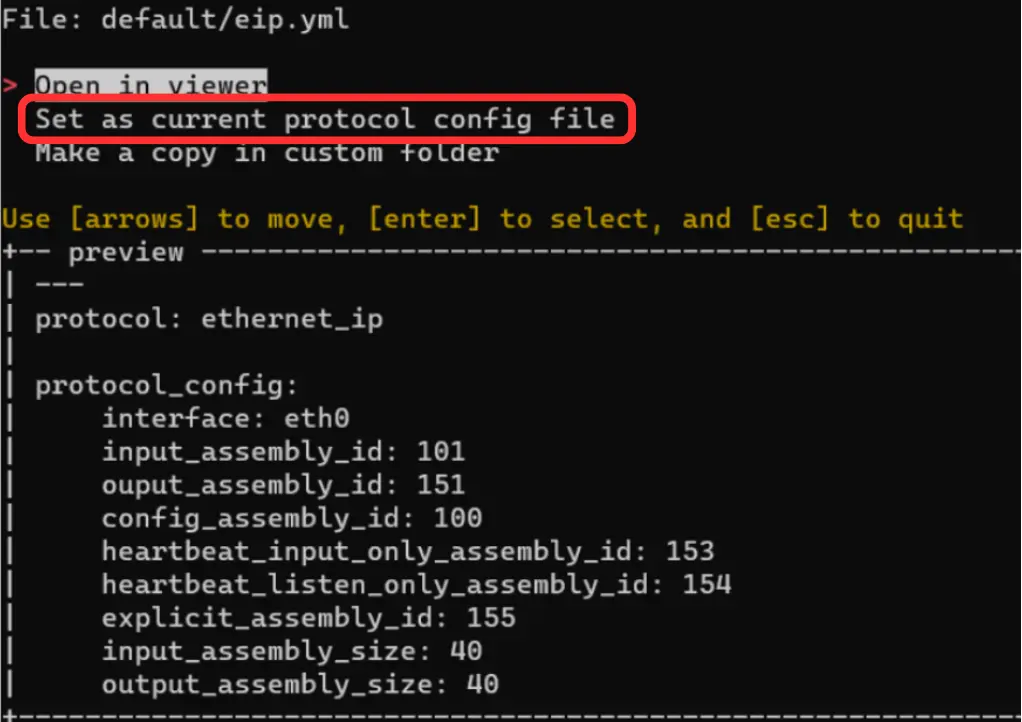
Select Set as current protocol config file.
Note
The list also contains default/rtde_ur.yml. Despite the name, that is not the file to use — it configures a different protocol (RTDE), not EtherNet/IP. Select eip_abb.yml, even though the robot is not an ABB.
Software Configuration
Once the hardware is configured, add and connect the Soldamatic in SmoothTool X.
Add the Soldamatic
Tap SmoothTool X Settings from the Application view. In the sidebar, under Components, tap Power Sources, then tap Add new power source.
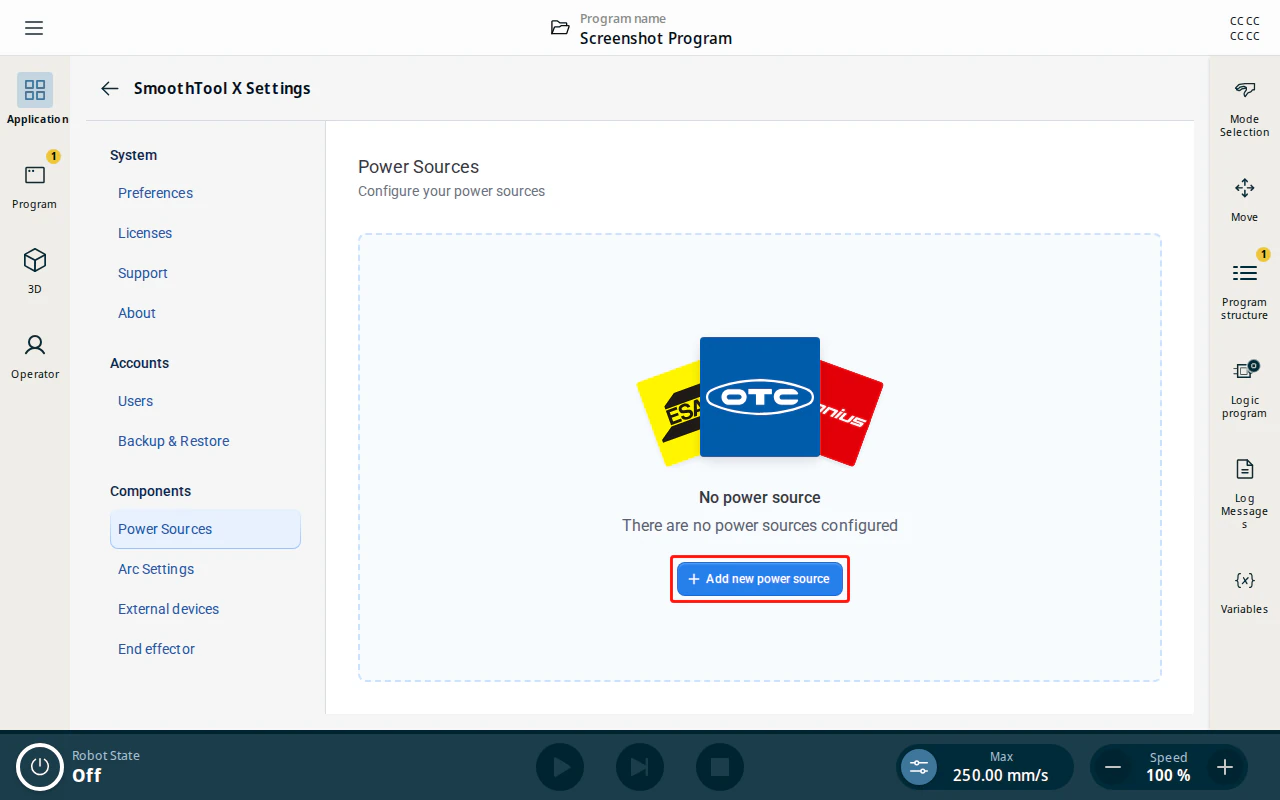
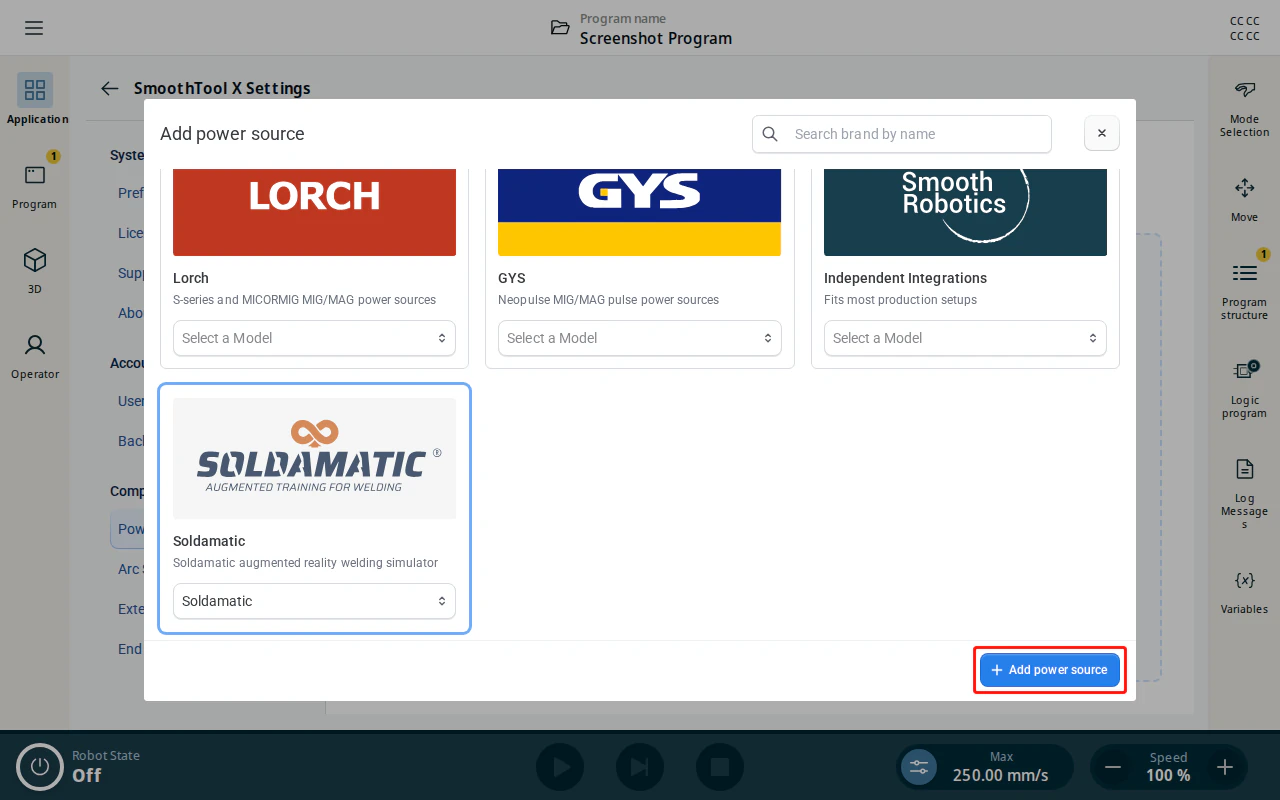
In the Add power source dialog, select the Soldamatic tile and choose the Soldamatic model, then tap Add power source.
Configure the Soldamatic
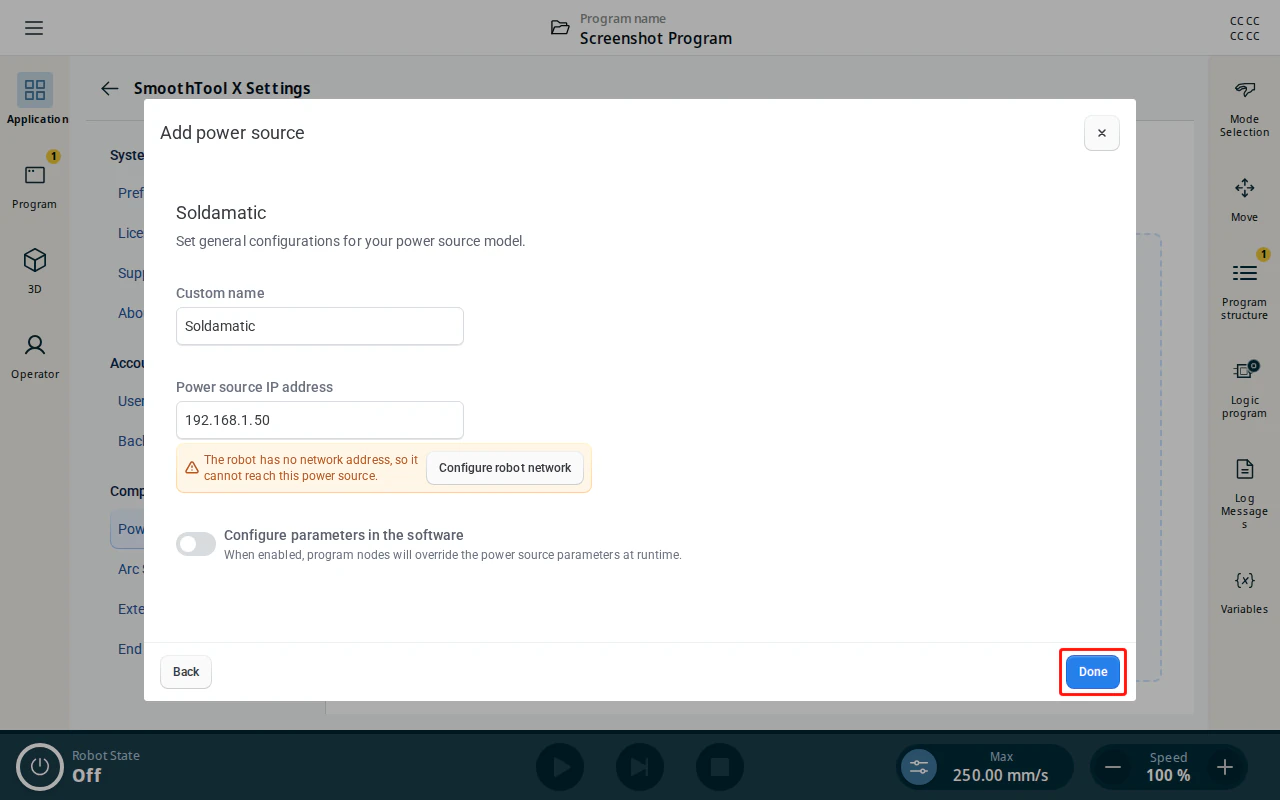
Soldamatic has a single model and no machine-specific settings, so its configuration page is the short, general one:
| Field | Description |
|---|---|
| Custom name | A name to identify this power source. |
| Power source IP address | The IP address of the Soldamatic interface. The robot uses this address to communicate with the simulator. Ensure it is set correctly; otherwise the robot cannot connect. |
| Configure parameters in the software | Controls whether program nodes override the simulator’s own settings at runtime — see Configure parameters in the software below. |
When done, tap Done to save the power source.
Configure parameters in the software
The Configure parameters in the software toggle controls how parameters are applied:
- Disabled (default) — the simulator keeps the job selected on the machine; program nodes do not override it.
- Enabled — program nodes override the simulator’s parameters at runtime, letting you set the job and gas valve per node from the Power Source Parameters node.
Connect to the Soldamatic
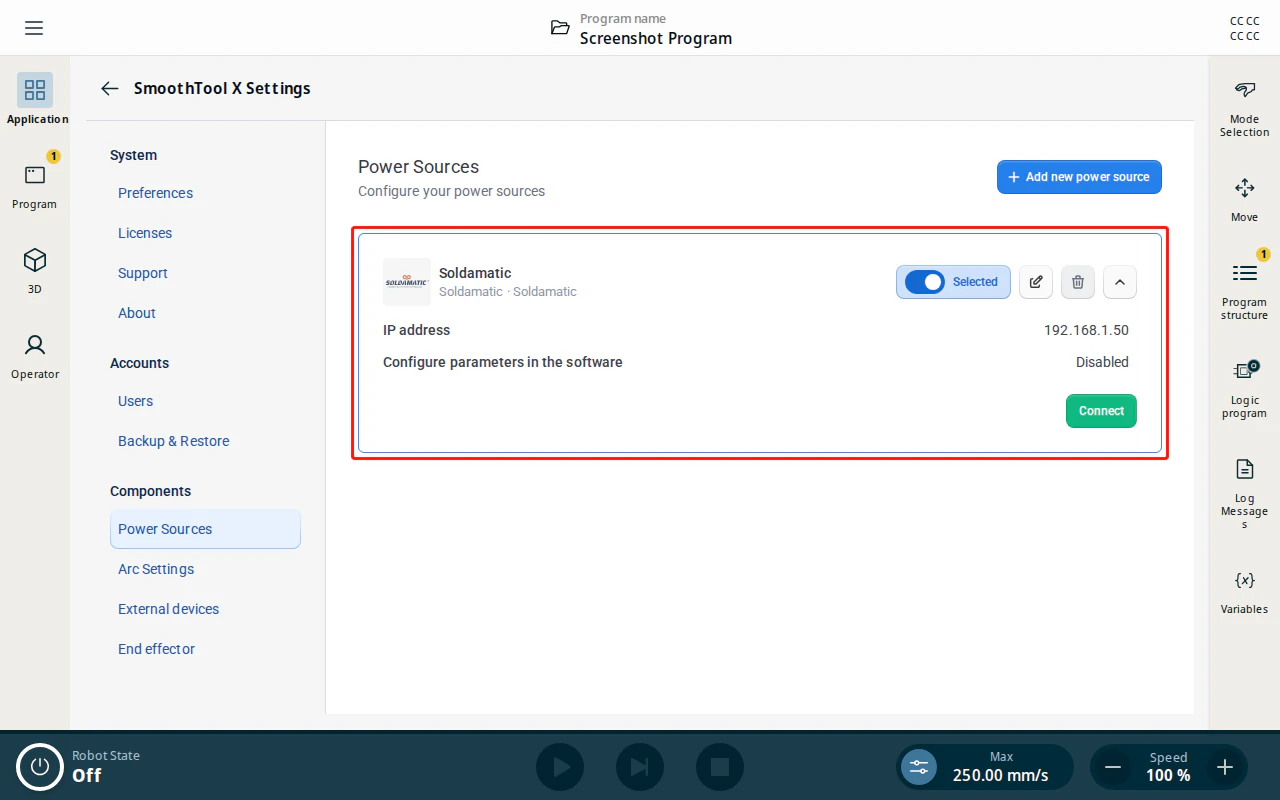
Back on the Power Sources page, expand the new entry, tap Selected to make it the active power source, then tap Connect. When the connection is established, a connection status tag is shown on the entry.
Programming with SmoothTool X and Soldamatic
When Configure parameters in the software is enabled, you can set the Soldamatic parameters per node from the program tree.
Select a weld node (e.g. Weld Seam) in the program tree and open its Power source tab. The parameters apply when the program reaches that node.
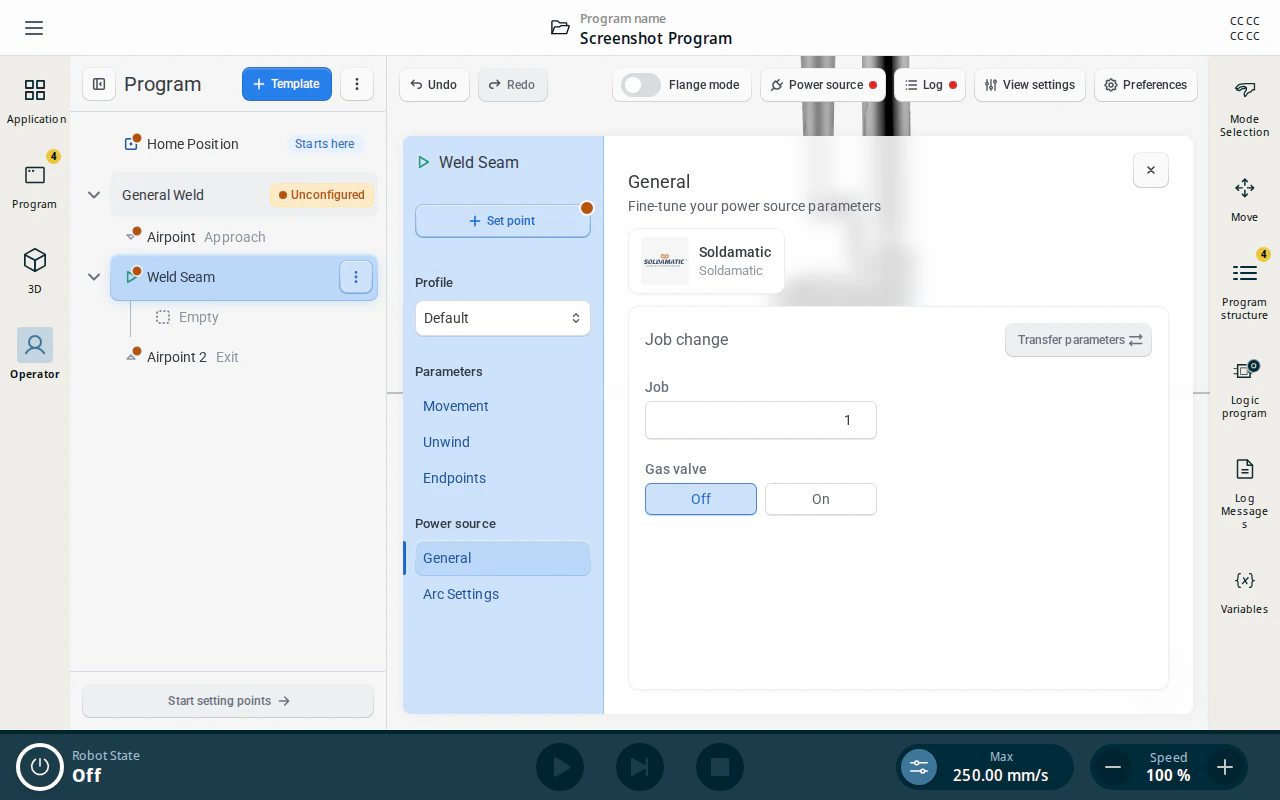
The node shows a single Job change card:
| Identifier | Description |
|---|---|
| Job | The number of the exercise in the Soldamatic job library that the simulator switches to when the program reaches this node. Whole numbers from 1 to 255; the default is 1. |
| Gas valve | On or Off — whether the simulator’s gas valve is opened for this node. The default is Off. |
| Transfer parameters | Sends the current parameters to the simulator straight away, without running the program. Available once connected. |
Note
There is no welding current, voltage, wire feed speed or synergic line to set here, and no material/gas/wire picker: the Soldamatic has no synergic database. Everything about how the weld behaves belongs to the exercise stored in the simulator’s job library, so the job number is the whole selection. For the same reason a weld node never reports the Soldamatic parameters as unconfigured — any job number in range is a complete setting.
The exercise resets when the program starts
Unlike the other brands, there is no Reset exercise button in SmoothTool X. Instead, SmoothTool X resets the exercise automatically, once, every time the program is started: it briefly pulses the simulator’s reset signal before the first node runs, and then releases it.
In practice this means:
- Every run begins from a clean exercise, so scores and progress from the previous run do not carry over.
- You do not have to reset anything on the simulator between runs.
- The reset is skipped while Simulation is on (see below) — a dry run leaves the simulator’s current exercise untouched.
- A node’s Job and Gas valve are never affected by the reset; they are written when the program reaches that node.
Arc settings
Soldamatic does not control arc timing itself, so the arc timings come from the SmoothTool X arc settings, exactly as for a conventional power source:
- Device-wide defaults are on the Arc Settings page, under Components in the SmoothTool X Settings sidebar — see Arc Settings.
- A weld node can override them on its own Arc settings tab. Arc settings belong to the weld node, and every segment inside it inherits them.
The Power source popover
The Power source popover is opened from the button in the operator screen toolbar. It is where the connection is made and released, and where the Simulation toggle lives.
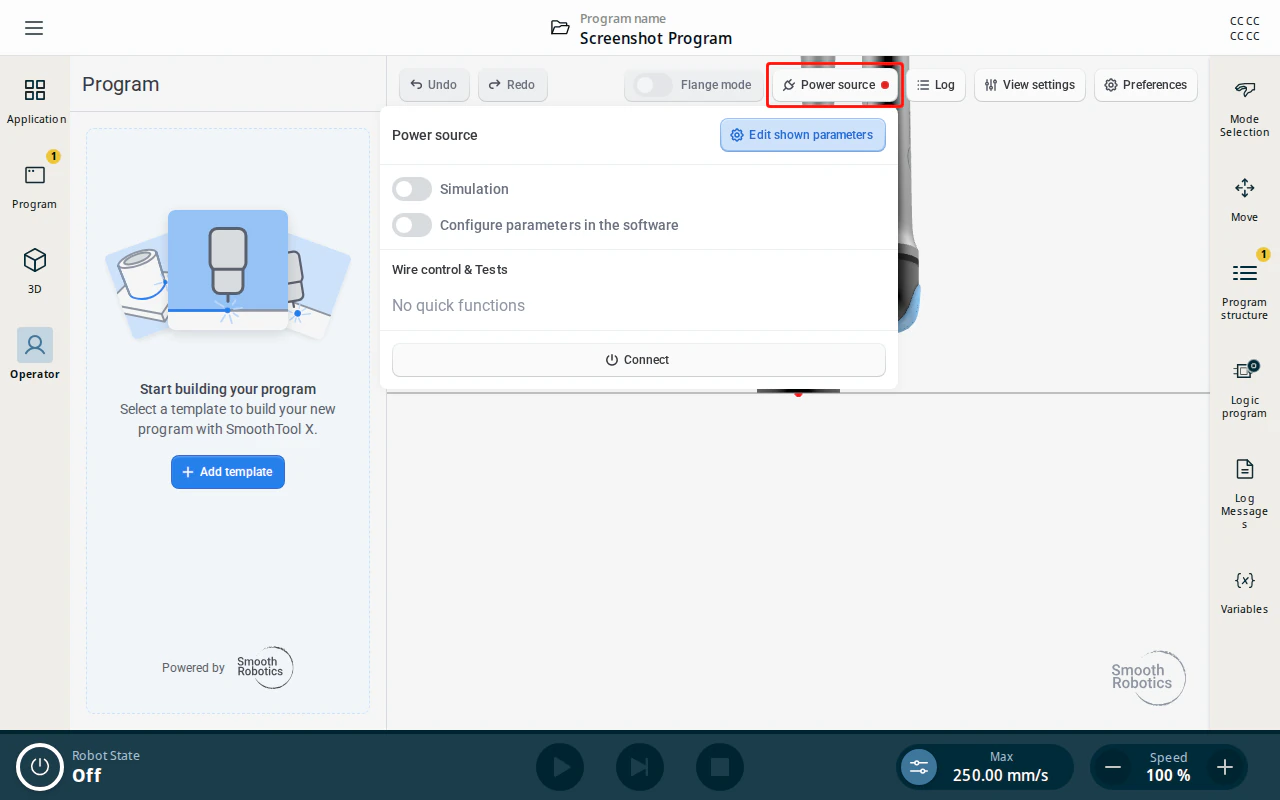
Two things the popover shows for other brands are deliberately absent for the Soldamatic:
- No live parameters. A conventional power source reports live voltage, current and wire feed speed back to SmoothTool X, which shows them as tiles at the top of the popover. The Soldamatic is a simulator — those readings describe a simulated arc, not a real one — so SmoothTool X does not display them. The Edit shown parameters page is therefore empty for this brand.
- No manual controls. There is no wire to feed forward or back, no real gas valve to blow through and no error to reset on the machine, so the Wire control & Tests section shows No quick functions. To open the simulator’s gas valve from a program, use the Gas valve setting on the weld node instead.
Simulation
The Simulation toggle at the top of the popover runs the program as a dry run: the robot executes the full program and motion path, but no weld signal is sent to the simulator, no parameters are applied, and the exercise is not reset. Use it to test a program’s motion safely, then turn it off to run the exercise for real.