All commercial lifetime and subscription licenses must be activated before using SmoothTool X. Activation can be done online directly on the robot, or offline via USB if the robot does not have internet access.
Note
This is the same activation handled by the License step of the onboarding wizard. Follow this page if you need to activate or update a license without the wizard.
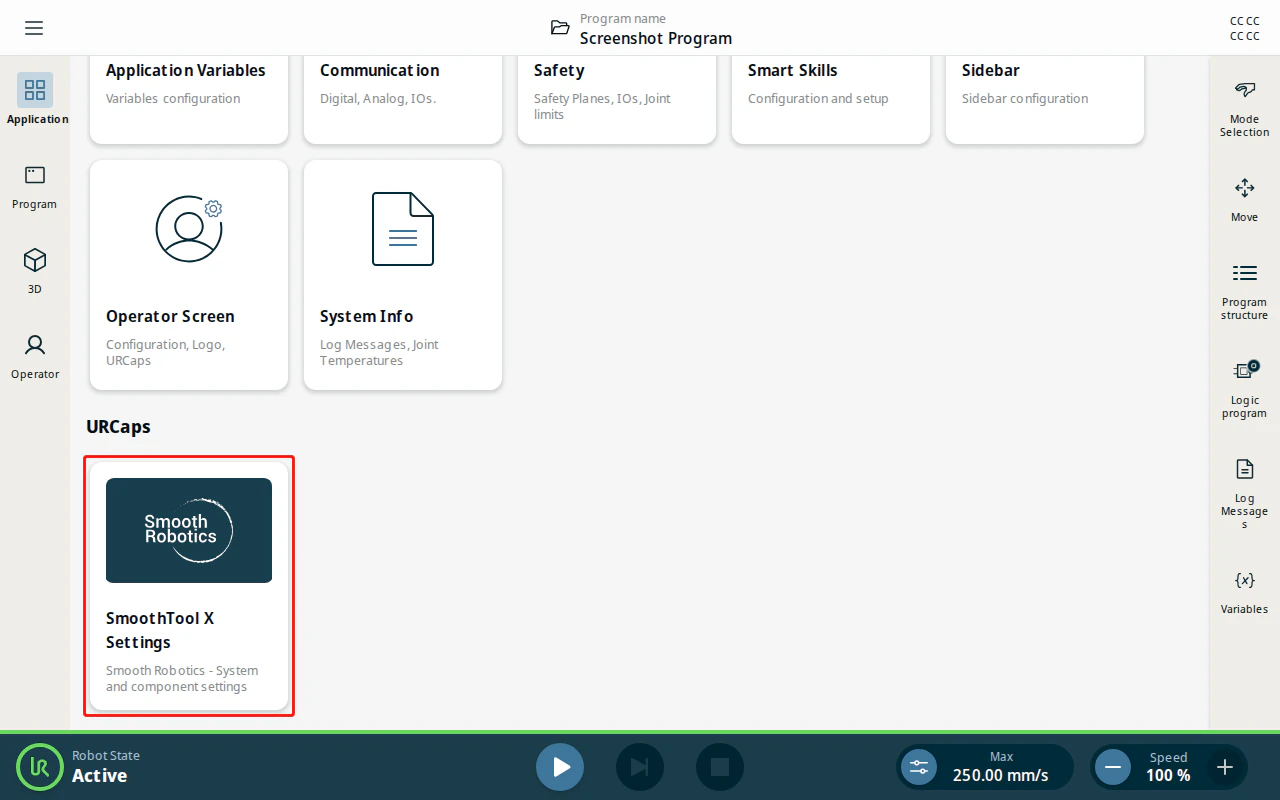
To start the activation wizard, open the SmoothTool X application and tap SmoothTool X Settings from the Application view.
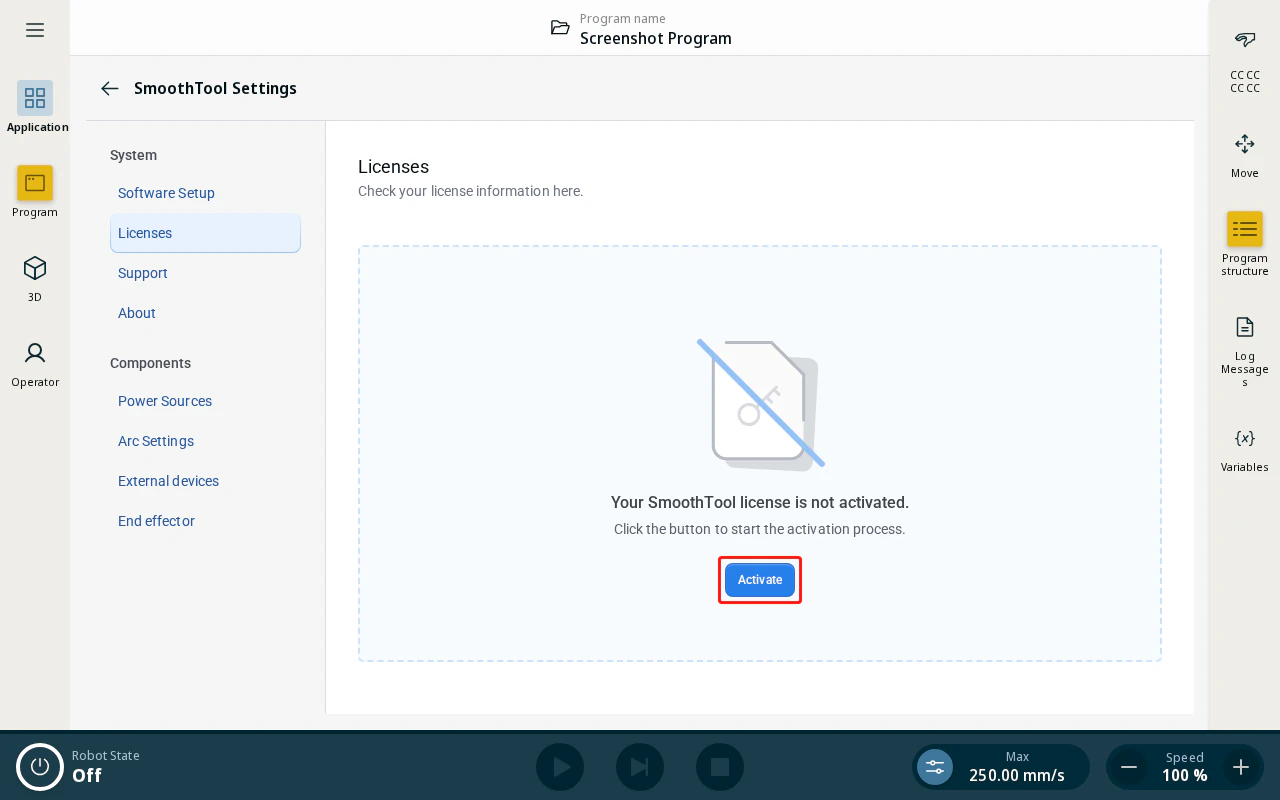
In the sidebar, tap Licenses. If no license is activated, tap Activate to open the activation wizard.
Online Activation
Requirements:
- Robot connected to the internet.
- 8-digit Activation Code from Smooth Robotics.
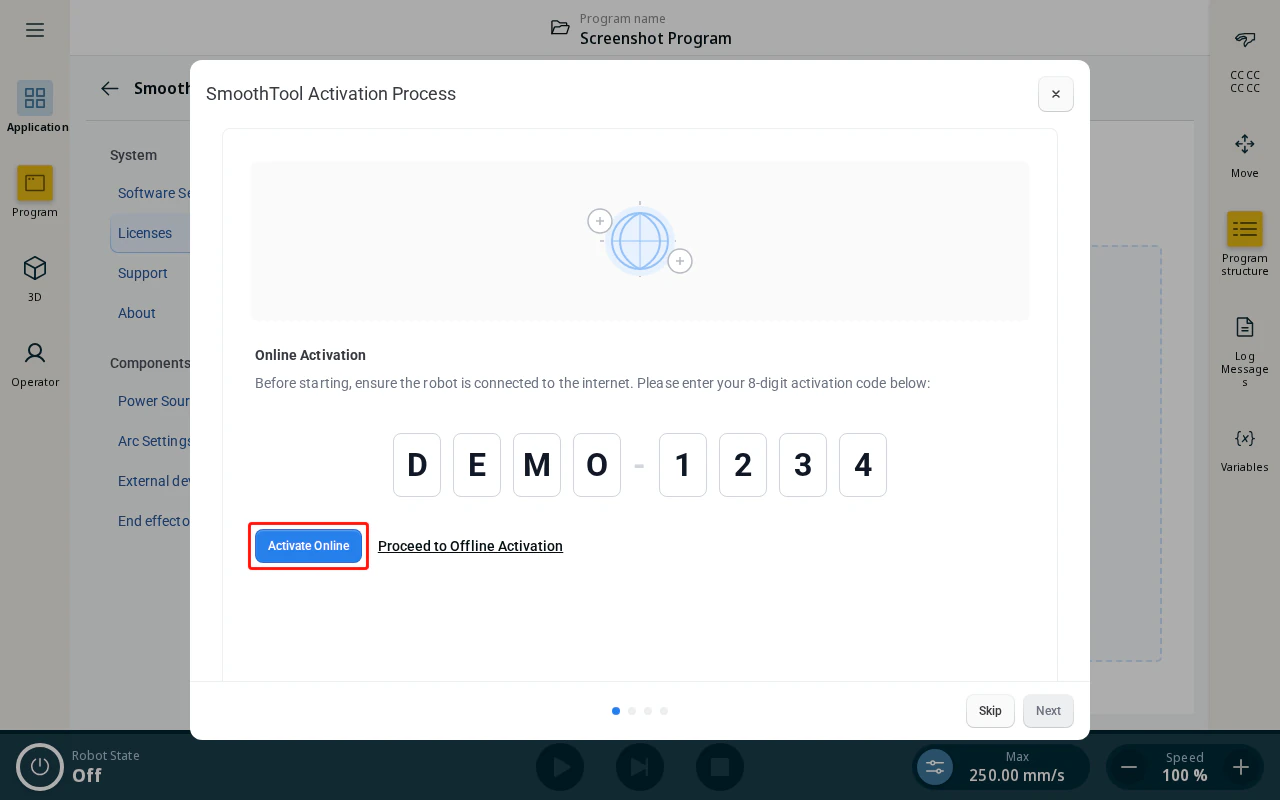
- In the activation wizard, enter your 8-digit Activation Code in the input fields.
-
Tap Activate Online. The robot will contact the Smooth Robotics license server and activate automatically.
-
Tap Next to close the wizard.
Note
If the robot is not connected to the internet, tap Proceed to Offline Activation to follow the USB-based process below.
Offline Activation
Requirements:
- 8-digit Activation Code from Smooth Robotics.
- PC with an internet connection.
- Access to the Smooth Robotics partner/end-user platform at hub.smooth-robotics.com.
- USB storage device.
Generating a Fingerprint
-
In the activation wizard, tap Proceed to Offline Activation and tap Next to continue past the requirements screen.
-
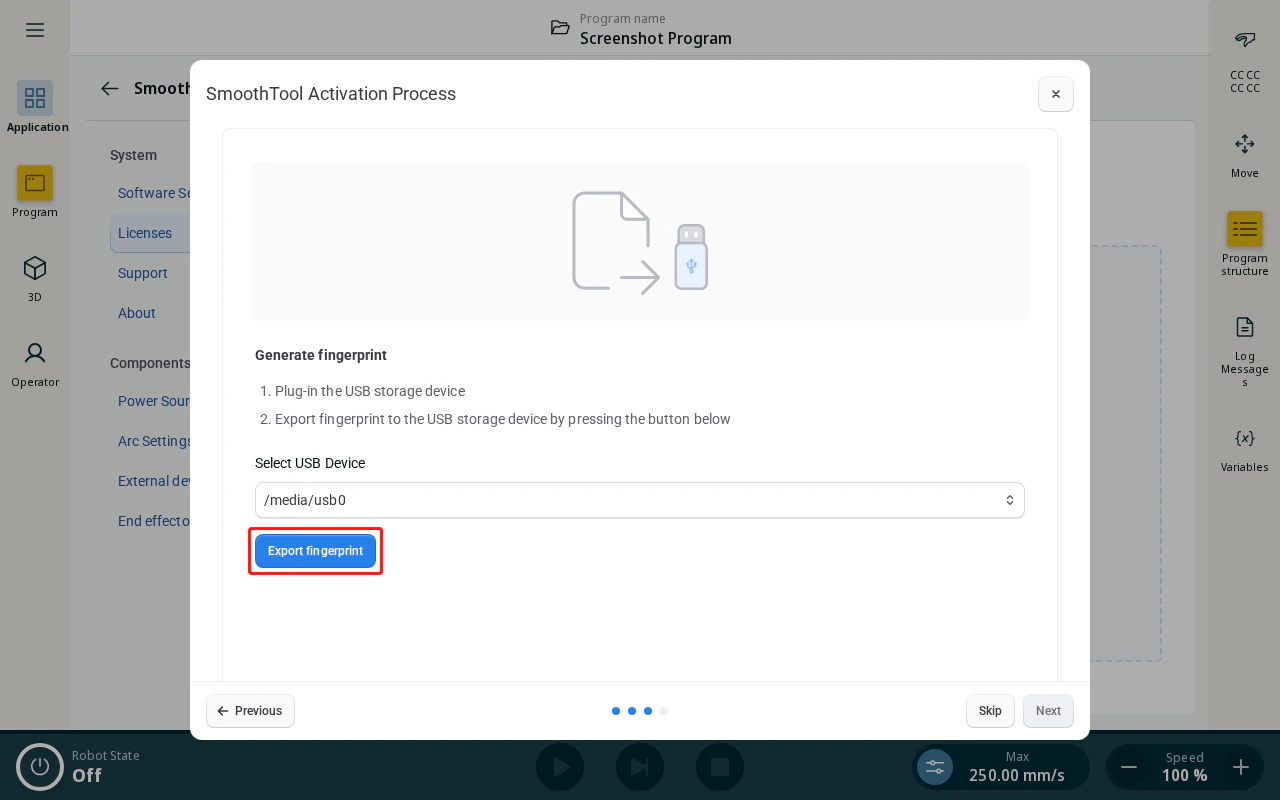
Plug your USB storage device into the robot.
-
Tap Export Fingerprint to save the fingerprint file to the USB device. A green confirmation message will appear when the export succeeds. The file is saved as
machine.licon the USB device. -
Tap Next to continue.
Activating the License
-
Remove the USB device from the robot and plug it into your PC.
-
Go to hub.smooth-robotics.com/activation and log in to your partner or end-user account.
-
Enter your 8-digit Activation Code and select your
machine.licfile from the USB device. -
Click Download License. Save the downloaded file to the root of the USB device as
license.lic— do not rename it. -
Disconnect the USB device from your PC and reinsert it into the robot.
-
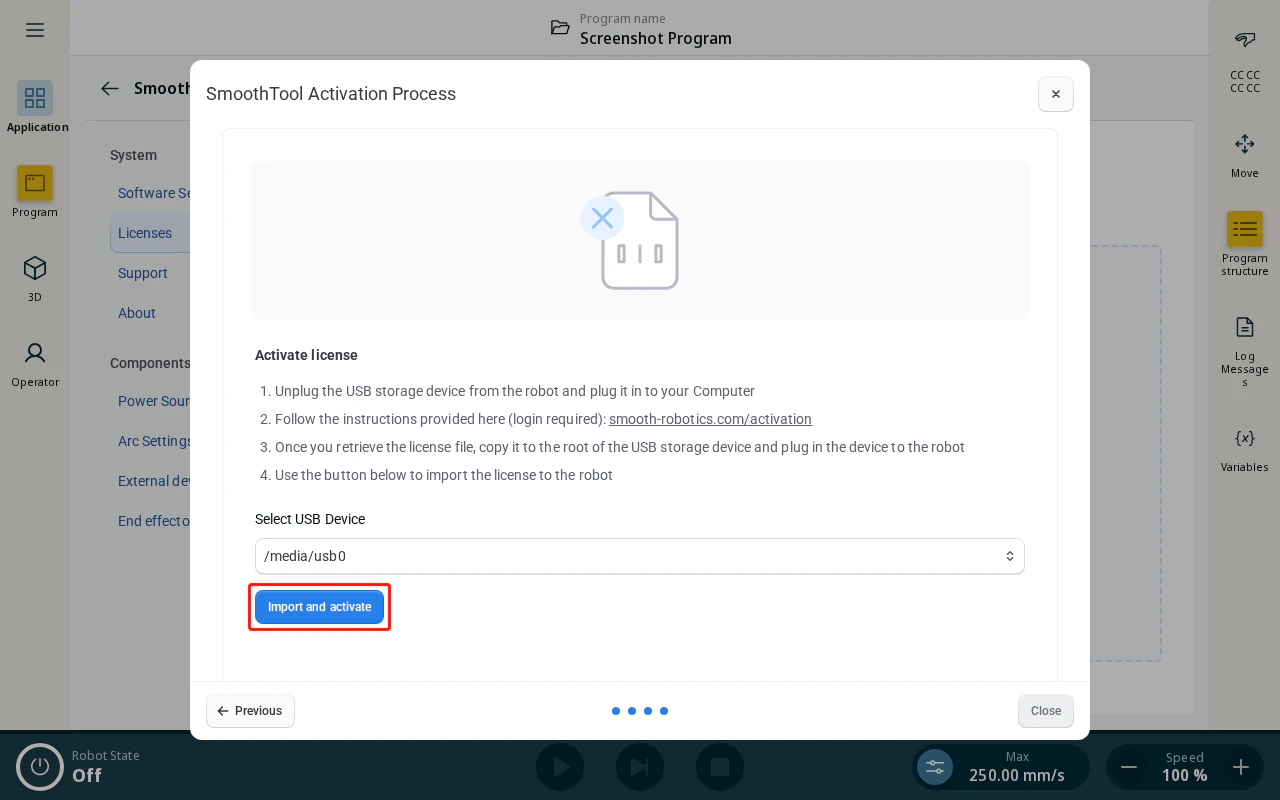
Tap Import and Activate. A green confirmation message will appear when activation succeeds.
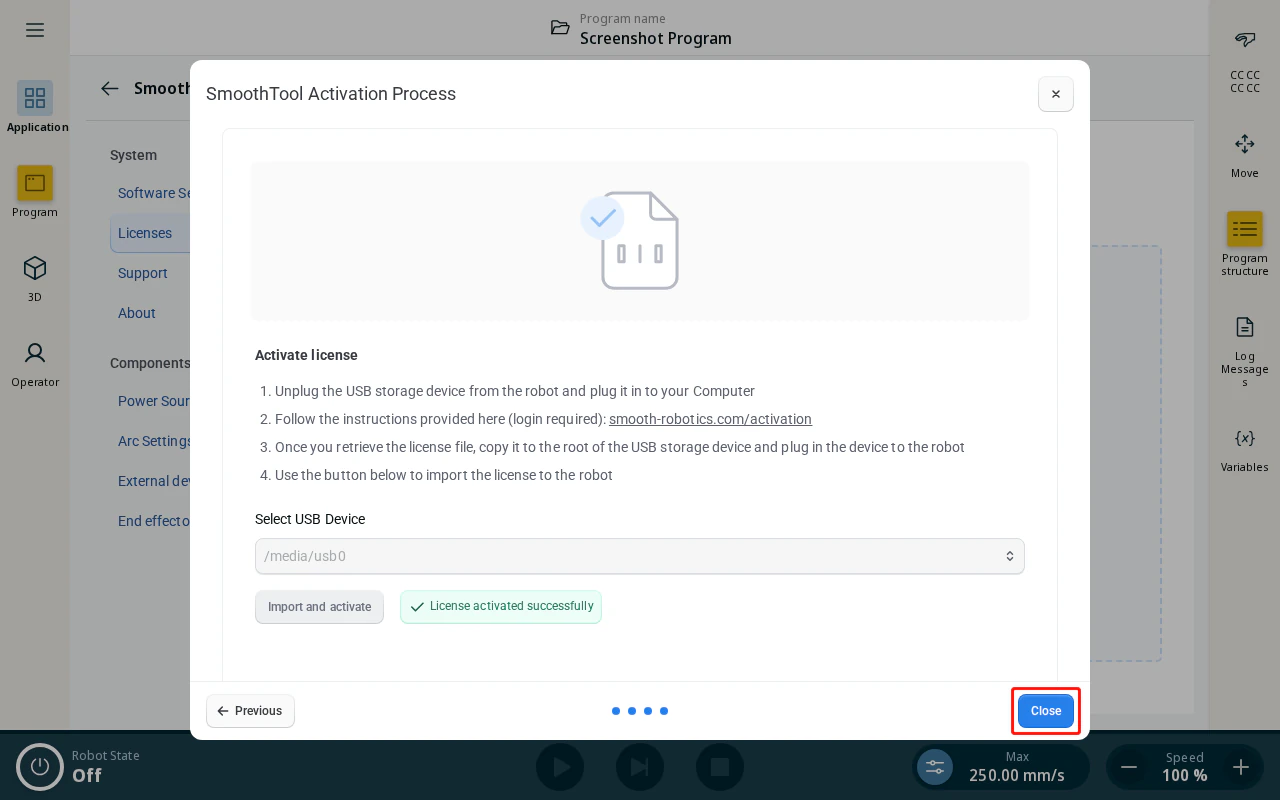
- Tap Close to close the wizard.
Reviewing and Updating Your License
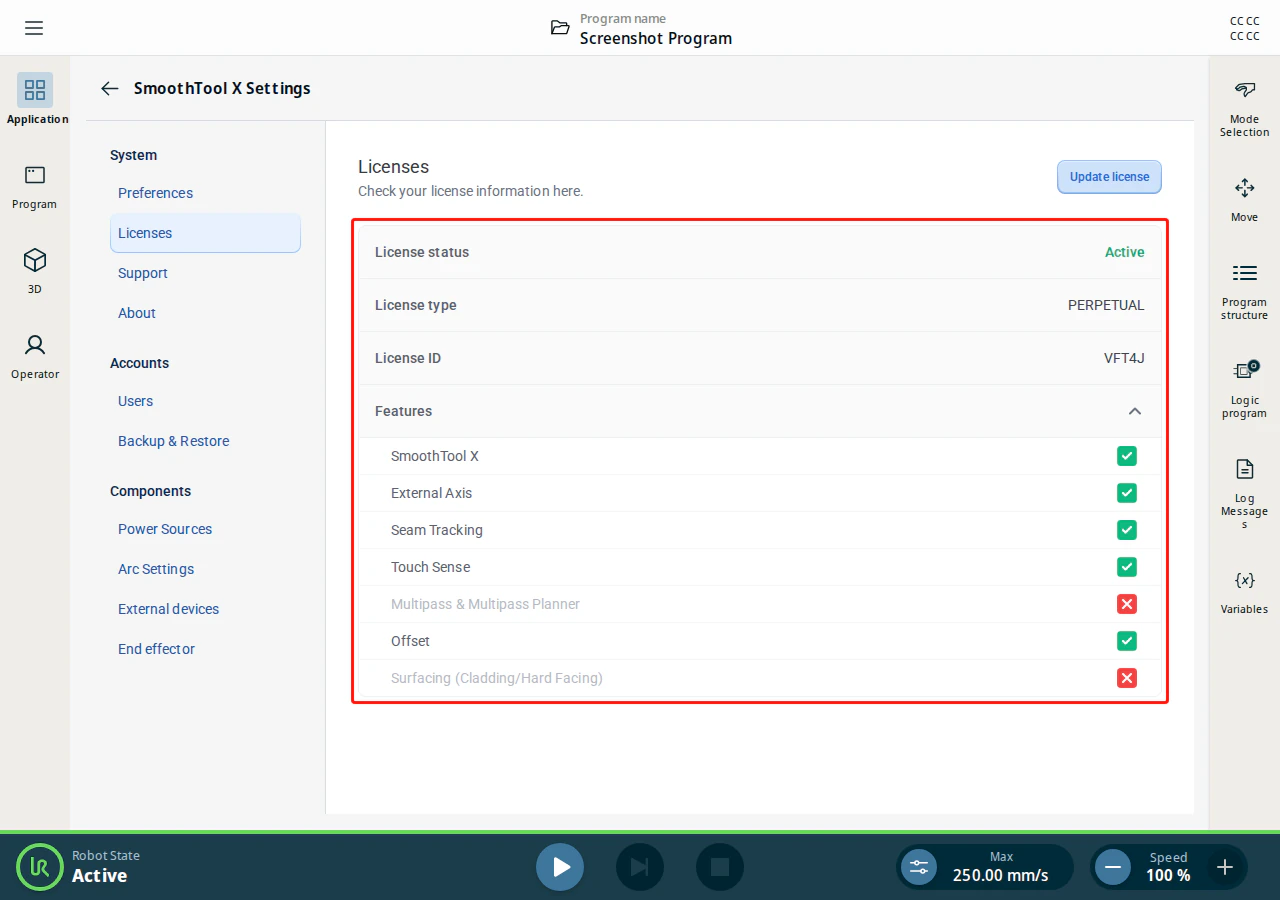
After activation, the Licenses tab shows the status, type and ID of the license, and the features it includes.
| Field | Description |
|---|---|
| License status | Active while the license is valid. It turns Inactive if the license expires, is removed, or no longer matches the robot. |
| License type | Perpetual for a lifetime license, or Subscription. A subscription also shows how many days are left, and whether it expires today or has already expired. |
| License ID | The identifier of this license. Quote it when contacting Smooth Robotics support. |
| Features | The add-ons the license covers. Tap the row to expand or collapse the list. |
To update an existing license, tap Update license to restart the activation wizard.
License Features
Each feature is listed with a green check when the license includes it, and a greyed-out name with a red cross when it does not.
| Feature | What it covers |
|---|---|
| SmoothTool X | The product itself. Every license includes it. |
| External Axis | Weld with an external axis. |
| Seam Tracking | Correcting the programmed path while welding. |
| Touch Sense | Locating the workpiece by touching it with the wire or the nozzle before welding, and shifting the path onto the position found. |
| Multipass & Multipass Planner | Filling a joint with several passes, and the planner that lays those passes out across the joint. |
| Offset | Re-using a taught program on a workpiece that has moved — reposition it, or create a copy or a reference copy at the new position. |
| Surfacing (Cladding/Hard Facing) | Depositing overlay beads across a surface for cladding or hard facing, instead of welding a joint. |
Note
Not every feature in the list is available in every software version. In this version Offset is the only add-on that changes what the software offers; the other entries are shown so that a license bought ahead of a release already reports what it covers.
Choosing a function that needs a feature your license does not include does not fail silently — SmoothTool X opens a This is a paid feature dialog telling you to contact your local sales representative for the upgrade. Activating the upgraded license from this page enables the function immediately.