NOTICE
Before proceeding, verify that your robot, control box, and PolyScope X version meet the compatibility requirements for SmoothTool X. Refer to the Technical Specifications for a full list of supported robot series, control box versions, and PolyScope X software versions.
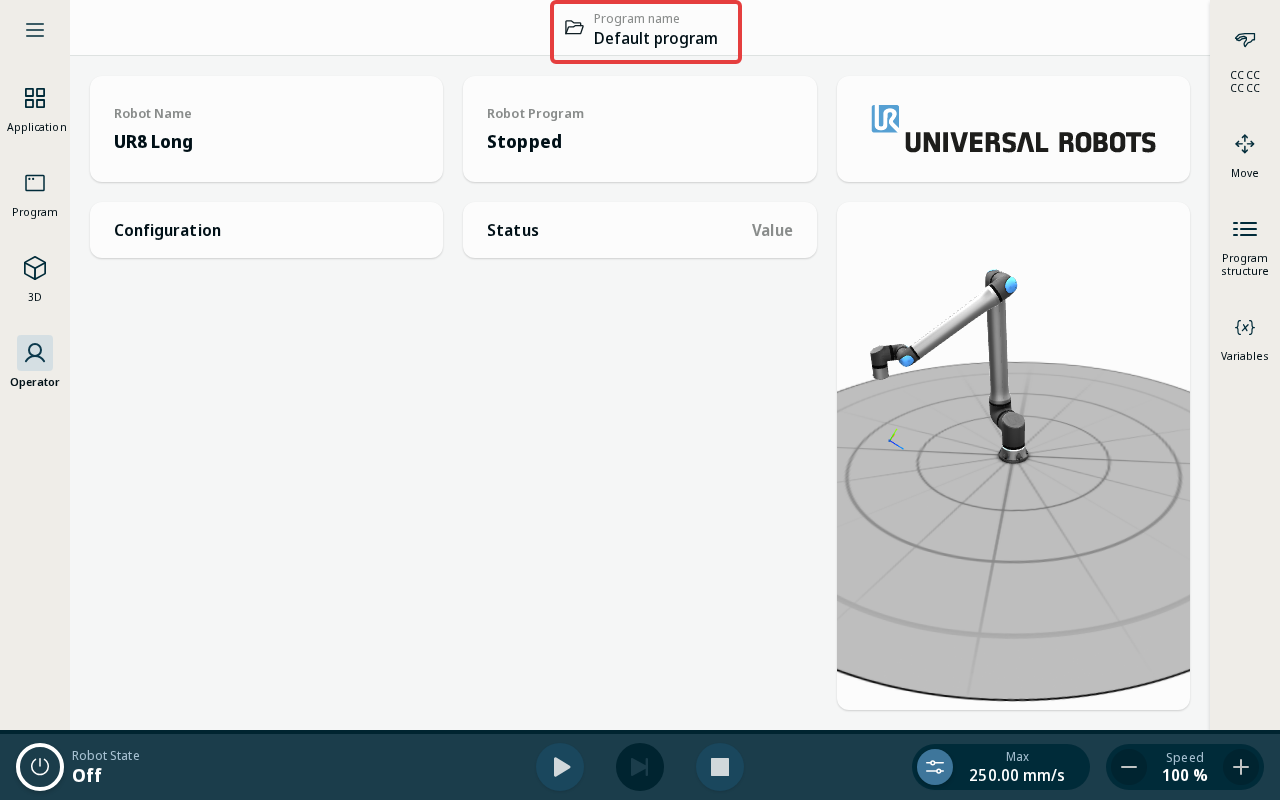
- On the robot pendant, tap the program name shown at the top center of the screen to open the System Manager.
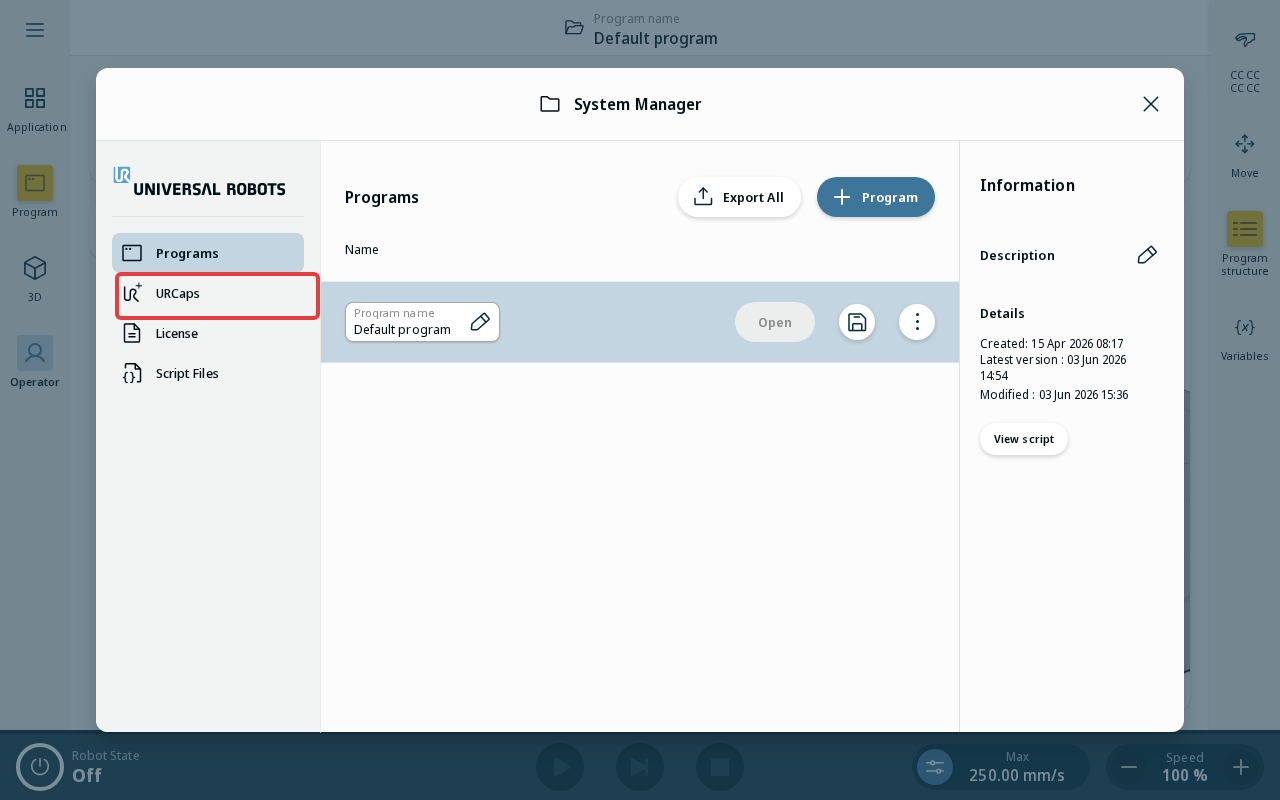
- In the System Manager, click the URCaps tab in the left sidebar to manage installed URCaps.
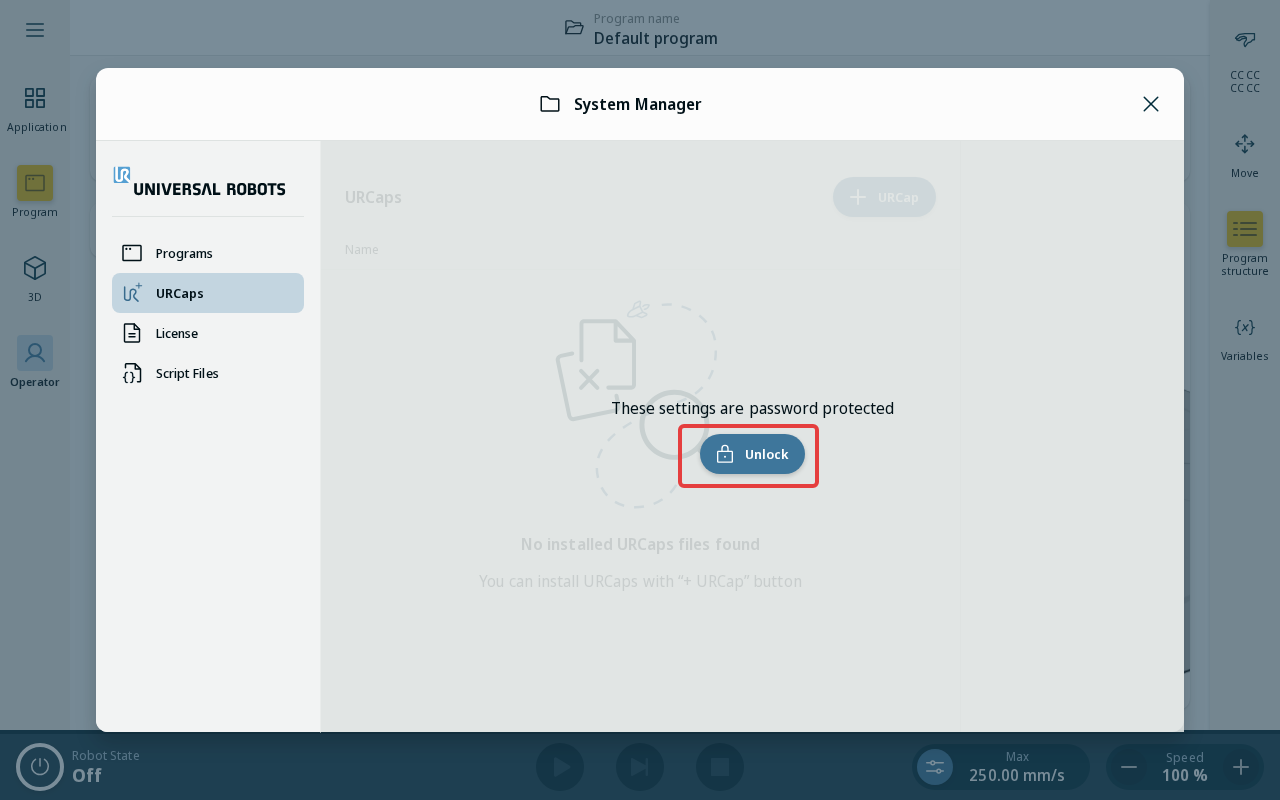
- The URCaps page is locked by default. Click Unlock to authenticate with your admin credentials.
Note
If you have not yet changed the default admin password, follow the Set Admin Password guide before continuing.
- Enter your admin password in the dialog that appears and click Confirm to proceed.
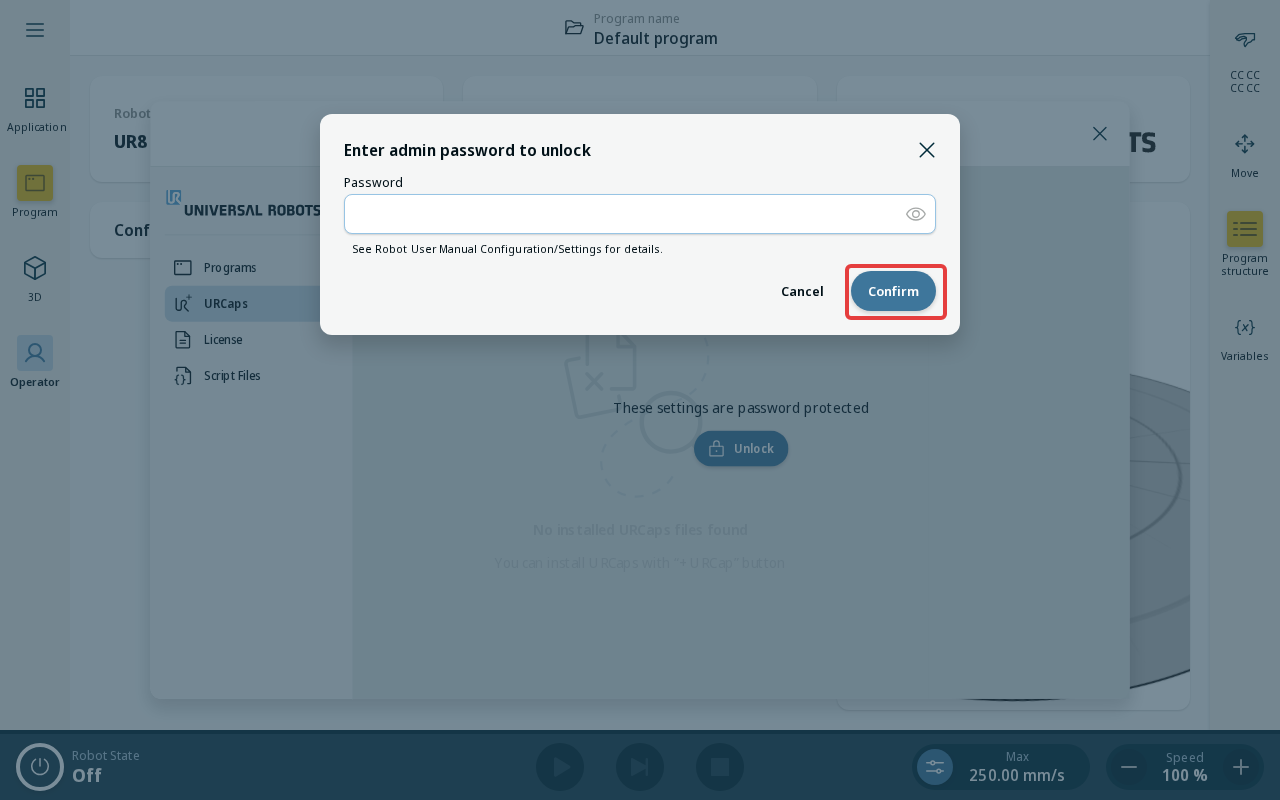
- Once unlocked, the URCaps list becomes editable. Click + URCap in the top right to begin installing SmoothTool X.
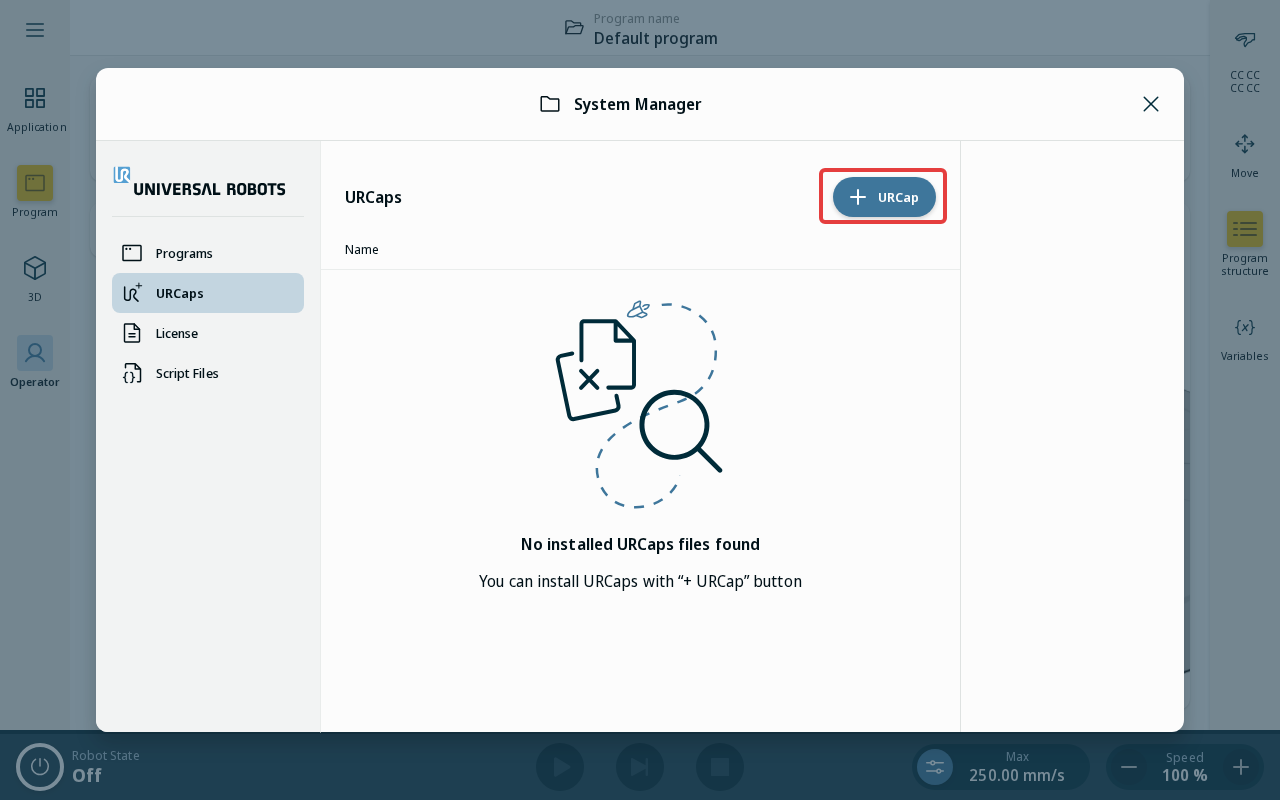
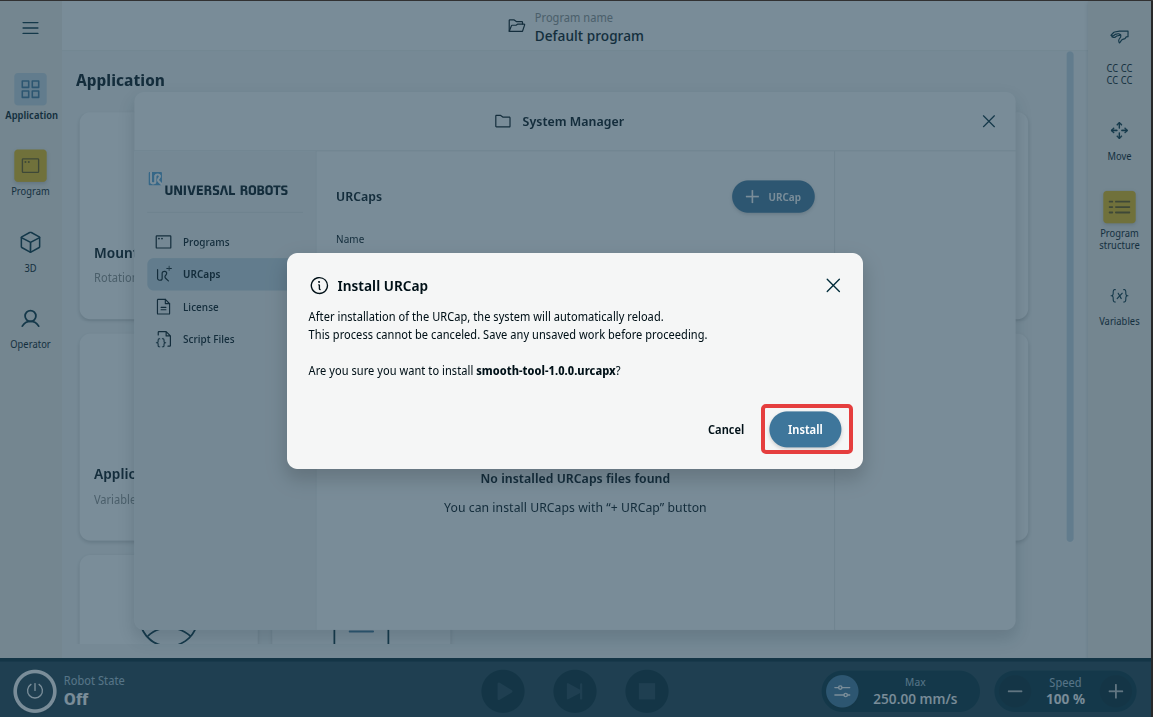
- A confirmation dialog will appear. Click Install to proceed. The system will automatically reload after installation.
Select SmoothTool X as the operator screen
SmoothTool X is now installed, but PolyScope X does not show it until you select it as the operator screen.
- After the system has reloaded, tap Operator Screen in the Application view.
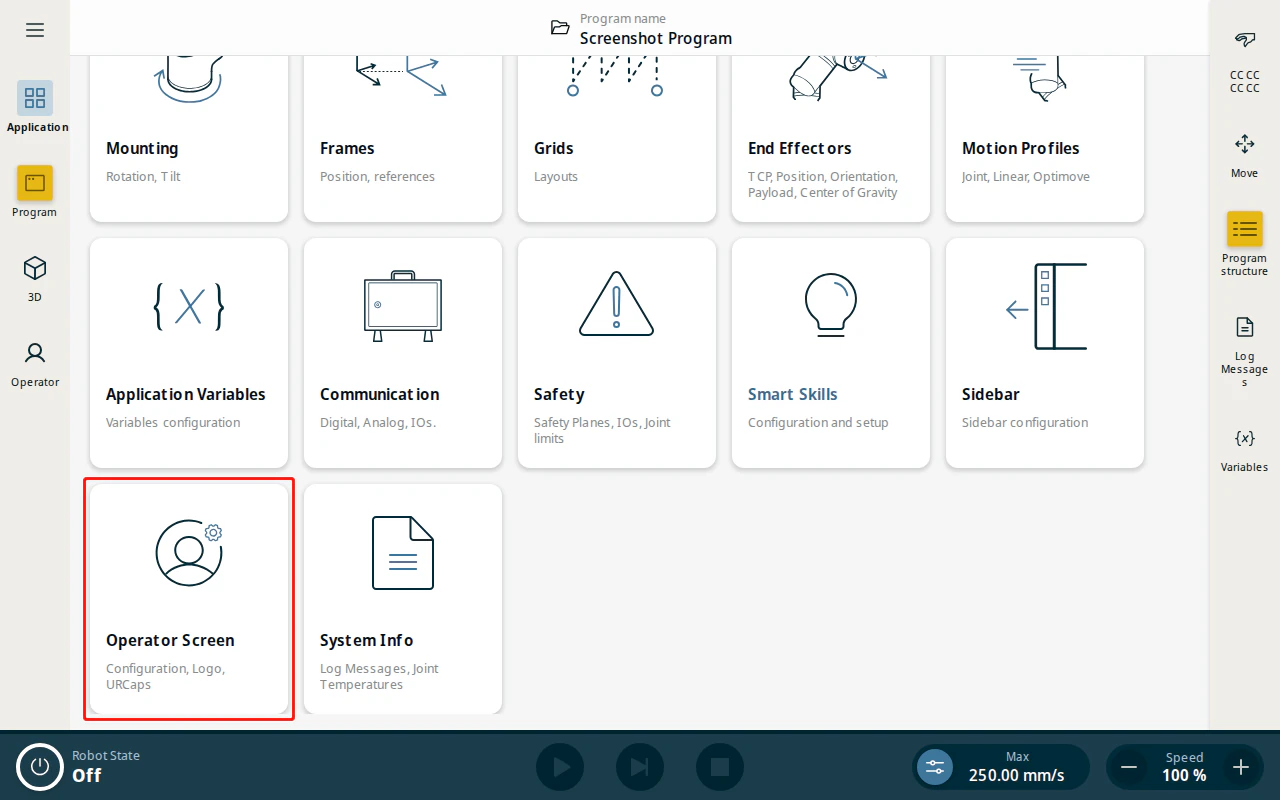
- Using the Operator Screen dropdown in the top-right, select SmoothTool X Operator Screen.

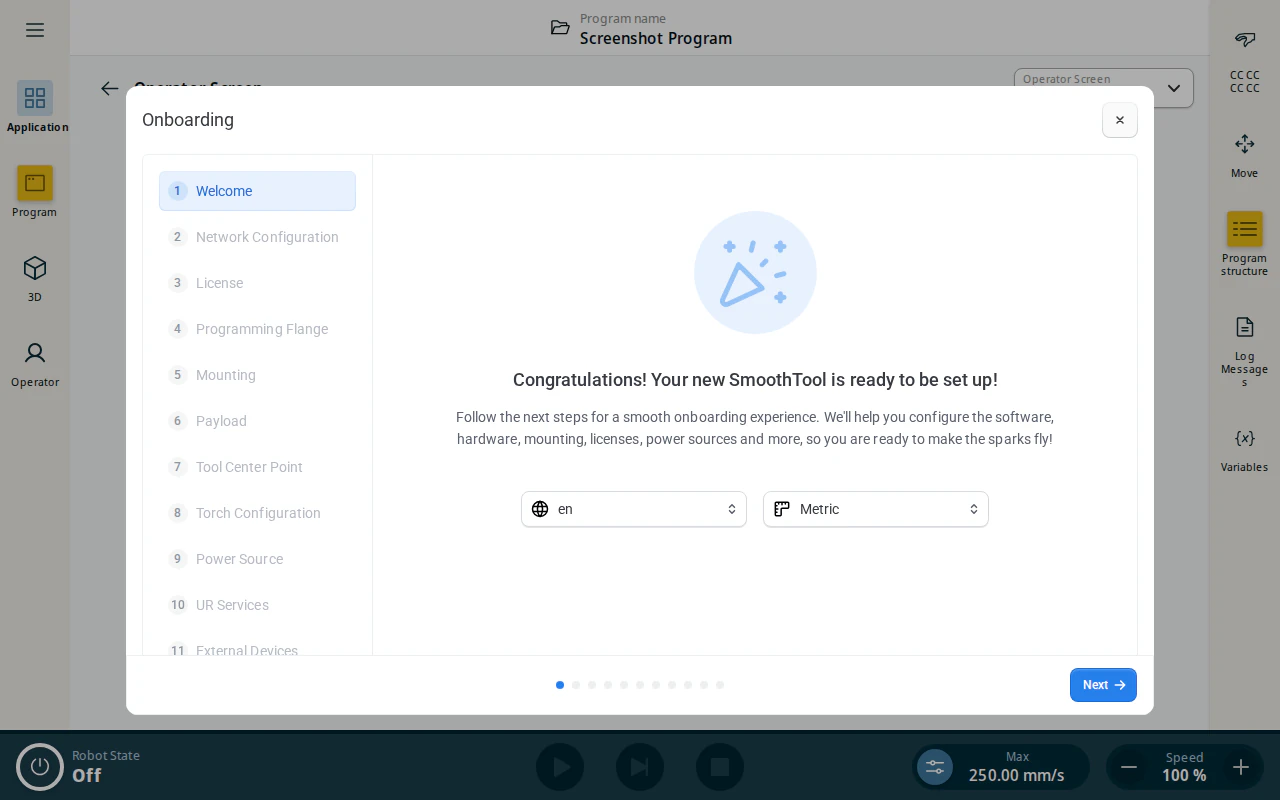
- The onboarding wizard opens. Follow it to the end. The operator screen stays locked until every required step is done. See First Time Setup for what each step covers.